.svg)
Connecting the browser extension to the Enpass app
Once the browser extension is installed, it must be connected to the Enpass desktop app to enable saving and autofilling of account credentials, passkeys, payment information and web forms.
To connect the browser extension to Enpass:
-
In your browser’s toolbar, click the Enpass icon.
-
If the Enpass icon isn’t shown:
-
Click the Extensions icon (puzzle piece) in the toolbar, and pin Enpass to the toolbar
-
Or in Safari, go to Settings > Extensions, and make sure the Enpass checkbox is selected
-
-
-
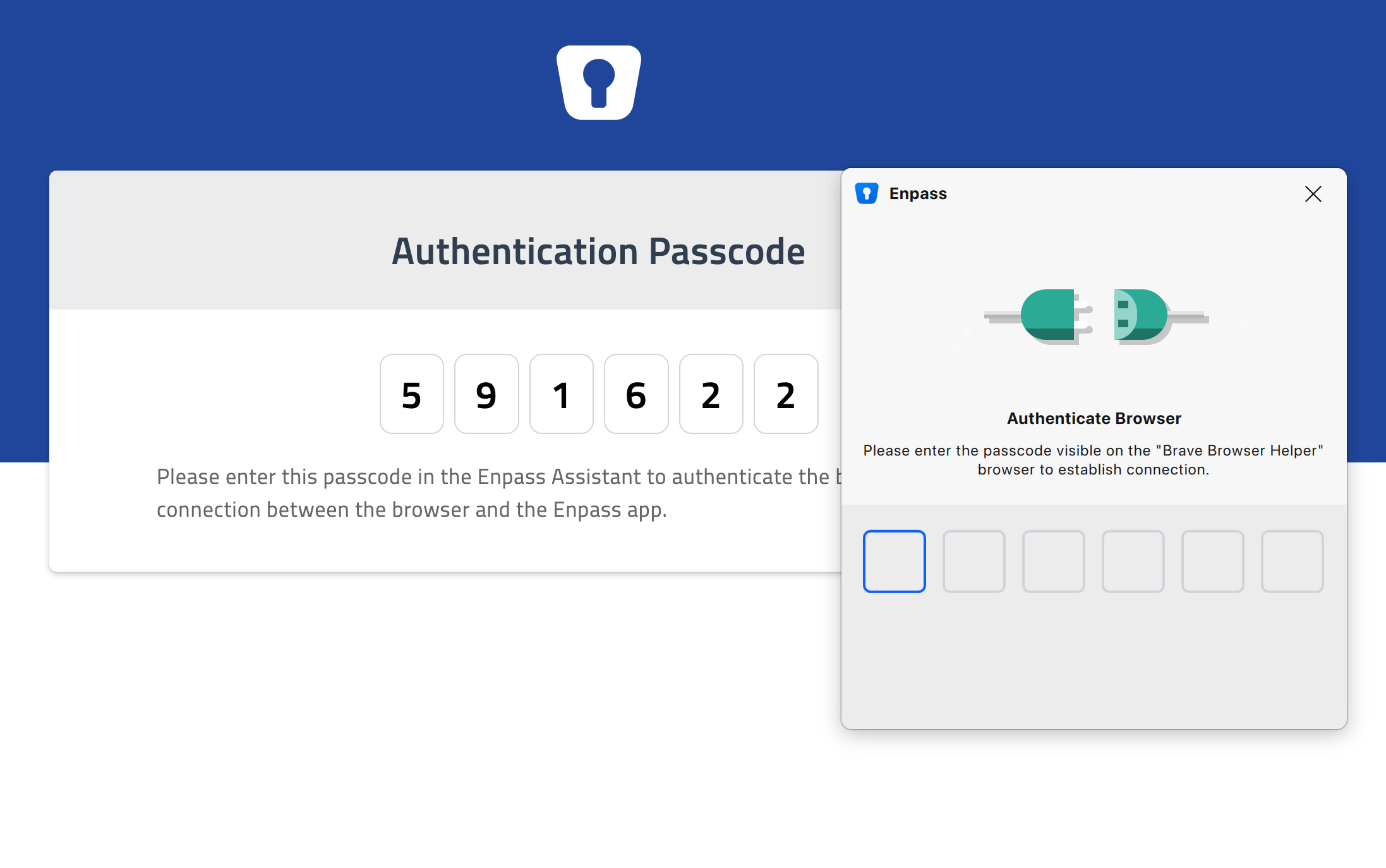
If Enpass is not already connected, a new browser tab will load, displaying an Authentication Passcode, and the Enpass Assistant mini-window will appear, asking for this code.
-
Enter the Authentication Passcode into the Enpass Assistant mini-window to complete the connection between your browser and the Enpass app.
Enpass allows connections only from browsers that have completed this verification process. To manage browser authentication, go to Settings > Browser in the Enpass app.