.svg)
Autofilling on websites using the Enpass browser extension
With the Enpass browser extension installed and activated in your browsers, you can automatically fill in login credentials, credit card details, identity information and other forms that you have saved as Items in Enpass.
To autofill login details:
-
When visiting a site for which you have account information saved in Enpass, click the login field.
-
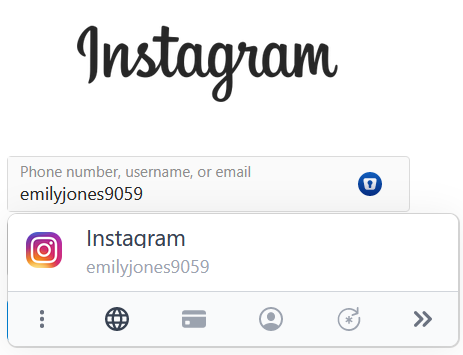
The Enpass inline pop-up will appear and suggest any saved Items that match that website.
-
In the Enpass pop-up that appears below the field, select the Item you want to fill in, and Enpass will autofill the fields.
-
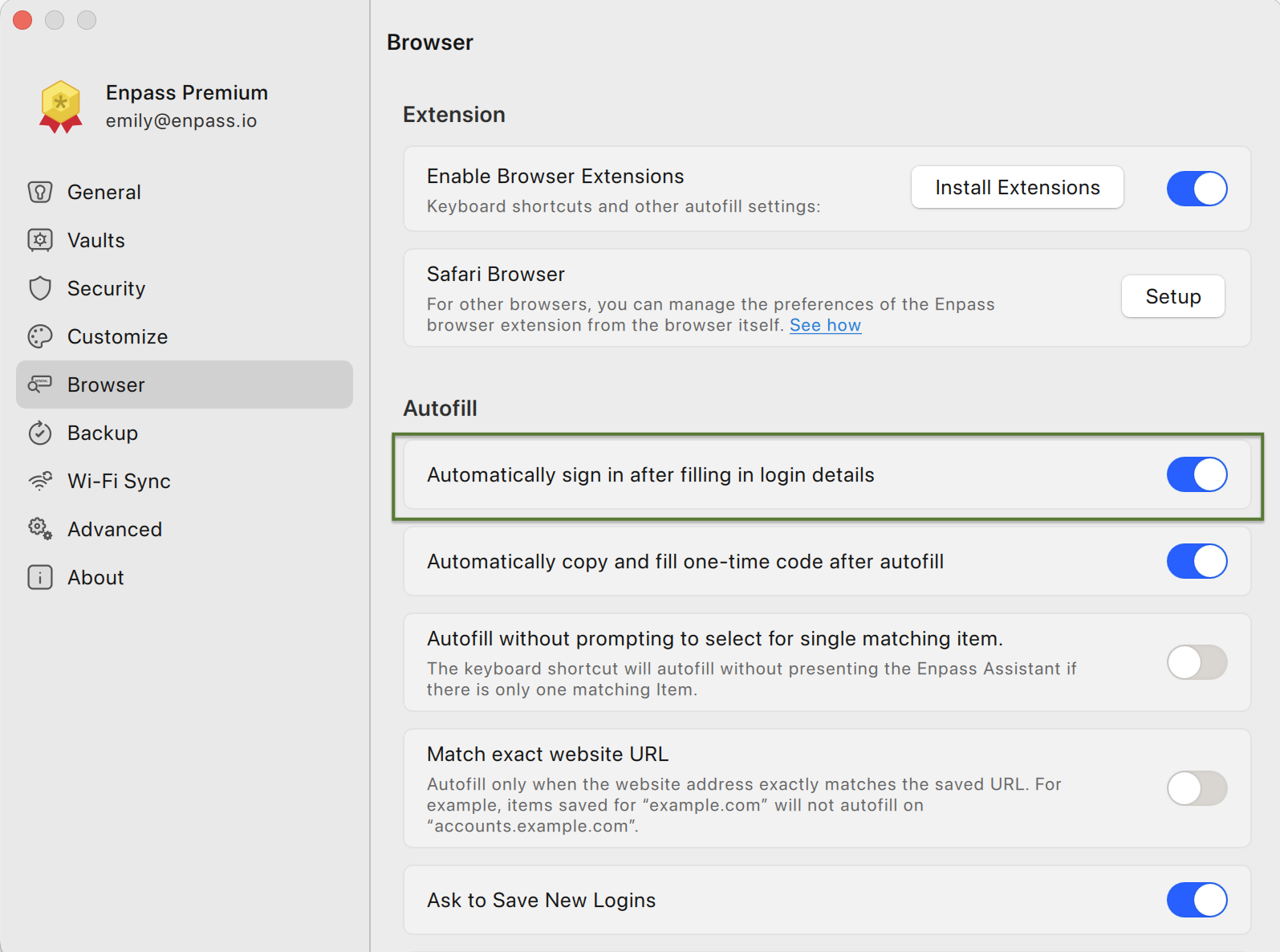
If Automatically Login After Filing Details is turned on in the Settings for your Enpass browser extension, pass will click the submit button for you.
To autofill credit card details:
-
When visiting a payment page, click the field for the credit card number.
-
In the Enpass pop-up that appears below the field, click the Credit Card icon.
-
Select the credit card you want to fill in, and Enpass will autofill your card information.
To autofill names, addresses, phone numbers, ID-card numbers and other identity details:
If you have saved your identity details as an Item in Enpass, you can use the Enpass browser extension to auto-fill forms that ask for those details.
-
Click the first field where you want to autofill identity details.
-
In the Enpass pop-up that appears below the field, select the Item you want to fill in, and Enpass will autofill the fields.
Autofilling web forms
If you have saved details for filling out certain online forms in Enpass, you can auto-fill those forms using the Enpass browser extension.
To save web form into Enpass:
-
In the web form, fill in all the required fields you want to save.
-
Click the Enpass icon on your browser toolbar.
-
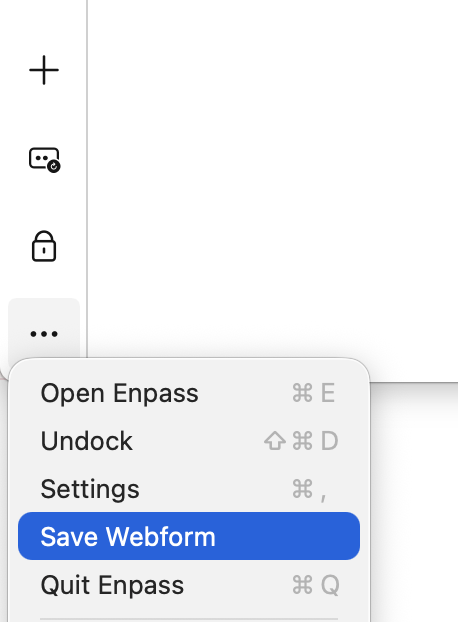
Click ≡ at the bottom of the extension's sidebar, then select Save Webform.
-
If you have multiple Enpass vaults, select your desired vault from the drop-down.
-
Click Save to add the web form as an Enpass Item.
To autofill web forms:
-
Click the first field in the form for which you have previously saved form details in Enpass.
-
In the Enpass pop-up that appears below the field, select the Item you want to fill in, and Enpass will autofill the fields.
Automatically clicking the login/sign-in button for you
On login pages, the Enpass browser extension can both autofill your login credentials, then submit them. If you'd prefer to turn this feature off, you can disable it for individual Items or turn it off completely from the app's Settings.
To disable Autosubmit for individual Items:
-
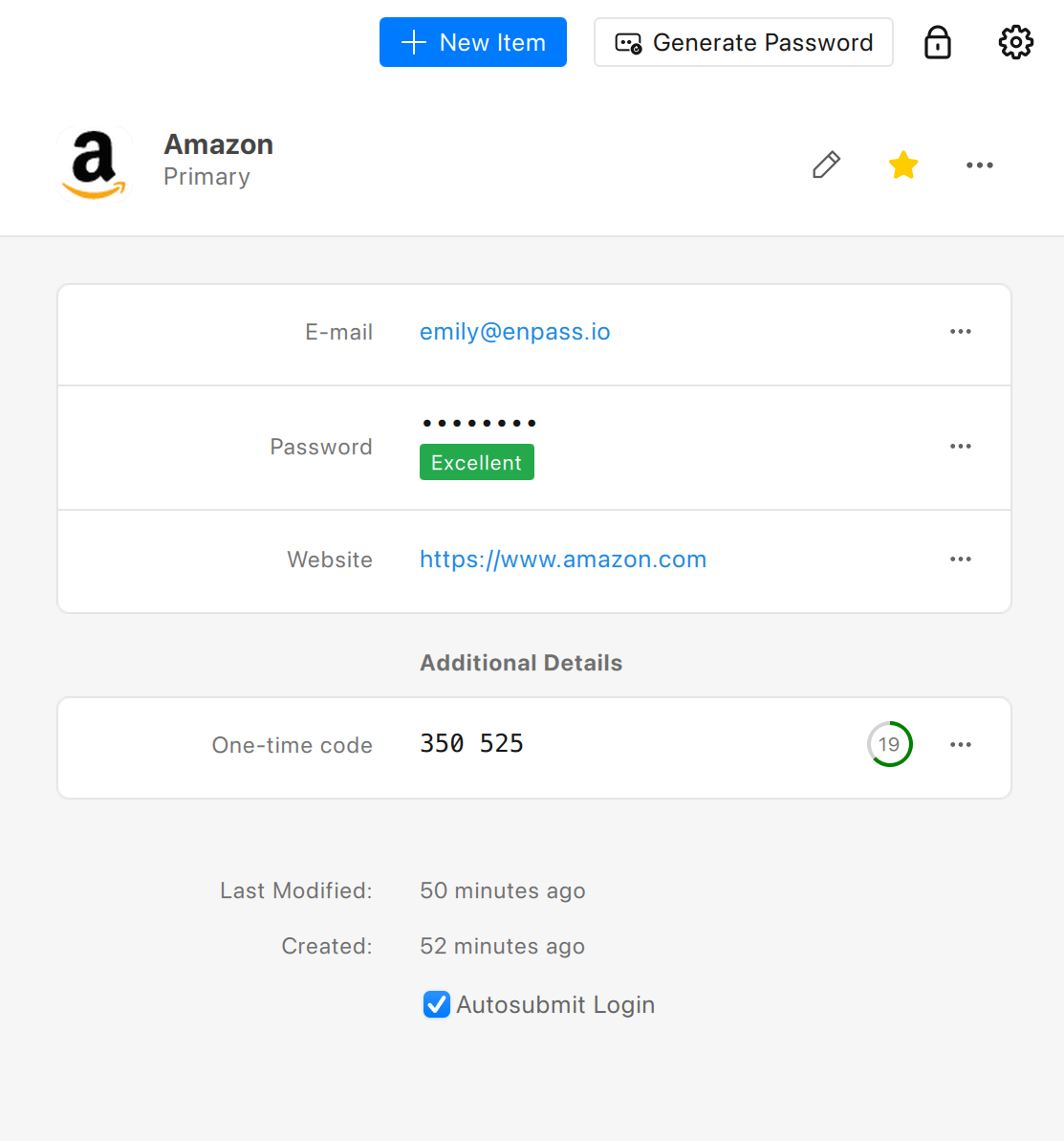
In the Item Details view, clear the Autosubmit Login checkbox at the bottom of the screen.
To disable Autosubmit completely:
-
In Settings > Browser, uncheck Automatically Login After Filling Details.