.svg)
Backing up your Enpass data
In addition to Enpass working with your existing cloud accounts, you can create local backups of your Enpass data for recovery purposes. When enabled, Enpass stores the 60 most recent backups. Cloud service providers generally maintain a history automatic backups as well.
Automatic backups
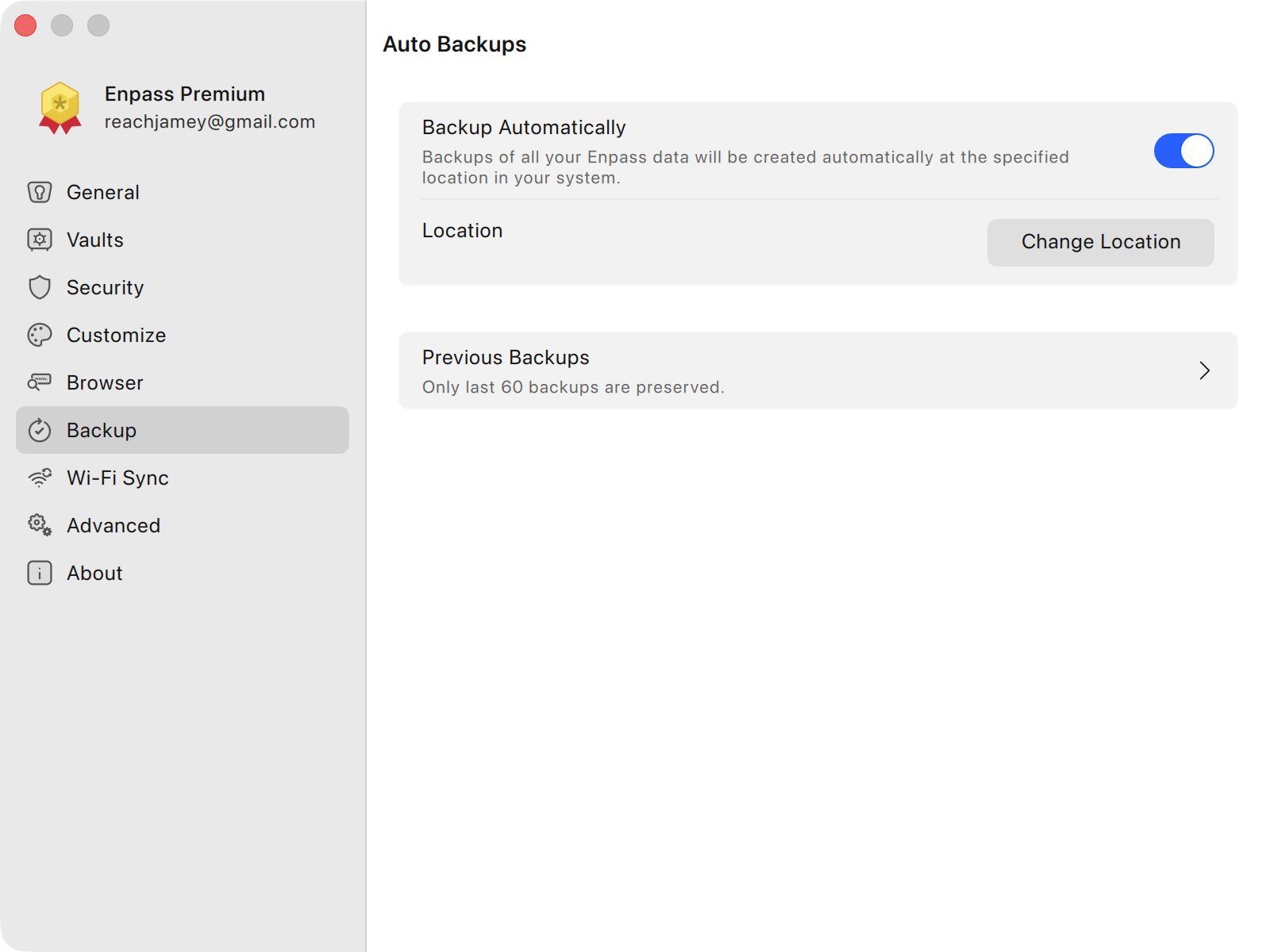
Enpass creates automated backups daily, to a location you choose on your computer.
To enable automatic daily backups:
-
Go to Settings > Backup.
-
Select the Backup Automatically checkbox.
-
Under Location, a default location will be displayed, which can be changed by clicking Change Location.
Clicking Previous Backups will list the backups stored on your computer.
To change the backup location:
-
Go to Settings > Backup.
-
Click the Change Location button, and select your preferred location.
Manual backup
You can also manually create individual backups of your Enpass data.
To create a manual backup:
-
In the Enpass menus, go to File > Backup.
-
Click the Create Backup button, then select a location for your backup.
-
Enter a name for your backup (or use the default filename), and click Save.