.svg)
Keyboard shortcuts for the Enpass browser extension
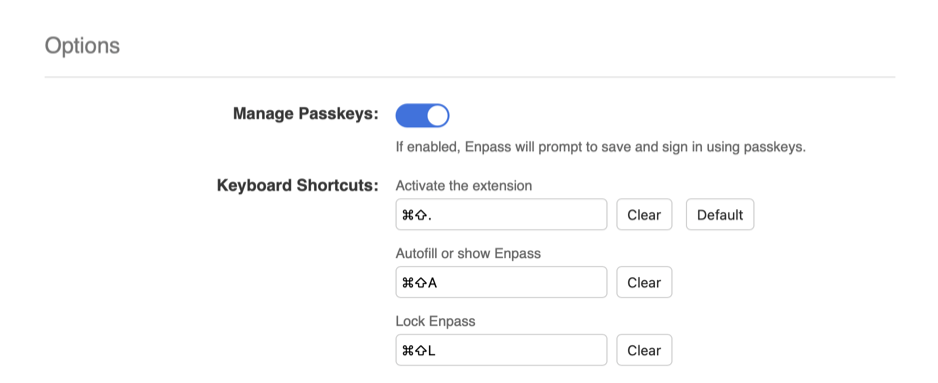
Some functions of the Enpass browser extension can activated with keyboard shortcuts:
-
Activate the extension
-
Launches the Enpass Assistant mini-window, which floats over your browser window
-
-
Autofill or show Enpass
-
On login pages for sites already saved in Enpass, this shortcut will autofill your credentials
-
If more than one matching Enpass Item is found, the Enpass Assistant mini-window will appear, so you can choose from the available options
-
This shortcut can also be used to fill saved forms
-
-
Lock Enpass
-
Require Enpass to ask for a password or biometrics next time the extension is activated
-
To view or customize shortcuts in Chrome, Edge, and other Chromium-based browsers
To view or customize these shortcuts in Chrome, Edge, and other Chromium-based browsers:
-
Right-click the Enpass icon in your browser’s toolbar and select Settings.
-
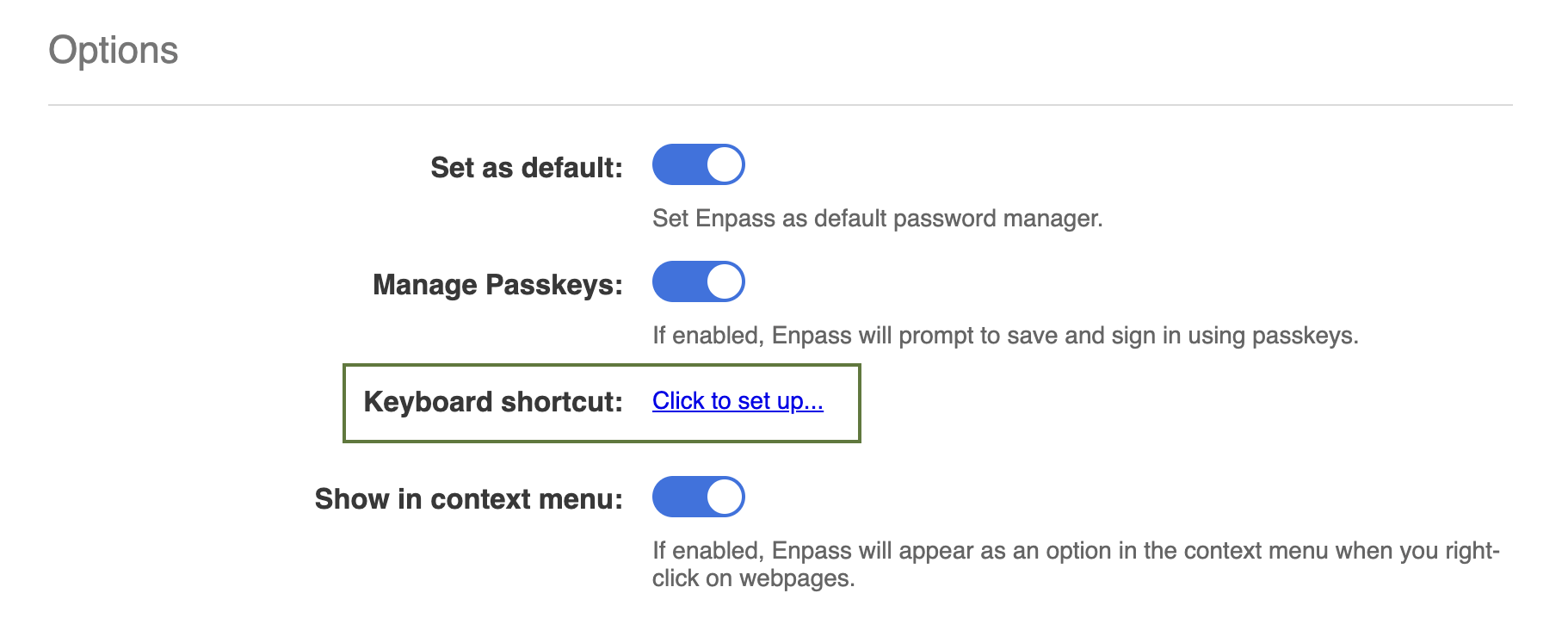
In Settings, find the Keyboard shortcut option and use the Click to set up hyperlink.
-
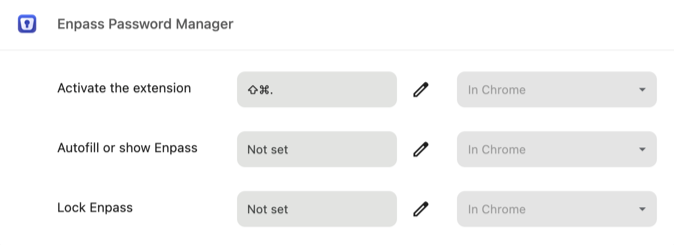
In your browser’s shortcuts page, find the options for Enpass
-
To customize any of the shortcuts, click the corresponding pencil icon.
-
Enter your preferred key combination.
To view or customize shortcuts in Firefox
To view or customize these shortcuts in Firefox:
-
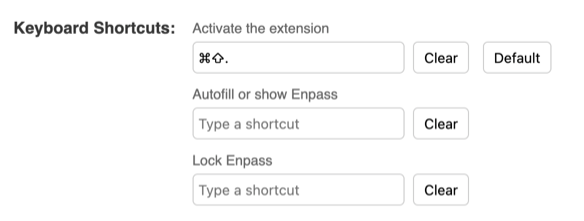
Right-click the Enpass icon on the browser extension toolbar and click Settings.
-
To customize any of the shortcuts, click shortcut field and enter your preferred key combination.
To view or customize shortcuts in Safari
To view or customize these shortcuts in Safari:
-
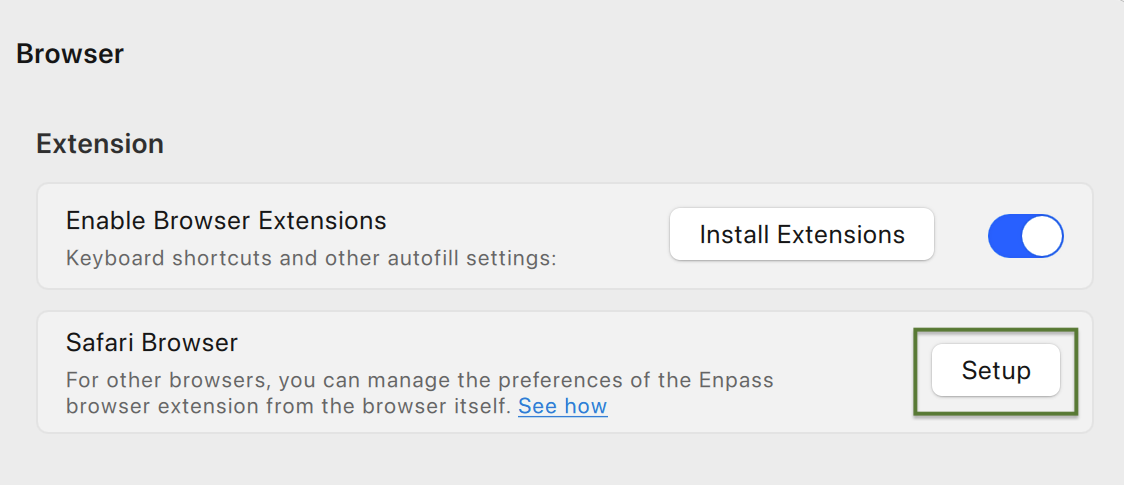
In the Enpass app, go to Settings > Browser.
-
Click the Setup button in Safari Browser section.
-
To customize any of the shortcuts, click shortcut field and enter your preferred key combination.