.svg)
Using Wi-Fi Sync in Enpass
Enpass can sync all your devices completely offline, using only Wi-Fi instead of third-party services.
Requirements
-
At least one computer is required to operate as the Wi-Fi Sync Server, and must be active for other devices to find it on the network
-
All devices must be connected to the same Wi-Fi network
Part 1: Create a new vault stored your computer
-
Go to Settings > Vaults, and click Add new vault.
-
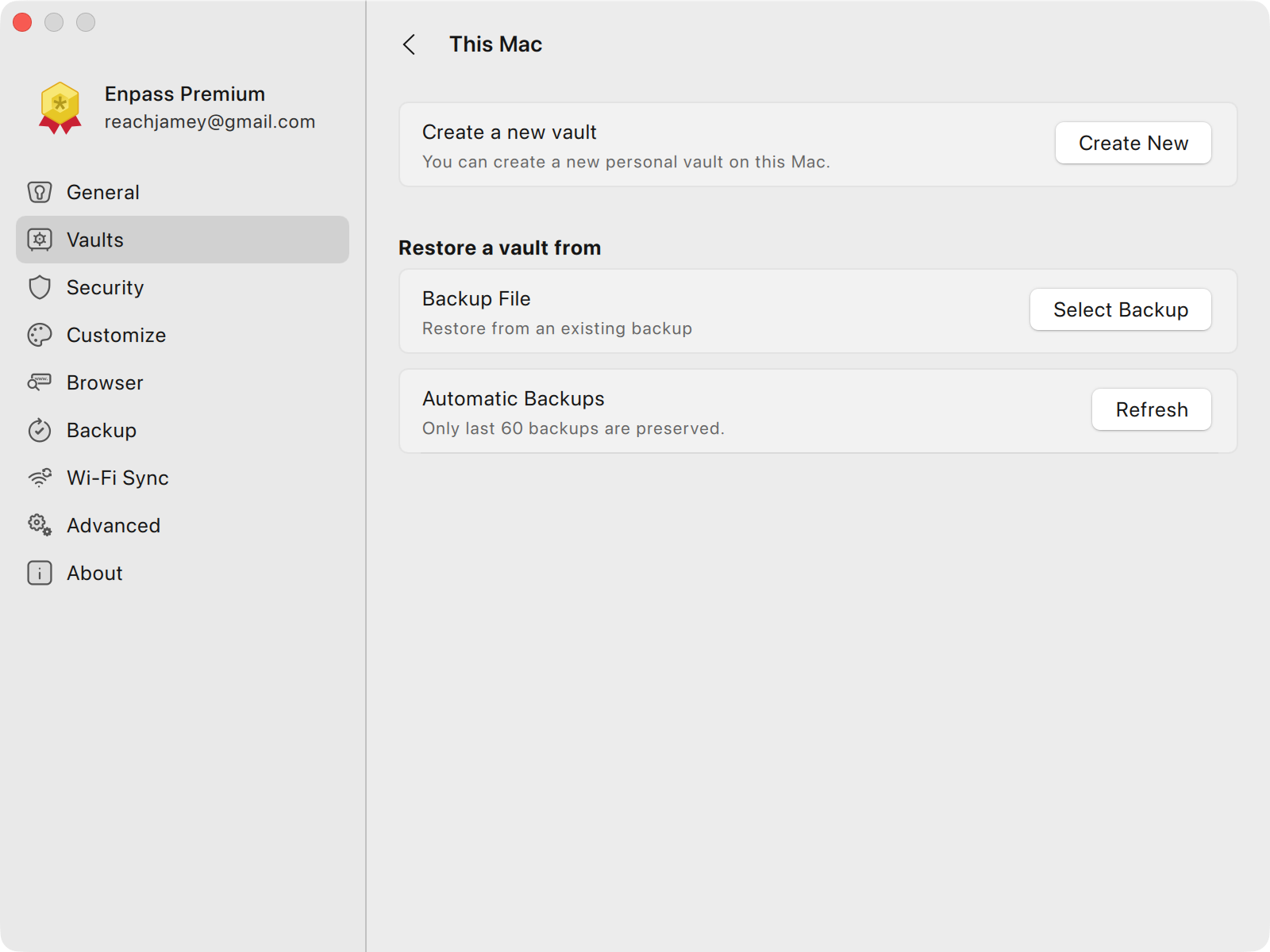
Select This PC or This Mac.
-
Click Create a new vault.
-
Enter a name for your new vault, and click Continue.
-
Create a strong password for your new vault, and click Continue.
-
Verify your vault password, and click Done.
Alternatively, you could change an existing vault to sync via Wi-Fi in Part 2 below.
Part 2: Set up the Wi-Fi Sync Server
-
Go to Settings, and select Wi-Fi Sync.
-
Click Start to launch the ongoing sync service.
-
Select a vault you want syncing via Wi-Fi.
-
If the vault is already syncing via another method, in the warning pop-up, click Disconnect and Continue.
-
In Part 3 below, the QR code and Manual Setup options provided will be used to set up additional devices to sync with this vault.
Part 3: Connecting other devices to the server
Desktop
To connect to a Wi-Fi synced vault in Enpass for desktop:
-
In Enpass on the computer hosting the vault being synced via Wi-Fi, go to Settings > Wi-Fi Sync.
-
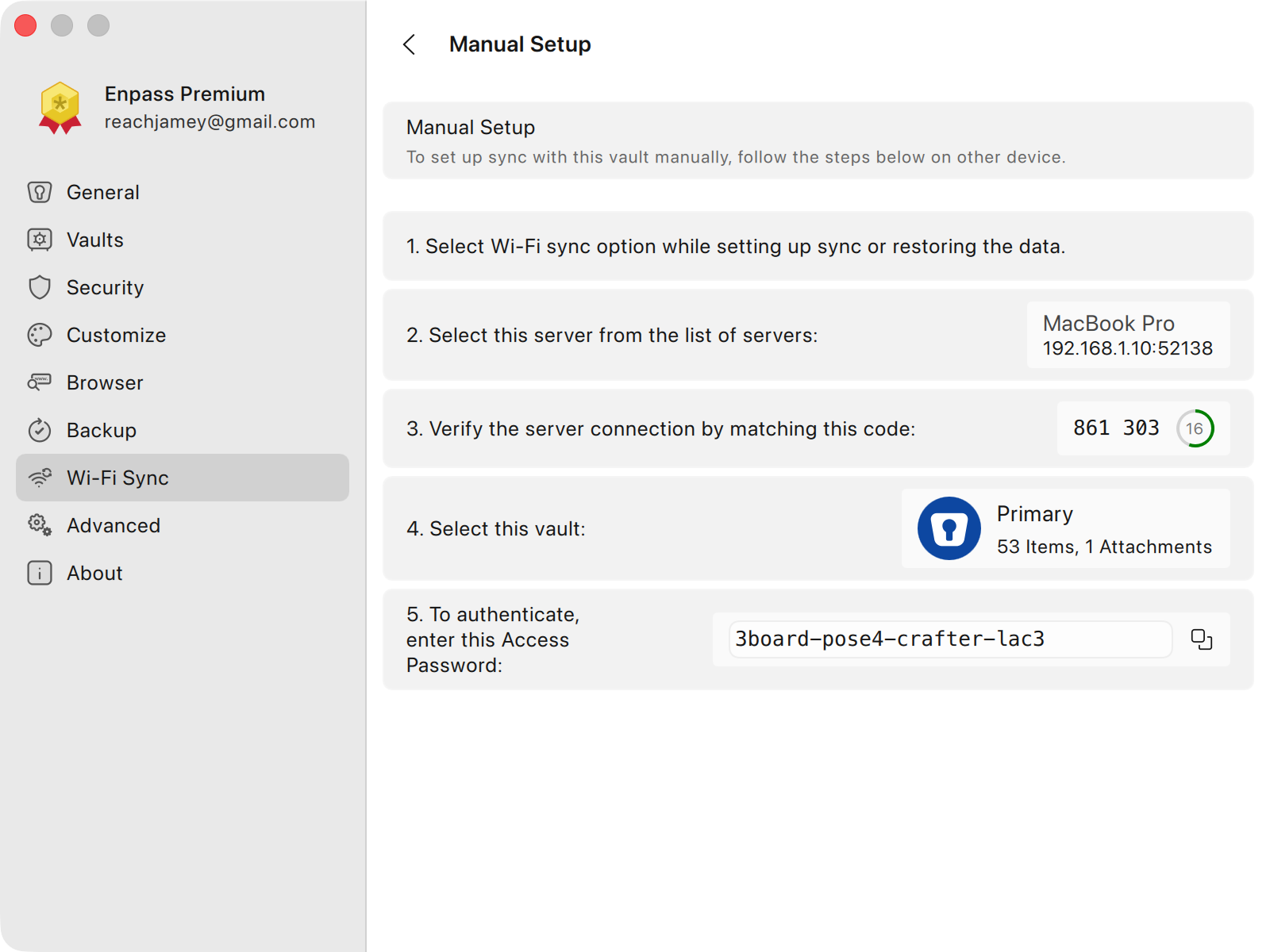
Select the vault you want to sync, then click Manual Setup.
-
Copy the Access Password displayed at the bottom of the Manual Setup screen, and send it to the any computer with which this vault will be shared.
-
In the Enpass app on the other computers, go to Settings > Vaults.
-
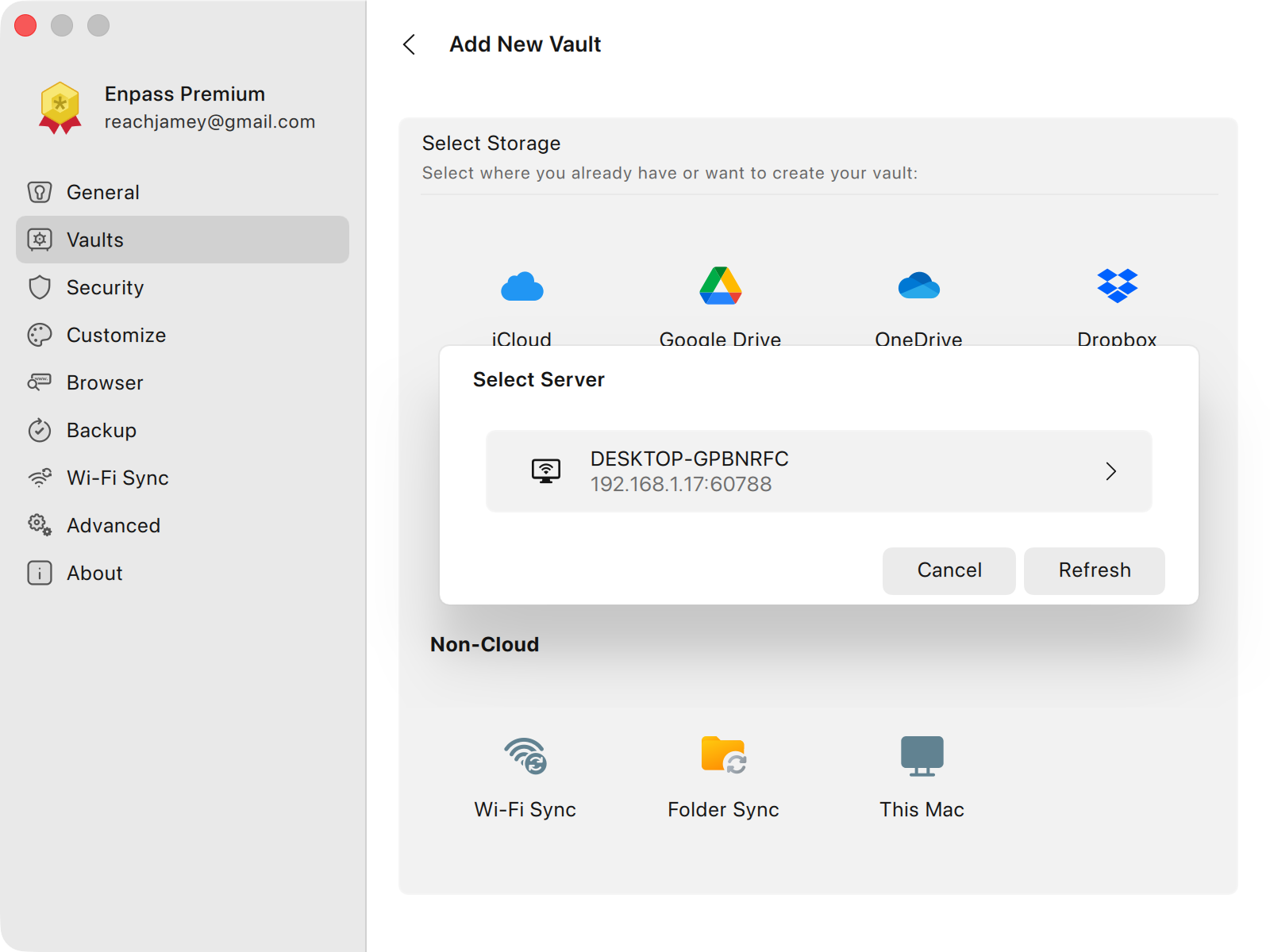
Click Add new vault, then select Wi-Fi Sync.
-
Select the computer hosting your vault, and click the Yes, go ahead button.
-
Select the vault you want to sync with.
-
Enter the Access Password to authenticate, then click Continue.
iOS
To connect to a Wi-Fi synced vault in Enpass for iOS:
-
In your device’s Settings app, go to Apps > Enpass.
-
Turn on the options to allow Enpass access to your Local Network and Camera.
-
In Enpass, go to Settings > Vaults, and tap

-
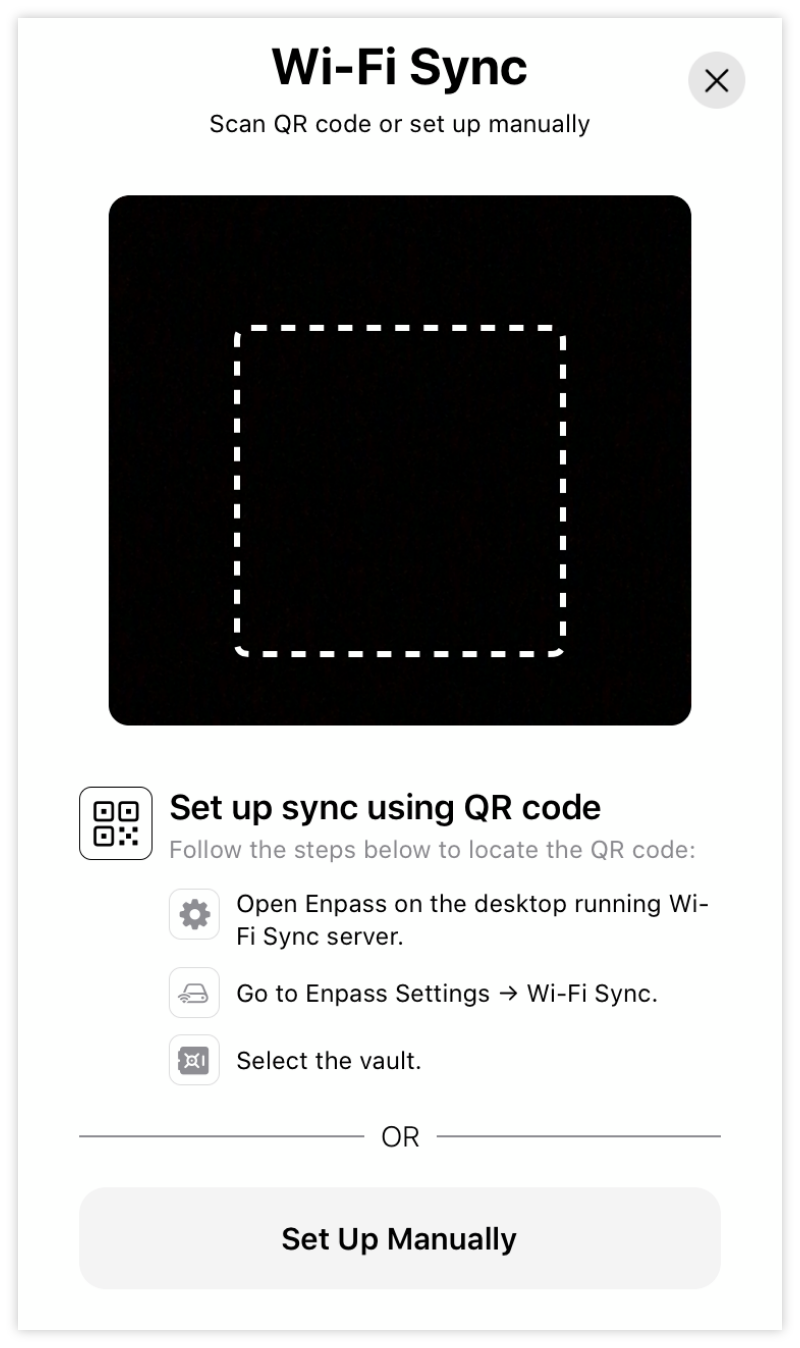
In the Add New Vault screen, select Wi-Fi Sync.
-
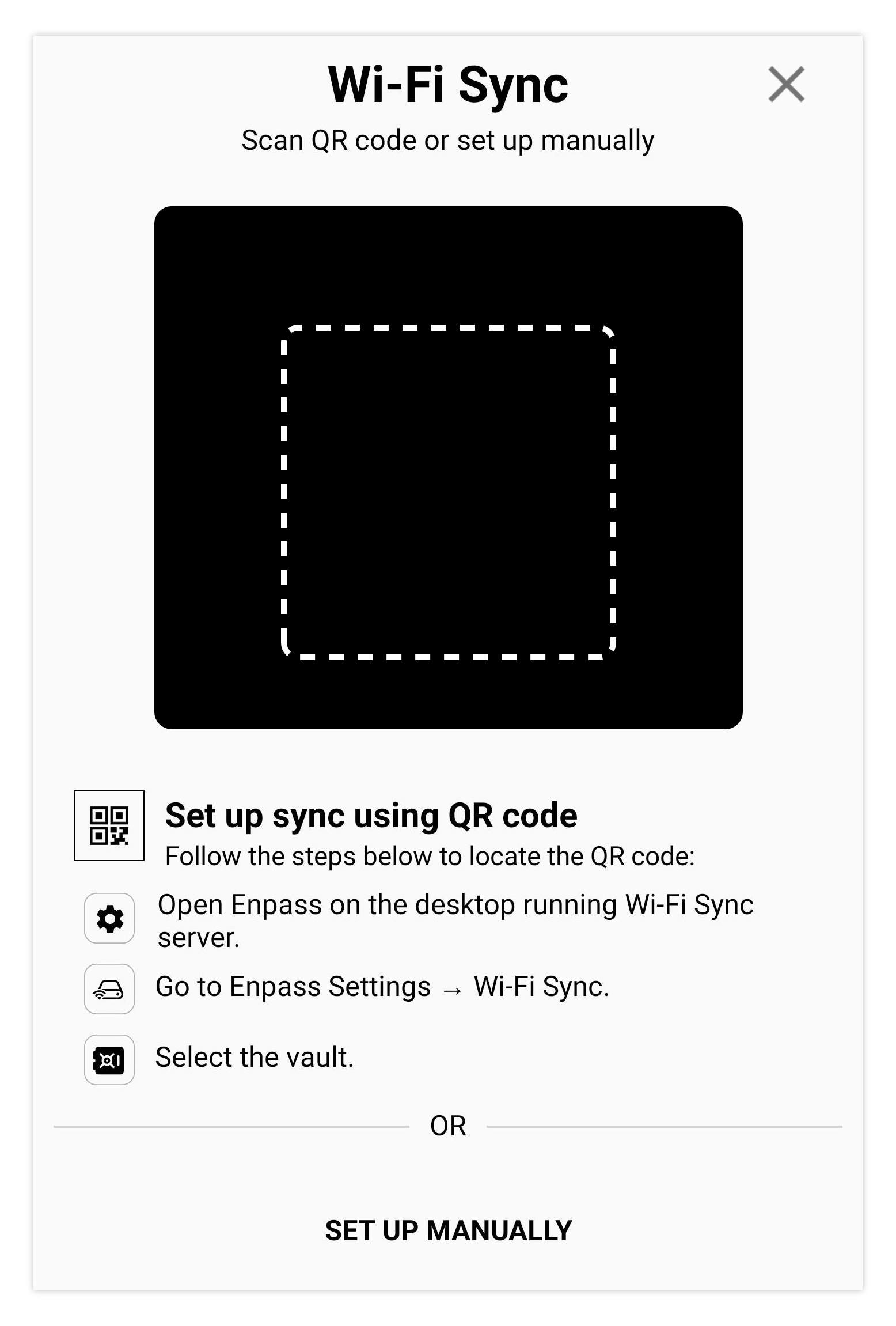
Scan the vault’s QR code created in Part 2 above to complete the sync setup.
-
OR tap Set Up Manually if you’d prefer to use an Access Password.
-
Android
To connect to a Wi-Fi synced vault in Enpass for Android:
-
In Enpass, go to Settings > Vaults, and tap
-
In the Add New Vault screen, select Wi-Fi Sync.
-
Scan the vault’s QR code created in Part 2 above to complete the sync setup.
-
OR tap Set Up Manually if you’d prefer to use an Access Password.
-