.svg)
Creating a pre-shared key in Enpass
To securely share individual Enpass Items with other Enpass users, you must first create a secret password — called a pre-shared key (PSK) — known only to you, and provided to your recipients so they can unlock the encrypted Item when they receive it. Importing a shared Item requires the recipient to provide this PSK.
To create a PSK:
-
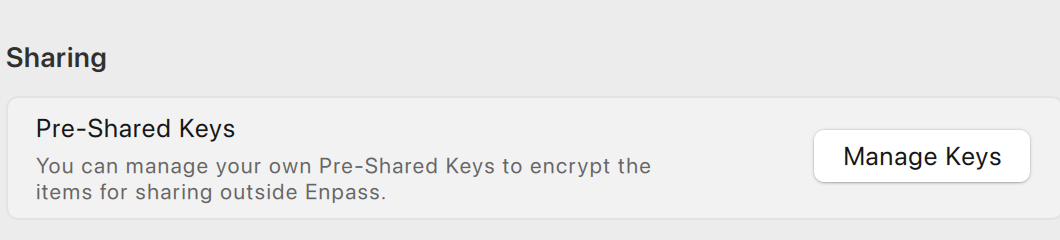
Go to Settings > Advanced, and click the Manage Keys button.
-
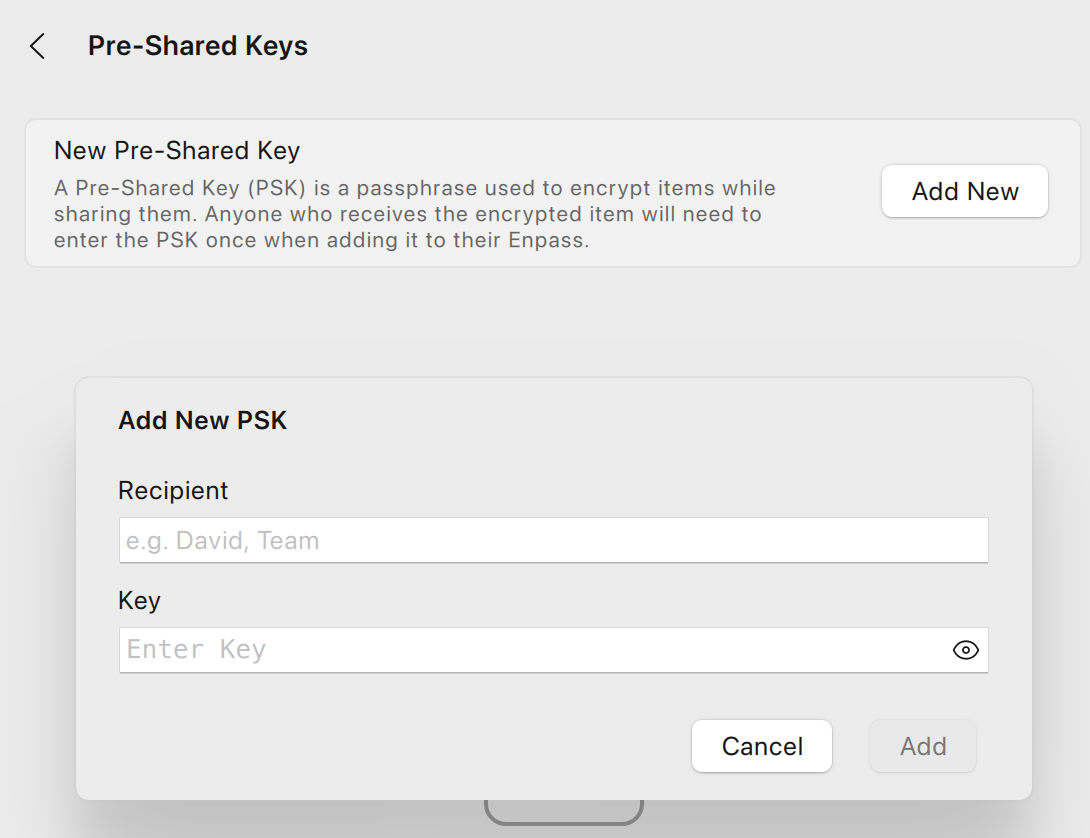
Click Add New button to create PSK.
-
Enter your recipient's name.
-
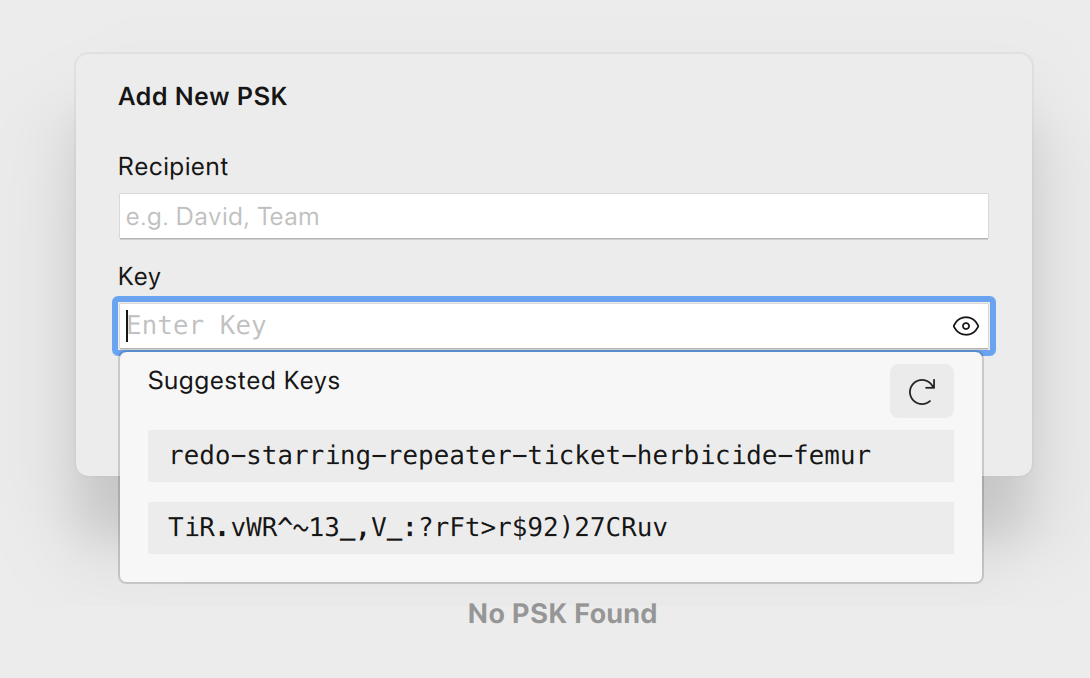
Then click on the key field to view the suggested strong keys.
-
Use the

-
Click Add.
To create PSK:
-
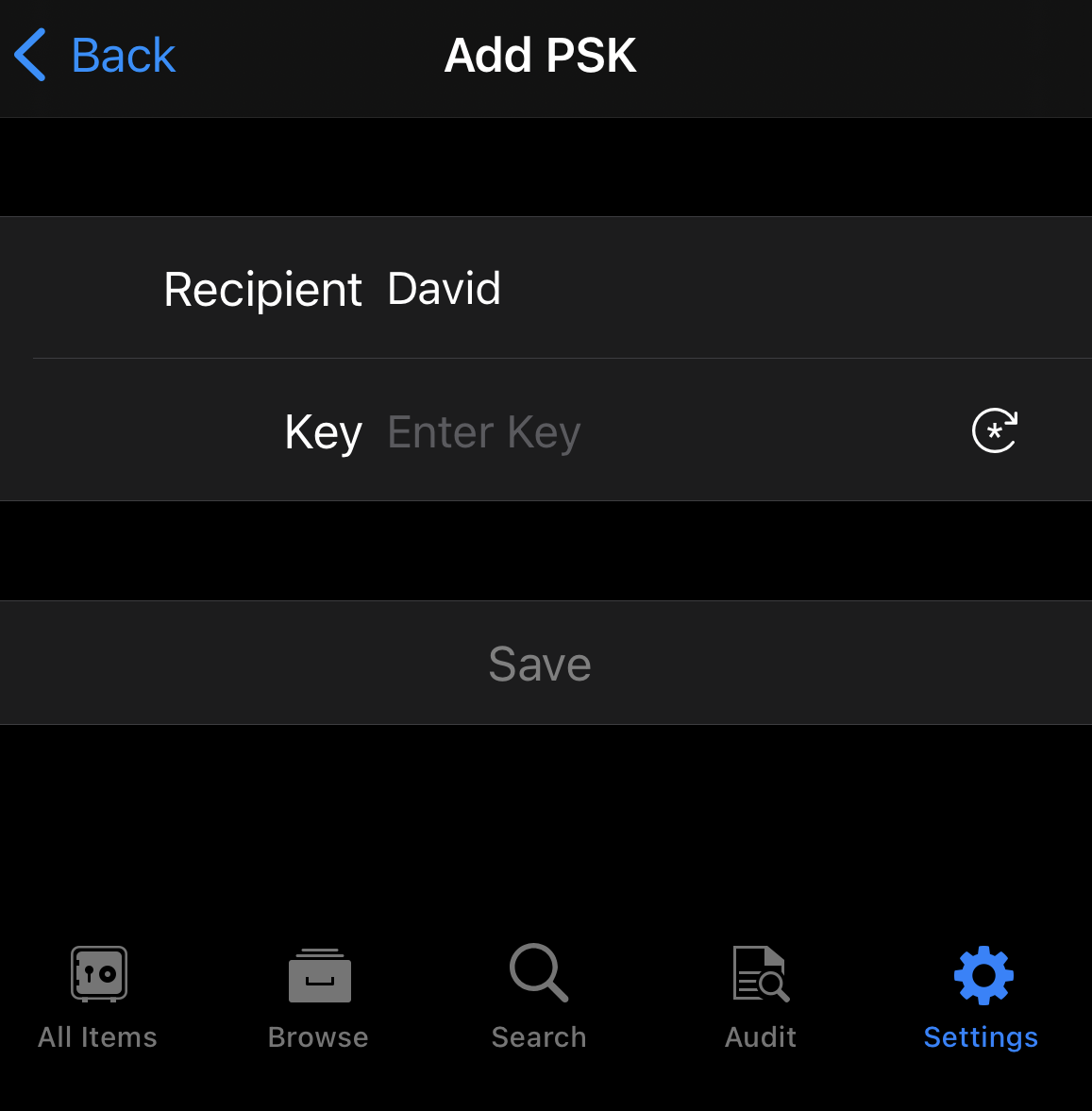
Go to Settings > Advanced, and tap Pre-Shared Keys
-
Tap

-
Enter your recipient's name.
-
Use the
-
Tap Save.
To create PSK:
-
Go to Settings > Advanced, and tap Sharing.
-
Tap
-
Enter your recipient's name.
-
Use the
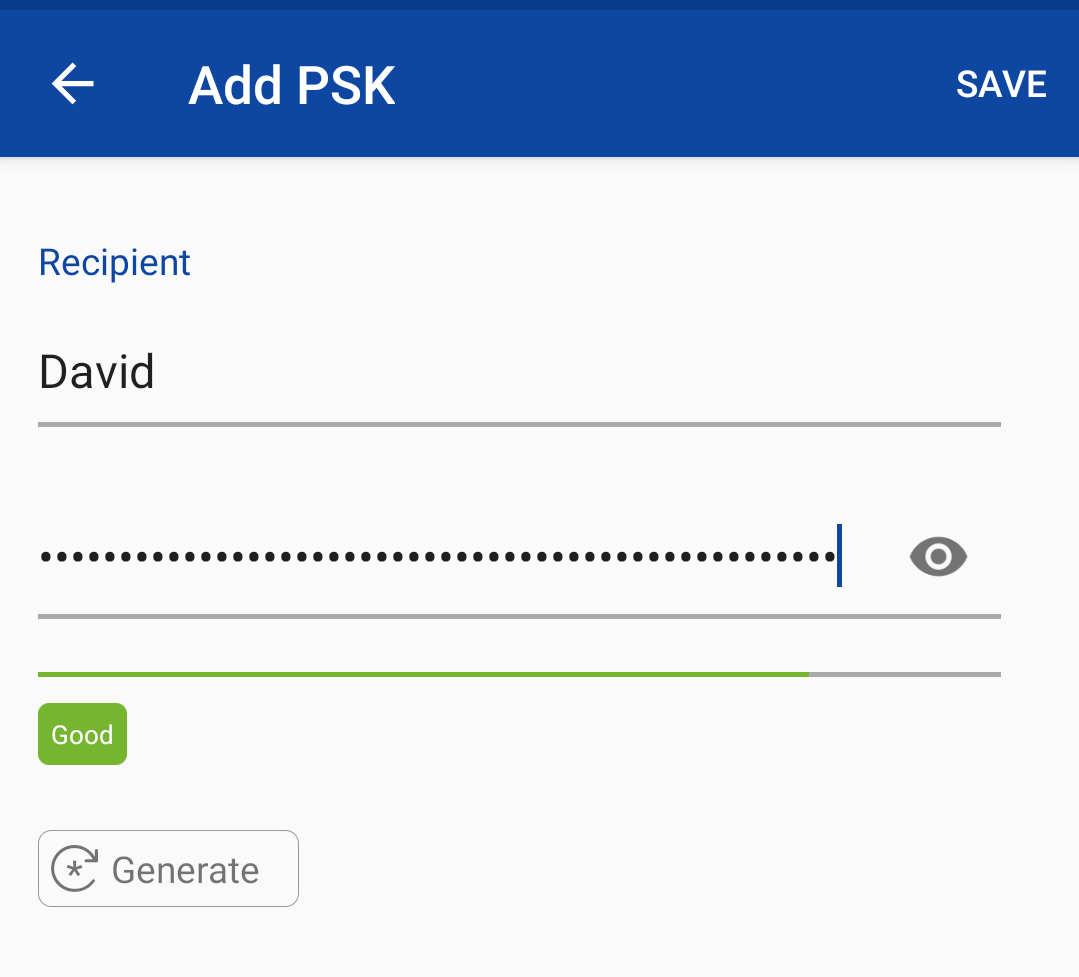
-
Tap Save.
Once you’ve create this secret password for unlocking shared Items, provide it to your intended recipients via a secure communication method.