.svg)
Controlling Autolock behavior in Enpass
Autolocking protects your data from unauthorized access by requiring a password, PIN or fingerprint (if available on your device) to access Enpass, after certain events or after a certain amount of time has passed.
Desktop
To set autolock options in Enpass for desktop:
-
Go to Settings > Security.
-
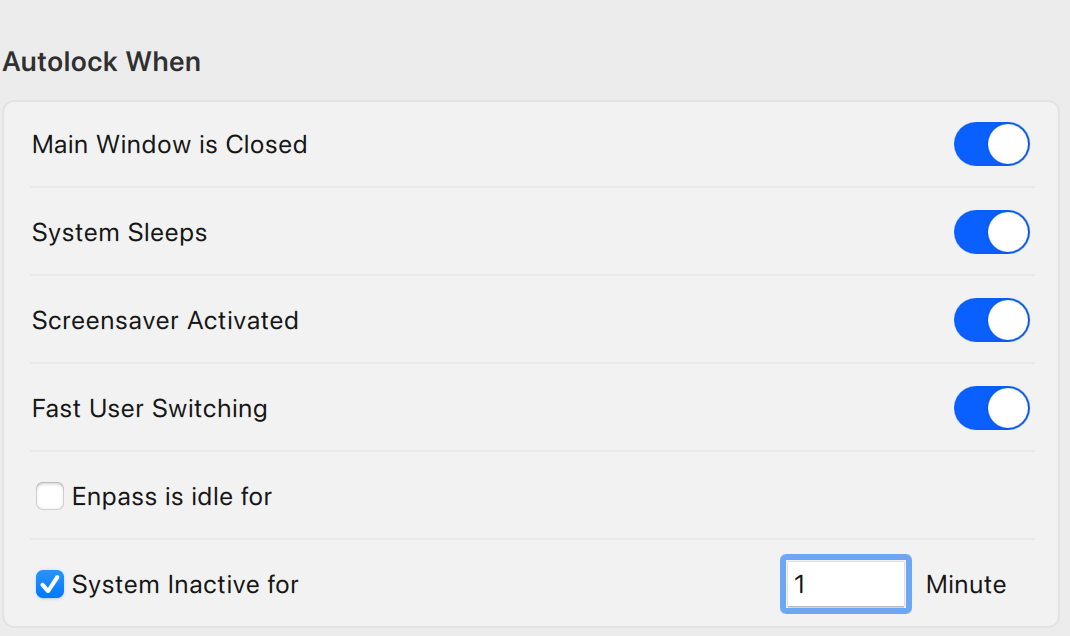
Under Autolock When, select the Autolock options you prefer:
-
Main Window is closed
Require credentials to access Enpass if the Enpass main window has been closed, but the app continues running in the background. -
System Sleeps
Require credentials to unlock Enpass after you computer has been asleep. -
Fast User Switching
Require credentials to unlock Enpass after switching back from a different user account on your computer. -
System gets locked
Require credentials to unlock Enpass after your computer has been locked since Enpass was last used. -
Enpass is idle for
Require credentials to unlock Enpass when Enpass has been inactive for a time period you specify. -
System Inactive for
Require credentials to unlock Enpass when your computer has been inactive for a time period you specify.
Enpass is idle for and System Inactive for cannot be used at the same time.
iOS
To set autolock options in Enpasd for iOS:
-
Go to Setting > Security.
-
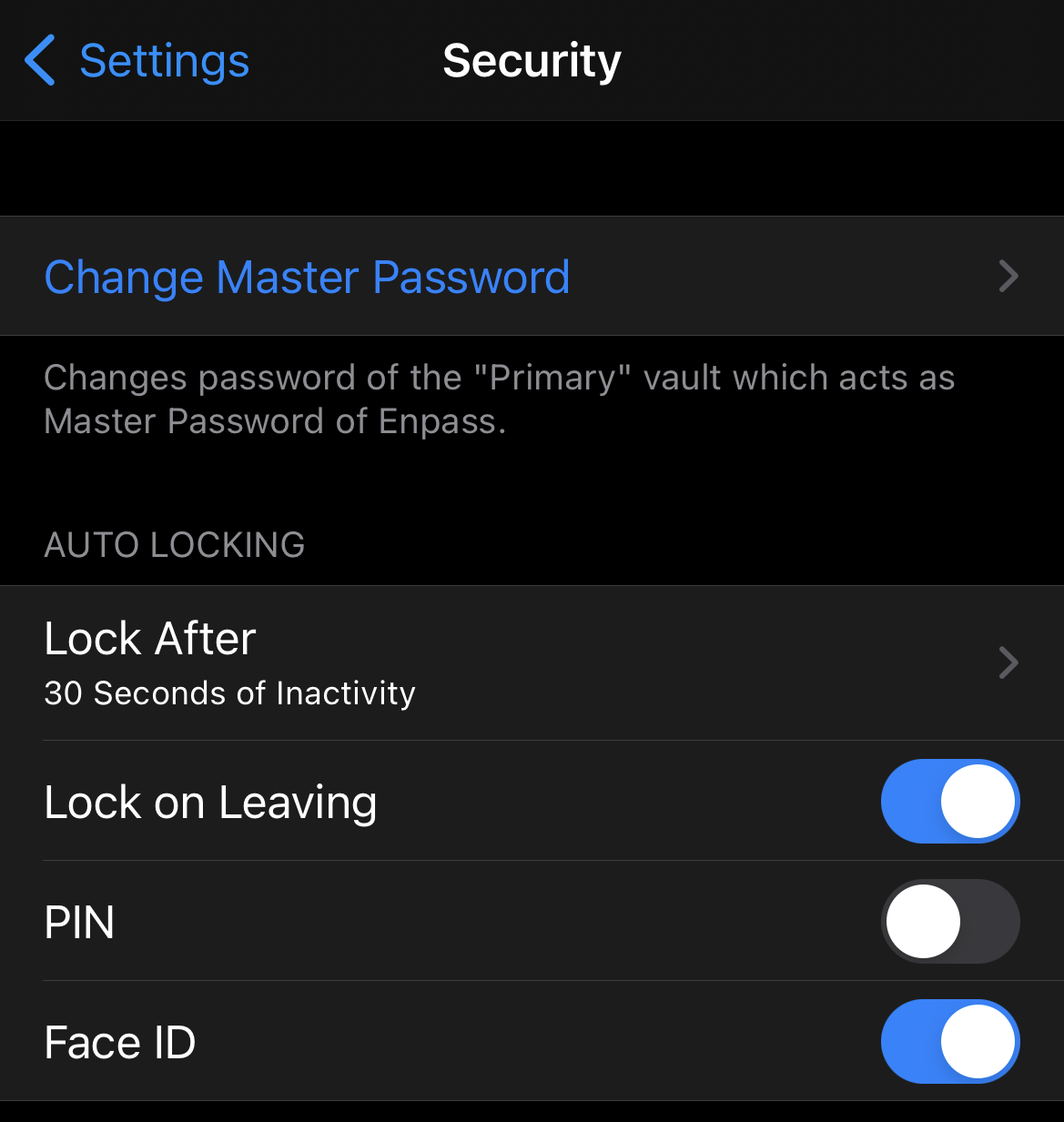
Select the autolock options you prefer:
-
Lock After
Select a time period after which Enpass will require credentials to unlock. -
Lock on Leaving
Enpass will require credentials to unlock once the app is no longer in the foreground.
Android
To set autolock options in Enpass for Android:
-
Go to Setting > Security.
-
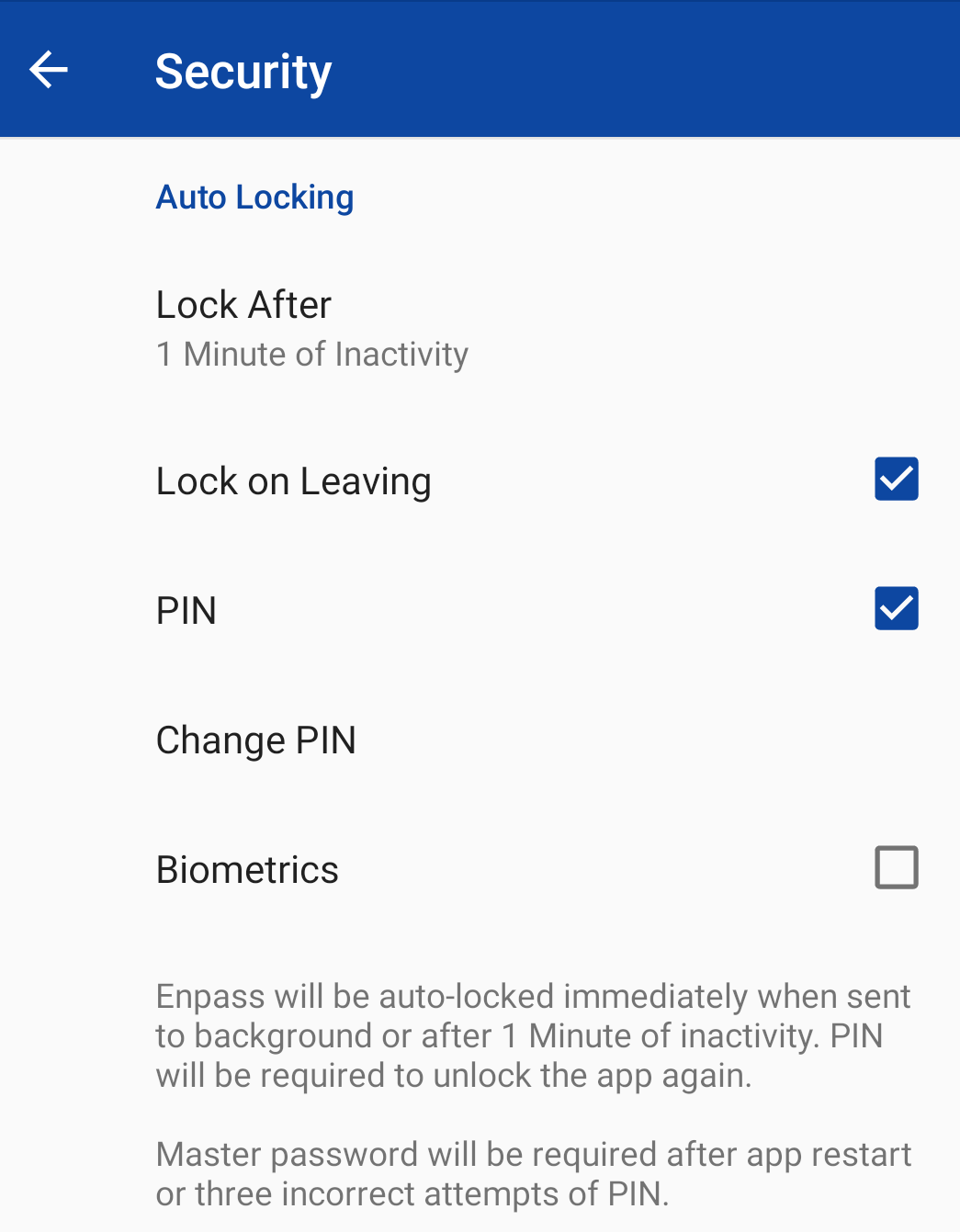
Select the autolock options you prefer:
-
Lock After
Select a time period after which Enpass will require credentials to unlock. -
Lock on Leaving
Enpass will require credentials to unlock once the app is no longer in the foreground.