.svg)
Categorizing Items in Enpass
Enpass automatically organizes your Items into familiar categories based on the template you chose when creating an Item. You can customize which categories appear in Enpass, and can even create custom categories.
Desktop
To change the category of an existing Item in Enpass for desktop:
-
Right-click an Item in the Items List, then select Change Category.
-
Select a new category from the options that appear on the left of the screen.
To show or hide available categories in the sidebar:
-
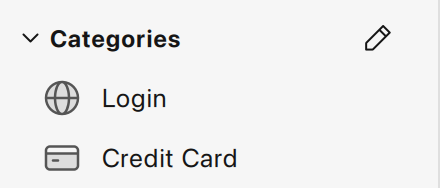
Next to the Categories heading on the sidebar, hover to the Categories section & click

-
Check or uncheck categories to select those you want to appear in the sidebar.
-
Click ✖ to close the Category picker.
To hide the categories group in the sidebar:
-
Click the Categories heading to collapse the section.
iOS
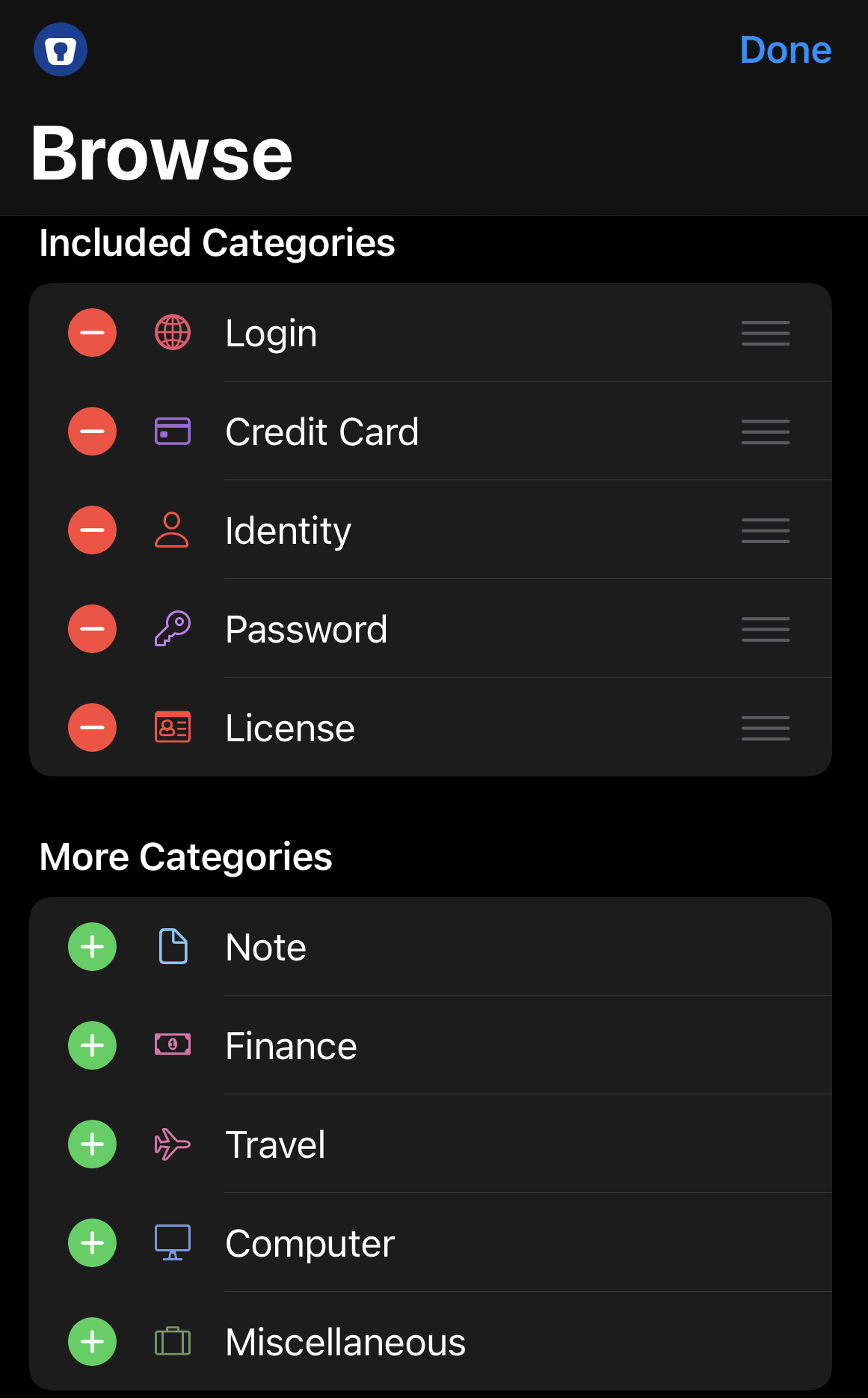
To show or hide available categories in Enpass for iOS:
-
In the Browse tap, tap Edit.
-
Tap


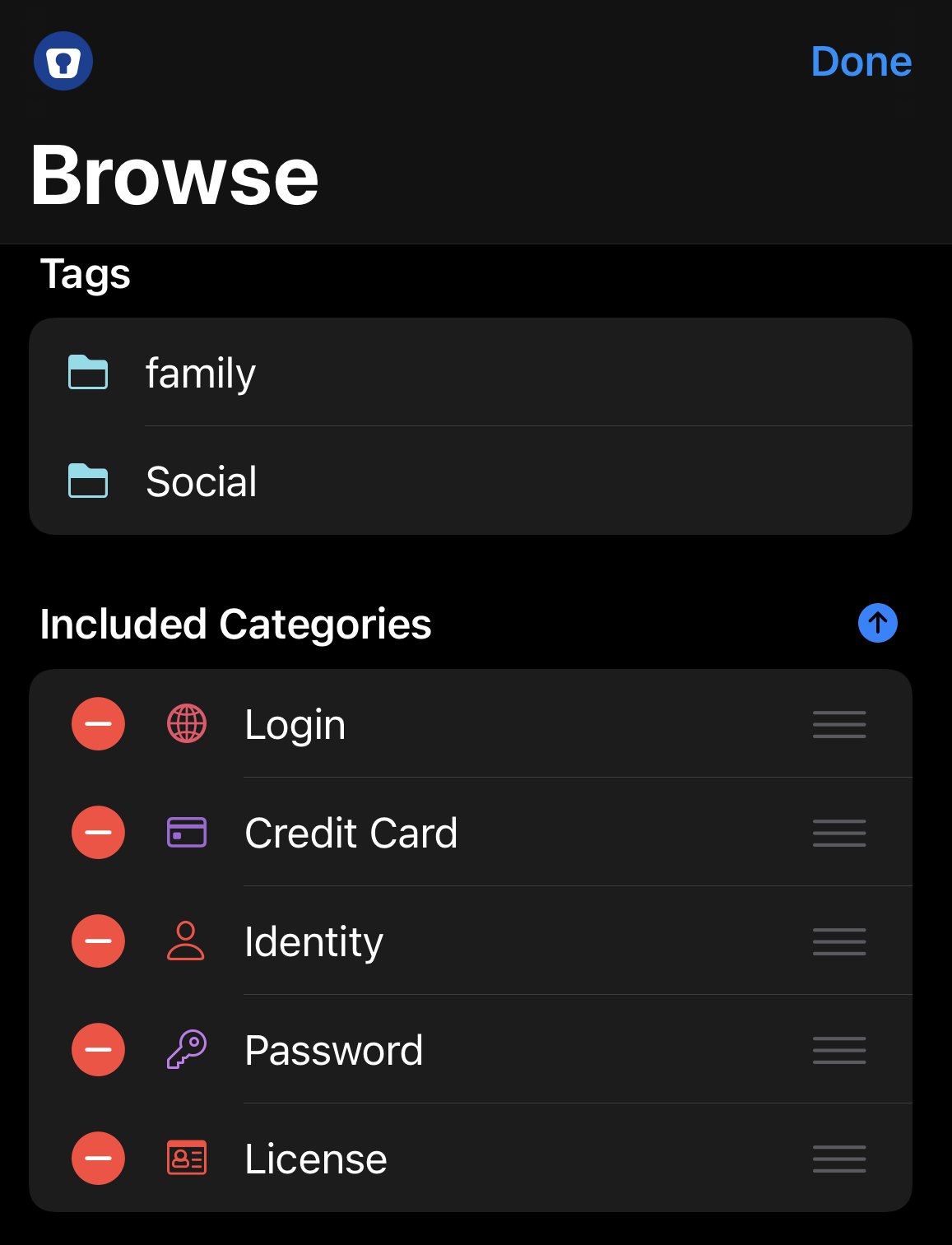
To swap the order of the Categories and Tags sections:
-
In the Browse tab, tap Edit.
-
Use the ↓ and ↑ icons to move the sections.
Android
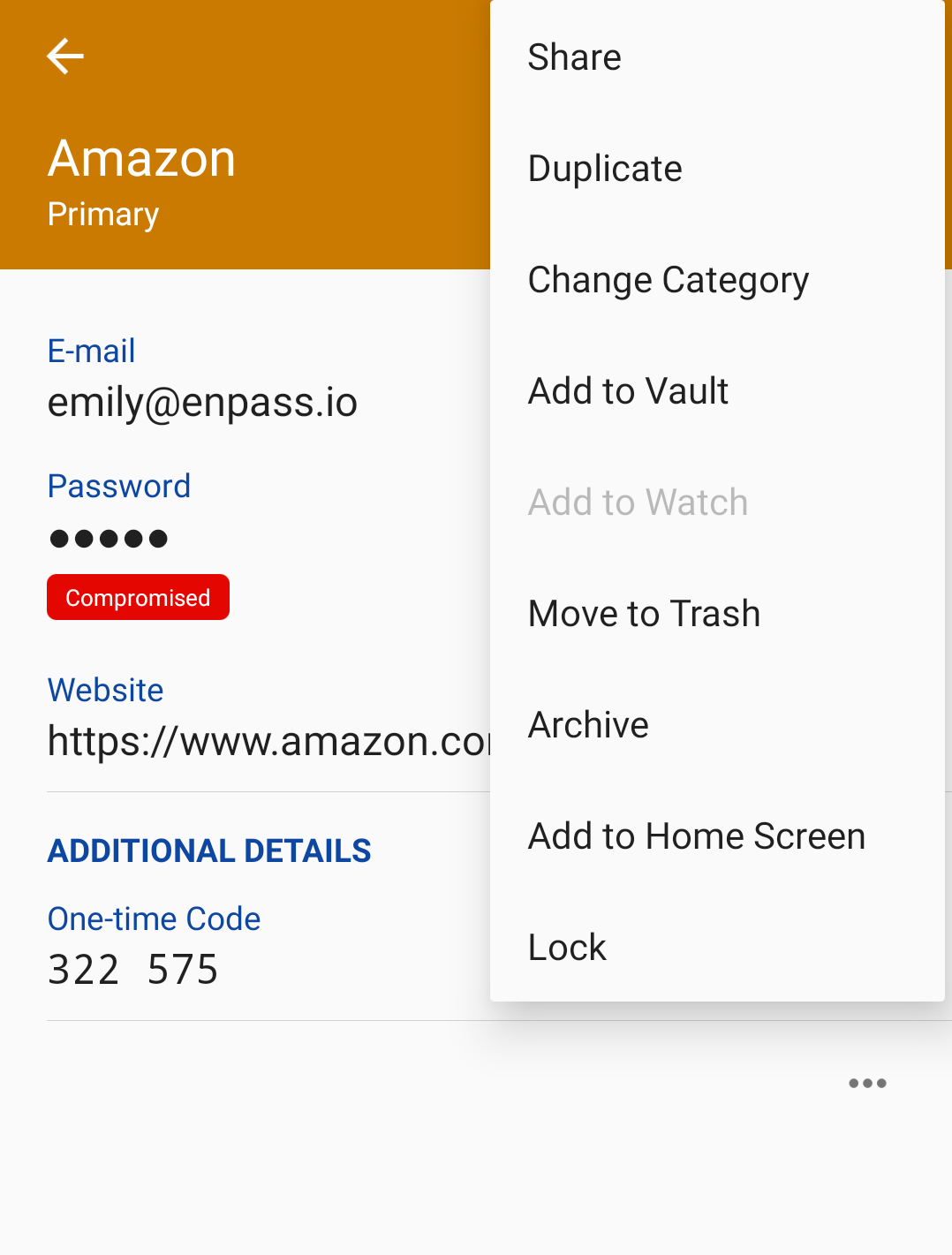
To change the category of an existing Item in Enpass for Android:
-
In the Item Details view, tap ︙ in the top-right corner, and select Change Category.
-
Select a new category from the options displayed.
-
Read more about customizing categories and customizing templates