.svg)
Changing your Enpass Master Password
Your Master Password can be changed any time. Keep in mind that the Master Password will be changed across all synced devices, and will also become the new password on your Primary Vault, whether that vault is on your local drive or stored in a cloud account.
When you next access Enpass on your other synced devices, the new Master Password will be required to enable syncing.
Changing your Master Password will not alter the password on previous backups of your data.
Desktop
To change your Master Password in Enpass for desktop:
-
Go to Settings > Security, and click Change Master Password.
-
Enter your current Master Password and click Continue.
-
Enter and confirm the new Master Password and click Done.
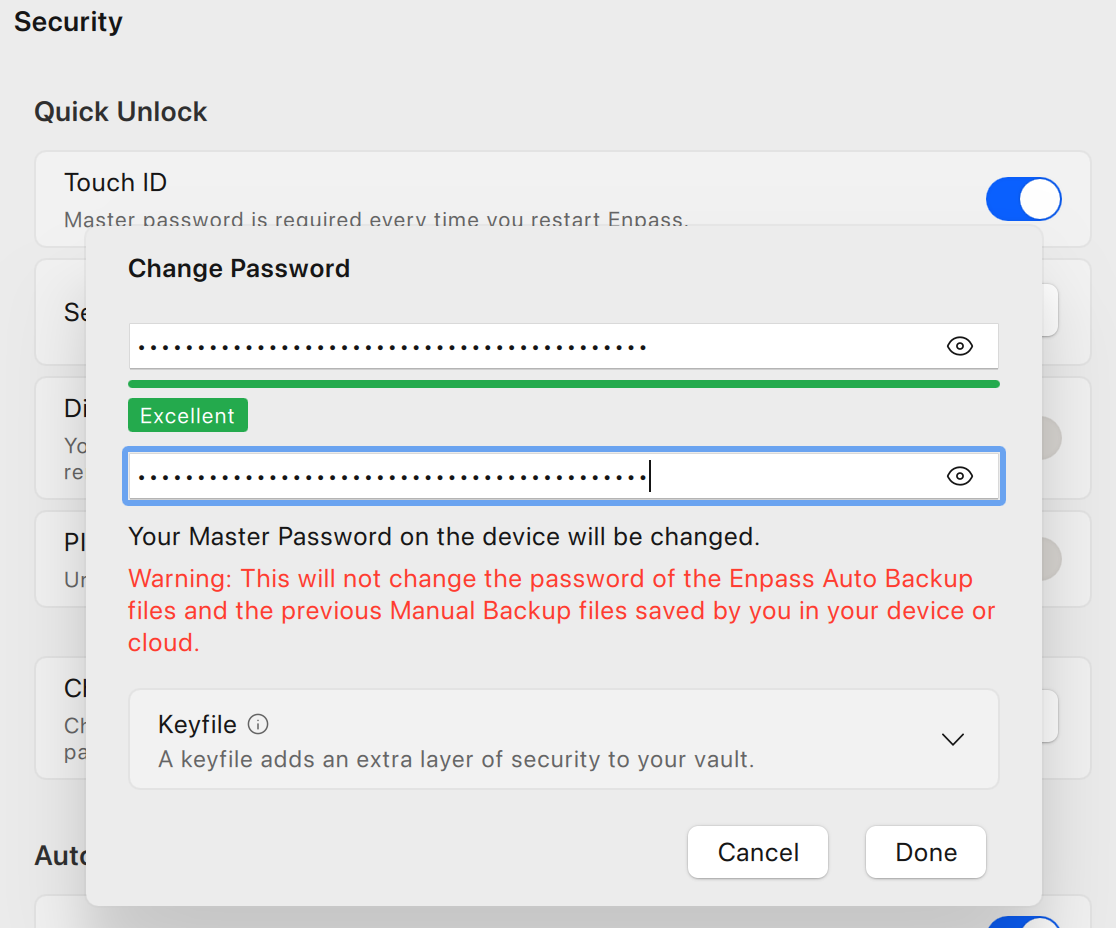
-
Click Done again if the password changed successfully message appears.
iOS
To change the Master Password in Enpass for iOS:
-
Tap Settings and choose Security.
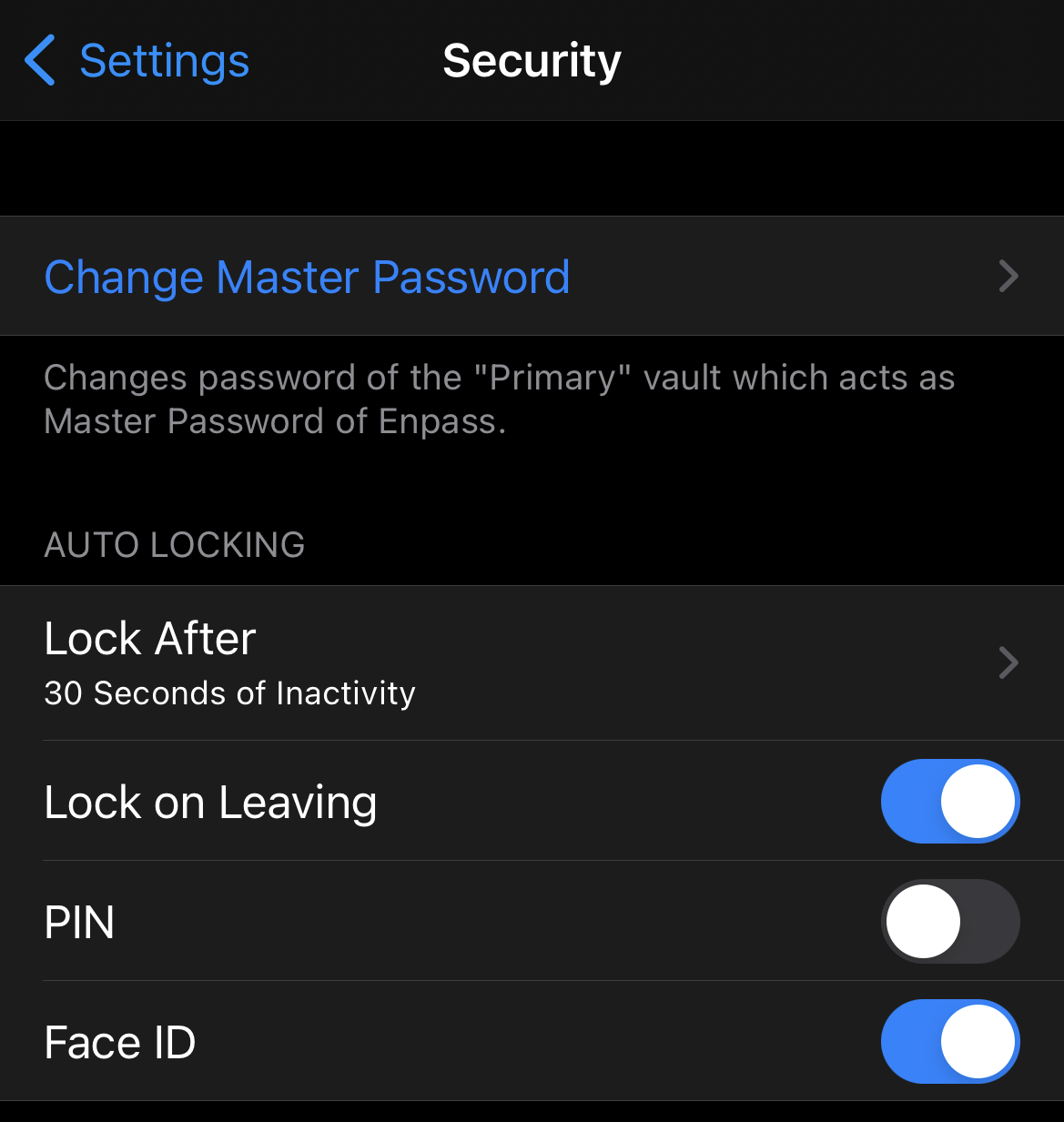
-
Tap Change Master Password.
-
Enter your current Master Password, and tap Continue.
-
Enter the new password and confirm the new password, then tap Done.
Android
To change the Master Password in Enpass for Android:
-
Tap Settings and choose Security.
-
Tap Change Master Password.
-
Enter your current Master Password, and tap Continue.
-
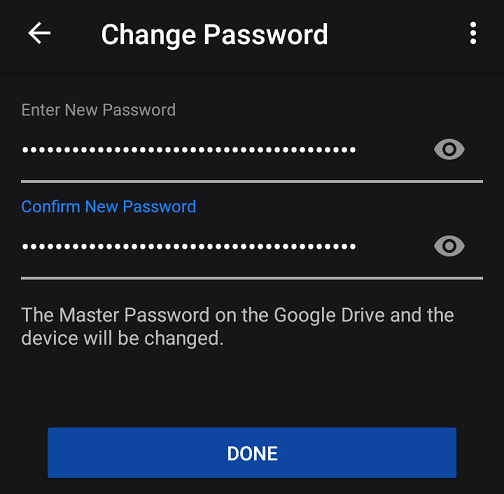
Enter the new password and confirm the new password, then tap Done.
Keep your Master Password safe — it cannot be recovered
Because Enpass stores no user data on company servers, Enpass cannot recover lost or forgotten Master Passwords. All your data is under your exclusive control. If your Master Password for Enpass Personal version is lost, Enpass should be reset so you can start over as a new user.
If you are using Enpass Business, you may be able to request access recovery from your Admin.