.svg)
Requiring a keyfile with your Master Passsword in Enpass
For an additional layer of security when unlocking Enpass, you can create a keyfile on your computer, which can then be added to your mobile devices by scanning a QR code that will appear on your computer screen.
Desktop
To create a keyfile in Enpass for desktop:
-
Go to Settings > Security, and click Change Master Password.
-
Enter your Master Password and click Continue.
-
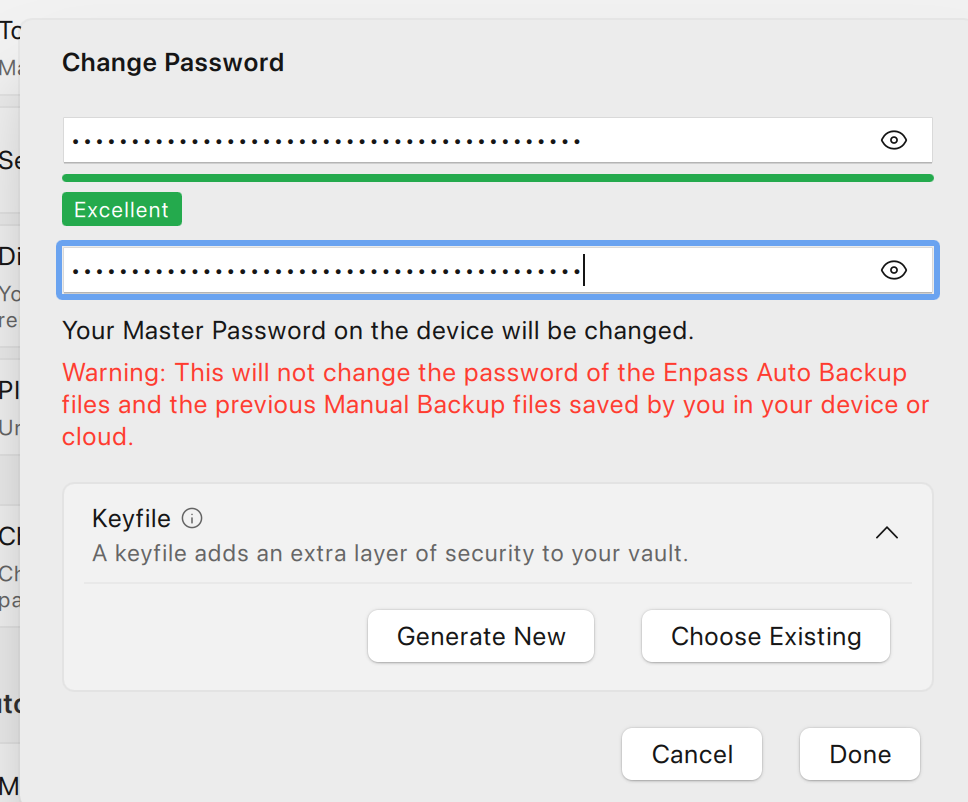
At the bottom of the window, click on dropdown button, then select Generate Keyfile.
-
Select the folder where you want to save the keyfile on your device.
-
Enter a file name for your keyfile, and click Save.
-
Click Close to save the changes.
To require a keyfile with your Master Password:
-
Go to Settings > Security, and click Change Master Password.
-
Enter your Master Password and click Continue.
-
At the bottom of the window, click Advanced, and select Choose Keyfile.
-
Locate the .enpasskey file on your device (or wherever you have saved that file).
-
Select the file and click Open.
-
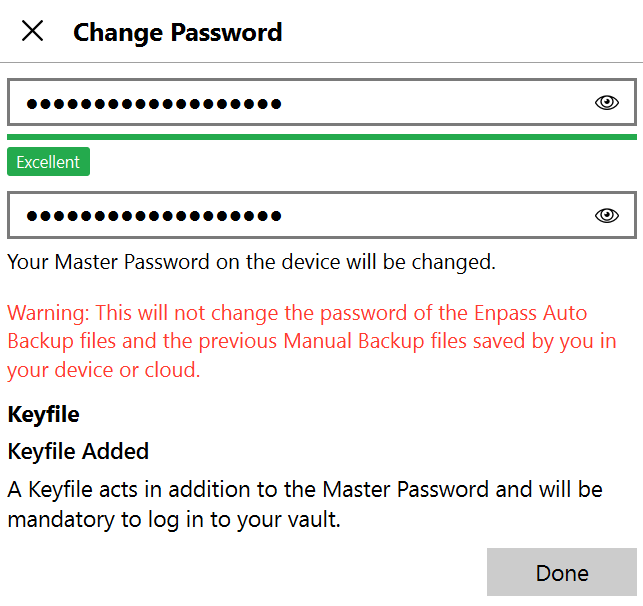
Enter and confirm a strong Master Password and click Done.
-
On the next screen, click Done again to save the changes.
iOS
To require a keyfile with your Master Password in Enpass for iOS:
-
Go to Settings > Security.
-
Tap Change Master Password.
-
Enter your current Master Password and tap Continue.
-
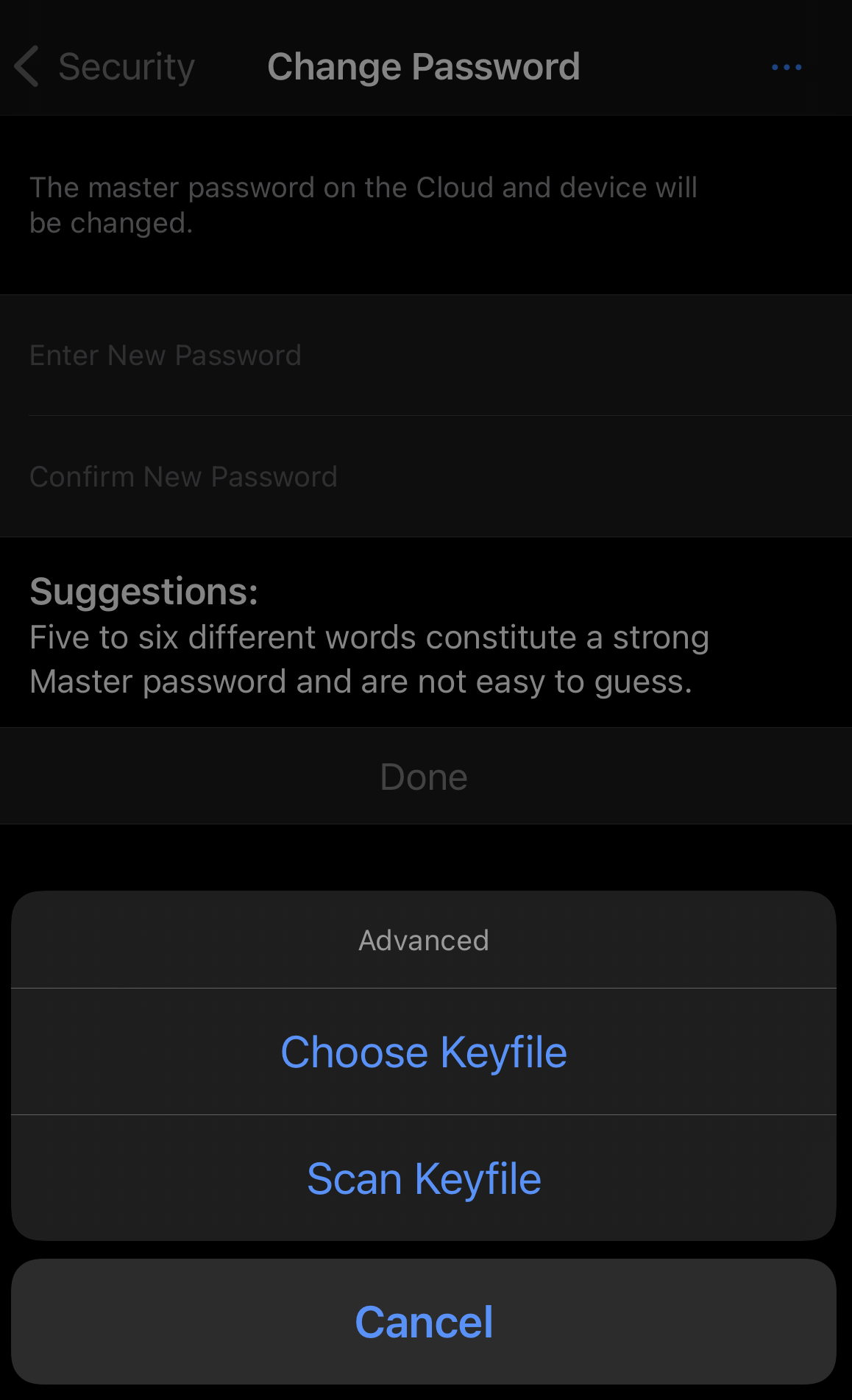
Tap ••• at the top-right corner, and select Choose Keyfile.
-
Locate the .enpasskey file on your device (or wherever you have saved that file).
-
You could also scan the QR code for the keyfile from your desktop.
-
Android
To require a keyfile with your Master Password in Enpass for Android:
-
Go to Settings > Security, then tap Change Master Password.
-
Enter your current Master Password and tap Continue.
-
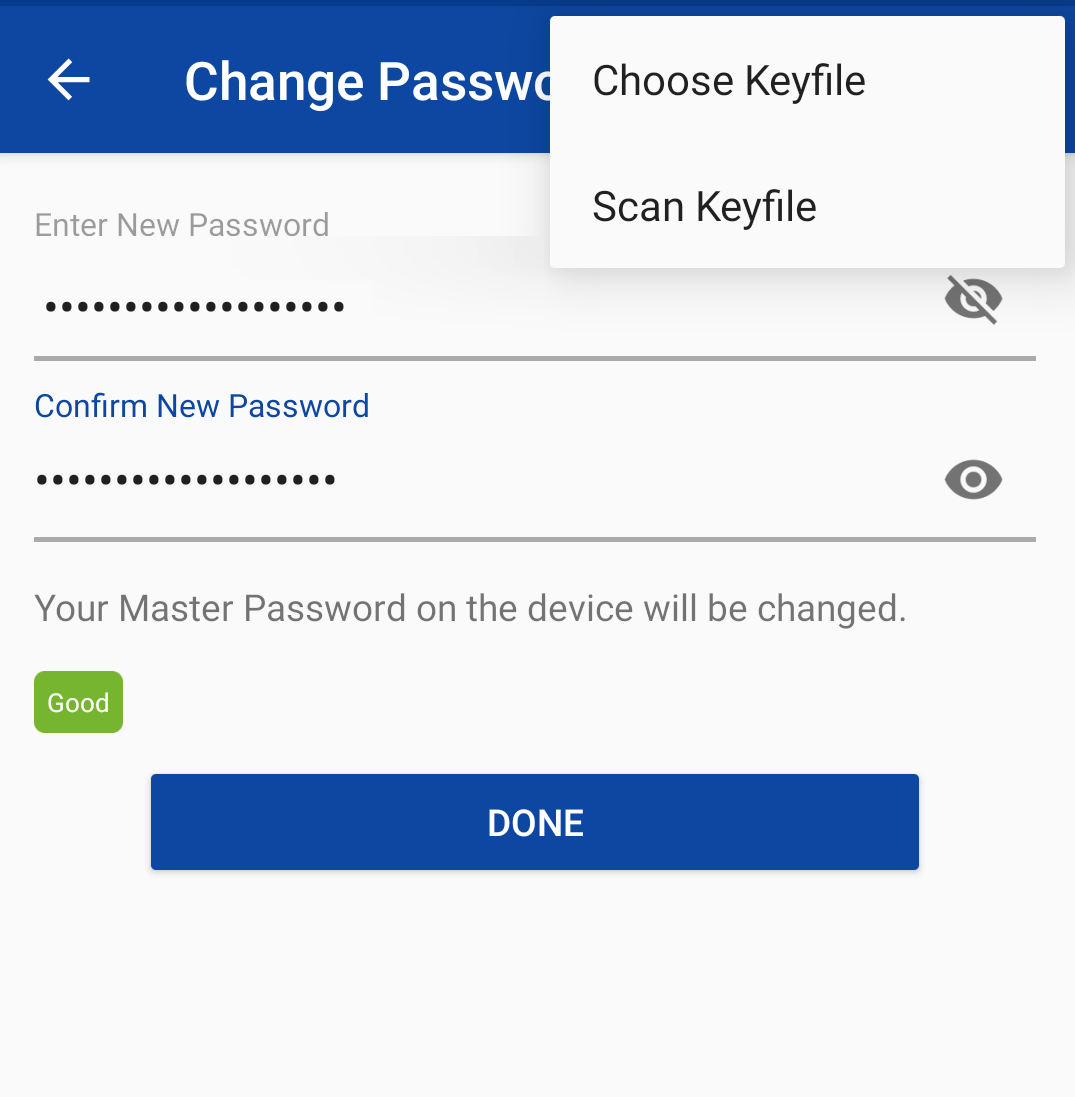
Tap ︙ in the top-right corner, and select Choose Keyfile.
-
Locate the .enpasskey file on your device (or wherever you have saved that file)
-
You could also scan the QR code for the keyfile from your desktop.
-
Keep your Keyfile safe — it cannot be recovered
Because Enpass stores no user data on company servers, Enpass cannot recover lost or forgotten keyfiles or Master Passwords. All your data is under your exclusive control. If your Master Password is lost, Enpass should be reset so you can start over as a new user.