.svg)
Customizing the Enpass Item List, sidebar, and more
The sidebar and Items List in the Enpass desktop app several features that can be shown, hidden, or customized to fit your needs.
In the sidebar you can:
-
Click any Group header (Categories, Tags, etc.) to show or hide the contents of that Group
-
Click ••• next to the Categories header to select which Categories to display
In the app’s View menu you can show or hide:
-
Show or hide Item Counts
-
Show or hide Categories group, Tags group, the Audit group, and the Others group
-
Choose whether the Audit group shows subsets of passwords based on their age
-
Show or hide the Audit Dashboard in the viewing pane when not viewing specific Items
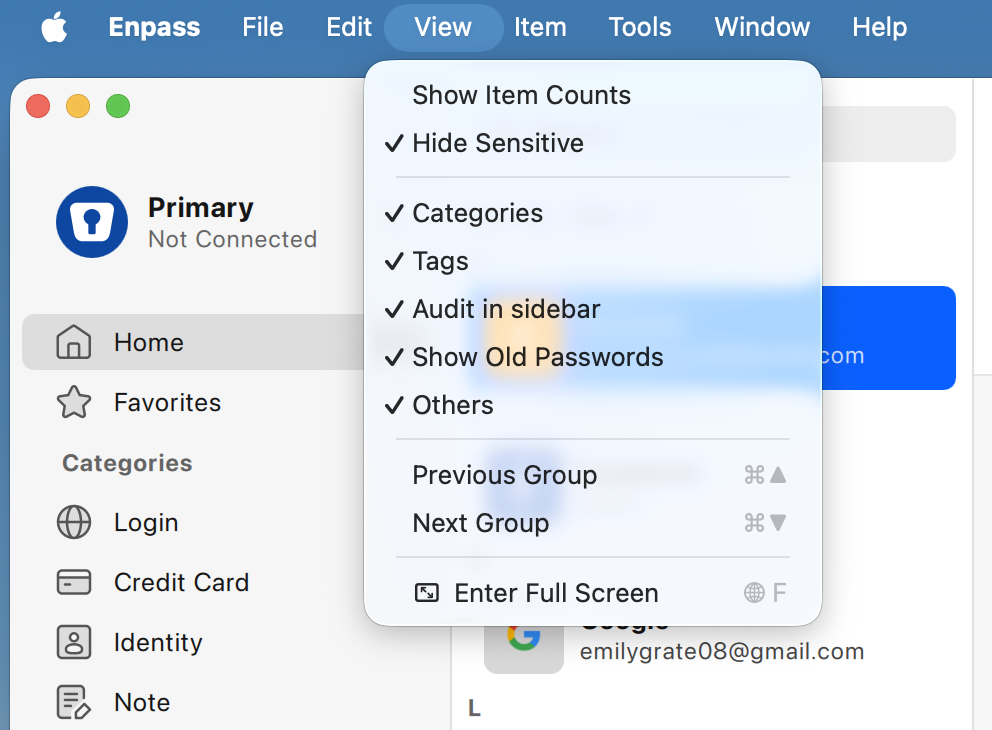
To find the View menu in Windows, click ≡ in the top-right corner of the Enpass window.
In Settings > Customize you can:
-
Turn on/off the Enpass unlock sound
-
Show or hide Item Counts
-
Show or hide subtitles of Items in the Item List
-
Choose whether the Audit group shows subsets of passwords based on their age
-
Choose whether Enpass captures website icons for your Items
-
Manage and customize categories and templates
In Settings > Advanced you can (among other things):
-
Change the location on your computer where Enpass stores data
-
Change the language used in the Enpass interface