.svg)
Recommended settings for a better Enpass experience
After setting up your Enpass app, we recommended turning on some features that enhance your experience, including settings for quickly unlocking Enpass with biometrics, automatically checking your Items for unsafe passwords, setting up autofill tools, and using website logos as icons for your Items. (Some of these features will appear in a Quick Setup panel at the end of the setup process.)
Desktop
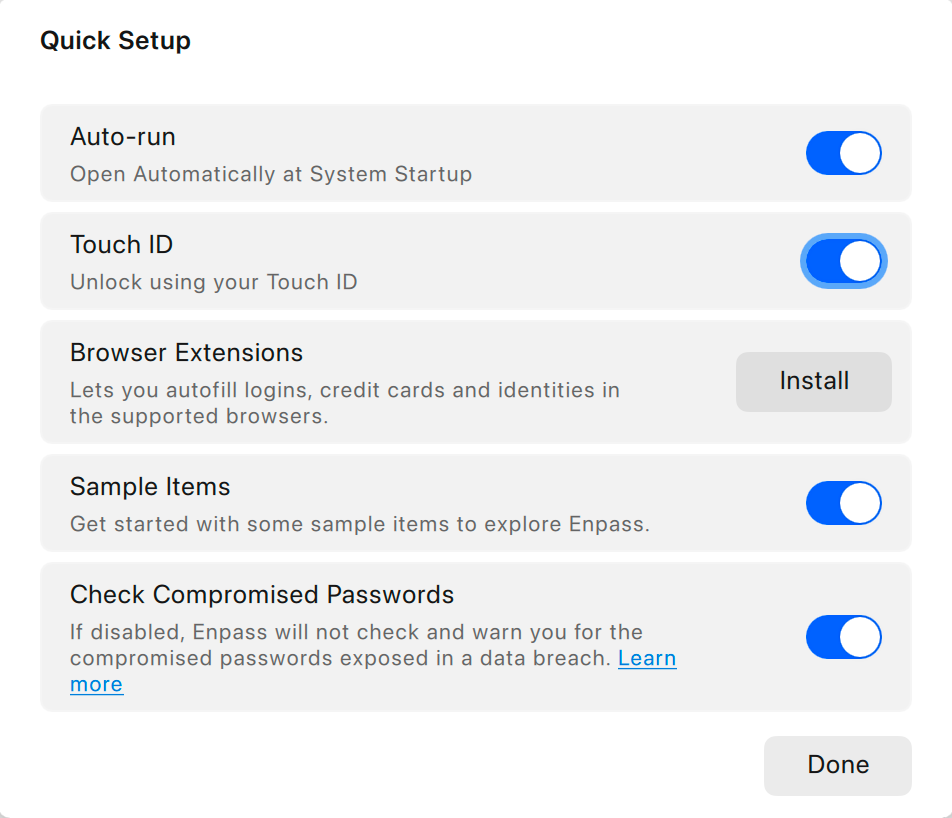
In Enpass for desktop computers, Quick Setup options include:
-
Auto-run
-
Launch Enpass automatically when your computer starts up
-
With Enpass running silently in the background, you’re ready to fill passwords any time
-
Auto-run can also be activated in Settings > General > Open Automatically at System Startup
-
-
Quick Unlock
-
Access Enpass with a PIN or biometrics, making your Master Password necessary only when launching the app
-
Quick Unlock can also be activated in Settings > Security > Quick Unlock
-
-
Browser Extensions
-
Adding Enpass to your browser makes it easy to autofill login credentials, credit cards, and more on the websites you use
-
-
Check for Compromised Passwords
-
Have Enpass alert you to unsafe passwords in the Password Audit tool
-
-
Use website logos as icons for your items
-
Enpass can automatically save logos as the icons for Item in your Enpass vaults
-
To use website logos, go to Settings > Customize > Use website icons
-
-
Sample Items
-
Begin using Enpass with a small set of sample Items to help you learn about the app
-
Prerequisites for using Windows Hello to unlock Enpass
The Microsoft Store version of Enpass for Windows (v6.5.0 or later) supports unlocking with Windows Hello. To enable this feature:
-
The device must have a security processor, Trusted Platform Module (TPM) version 2.0, and it should be enabled
-
Enpass must have a Master Password set
-
Then you can enable Windows Hello in Enpass by going to Settings > Security > Quick Unlock