.svg)
Sharing individual Items with other Enpass users
If you are using Enpass Business, see Vaults & Vault Sharing.
The best way to share Enpass Items with other users is by creating a shared vault. But individual Items can be shared as well.
Unlike sharing a vault, sharing individual Items with other Enpass users creates a copy on the recipient’s device that is not linked to the original. Your original and their copy will not remain synced.
To securely share individual Items, you must first create a secret password — called a pre-shared key (PSK) — known only to you, and provided to your recipients so they can unlock the encrypted Item when they receive it. Importing a shared Item requires the recipient to provide this PSK.
How does encrypted sharing work?
-
Share the PSK with your recipients via any secure method.
-
Follow the steps below to share a PSK-protected item from your Enpass vault.
-
Recipients must enter the PSK in order to add your shared Items to their Enpass vaults.
Desktop
To share an Item in an encrypted format after creating a PSK in Enpass for desktop:
-
In the Item Details view, click ︙ in the top-right corner, and select Share.
-
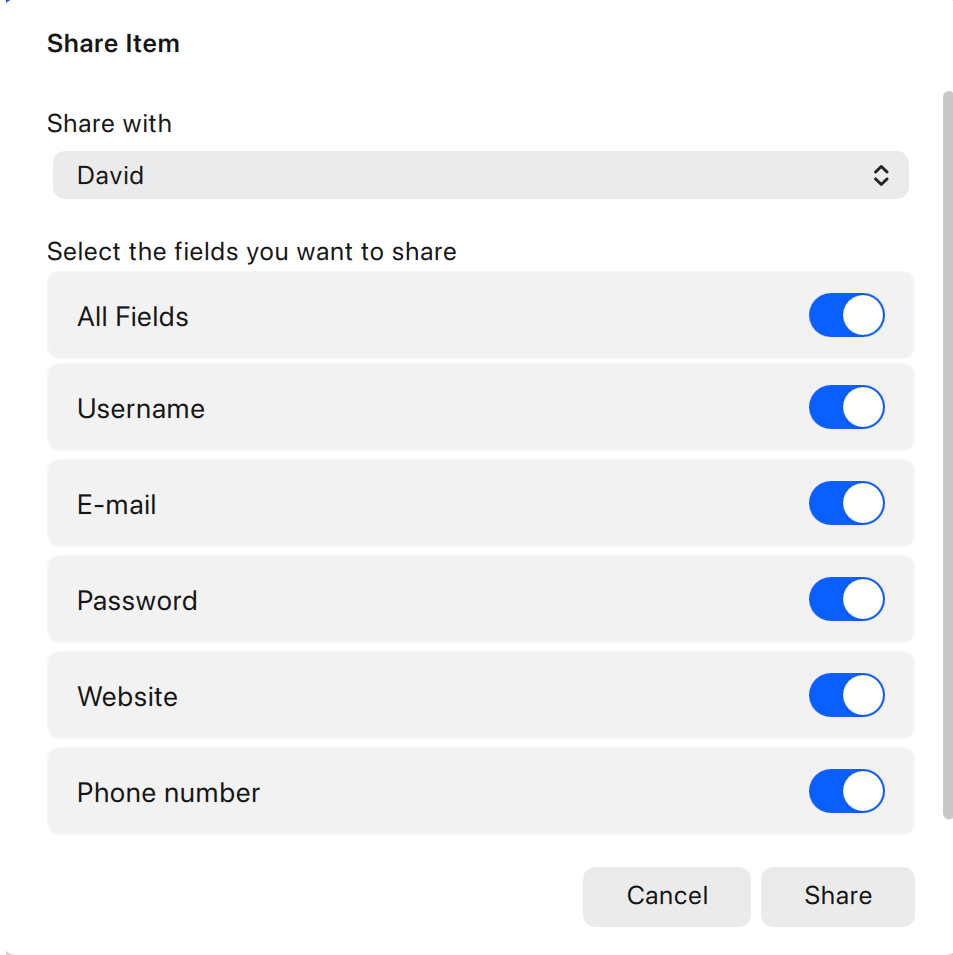
Use the on/off toggles to select the fields to be shared.
-
Select your recipient from the Share with drop-down list.
-
Click Share, then select either Email or Copy to Clipboard.
-
Selecting Email will open a Compose window in your default email app, pre-populated with instructions and an encrypted link. That link will launch the recipient’s Enpass app, then ask for the PSK before importing the shared Item.
-
Copy to Clipboard will put that same information on your clipboard, to be pasted into whatever app you’re using send this item to your recipient.
-
If you’re sharing an item that includes attachments and want those attachments shared as well, chose the email option in the Share screen.
iOS
To share an Item in an encrypted format after creating a PSK in Enpass for iOS:
-
In the Item Details view, scroll to the bottom of the screen, and tap Share.
-
Select the fields to share.
-
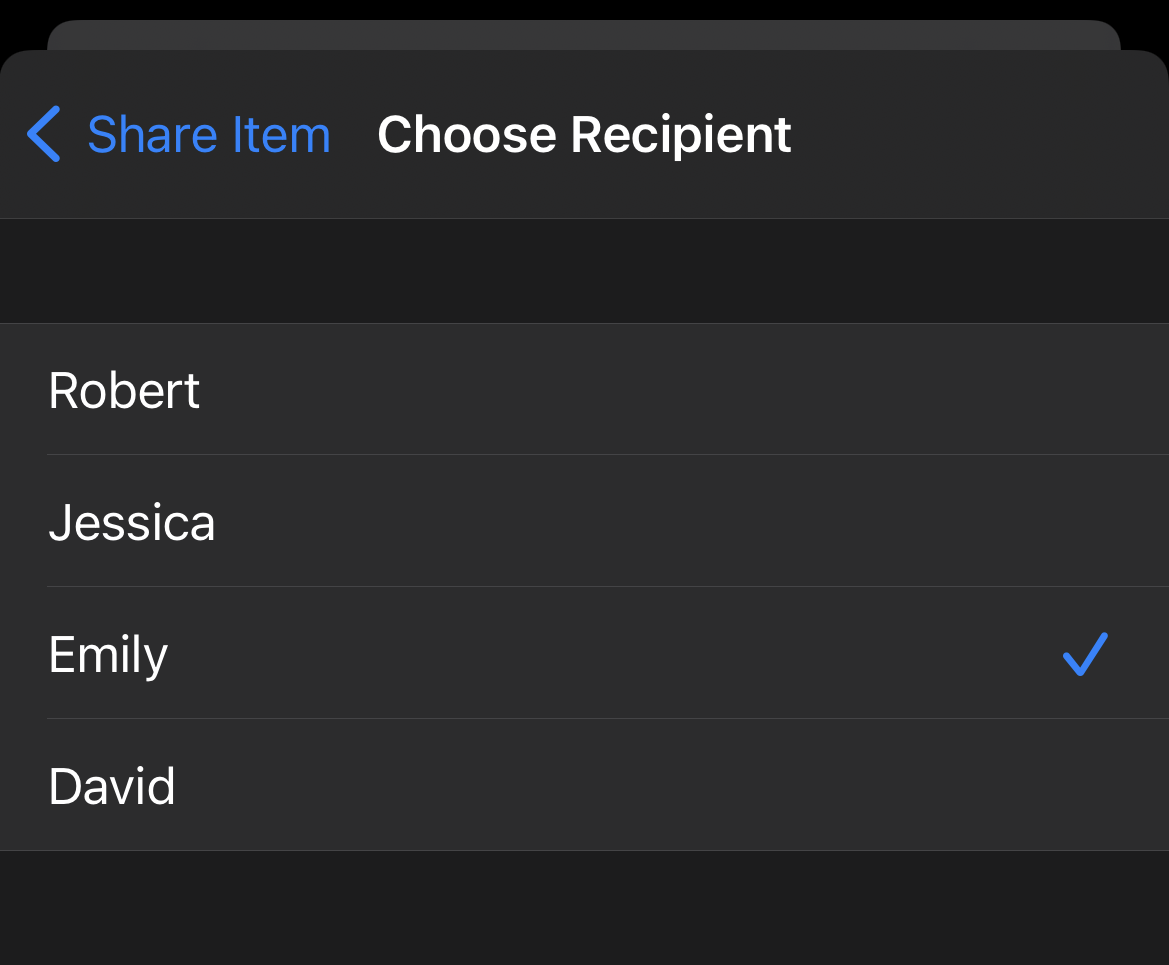
Tap Share with and choose a recipient.
-
Tap Share and select a sharing method, then continue within the chosen app.
Android
To share an Item in an encrypted format after creating a PSK in Enpass for Android:
-
In the Item Details view, tap ⋮ at the top-right corner, then select Share.
-
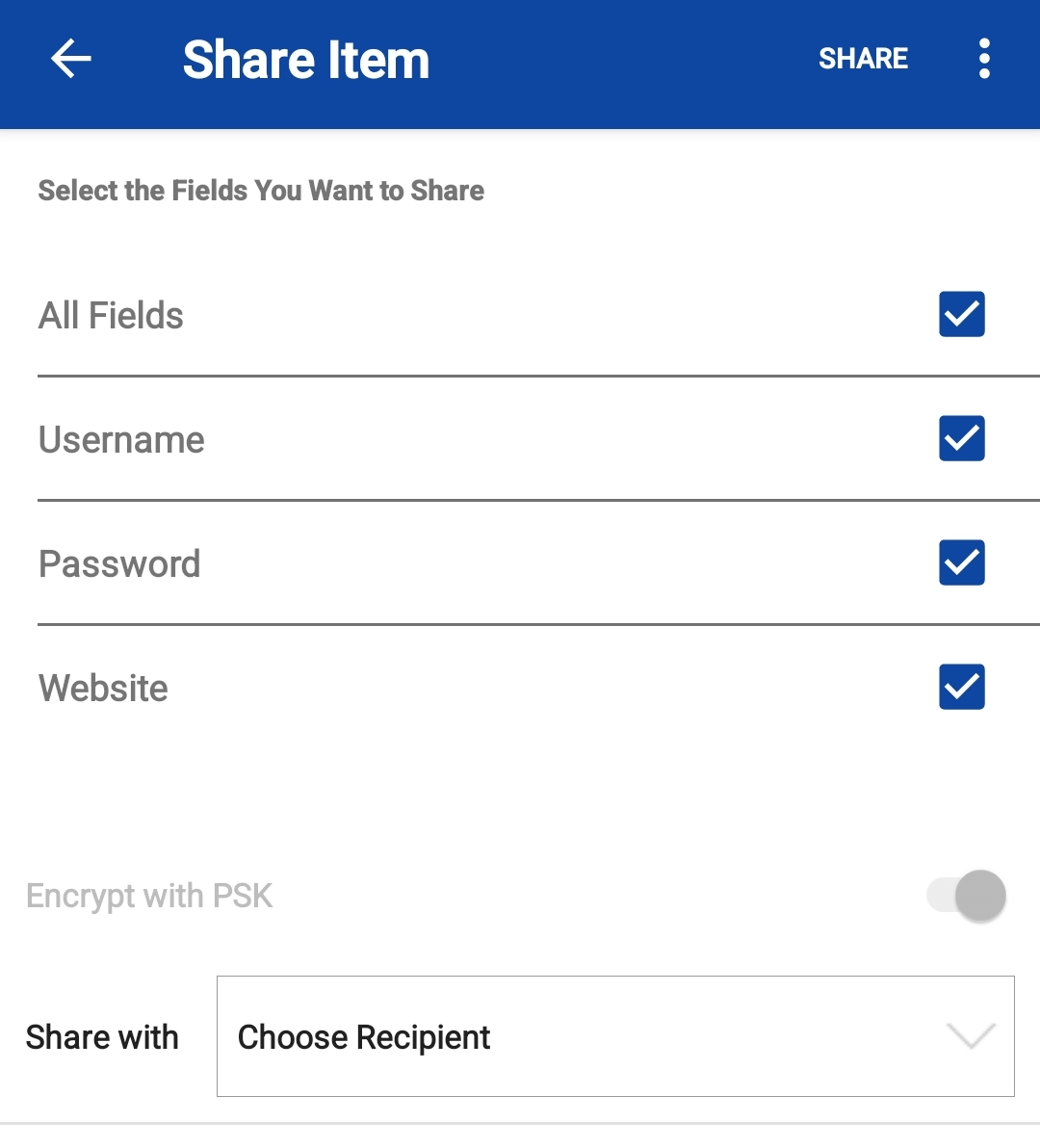
Select the fields to share.
-
Choose a recipient from the Share with drop-down.
-
At the top of the screen, tap Share and select a sharing method, then continue within the chosen app.
To select Copy to Clipboard, tap ⋮ at the top-right corner.
If you select Copy to Clipboard, you can share the item through any messaging service.
Related topics