.svg)
In this guide, we'll outline the steps to deploy the Enpass Hub on Azure App Services using Sidecar. We're assuming you have basic knowledge of Docker and Azure cloud management.
Prerequisites
-
An active subscription of Azure cloud services.
-
Enpass Hub use PostgreSQL database for persisting data. This guide assume you already have an PostgreSQL database running. Make sure the PostgreSQL engine version is 14 or higher.
-
You can use Azure Database for PostgreSQL for creating a new database before proceeding. - https://learn.microsoft.com/en-us/azure/postgresql/flexible-server/quickstart-create-server-portal
-
-
An email server configured to send outgoing emails (e.g., SMTP server such as Microsoft Exchange Online, Gmail SMTP, or any other provider).
Deploy initial app
-
Login into your Azure portal. Goto → App services.
-
Click on Create → Web App
-
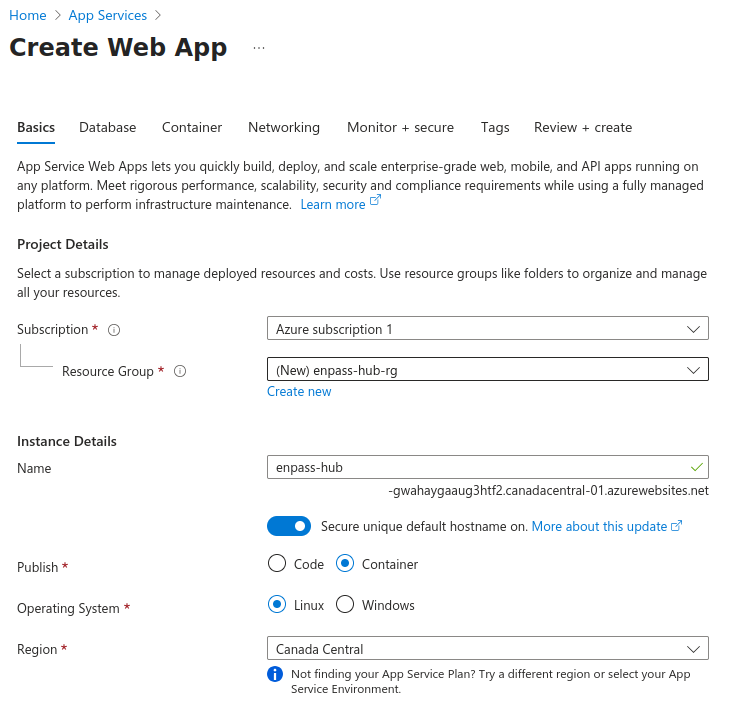
Under Project Details Section:
-
Choose a valid
Subscription. -
Add
Resource Groupas:enpass-hub-rg
-
-
Under Instance Details section add
Nameas “enpass-hub“:enpass-hub -
Select “Container” for
Publishoption. -
Select “Linux“ as
Operating Systemoption. -
Select
Regionthat suits best to your requirements.
-
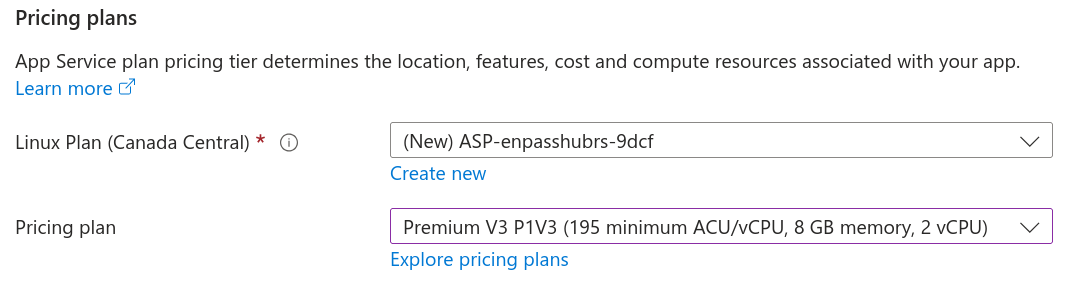
Under Pricing Plan Section:
Select a plan with minimum 8 GB memory and 2 vCPU.
-
Fill other required fields and press “Next : Database”.
-
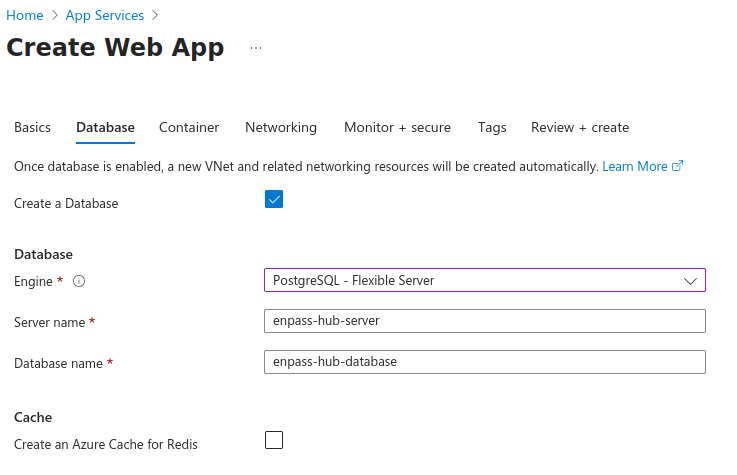
Next it will ask you to configure Database, Refer the below screenshot to the DB Setup Config.
NOTE: We recommend skipping this step and using a separate database for production. Only follow this step in a testing environment.
-
Fill required fields and press “Next : Container”.
-
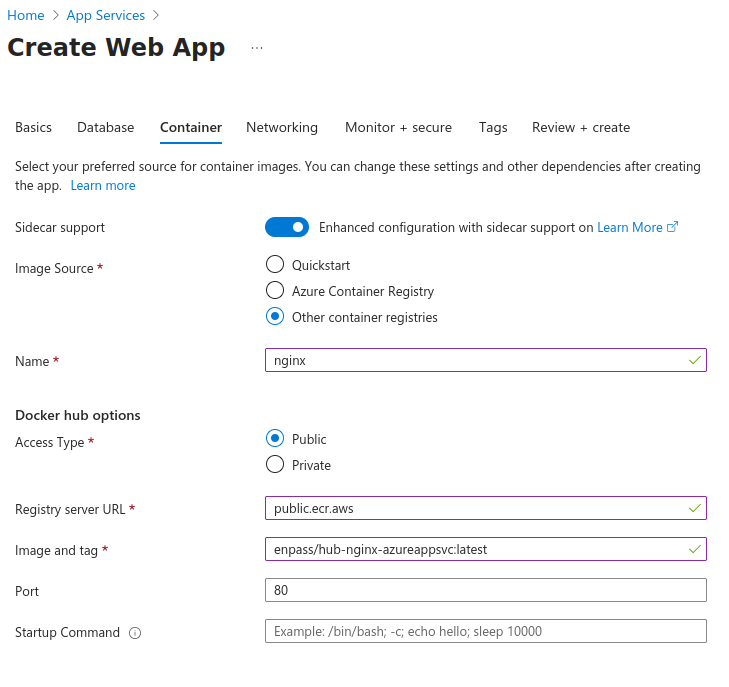
Under Container Section:
-
Toggle the
Sidecar supportbutton to "Enabled" position. -
Select
Image Sourceas “Other container registries“. -
Container
Namewill be:nginx -
Select
Access Typeas “Public“. -
Add
Registry server URLvalue as:public.ecr.aws -
Add
Image and tagvalue as:enpass/hub-nginx-azureappsvc:latest -
Add
Portvalue as:80 -
Leave the
Startup Commandfield empty.
-
-
Click “Next” and configure additional options as your requirements.
-
Click on “Review + Create“, and review the configurations.
-
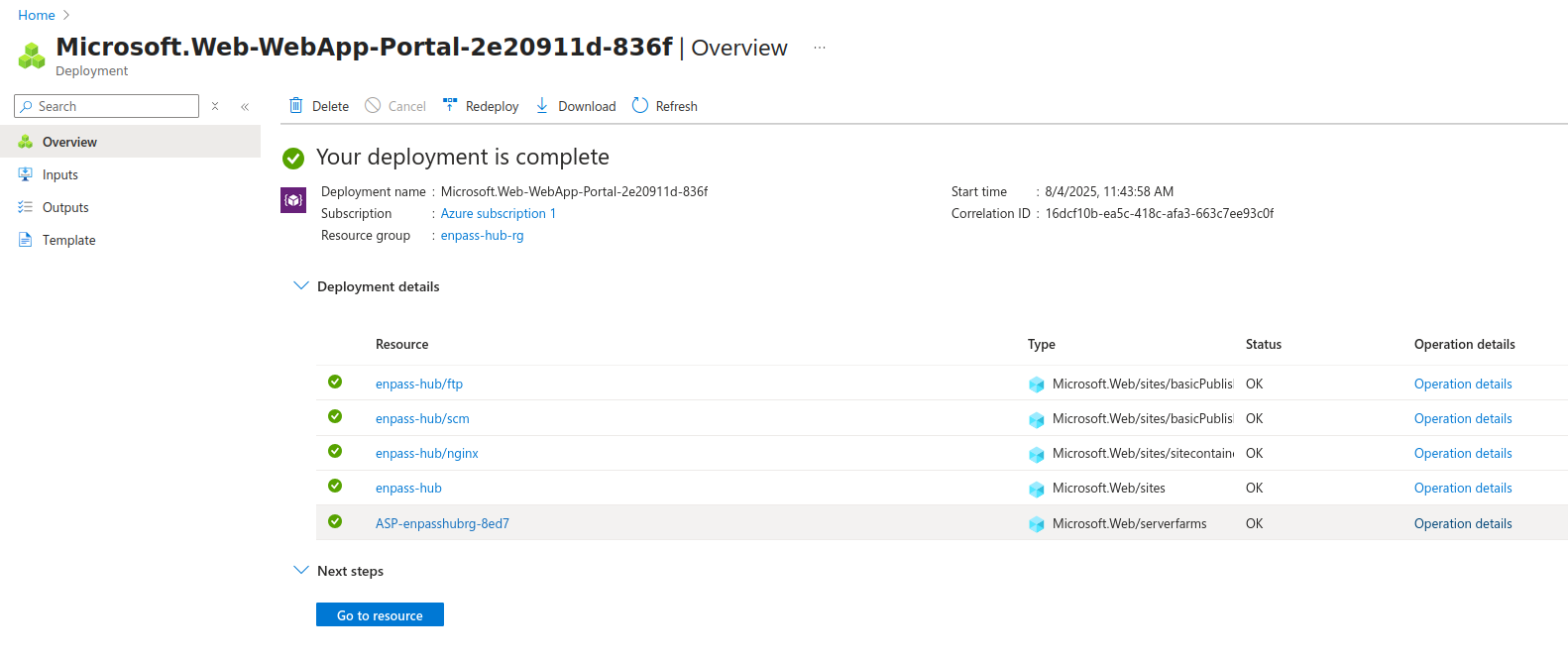
Finally click on “Create“ button and wait till deployment is complete.
-
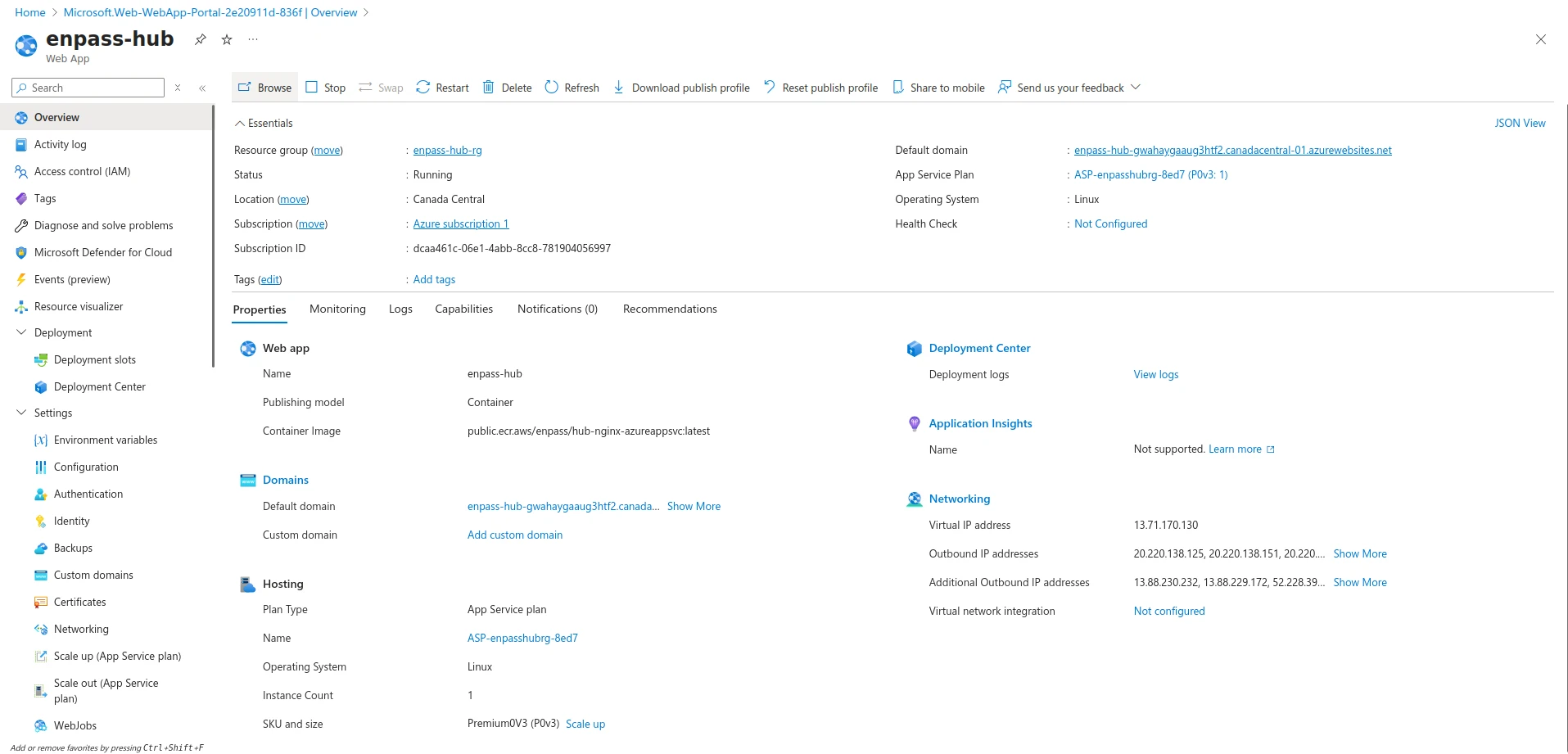
Once deployment is complete. Click on “Go to resource” button.
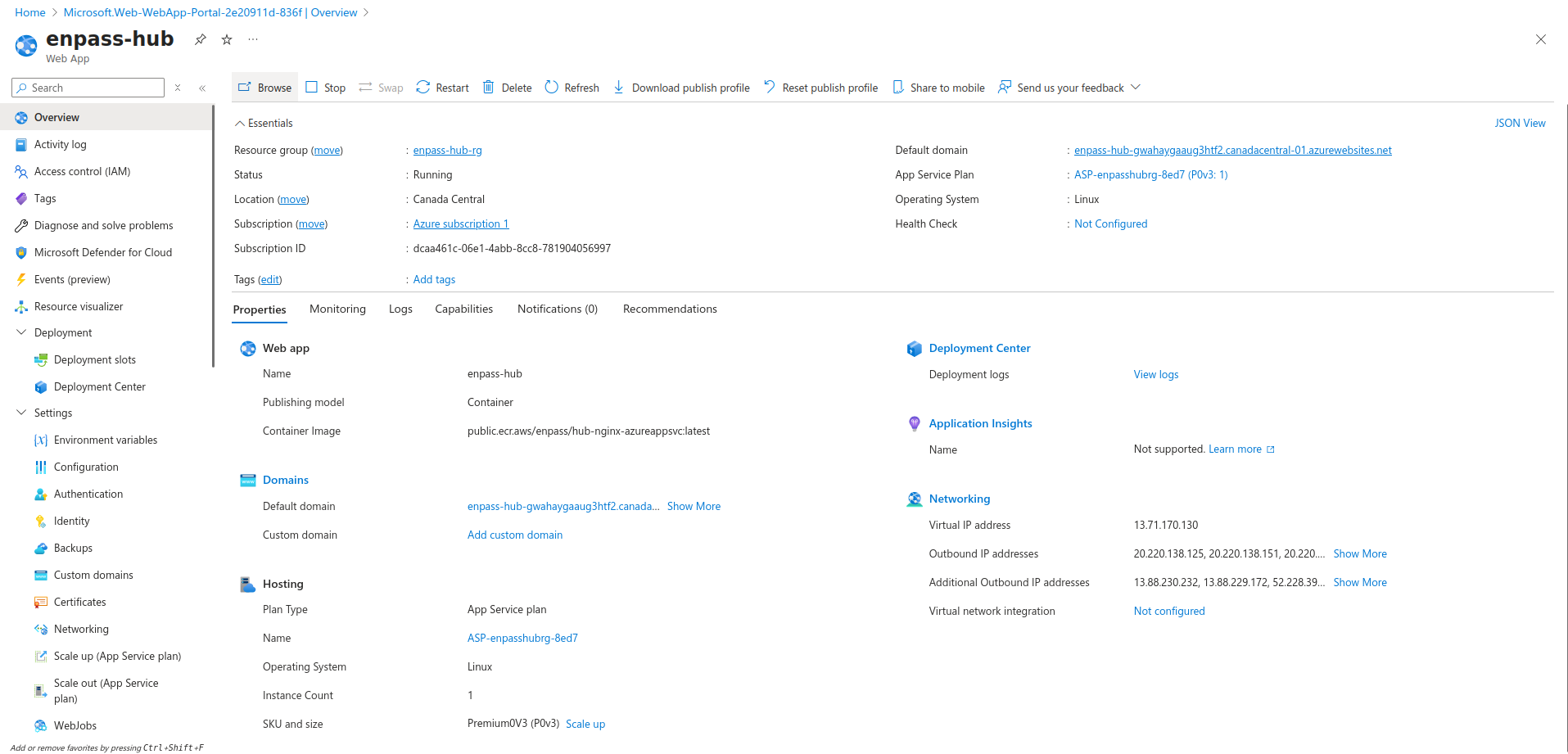
Note the web app’s Default domain, it will be required in next step. It should be in yourappname-random-string.azurewebsites.net format.
Configure App Settings
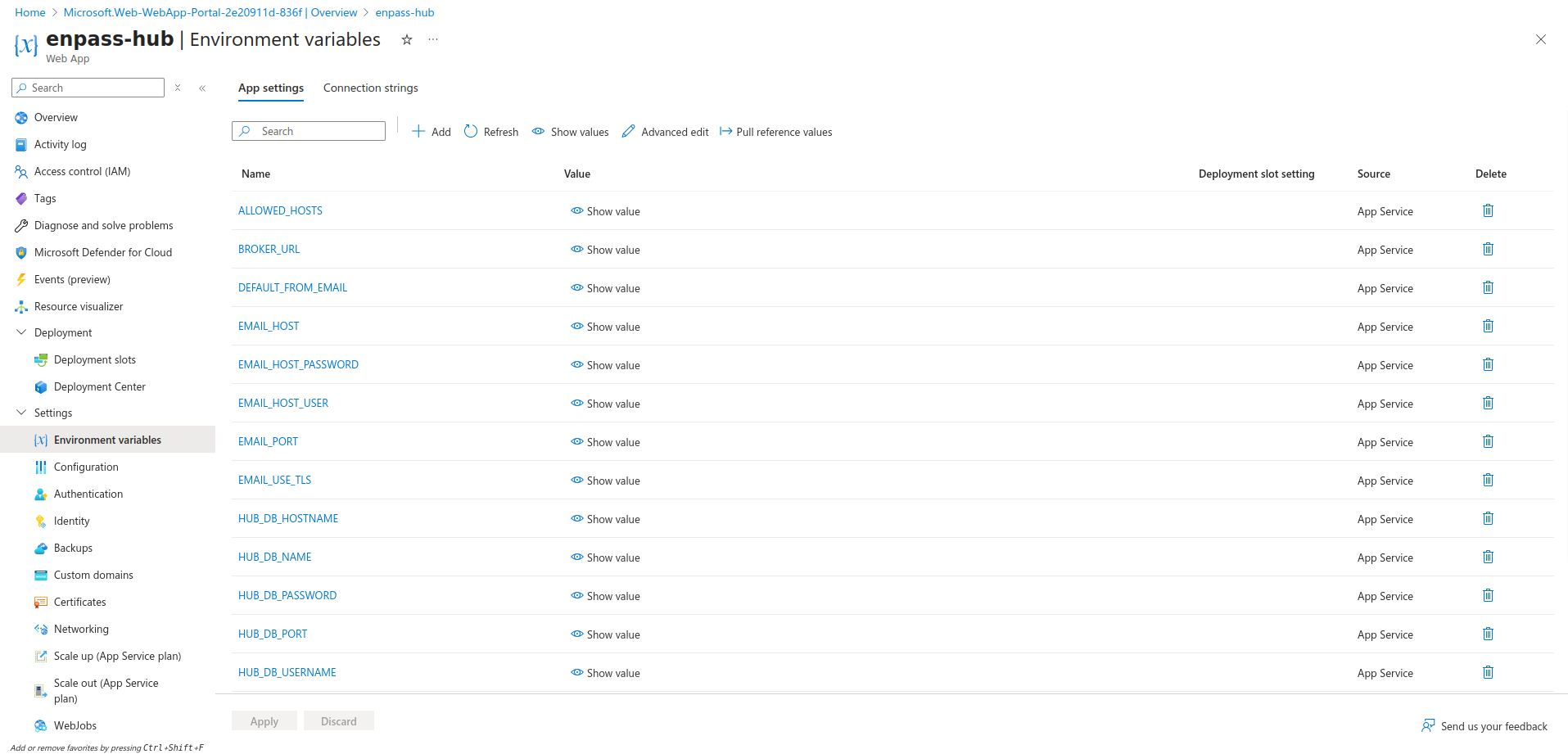
Go to “Settings” → “Environment variables”. Add following app settings as key-value pairs.
Application Secrets and Host Settings
-
HUB_STATIC_URL: The static files will be copied into
/usr/src/app/static/, you will need additional configurations to serve via nginx. You can use static files directly from our CDN for convenience.HUB_STATIC_URL=https://hub-static.enpass.io/static/ -
HUB_SECRET_KEY: A randomly generated key used for cryptographic signing, typically for session cookies.
HUB_SECRET_KEY=3zq(sx&$cf4@p0-EXAMPLE_KEY-9it5(le9)%zv6
Do not use the example key shown here; instead, you can use the following command in your terminal to generate secure random secret keys.
tr -dc 'A-Za-z0-9!"#$%&(){}*+,-./:;<=>?@^_`~|' < /dev/urandom | head -c 50; echo
-
ALLOWED_HOSTS: A comma-separated list of host/domain names associated with the Enpass Hub server. Replace http://yourappname.azurewebsites.net with
Default domainmentioned previously:ALLOWED_HOSTS=yourappname-random-string.azurewebsites.net,localhost,your-subdomain
NOTE: You have to also add your subdomain here comma-separated to be able to point your subdomain to enpass hub.
Message Queue Settings
-
BROKER_URL: The URL or connection details for the Redis message broker used in the application's message queue system. Use following as we will run redis as part of our web app service:
BROKER_URL=redis://localhost:6379/0
Database Settings
Enpass Hub requires a PostgreSQL database to function, and these settings determine the parameters for the connection to that database. They include the Hostname or IP Address of the database server, the database name, and the credentials for accessing it.
-
HUB_DB_HOSTNAME, HUB_DB_NAME, HUB_DB_USERNAME, HUB_DB_PASSWORD, HUB_DB_PORT:
-
Example:
HUB_DB_HOSTNAME=hub-database.example.tld
HUB_DB_NAME=hub-database
HUB_DB_USERNAME=my-username
HUB_DB_PASSWORD=my-password
HUB_DB_PORT=5432
-
Email Settings
Email settings are key for the application's communication mechanisms. Enpass Hub uses these configurations to send out emails, such as OTPs and notifications. These settings specify the outgoing mail server details, including the hostname, user credentials, port, and the type of security to be used for the connection. The SERVER_EMAIL and DEFAULT_FROM_EMAIL define the sender address for system-generated and outgoing emails, respectively.
-
EMAIL_HOST, EMAIL_HOST_PASSWORD, EMAIL_HOST_USER, EMAIL_PORT, EMAIL_USE_TLS, SERVER_EMAIL, DEFAULT_FROM_EMAIL:
-
Example:
EMAIL_HOST=smtp.example.com
EMAIL_HOST_PASSWORD=mysecretpassword
EMAIL_HOST_USER=myemail@example.com
EMAIL_PORT=25
EMAIL_USE_TLS=True
SERVER_EMAIL=noreply@example.com
DEFAULT_FROM_EMAIL=noreply@example.com
-
After adding all these application settings, click “Apply“ and then “Confirm” to save the app settings restart web app. Wait for few minutes.
Managing Secrets with Azure Key Vault (Recommended )
Enpass Hub supports using Secrets from Azure Key Vault. To use secrets from a Key Vault, ensure the following environment variables are configured in your Enpass Hub environment:
SECRET_CLOUD_PROVIDER=microsoft_azure
AZURE_TENANT_ID=<your-tenant-id>
AZURE_CLIENT_ID=<your-application's-client-id>
AZURE_CLIENT_SECRET=<your-application's-client-secret>
AZURE_KEYVAULT_URL=<your-vault-uri>
Make sure the application’s service principle has appropriate access permissions to the key vault.
Now you can use add any environment variable stated in previous sections as a secret in Azure Key Vault, by replacing underscores (_) with hyphens (-) (Azure Key Vault does not permit underscores in secret names). We recommend at least store following secrets instead of environment variables:
-
HUB-SECRET-KEY -
HUB-DB-PASSWORD -
EMAIL-HOST-PASSWORD
Ensure that you are using Hub Image Version 1.04 - public.ecr.aws/enpsas/hub-server:1.04 or above to manage secrets with Azure Key Vault.
Configure Deployment
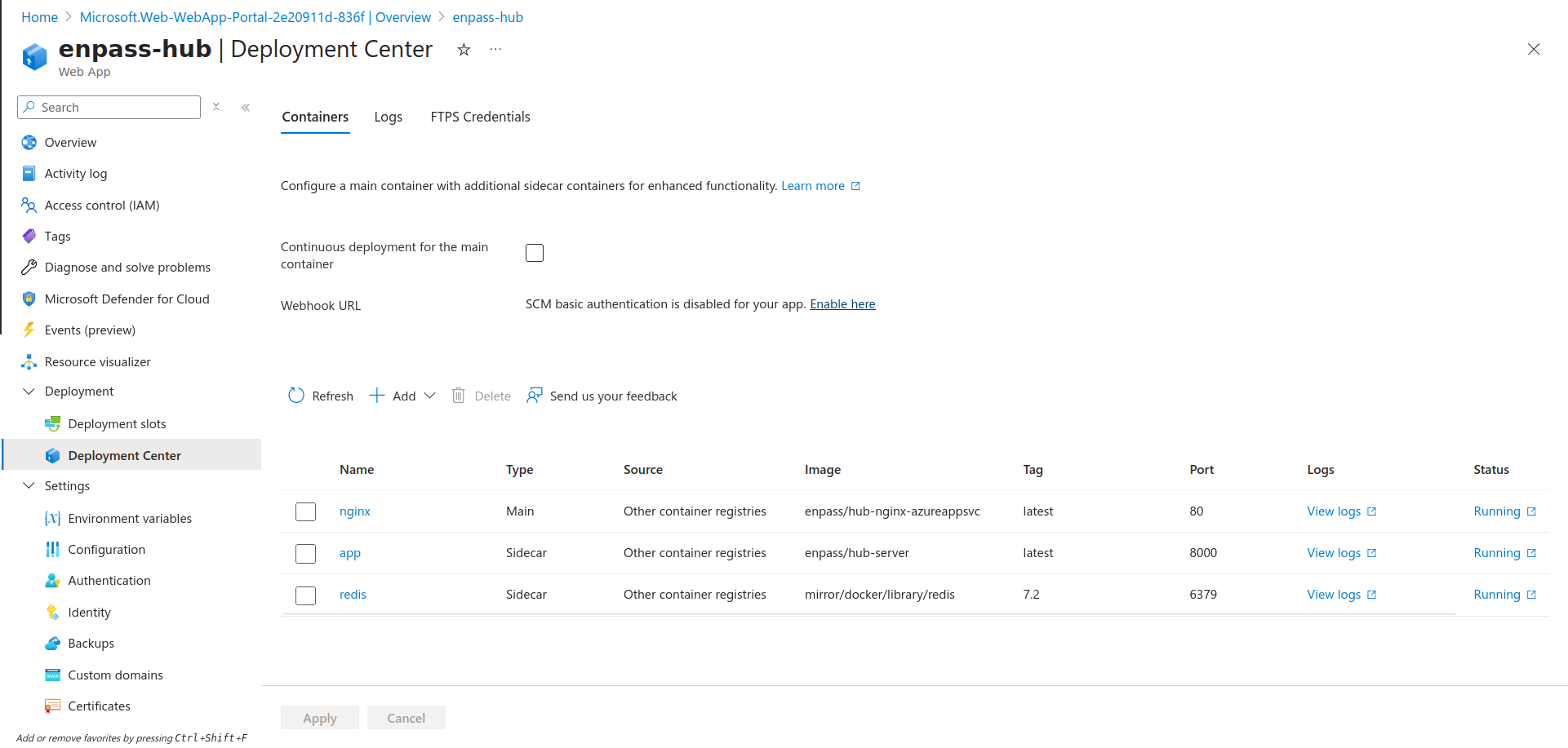
Go to “Deployment” → “Deployment Center” in side panel. Under Containers tab, follow the below mentioned instructions.
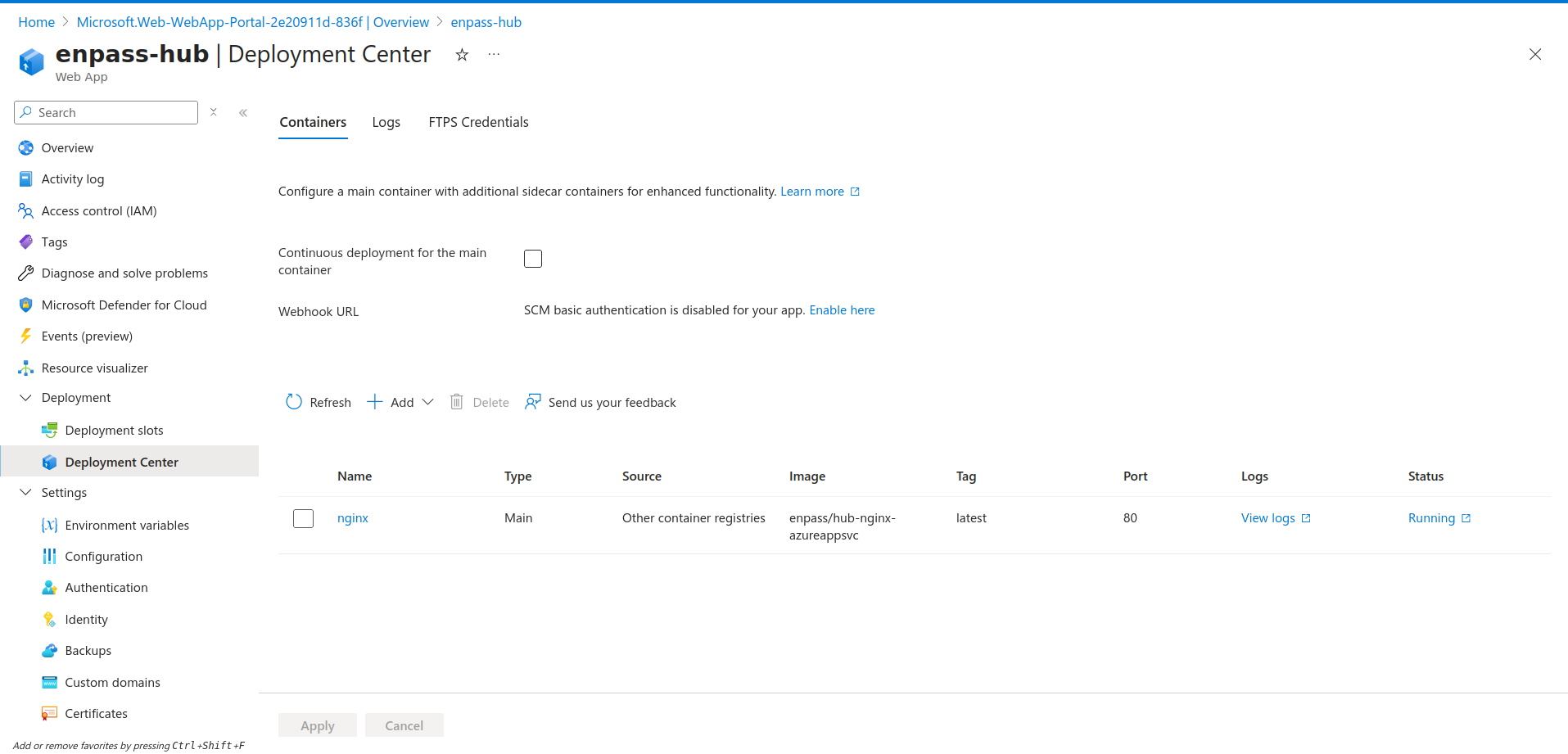
-
Go to “Add“ → “Custom Container“.
-
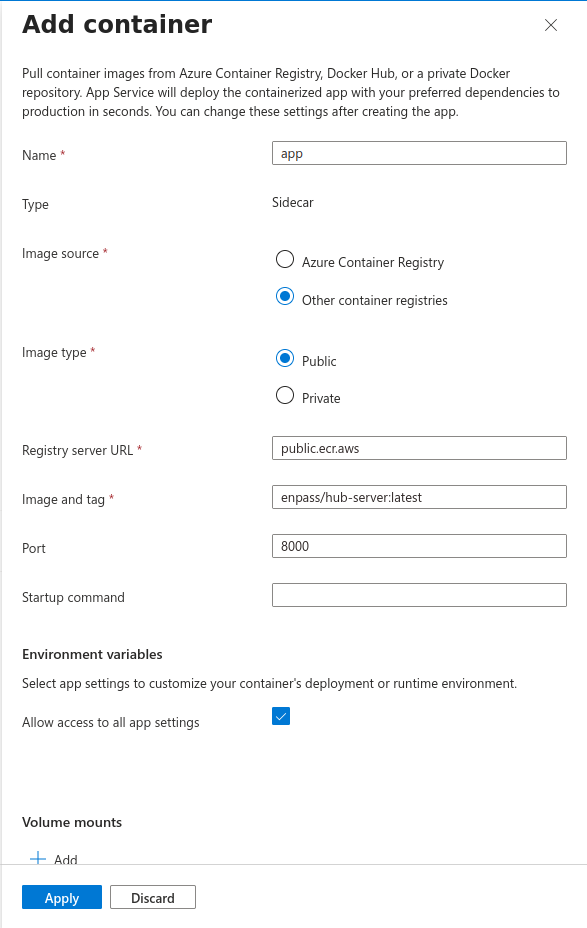
Under Add Container Section:
-
Container
Namewill be:app -
Select
Image sourceas “Other container registries“. -
Select
Image typeas “Public“. -
Add
Registry server URLvalue as:public.ecr.aws -
Add
Image and tagvalue as:enpass/hub-server:latest -
Add
Portvalue as:8000 -
Leave the
Startup Commandfield empty. -
Check the “Allow access to all app settings“ under “Environment variables“ section.
-
Then click on “Apply“ Button.
-
-
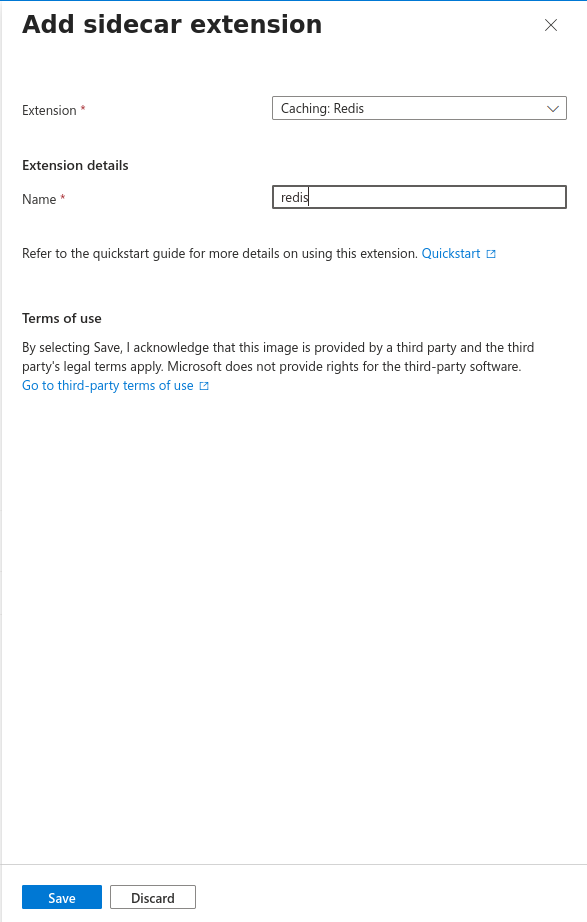
Now Go to “Add“ → “Sidecar extension“.
-
Under Add sidecar extension Section:
-
Choose
Extensionvalue as “Caching: Redis“. -
Under Extension Details, add
Nameas:-
redis
-
-
Then click on “Save“ Button as the bottom.
-
-
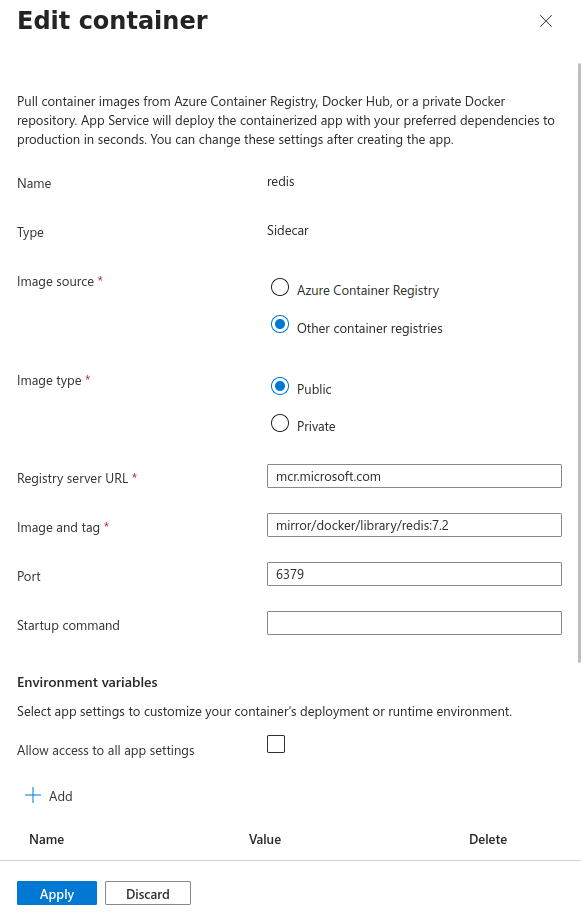
Now Click on “redis“ container to open its settings.
-
Add
Portvalue as:-
6379
-
-
Leave the rest of the fields untouched and click on “Apply“ Button.
-
Now wait until each container Status changes to “Running“.
Check your setup
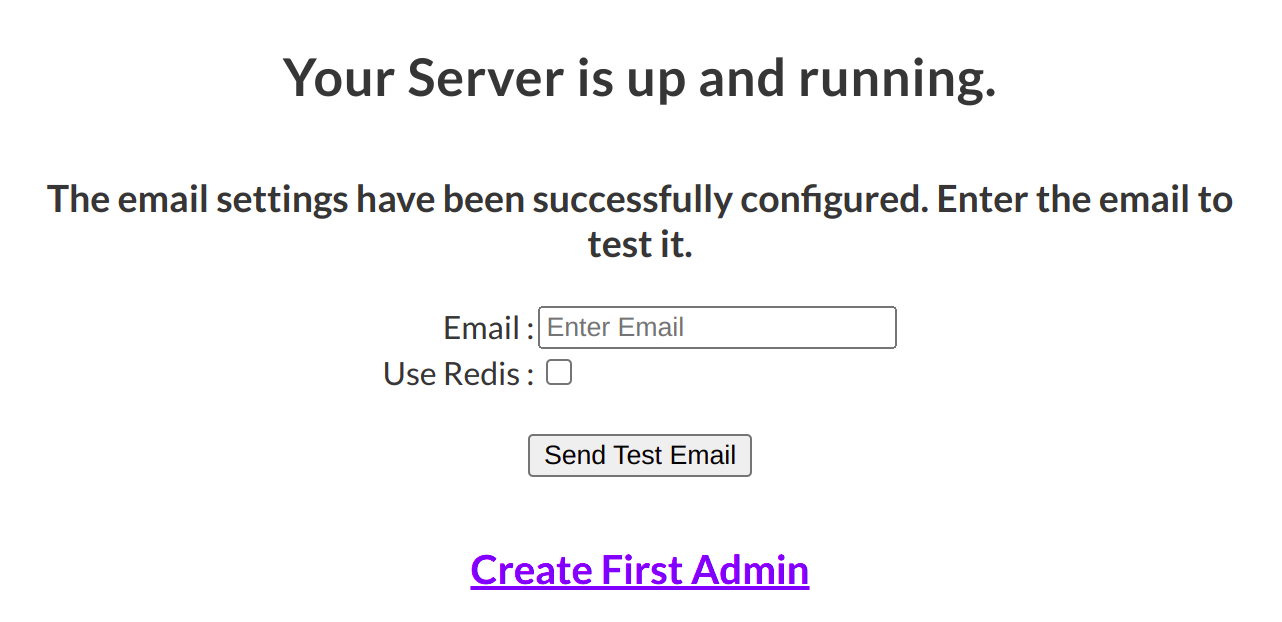
Visit the URL you've created for your Enpass Hub (e.g., https://yourappname.azurewebsites.net/ , as previously mentioned Default domain) to confirm it's live.
-
Enter a test email address, and click Send Test Email to confirm your email configuration is functioning in your setup correctly.
-
Enter a test email address, enable the
Use Redisoption, and click Send Test Email to confirm Redis is functioning correctly in your setup.
Troubleshooting:
If you are unable to access the app, you can view container logs in “Deployment Center“ to find the root cause.
Common Issues:
-
Incorrect app settings variables (Key or Value)
-
Unreachable Database
-
Unreachable Email Server
-
Incorrect Container Names
Additional Considerations
Before going to production, consider the following measures:
-
Updates: Make sure to regularly check for updates to the Enpass Hub Docker image. If there are updates, you just have to restart your Enpass Hub Application from Azure App Service console and it will auto fetch the latest docker images of the respective conainters.
-
Database: Regular backups of your PostgreSQL database are critical for disaster recovery. For better control and data persistence. Additionally, consider encrypting your database to add an extra layer of security to your sensitive data.
Next steps
By adhering to this guide, you should now have successfully self-hosted Enpass Hub. It's now ready for integration with Enpass. To continue with the integration process, please follow the steps outlined in the Connecting Enpass Hub to Your Admin Console.