.svg)
Capturing or customizing website icons in Enpass
When creating a new Enpass Item, if you include a website address, Enpass can automatically fetch the site’s logo to use as the icon for your Item.
Alternatively, or if no website icon is available to capture, you can choose an icon from a built-in gallery or customize the icon by adding an image of your own.
Enpass fetches website icons from a gallery stored on Enpass servers, based only the website’s URL. Enpass performs this process anonymously, and does not collect any information about you or your device.
The style, quality, and resolution of website icons depend on what images are made available by each site as “favicons” — the small logos you see in browser tabs and bookmarks. If no icon is found, Enpass will attempt to fetch one from the site itself. If still no icon is found, Enpass will default to the Item’s previous icon.
Custom icons are synced between devices, but website icons are fetched and stored by the individual device. To use website icons across all your devices, enable the feature on each device individually.
Using website icons
Customizing icons in Enpass
You can also use your own custom icon for any Item in Enpass. Enabling website icons does not affect any Item with custom icon already selected.
Desktop
To set a custom icon in Enpass for desktop:
-
In the Item Details view, click

-
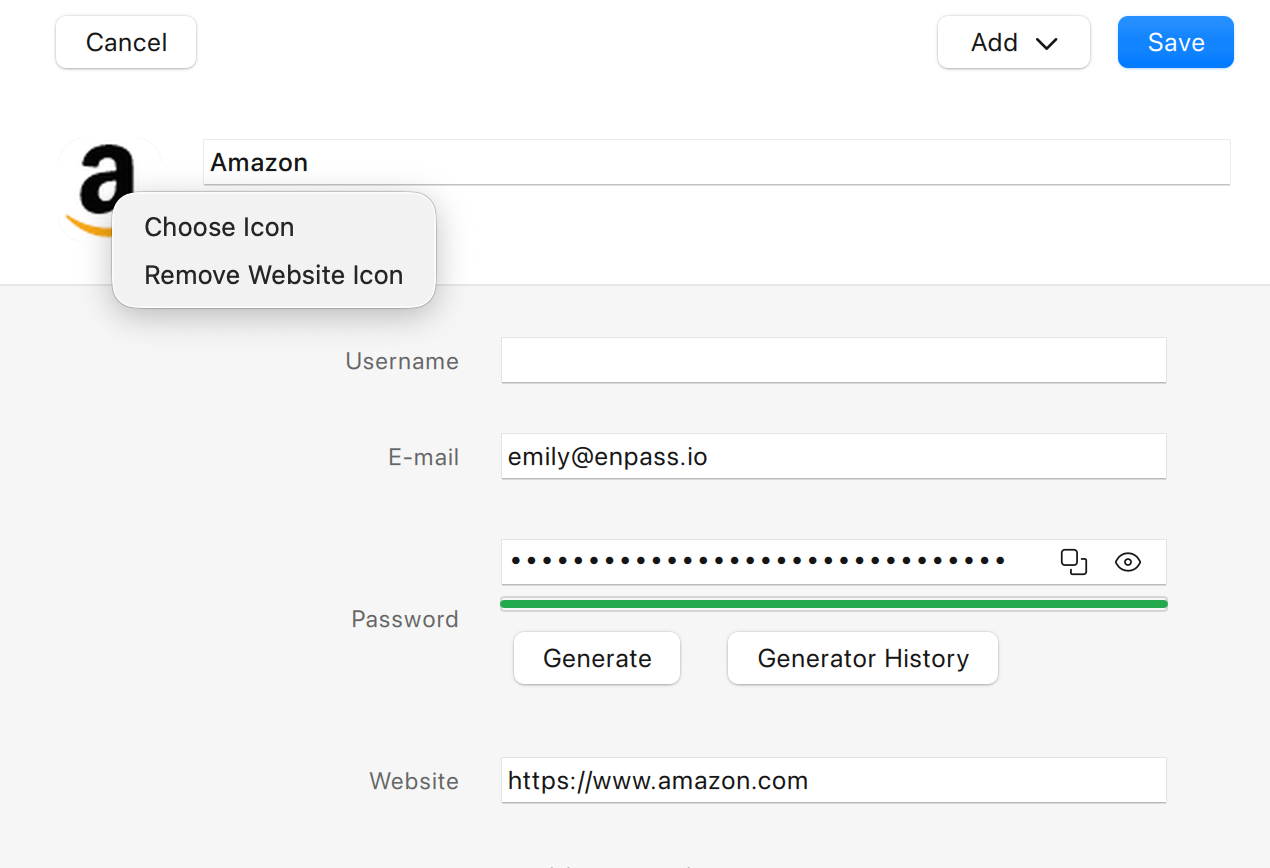
Click the current icon, and select Choose Icon.
-
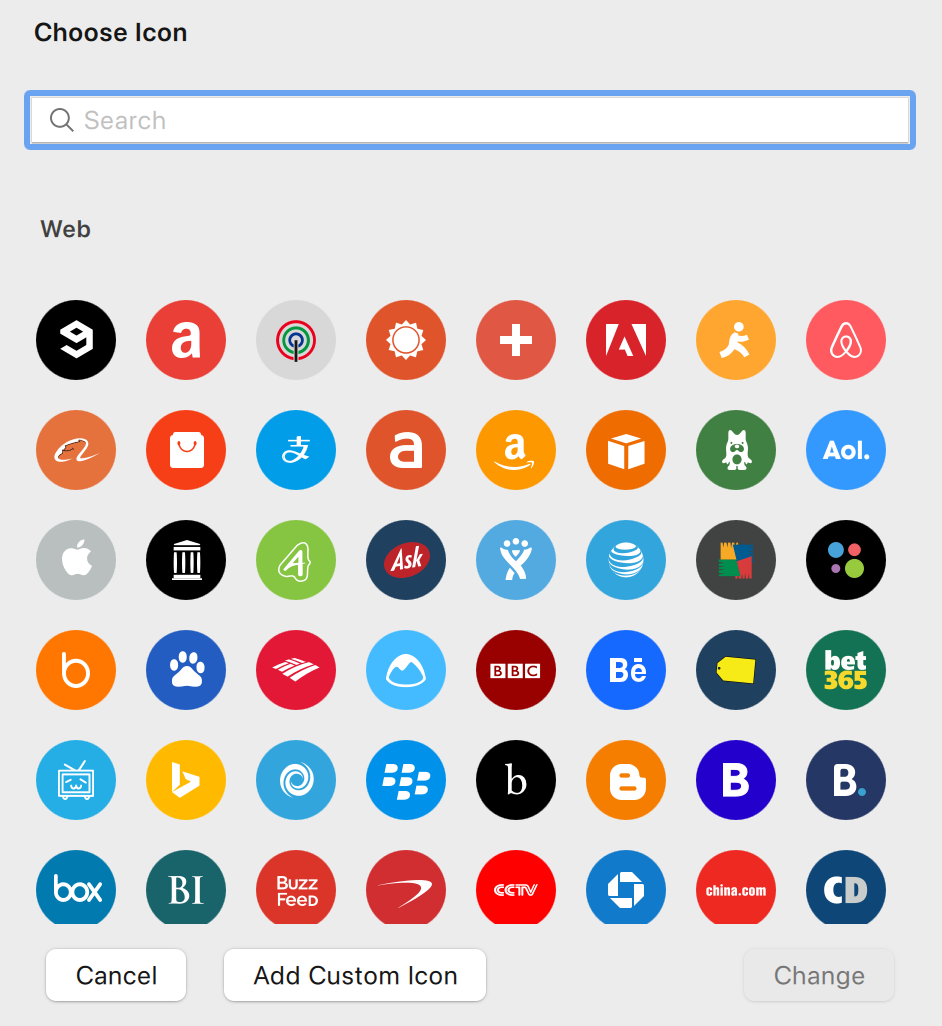
In the Choose Icon overlay, select an existing icon from the gallery, or click

-
After adding your new icon, it will appear at the top of the Choose Icon overlay.
-
Select your icon, and click Save to save your changes.
iOS
To set a custom icon in Enpass for iOS:
-
In the Item Details view, tap Edit at the top-right corner.
-
Tap the current icon, and select Choose.
-
In the Choose Icon screen, select an existing icon from the gallery, or tap
-
After adding your new icon, it will appear at the top of the Choose Icon screen.
-
Select your icon, and tap Save to save your changes.
Android
To set a custom icon:
-
In the Item Details view, tap
-
Tap the current icon, and select Choose Icon.
-
In the Choose Icon screen, select an existing icon from the gallery, or tap
-
(If prompted, allow Enpass to access photos and files on your device.)
-
-
After adding your new icon, it will appear at the top of the Choose Icon screen.
-
Select your icon, and tap Save to save your changes.
Disabling website icons
Enpass’s website-icons feature can be disabled completely, or website icons can be disabled for individual Items. Once disabled, Enpass reverts to the Item’s default icon or previously selected icon.
Desktop
To disable website icons for all Items in Enpass for desktop:
-
Go to Settings > Customize.
-
Deselect the Use Website Icons checkbox.
To remove and disable the website icon of single Item:
-
In the Item Details view, click
-
Click the current icon, and select Remove Website Icon.
-
Click Save to save your changes.
Android
To disable website icons of all Items in Enpass for Android:
-
Go to Settings > General.
-
Deselect the Use Website Icons checkbox.
To disable website icon of single Item:
-
In the Item Details view, tap
-
Tap the icon, and select Remove Website Icon.
-
Tap Save to save your changes.