.svg)
Customizing a vault’s name & icon
The name and icon of any vault other than the Primary vault can be customized to help you to recognize each vault at a glance.
Desktop
To change a vault's name or icon in Enpass for desktop:
-
Go to Settings > Vaults, and select the vault you want to update.
-
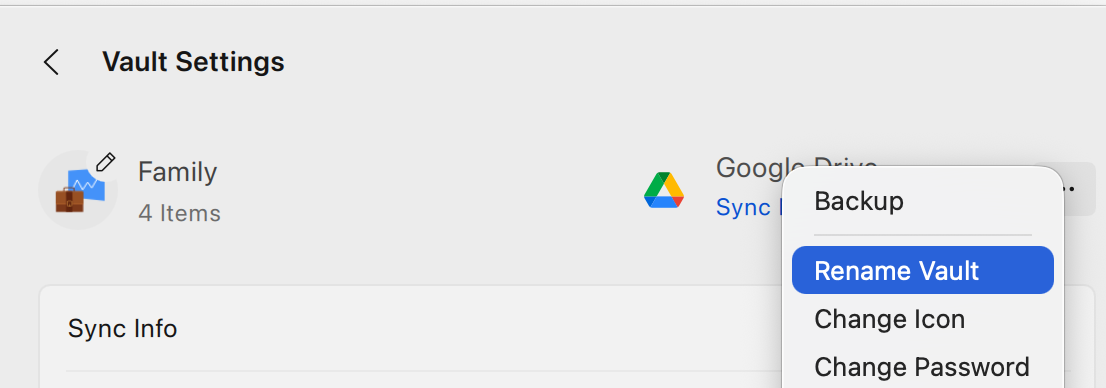
Click ︙ at the top-right corner.
-
Select Rename Vault to enter a new name.
-
Select Change Icon to select a new icon.
-
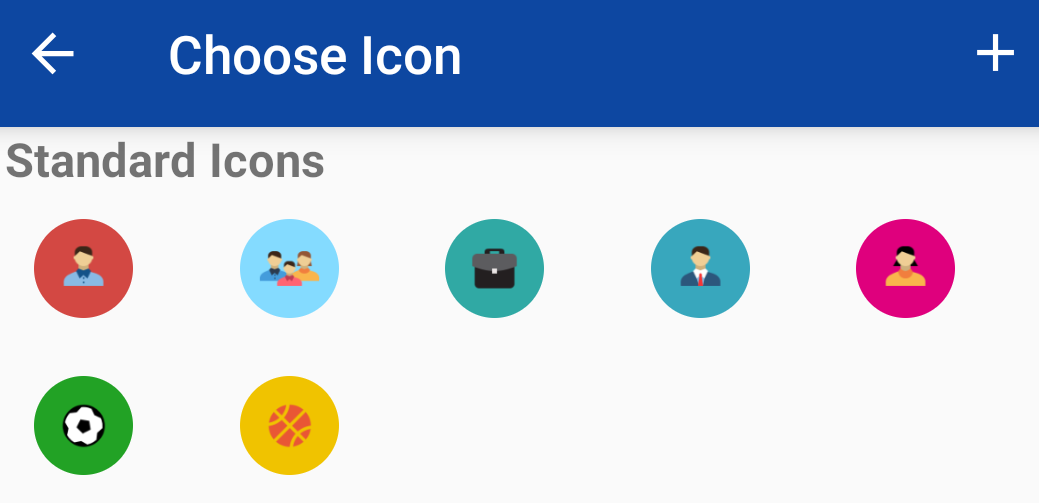
Choose from the available icons, or click

iOS
To change a vault's name or icon in Enpass for iOS:
-
Go to Settings > Vaults, and select the vault that you want to customize.
-
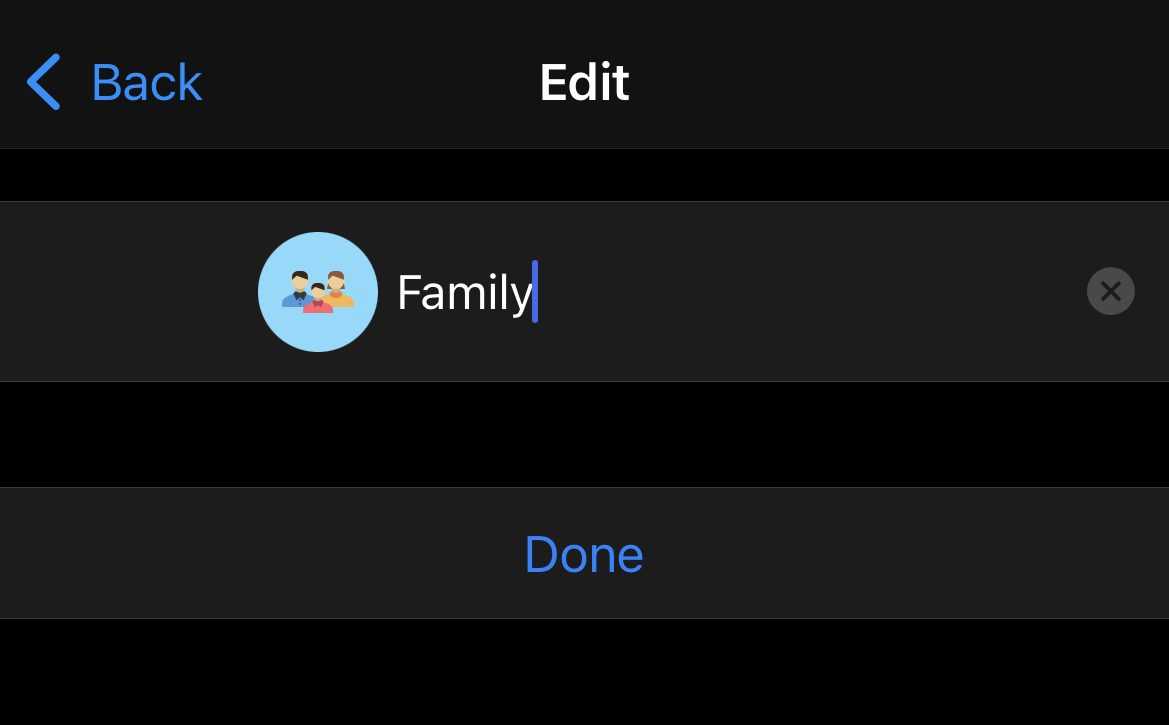
To edit the vault's name, tap

-
Then enter a new name, and tap Done.
-
-
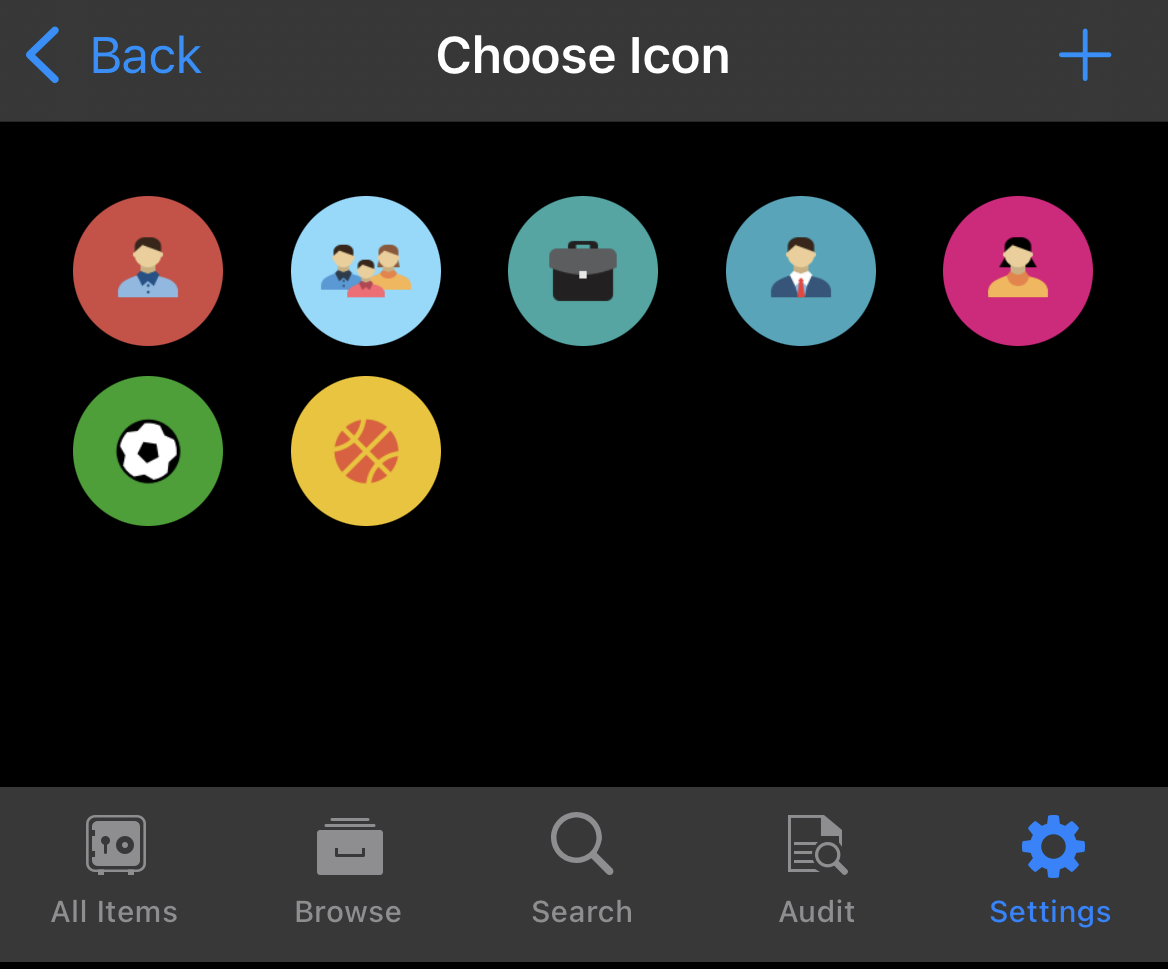
To select a new icon, tap the vault's current icon
-
Choose from the available icons, or tap
-
Android
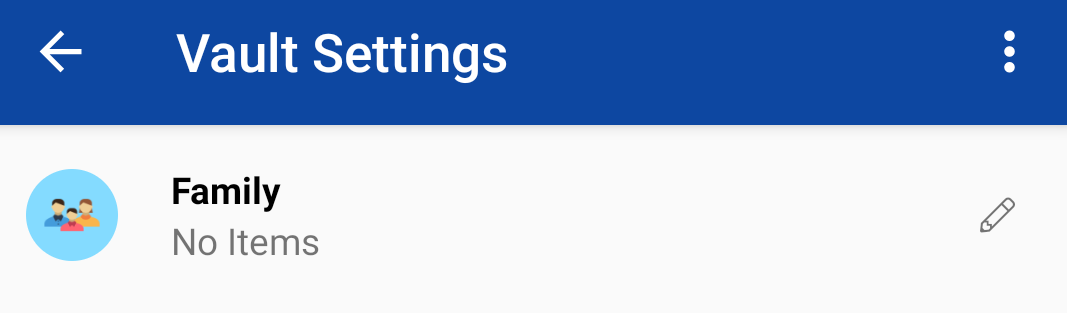
To change a vault's name or icon in Enpass for Android:
-
Go to Settings > Vaults, and select the vault that you want to customize.
-
To edit the vault's name, tap
-
Then enter a new name, and tap Done.
-
-
To select a new icon, tap the vault's current icon
-
Choose from the available icons, or tap
-