.svg)
Using Enpass on an Android Watch
If you have Wear OS installed on your phone, Enpass can share select Items with your Android Watch for easy access.
To enable Enpass on an Android Watch:
-
Install Enpass on your Android phone and your Android Watch.
-
Pair your watch with your phone.
-
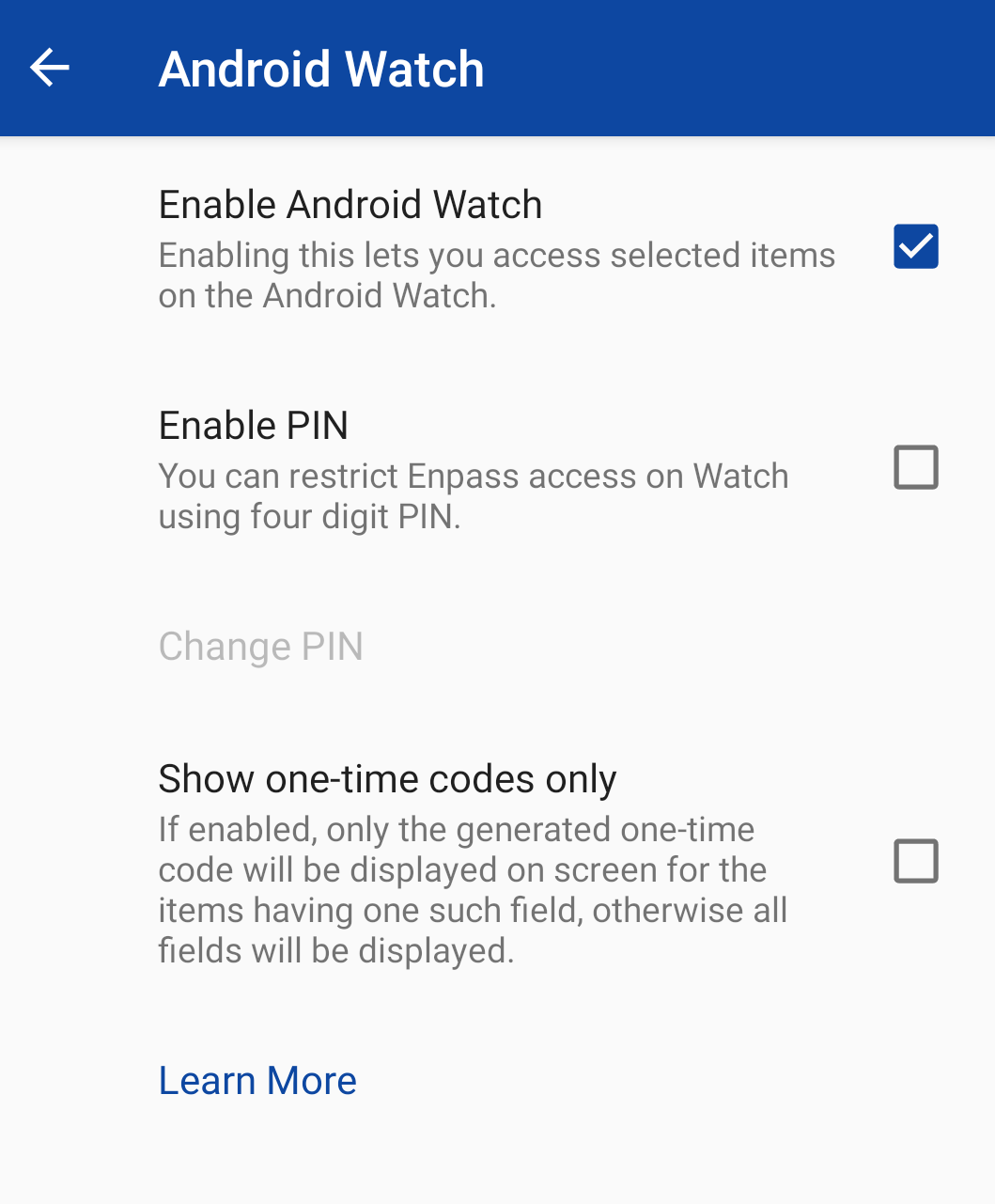
In the Enpass app on your phone, go to Settings > Android Watch, and select Enable Android Watch.
-
For maximum security, we recommend also setting a PIN to unlock the Enpass App on your watch.
For Enpass Items that generate one-time authentication codes, on this screen you can also restrict Enpass for Android Watch to show only that code, and no other account information.
To add an Enpass Item to your Android Watch:
-
In Enpass on your iPhone, select an Item you want to appear on your watch.
-
In the Item Details view, tap

-
Select fields to be available on your watch, then tap Add.
To see a list of Items added to your watch:
-
In Enpass on your phone, go to the Browse tab.
-
Scroll to the Others sections, then select Watch.
To remove an Item added to your watch:
-
In Enpass on your phone, go to the Browse tab.
-
Scroll to the Others sections, and select Watch.
-
Select the Item you want to remove.
-
In the Item Details view, tap
Additional security
Enpass for the Android Watch works through the Android phone to which it is paired. It communicates securely only with that device, over Bluetooth, using Android Wearable Data Layer API.
Only Items added to your Android Watch from the Enpass app on your phone will be accessible on your watch. On your watch, these Items are not locked by your Master Password, so they are not as secure as Items in the Enpass app on your phone or computer.
For additional security, we recommended:
-
Setting a PIN code for Enpass on your watch
-
Use Enpass on your watch mostly for authentication codes or frequently used short-code Items like locker combinations