.svg)
Moving from Microsoft Authenticator to Enpass is easy
Passkeys (for signing into accounts with fingerprints or face recognition) are not transferrable by design, and cannot be imported or exported between password managers.
To export your data from Microsoft Authenticator:
-
Follow the export instructions for Microsoft Authenticator.
-
Save your export data as an unencrypted .csv file.
To import your Microsoft Authenticator data into Enpass:
-
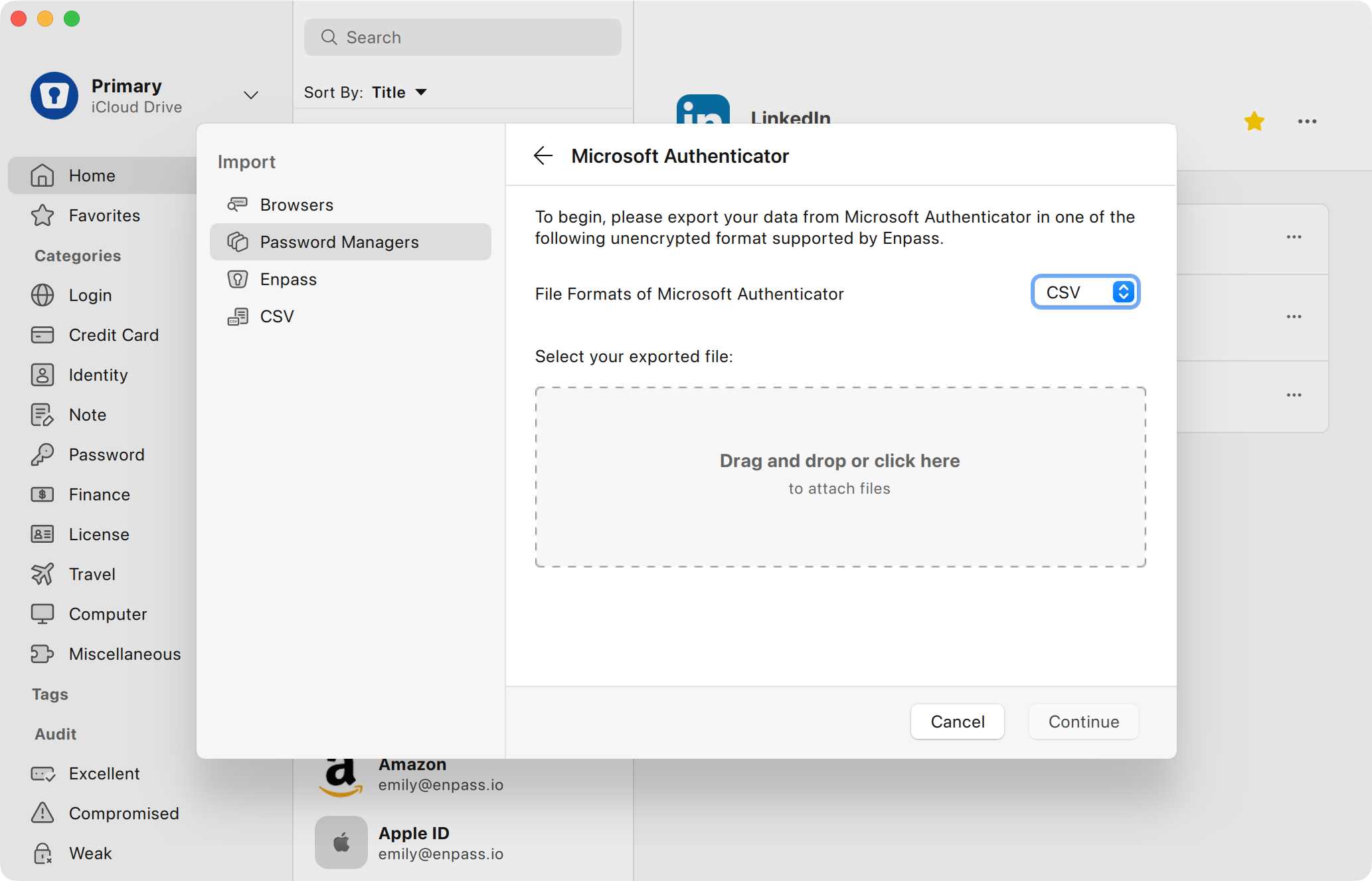
In the Enpass desktop app, go to the File menu, and select Import > Microsoft Authenticator.
-
Select or drag your exported CSV into the Import screen, and click Continue.
-
If you have multiple Enpass vaults, select the vault where you want your imported Items to appear. (Your Primary vault is selected by default.)
-
Click Continue, and after the import is complete, click Done.
Imported items are categorized in Enpass based on available data. Any items Enpass was unable to categorize will appear in Categories > Uncategorized in the Enpass sidebar.
After confirming your data has been successfully imported, for your security be sure to delete the unencrypted files you used to import your data, then empty your computer's trash/recycling bin.