.svg)
Enpass stores and syncs your organization's encrypted password vaults in your own organization’s Microsoft 365 environment — in OneDrive and SharePoint — not on Enpass servers. To enable this storage and syncing, Enpass must be included in your organization’s trusted Enterprise Apps in Microsoft 365. This is a one-time setup step.
To add Enpass to your Enterprise Apps:
-
In the Enpass Admin Console, go to Dashboard > Focus Actions.
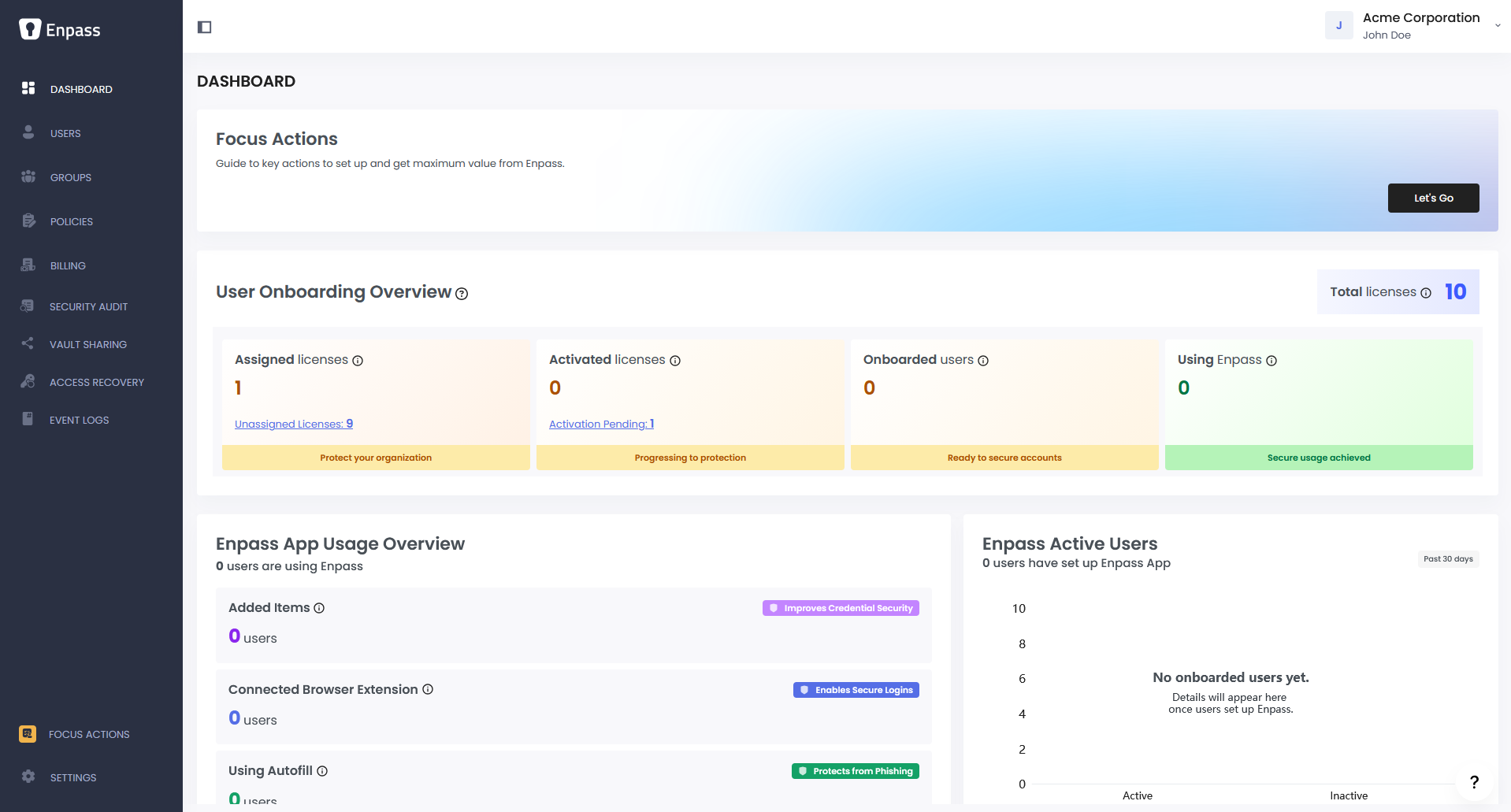
-
In the Essentials tab, click Finish Now.
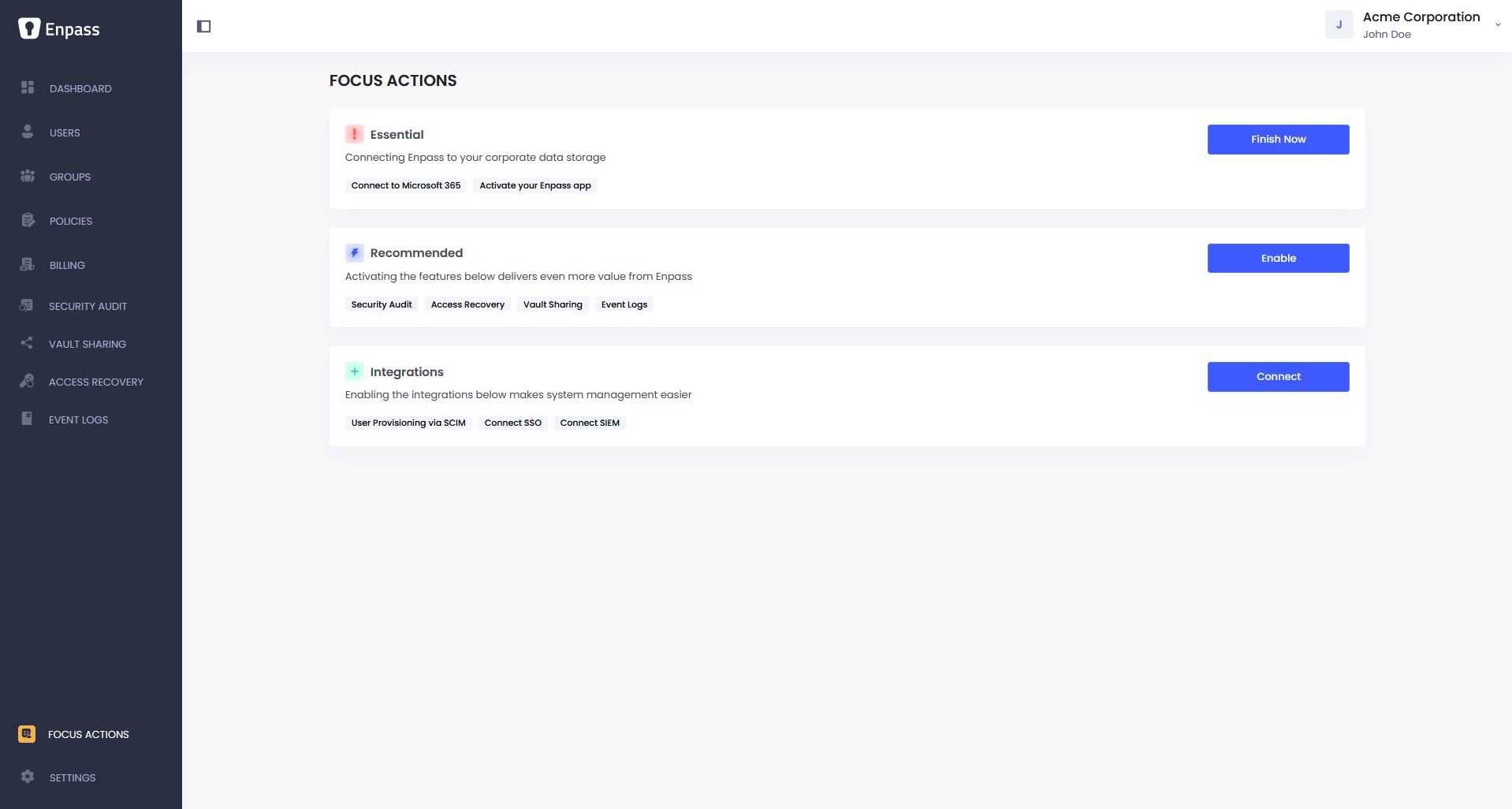
-
Under Add Enpass to Trusted Apps, click Add to Enterprise Apps to open your Microsoft 365 environment.
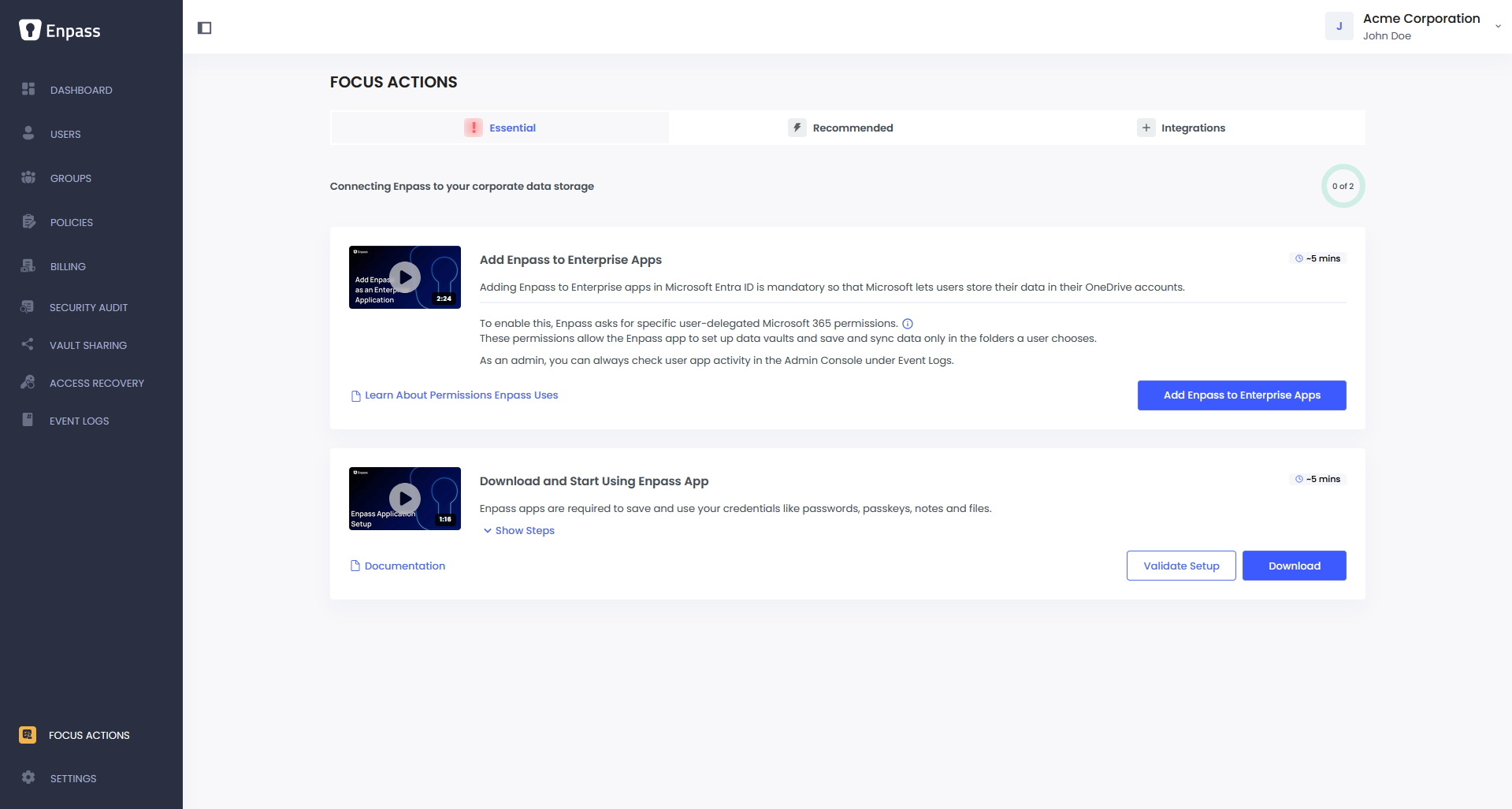
-
Sign in to your Microsoft account.
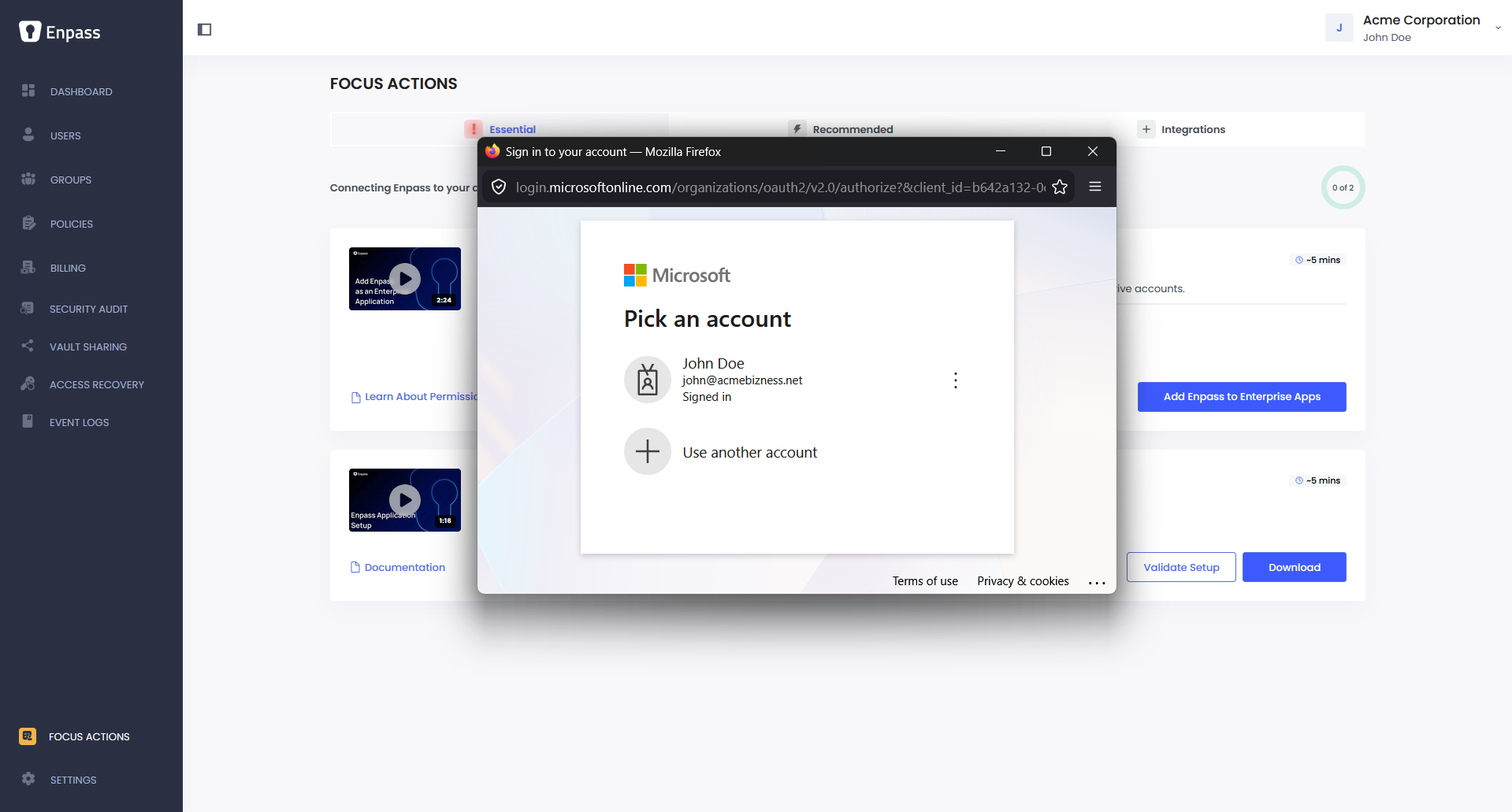
-
Pop-up blocked? See note below.
-
-
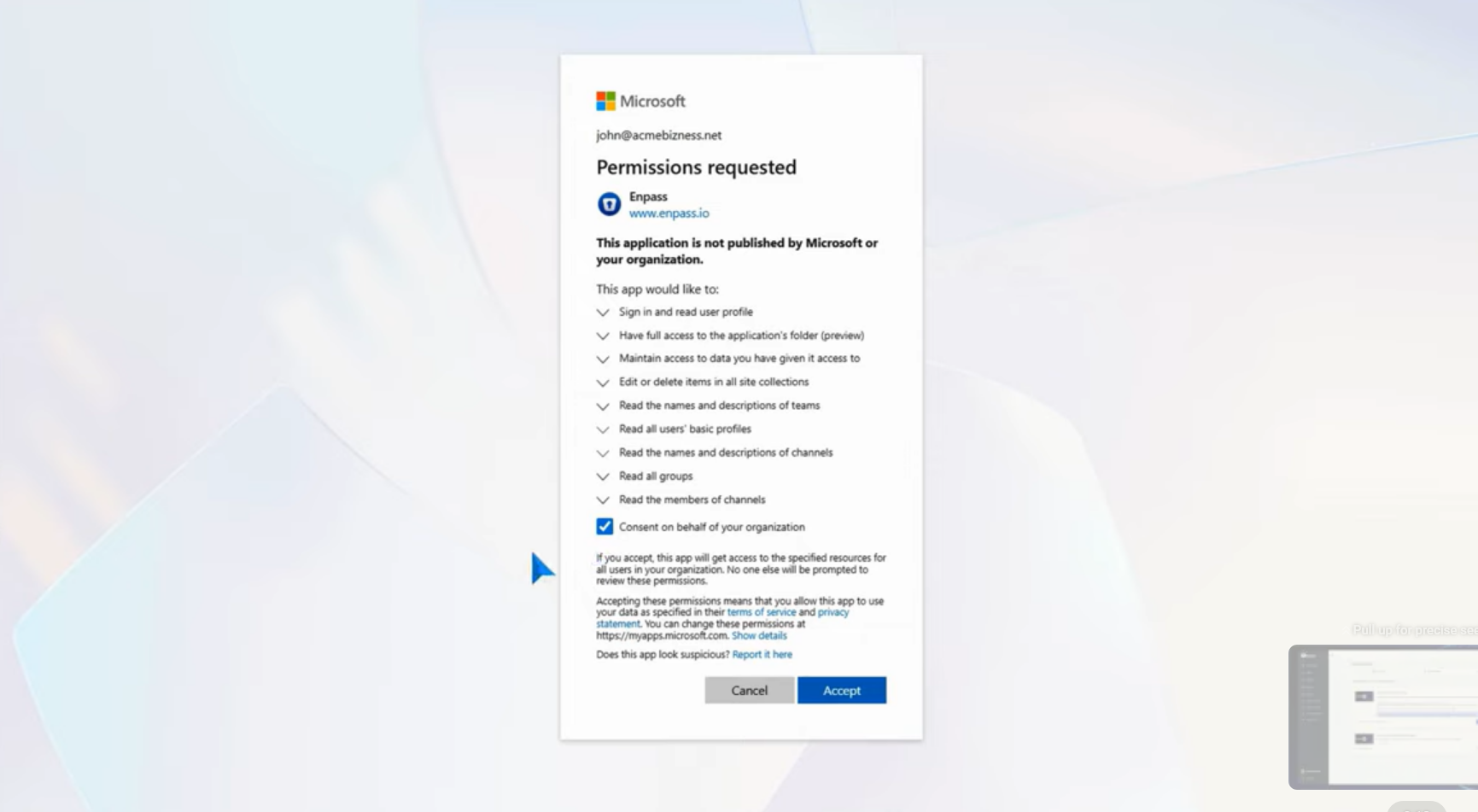
In the Permissions requested screen, review the permissions Enpass is requesting.
-
For more details, see Enpass Enterprise App Permissions .
-
-
If required, select Consent on behalf of your organization to enable Enpass for all users.
-
Click Accept.
-
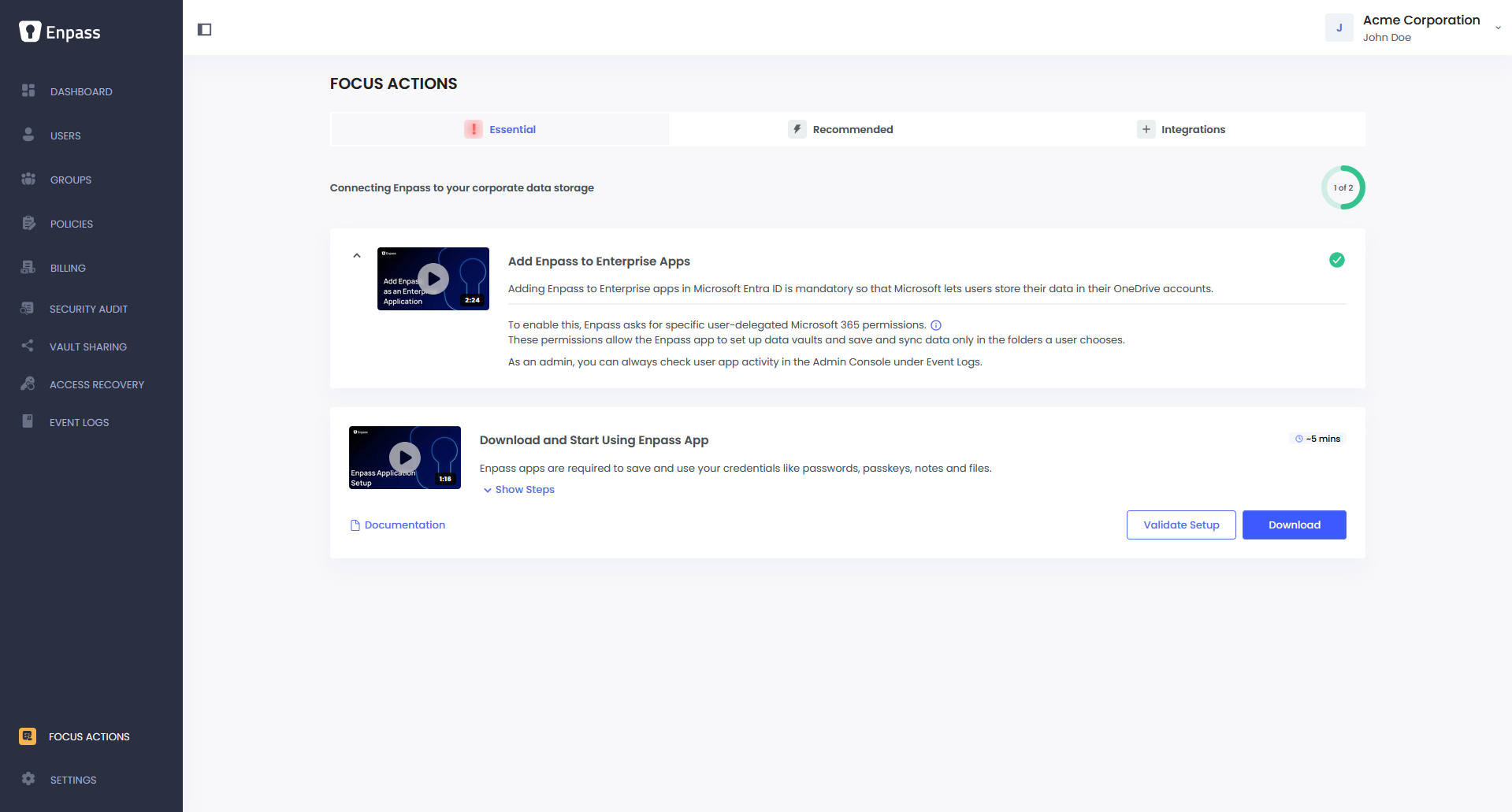
Return to the Enpass Admin Console, where Add Enpass to Trusted Apps should now display a green checkmark.
Unable to Add Enpass?
If your organization has restricted third-party app access, you may see an "Unable to Add Enpass?" dialog. This means an Entra ID administrator needs to complete this step for you.
In the error dialog, click View Email Template to get a pre-written email you can send to your Entra ID admin. Alternatively, you can share the following links with your admin:
-
Add Enpass to Microsoft Entra ID — Step-by-step setup guide
-
Enpass Enterprise App Permissions — What each permission does
-
Security of Your Data on Microsoft 365 — How your data stays protected
Once your admin has completed the setup, return to Focus Actions in the Enpass Admin Console, and click Check Status to confirm the connection.
M365 login pop-up blocked?
In Chrome, Edge or other Chromium-based browsers:
-
Go to Setings > Privacy and Security > Site Settings > Content > Pop-ups and redirects
-
Find Allowed to send pop-ups and use redirects, and click Add.
-
Enter console.enpass.io, and click Add.
In Firefox:
-
Go to Settings > Privacy & Security.
-
Find Block pop-ups and third-party redirects, and click Manage Exceptions.
-
Enter console.enpass.io and click Allow.
-
Click Save Changes.
In Safari:
-
Go to Settings > Websites > Pop-up Windows
-
Find console.enpass.io or enpass.io in the list of open websites
-
Click the drop-down menu, and select Allow.