.svg)
Unlike other password managers where everything runs in a browser, Enpass runs locally on your device. This is where your vaults are created, encrypted, and managed. The Admin Console handles users and policies, but the app is where your data lives. As the first admin, you need to set up your own copy of Enpass for smooth onboarding and configuration of Enpass for your organization.
Step 1: Install Enpass
You can install Enpass directly from the Focus Actions section in the Admin Console:
-
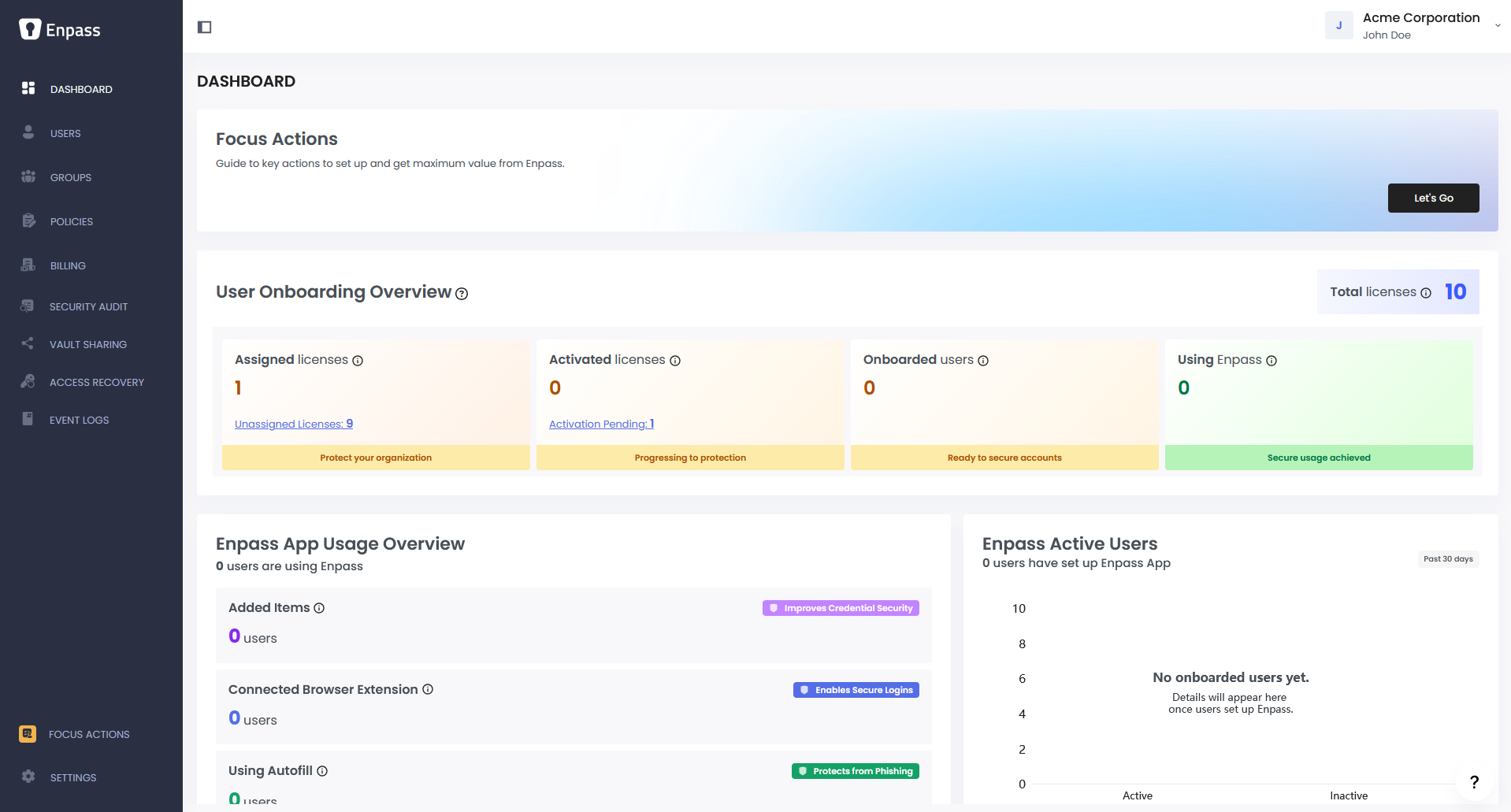
Go to Dashboard > Focus Actions > Essentials.
-
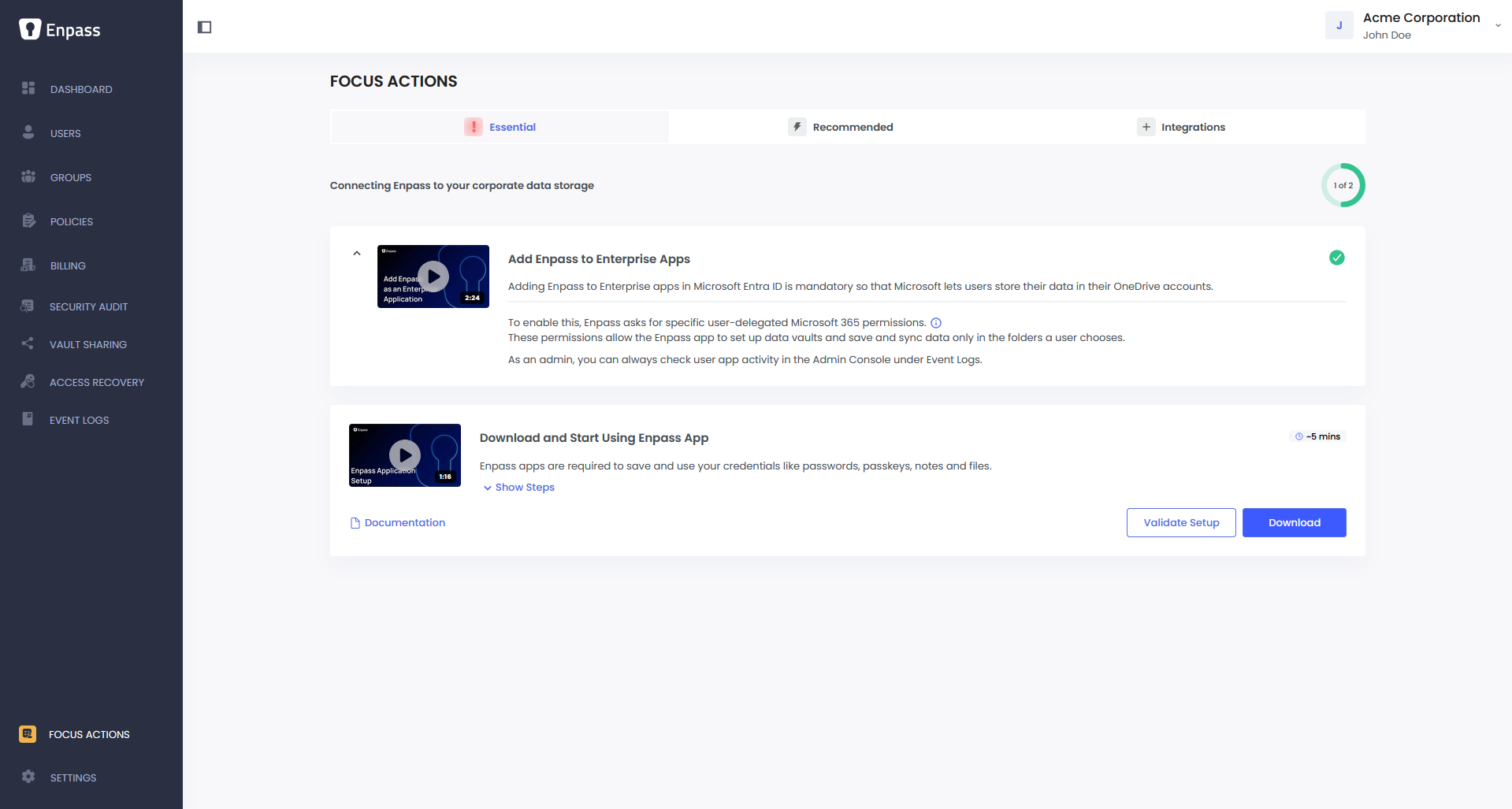
Under Download and Start Using Enpass App, click Download to get the installer for your platform.
Alternatively, visit the Enpass Downloads page for download options including the Microsoft Store and Apple App Store.
-
Install and launch the Enpass app.
Step 2: Activate Enpass
When you open Enpass for the first time:
-
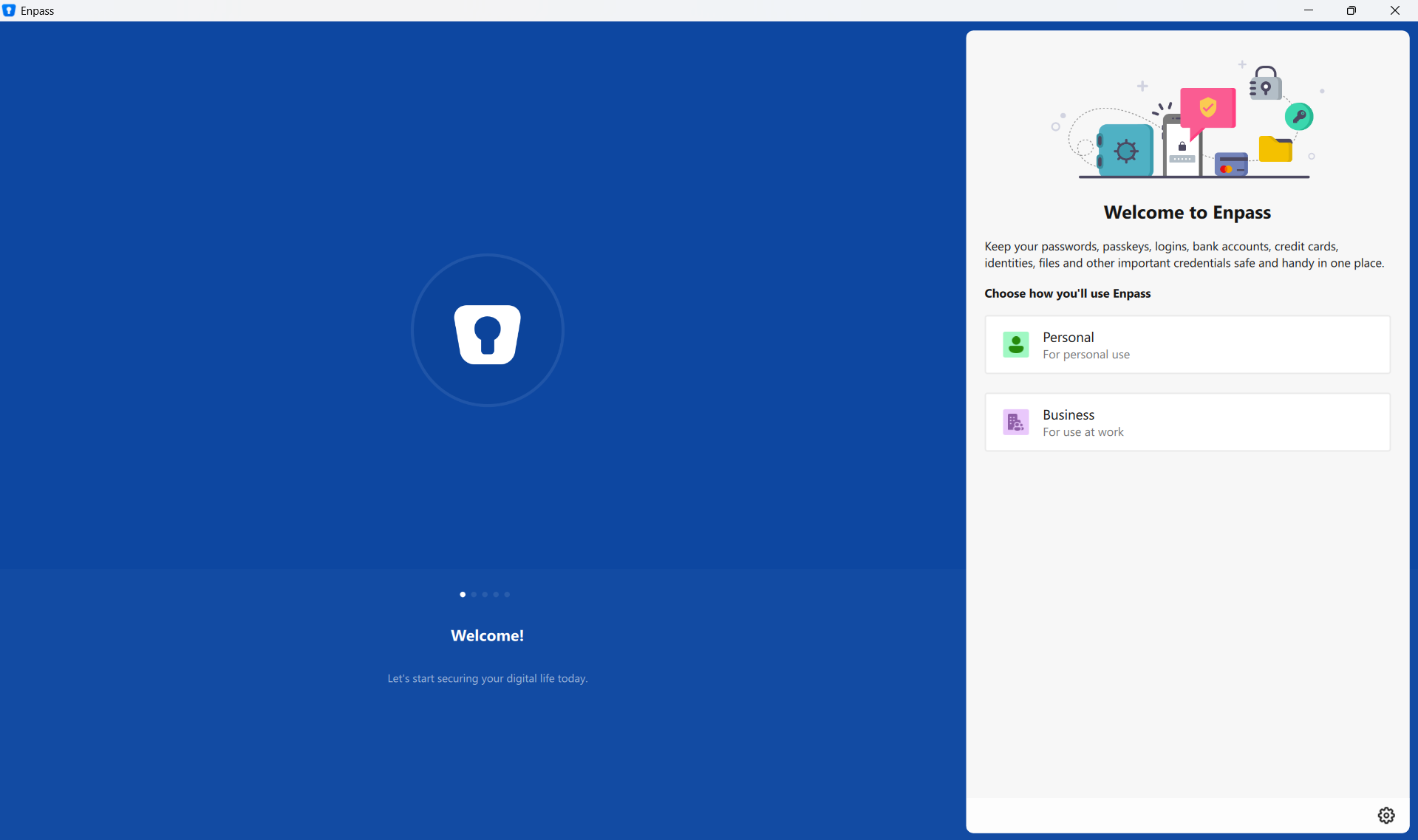
On the Welcome screen, under Choose How You’ll Use Enpass, select Business.
-
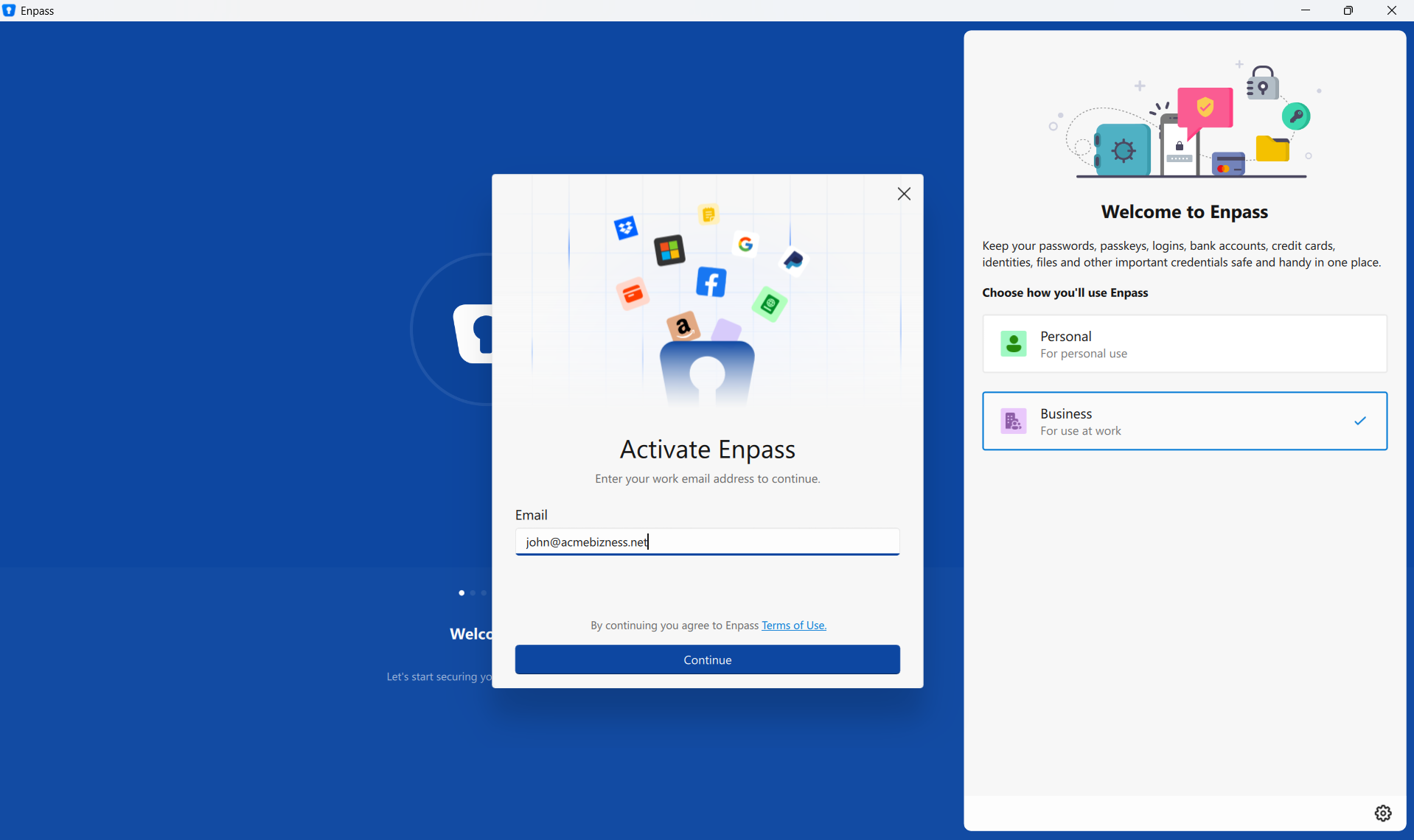
Provide your business email address to receive an activation code, and click Send Code.
-
Enter your activation code, and click Continue.
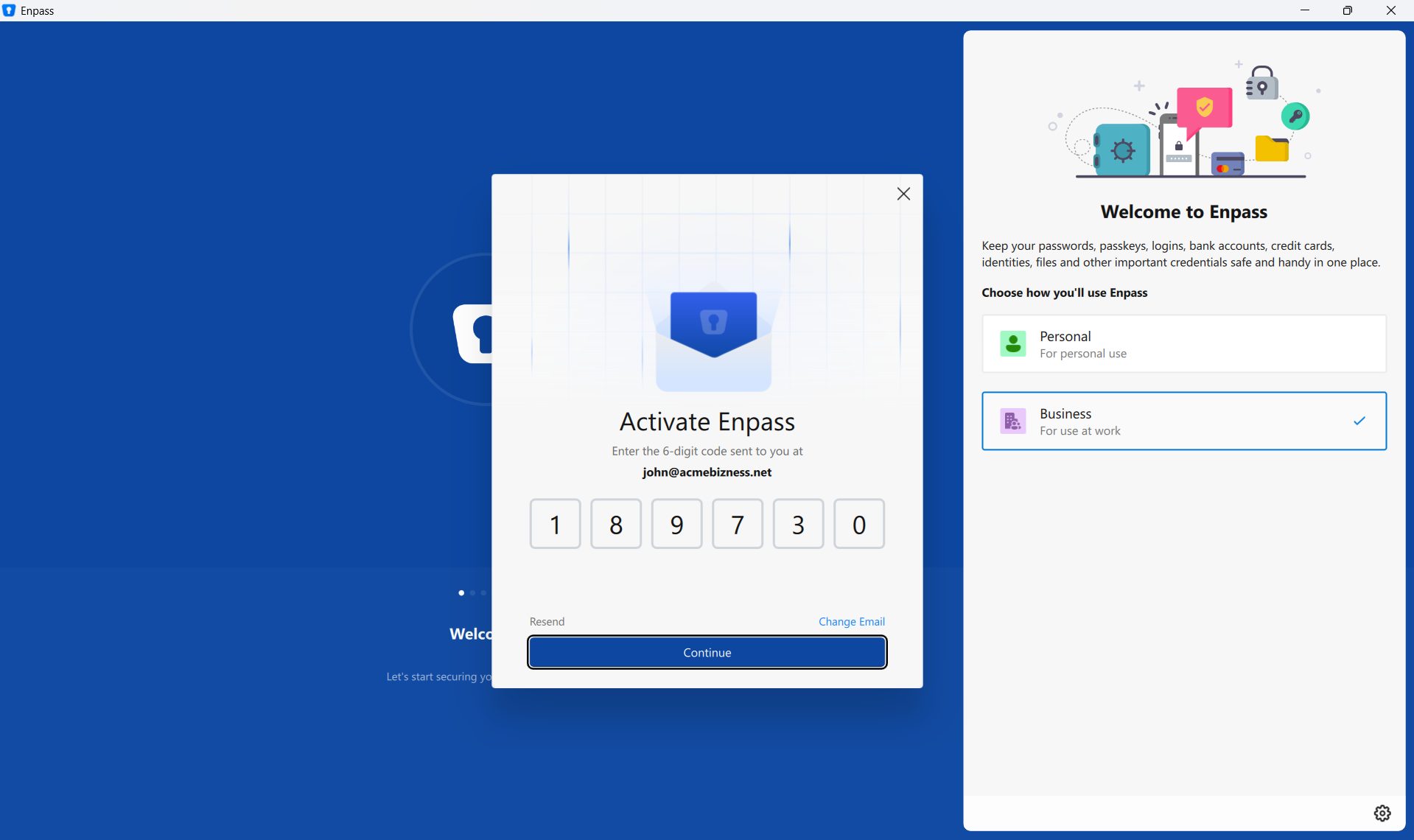
-
Click Done to complete the activation process.
Getting an SSL error? This can happen if your organization uses an intercepting proxy. See Error "SSL Certificate Validation Failed"to resolve it.
Step 3: Connect to your OneDrive storage
After activation, Enpass will ask you to connect to your organization's cloud storage. This is where your encrypted vaults will be synced.
-
Choose Connect to OneDrive.
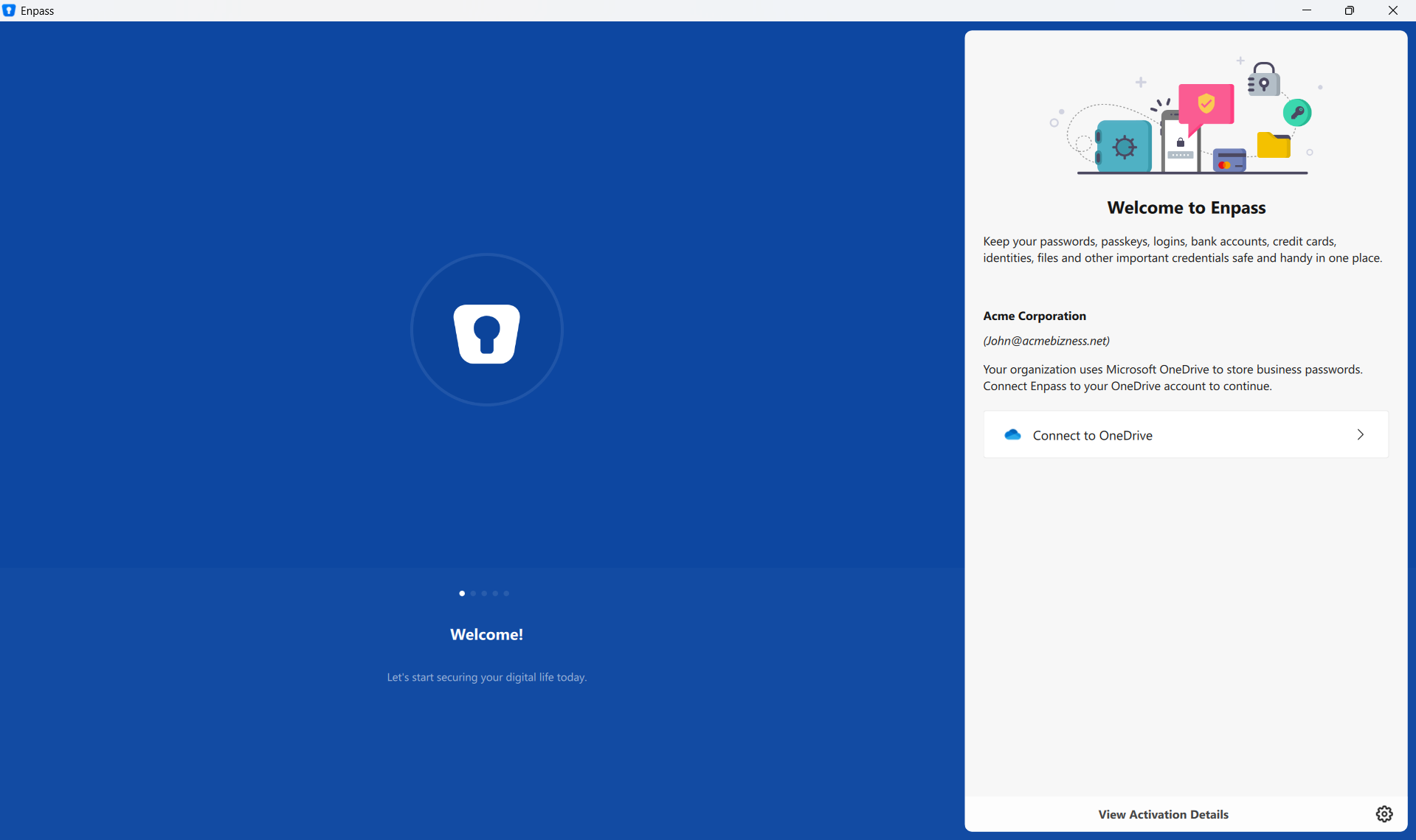
-
A browser window will open for you to sign in and authorize Enpass.
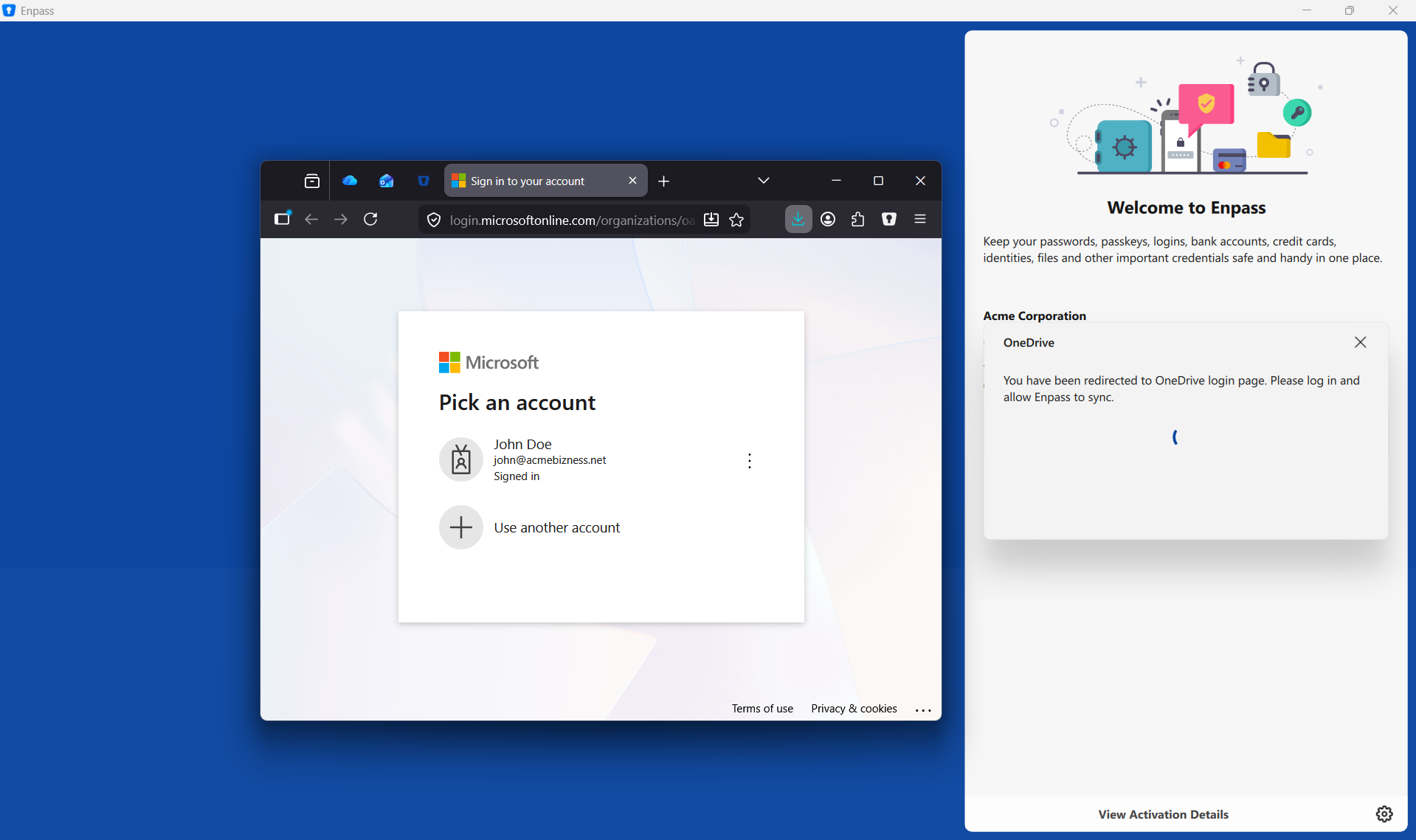
-
Complete the authorization and return to the Enpass app.
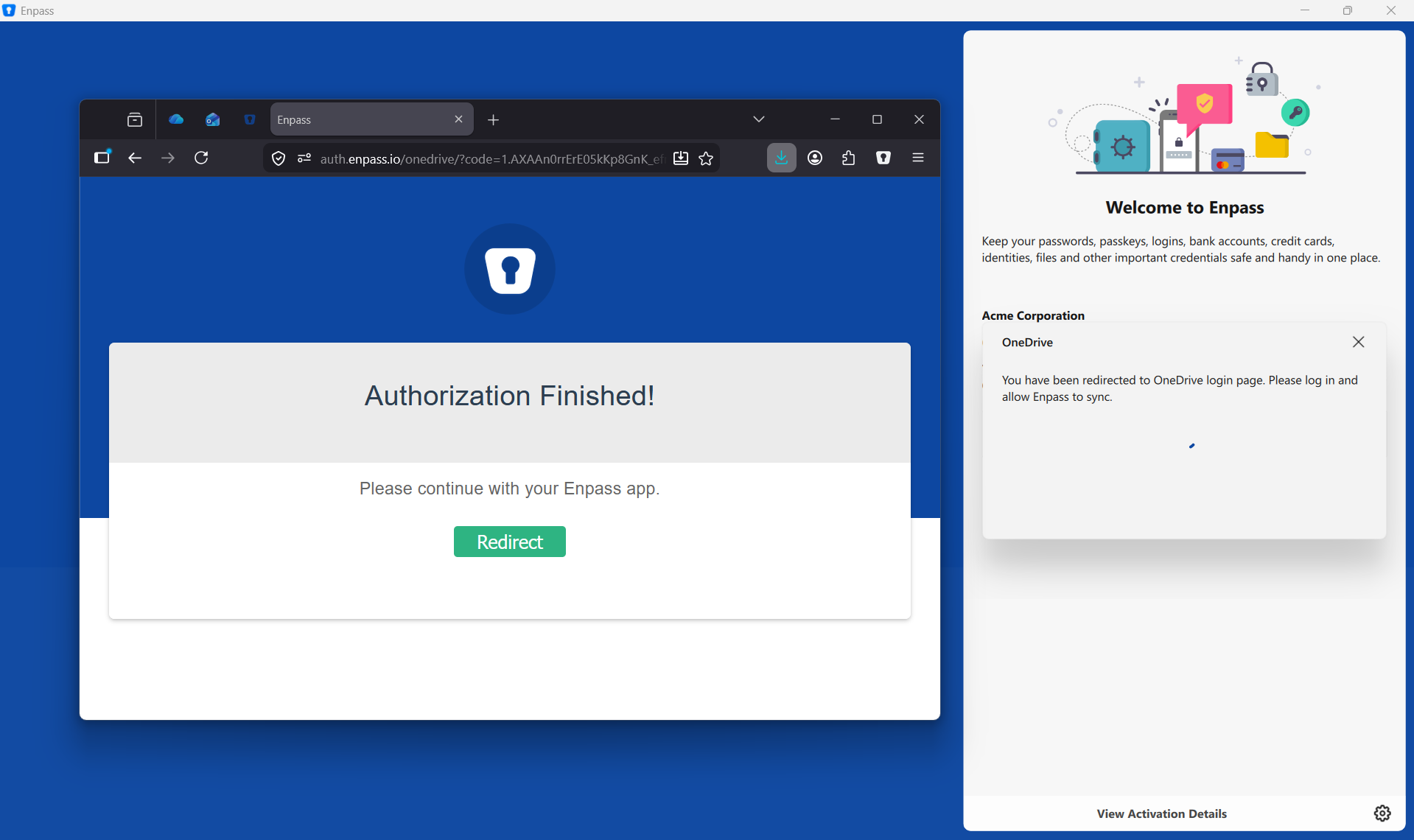
Getting an error during authorization? This usually means Enpass has not yet been added as a trusted app in your organization. Complete the previous step first: Let Enpass store data in Microsoft 365
Step 4: Create your Master Password
Once connected, Enpass will prompt you to create a Master Password. This is the only password you need to remember. It encrypts and protects your entire vault, so choose something strong and memorable. (Use a combination of symbols, letters, and numbers, but avoid using birthdays, names and other common or public information.)
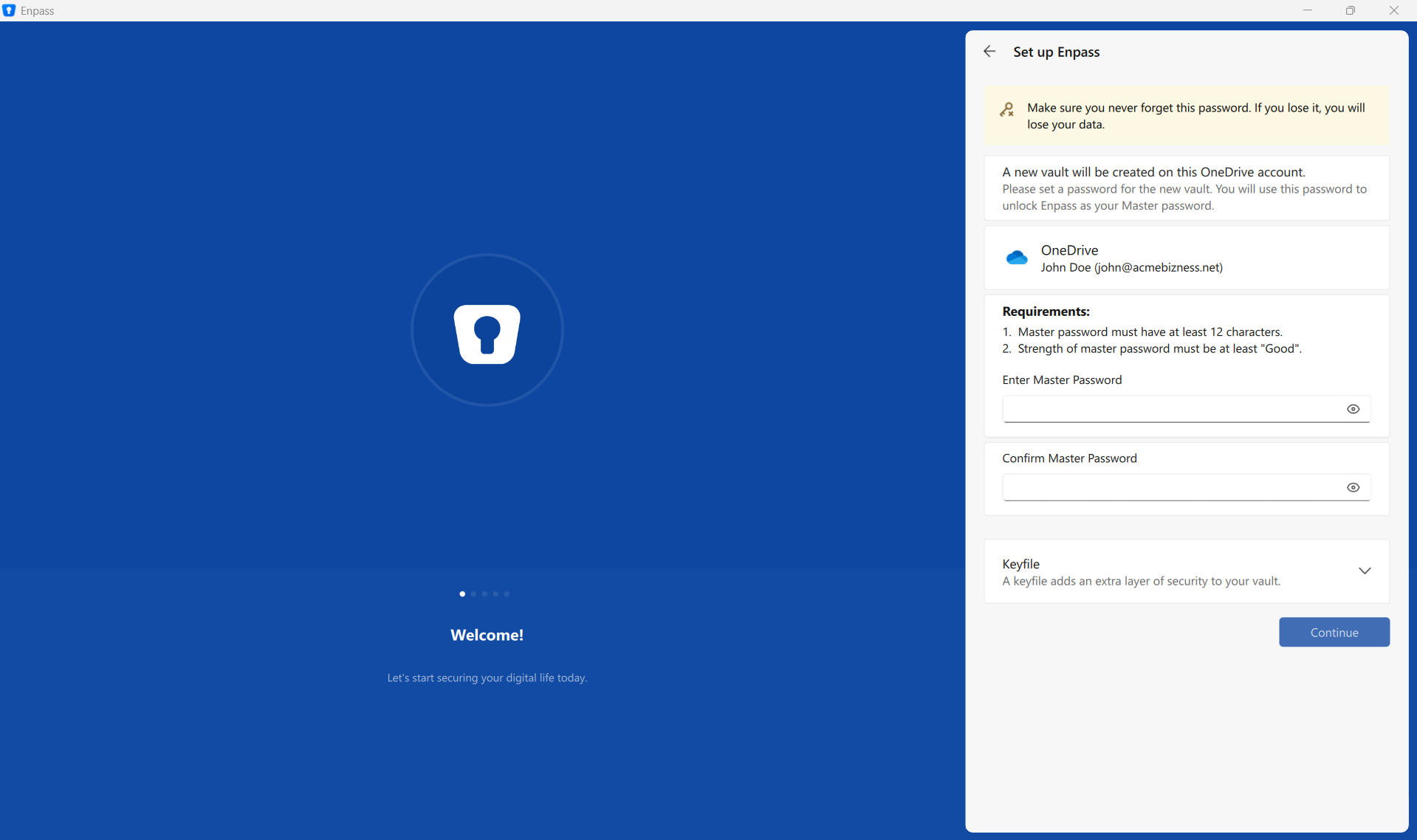
Note: By default, a minimum length of 12 characters is enforced for the Master Password. You can change this later in the Admin Console under Organization Policies.
Step 5: Validate your setup
Return to the Admin Console, and under Focus Actions > Download and Start Using Enpass App, click Validate Setup. This tests and confirms that your app is properly connected and your onboarding is complete.
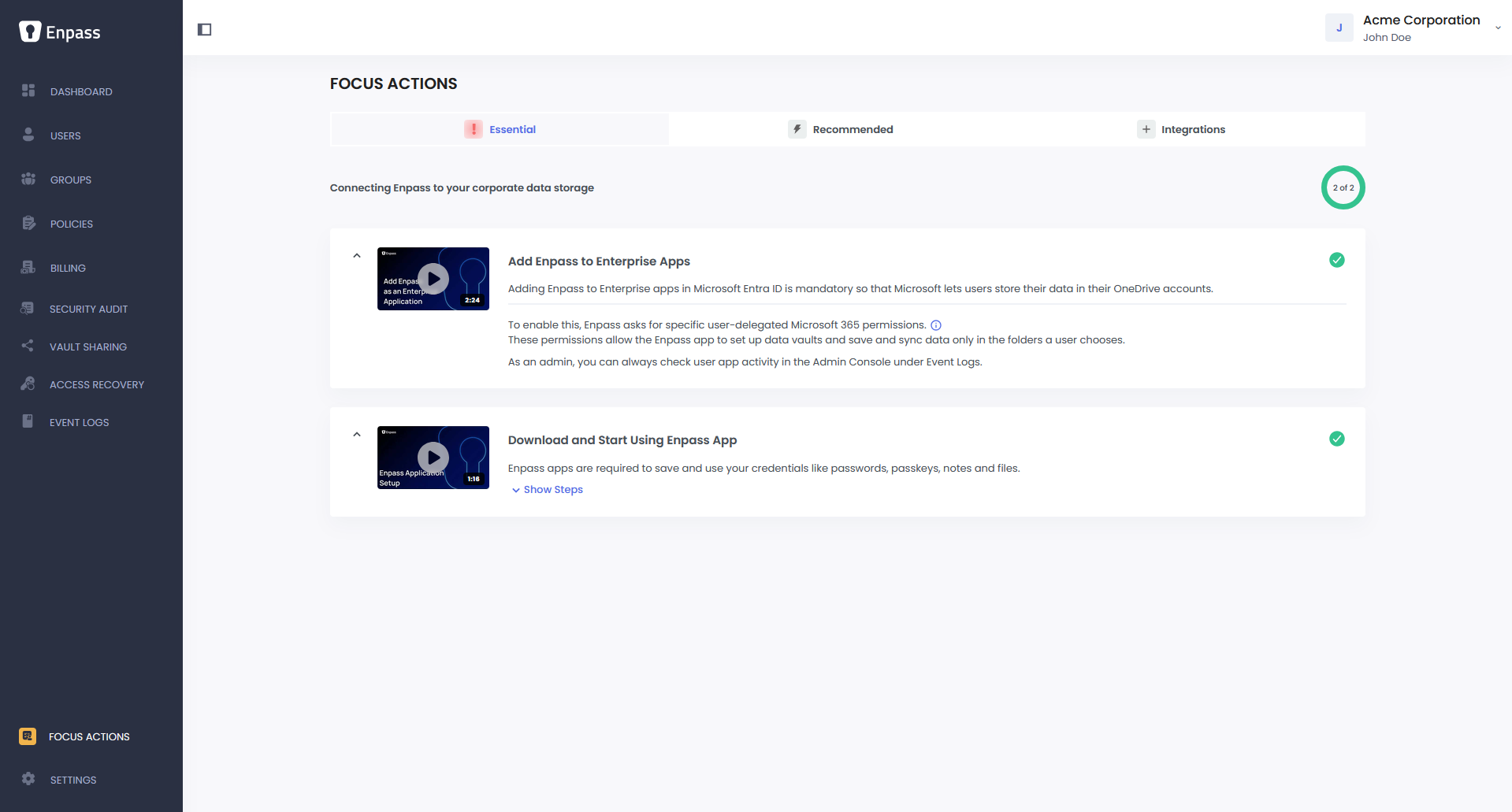
Validation failed? Make sure you have completed all the steps above in the Enpass app, including connecting to your cloud storage and creating your Master Password. Also ensure that the email used for app activation is the same as your Admin Console account. Then try validating again.
Once all essential tasks show a green checkmark, you are ready to set up important configurations for your organization.