.svg)
Using the Enpass password generator
When creating or editing an Item in Enpass, the Generate button below the Password field will create a complex a strong, unique, random password with a single click or tap. You can also use controls in the Password Generator to adjust...
-
Password length
-
Which kinds of characters can be included
-
Whether the password is pronounceable
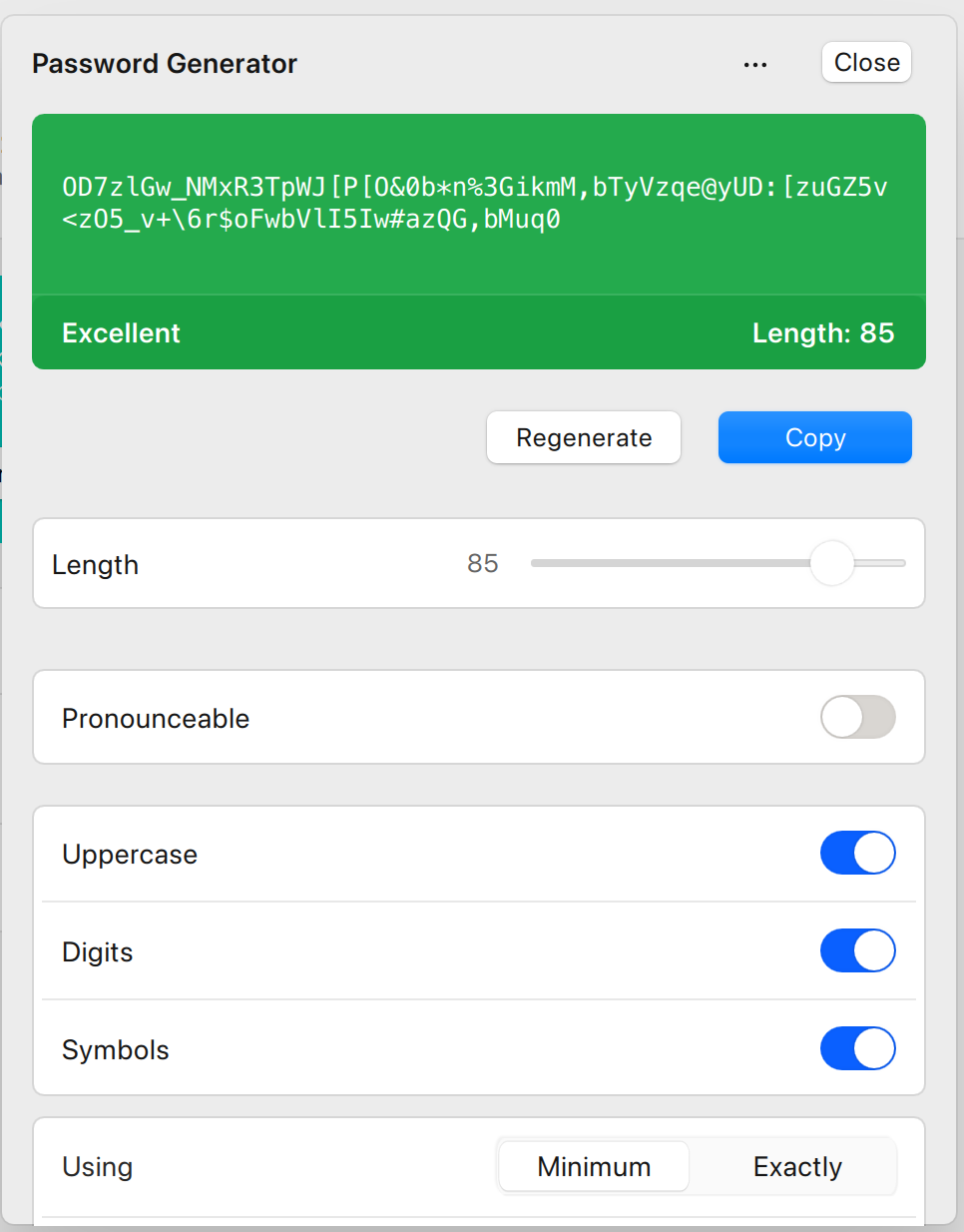
When creating a password within the Enpass browser extension, Enpass will automatically comply with a website's password requirements and restrictions.
Enpass also features a stand-alone Password Generator that can be used to create passwords any time by clicking the button in the desktop app’s toolbar, or by tapping Password Generator at the bottom of the Audit tab in the mobile version of Enpass.
Desktop
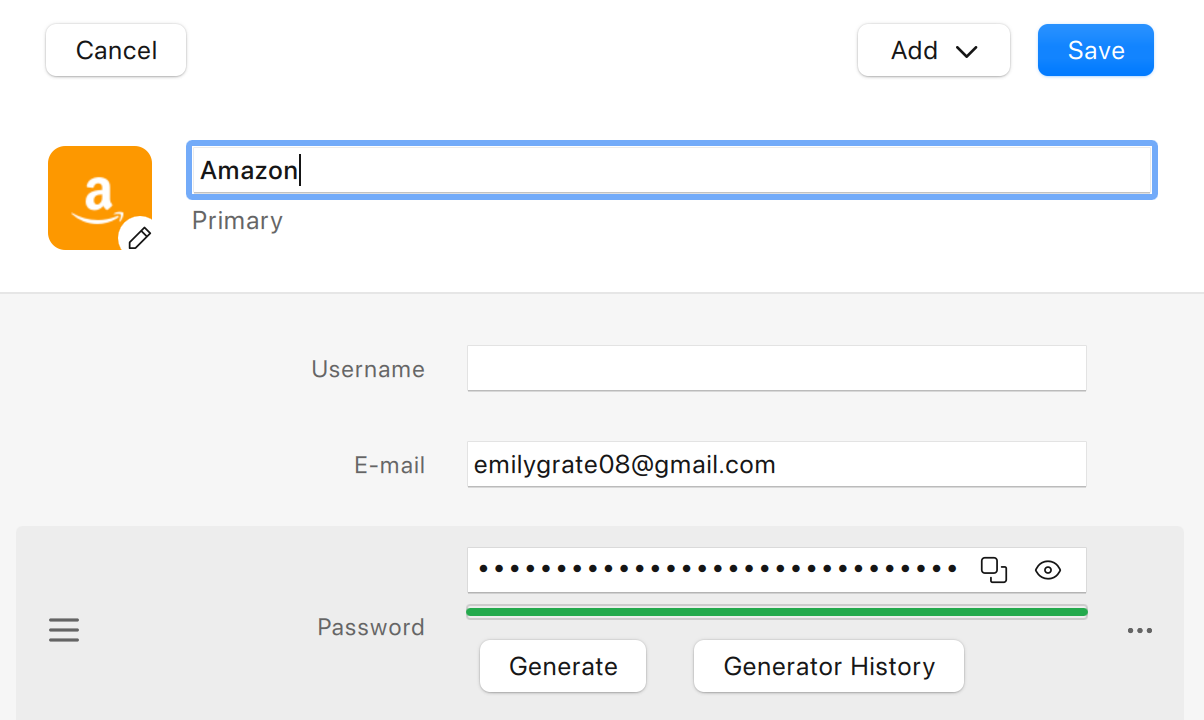
To use the Password Generator while adding or editing an Item in Enpass for desktop:
-
In the Item Details view, click

-
Below the password field, click the Generate button.
-
Click Fill to add the password to your Item.
-
Click Save to save your Item.
To use the stand-alone Password Generator:
-
Click Generate Password the Enpass toolbar to create a new password you can to copy-paste into a website or app, and into the password field of an Enpass Item.
iOS
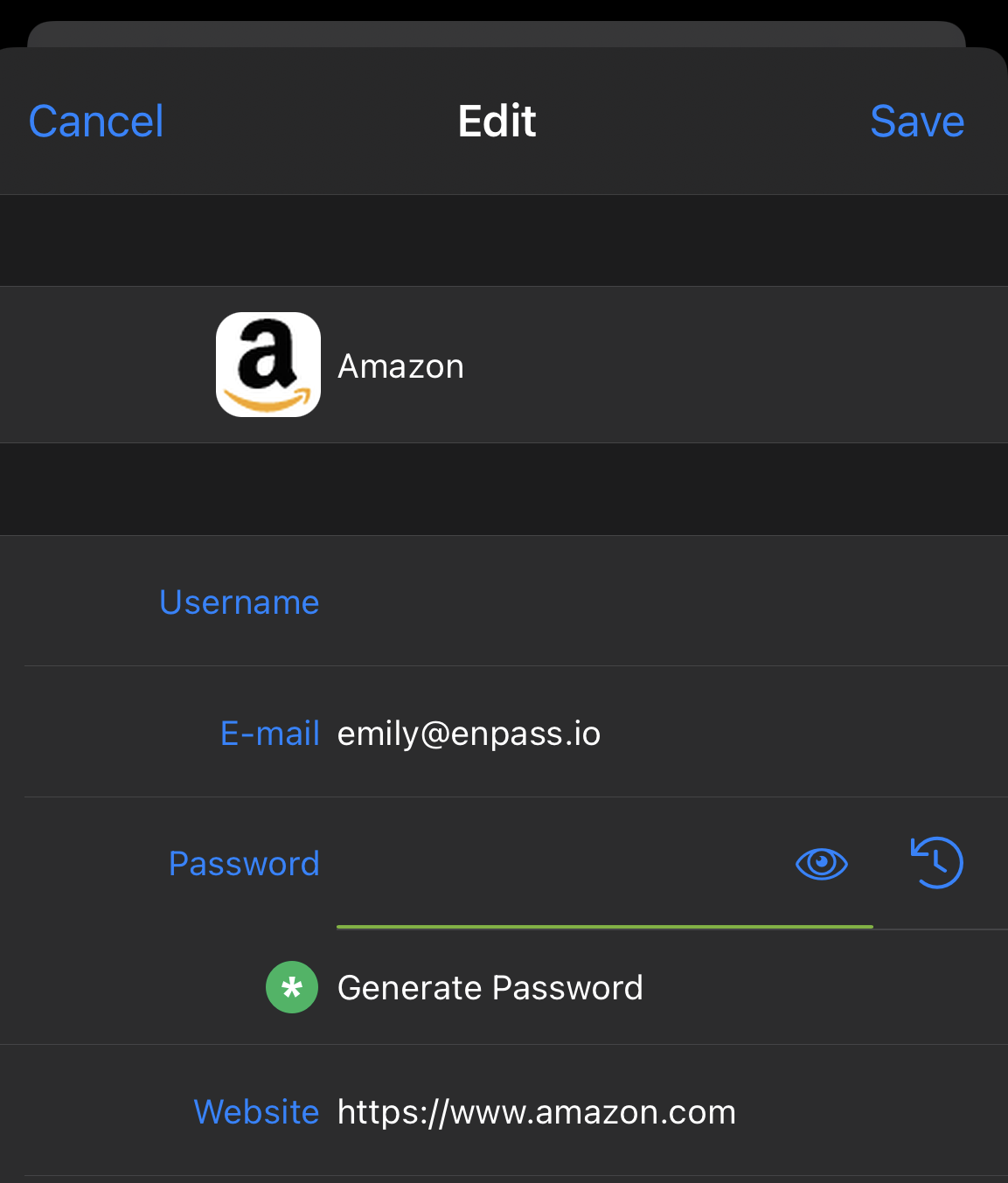
To use the Password Generator while adding or editing an Item in Enpass for iOS:
-
In the Item Details view, tap Edit.
-
Below the password field, tap the Generate Password button.
-
Tap Use to add the password to your Item.
-
Tap Save to save your Item.
To use the stand-alone Password Generator:
-
At the bottom of the Audit tab, tap Password Generator to create a new password you can to copy-paste into a website or app, and into the password field of an Enpass Item.
Android
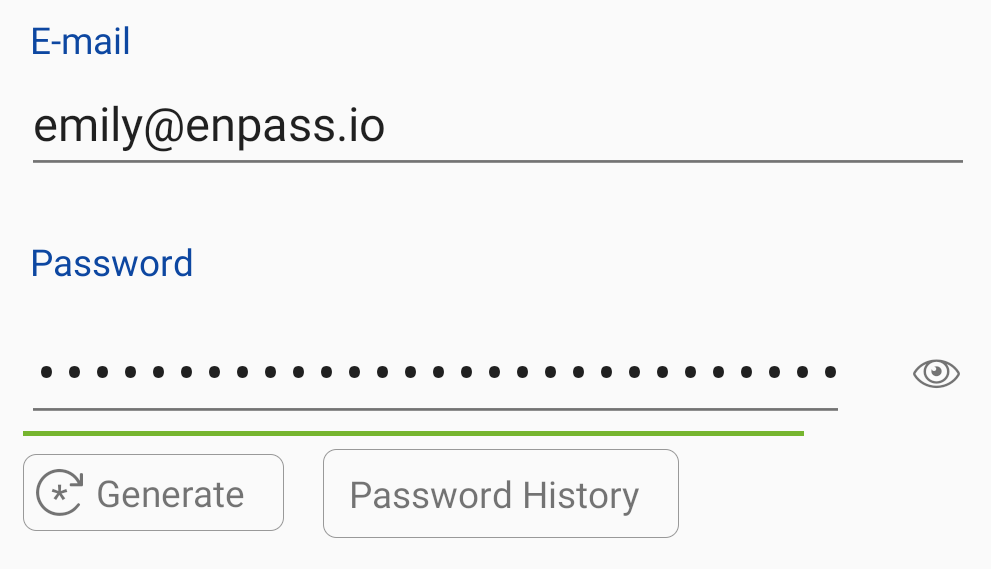
To use the Password Generator while adding or editing an Item in Enpass for Android:
-
In the Item Details view, tap Edit.
-
Below the password field, tap the Generate button.
-
Tap Use to add the password to your Item.
-
Tap Save to save your Item.
To use the stand-alone Password Generator:
-
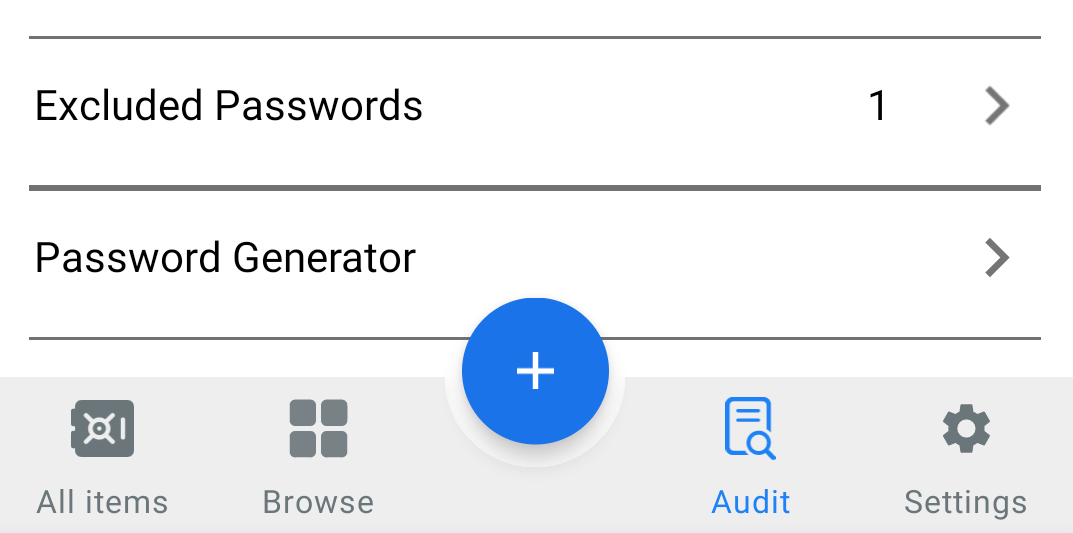
At the bottom of the Audit tab, tap Password Generator to create a new password you can to copy-paste into a website or app, and into the password field of an Enpass Item.
Turning on the Ambiguous Characters option prevents the use of characters that can be mistaken for each other by the human eye, like 0 vs O, and 1 vs I (uppercase i) vs l (lower case L).
The Enpass browser extension can also generate passwords
In your desktop browser, the Enpass extension can generate and change passwords from the Enpass Assistant mini-window or the Enpass autofill pop-up.
Related topics