.svg)
Troubleshoot:
Cloud sync and folder sync errors
If you are encountering syncing issues:
If the issue persists for vaults stored in a cloud account, try:
-
Setting the date and time on your device to automatic.
-
Checking if your cloud account is valid and its login credentials are correct.
-
For example, has the password for your cloud account changed?
-
-
Disabling any firewall or a proxy services on your device.
If the issue persists for vaults stored in iCloud, try:
-
After disconnecting in the steps described above…
-
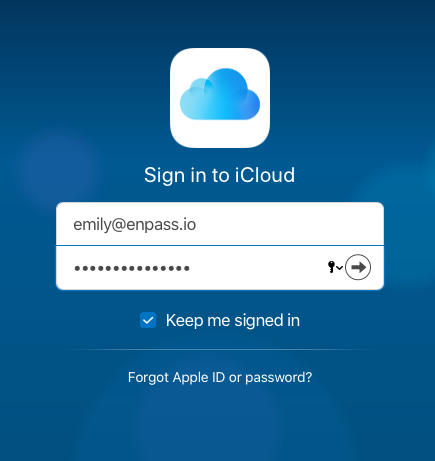
When you’re redirected to the iCloud login page, be sure to select the “Keep me signed in” checkbox before completing your sign-in.
If the issue persists for vaults stored in a local folder, try:
-
Making sure you have read-write access for the folder in which your data is saved.
-
Verifying the vault in Enpass has the correct folder path.
-
Making sure the folder is connected to the network on which Folder Sync is enabled.
If the issue persists, contact Enpass with the following details:
-
Error code (if any)
-
How the vault is synced (which cloud service, or if you're using Folder Sync instead)
-
Enpass version number
-
Find it in About Enpass, from the Help menu (Windows) or Enpass menu (Mac)
-
-
Enpass browser extension version number
-
Find it by right-clicking Enpass in your browser toolbar, and selecting Manage Extension
-
-
Device operating system and version number