.svg)
Customizing templates in Enpass
In Enpass for Mac, Windows and Linux, you can create your own custom templates and manage dozens of pre-loaded templates.
Creating custom templates
To create a new template:
-
Go to Settings > Customize.
-
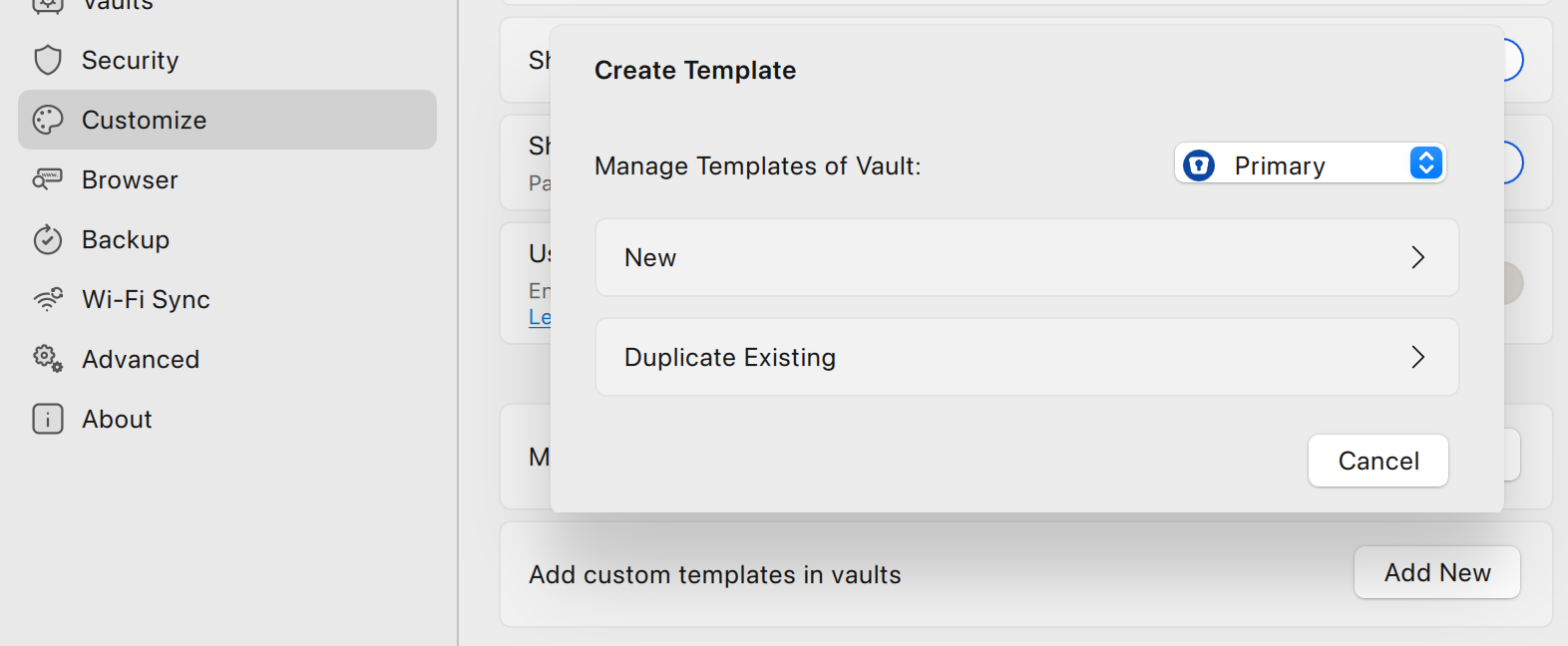
Click on the Add new button in the Add custom Templates in vaults section.
-
If you have more than one vault, select a vault for your new template.
-
Under the Create Template heading, select New.
-
Enter a title for the new template and select a Category.
-
Use the Add Field and Add Section buttons to populate your template with features you need.
-
When finished, click Save to add your template to the gallery for the Category you selected.
To duplicate an existing template:
-
Go to Settings > Customize.
-
Under the Manage heading, click the Templates button.
-
If you have more than one vault, select a vault for your new template.
-
Under the Create Template heading, select Duplicate Existing.
-
Search for the template you want to duplicate.
-
Give your new template a name, and make any changes to your new template.
-
When finished, click Save to add your template to the gallery for the Category you selected.
Using your custom templates
Custom templates are saved within the category you chose during their creation. To use a template you’ve created, follow the procedure to add Items in Enpass.
Deleting custom templates
To delete a custom template:
-
Go to Settings > Customize.
-
Under the Manage heading, click the Templates button.
-
Right-click the template under the Existing Custom Templates heading and select Delete.