.svg)
Restoring Enpass data from a backup, cloud, or other device
Enpass data can be restored from a local backup, or from vaults stored in a cloud account, on your local drive, or on a device synced via Wi-Fi.
To restore an Enpass vault from from a cloud account:
To restore data from a backup when setting up an Enpass desktop app:
-
Chose This PC or This Mac on the welcome screen, then select Backup File.
-
Find and select your backup file from your device and click Open.
-
Select the vault you want to restore and click Continue.
-
Enter the password of the vault being restored, and click Restore.
-
Click to Done to complete the process.
You can also save the vault’s password to your Primary Vault by selecting the checkbox below the password field.
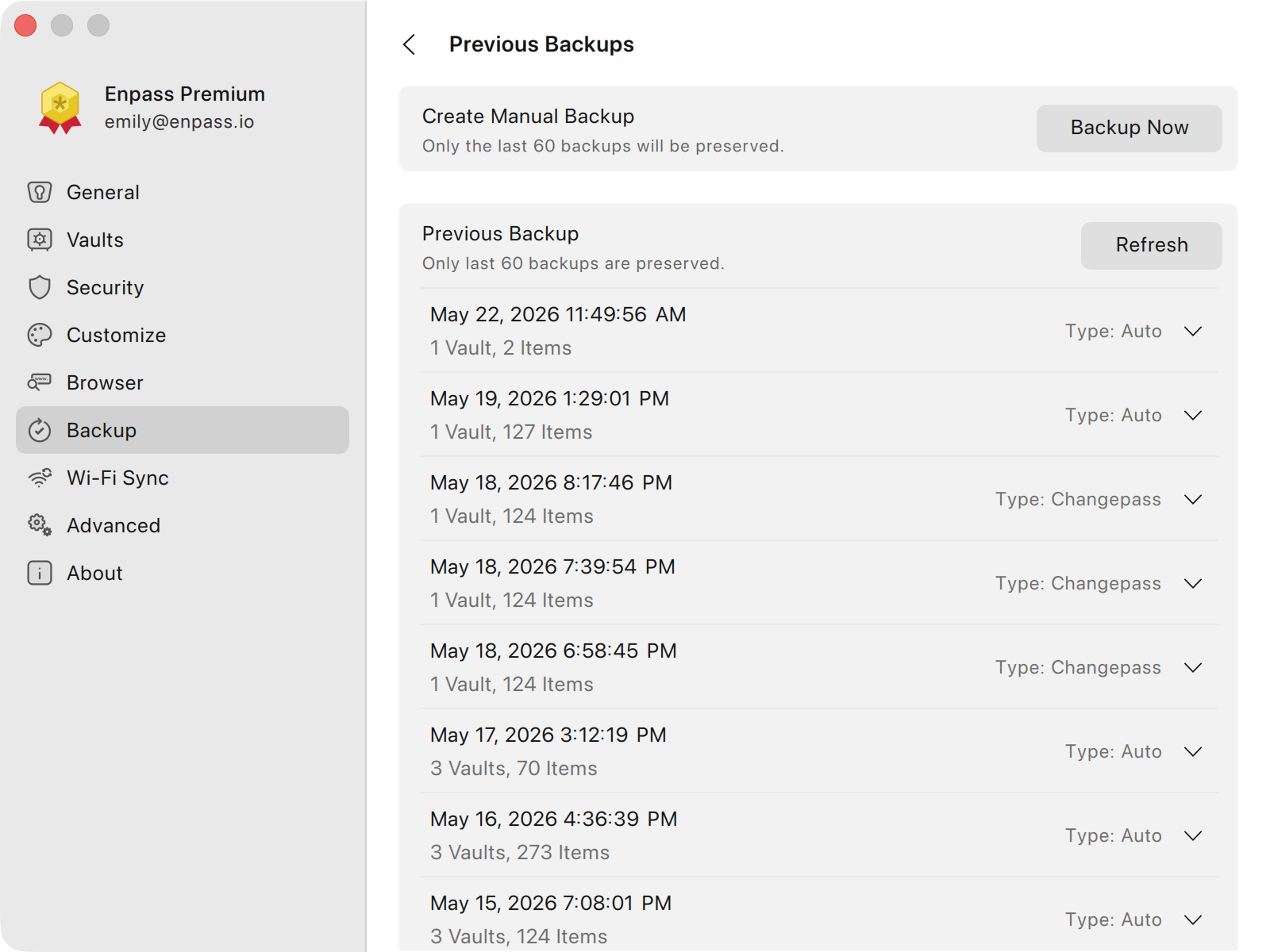
To restore data within Enpass from a previous backup:
-
Go to Settings > Backup, and click Previous Backups.
-
Select the backup you want, and click Restore.
To restore data from another computer serving as a Wi-Fi Sync Server:
-
Click Wi-Fi Sync.
-
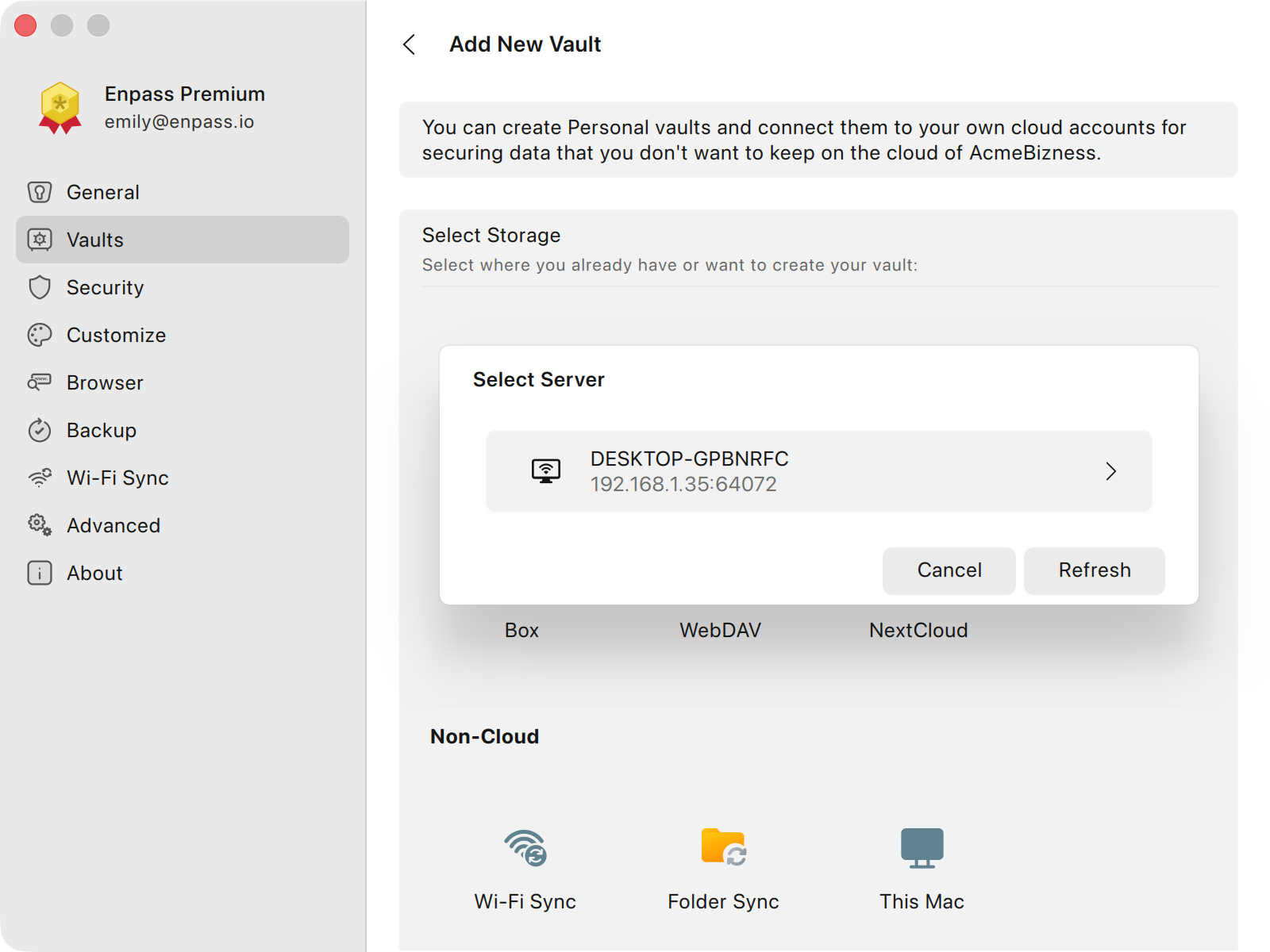
Select the computer hosting your vault
-
Then click Yes, go ahead.
-
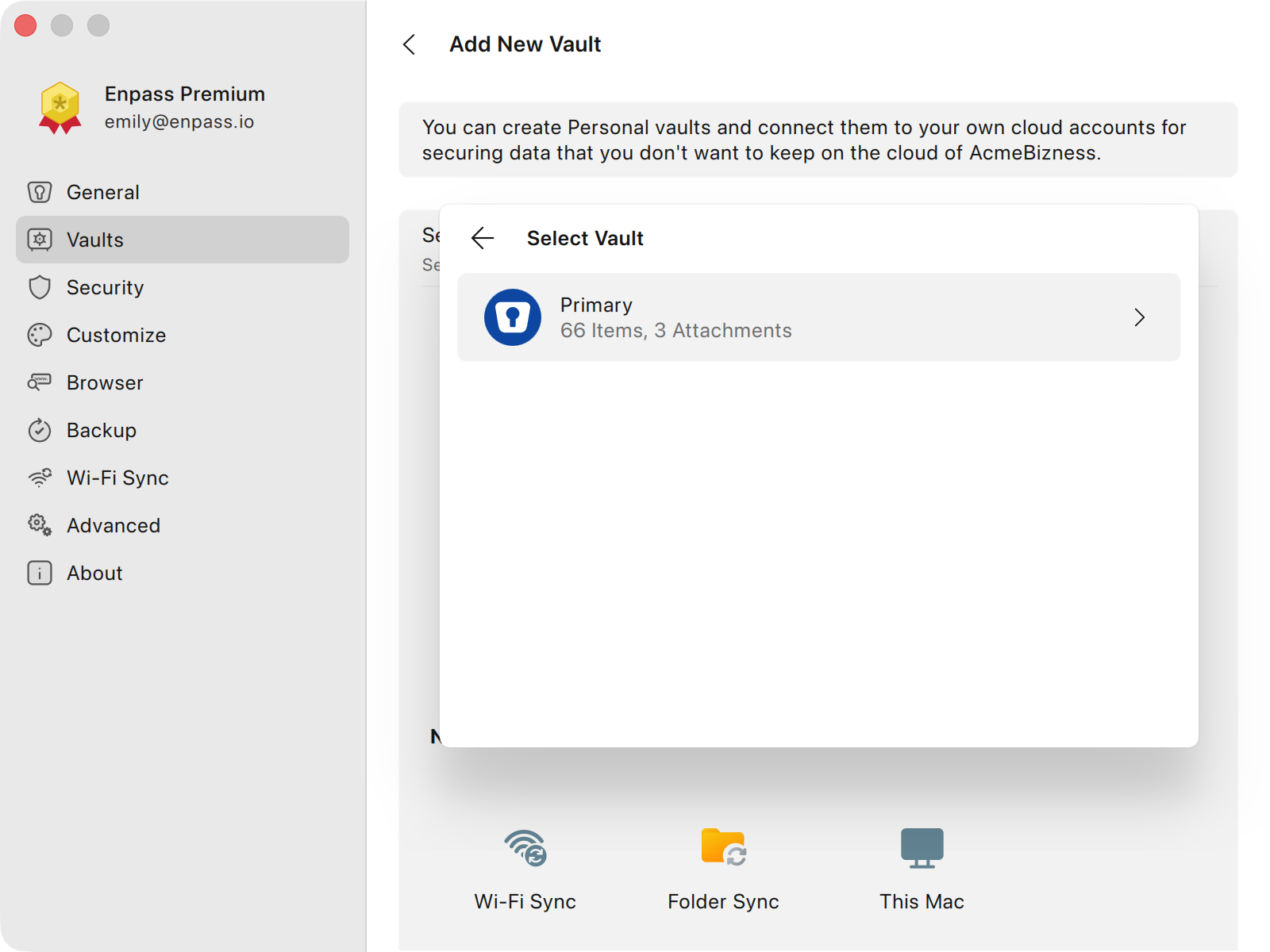
Select the vault you want to restore.
-
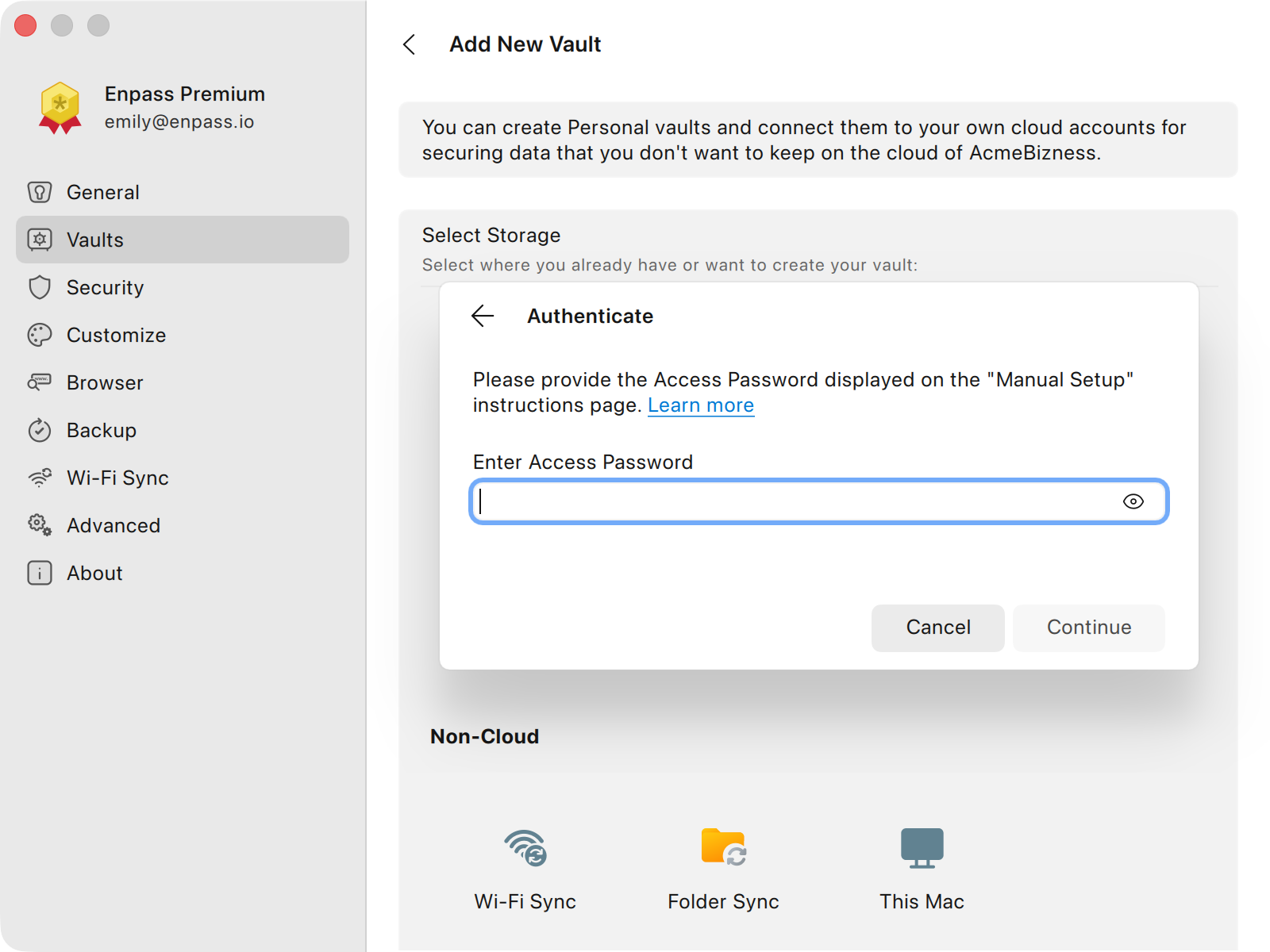
Enter the Access Password and click Continue.
-
Enter the name of the vault and click Continue.
-
Enter the password of the vault being restored.
-
Click Done to complete the process.