.svg)
Adding shared business vaults to your Enpass app
In your Enpass app, you can add vaults shared with you by other members of your team, and can add vaults made available on your organization's Google Drive. You can access the Items in these vaults and use them to login to the related accounts and apps. Depending on your permissions, you may also be able to edit or add Items to these vaults.
How you open a shared vault depends on how it was shared.
To add a business vault shared via an email invitation:
-
In the invitation email, follow the link provided for the vault.
-
Enpass will launch and mount the vault.
Adding vaults from Google Drive.
If a vault has been shared by means other than through the Enpass app, the process requires a few more steps.
Desktop
To add a vault shared via Google Drive.:
-
Go to Settings > Vaults.
-
Click

-
Select the method by which the vault is shared (Google Drive).
-
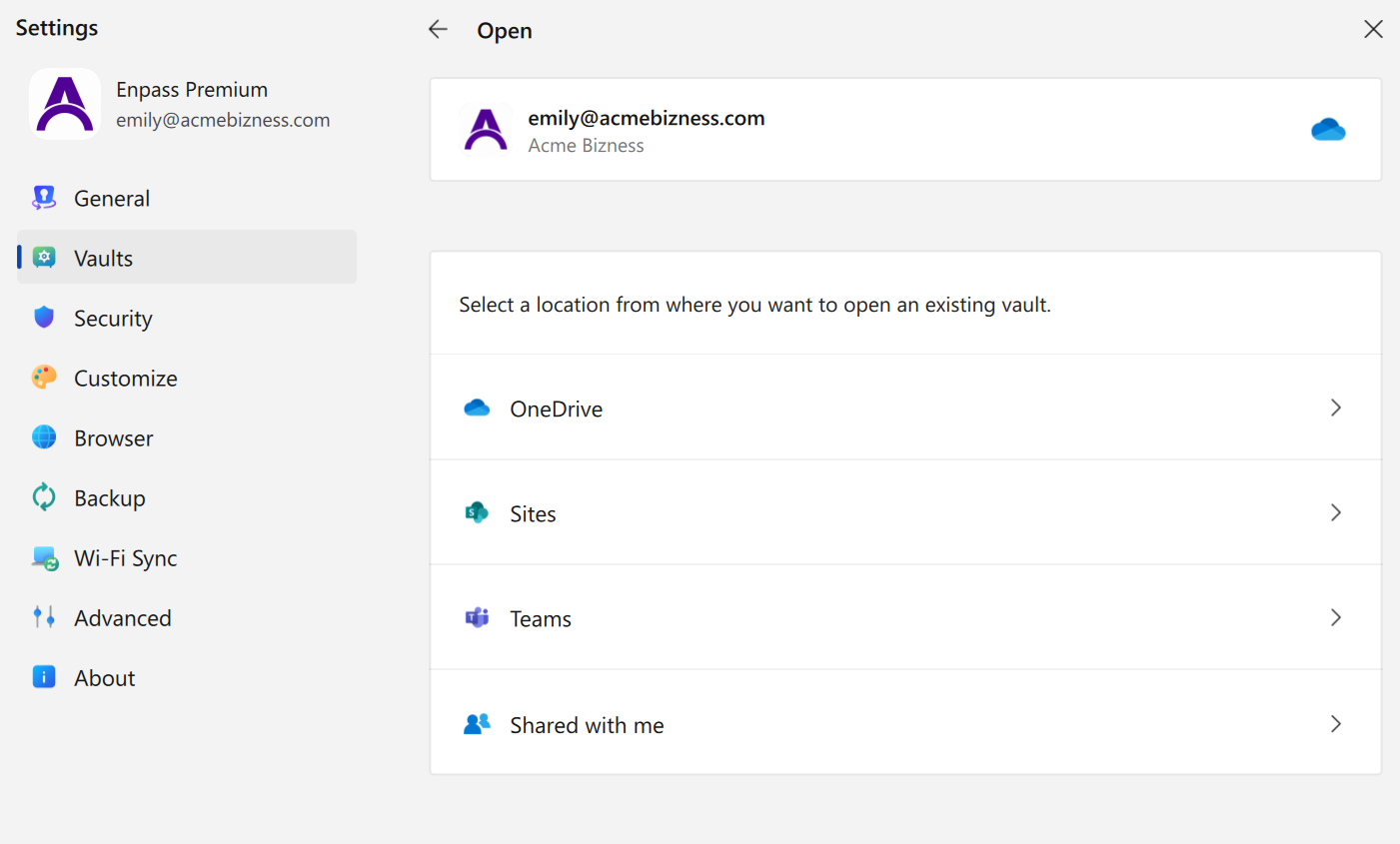
Locate and select the shared vault.
-
Enter the vault's password, and click Continue.
iOS
To add a vault shared via Google Drive:
-
Go to Settings > Vaults.
-
Tap
-
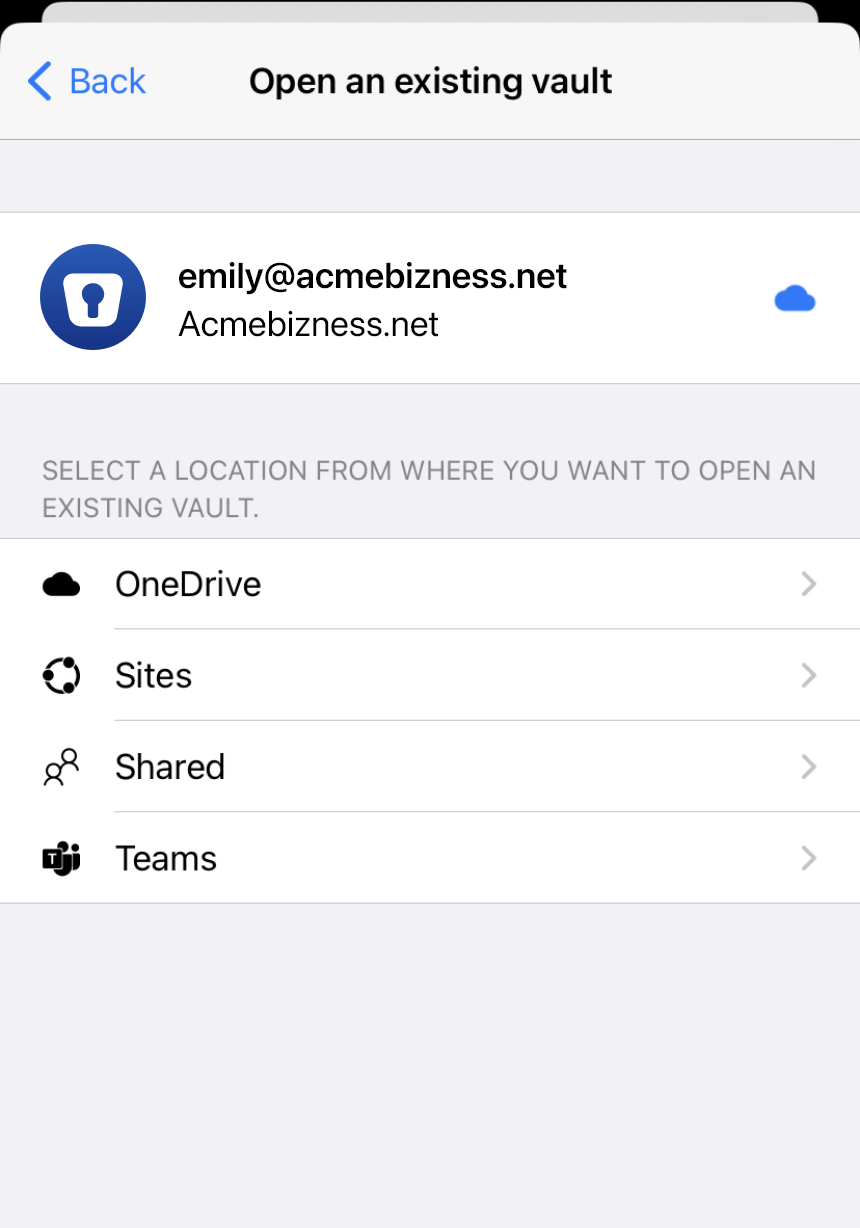
Select the method by which the vault is shared (Google Drive, OneDrive, Sites, Shared, or Teams).
-
Locate and select the shared vault.
-
Enter the vault’s password, and tap Continue.
Android
To add a vault shared via Google Drive:
-
Go to Settings > Vaults.
-
Tap
-
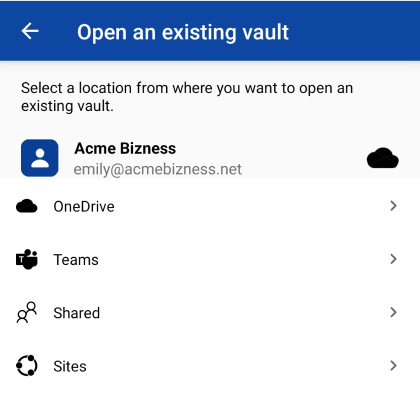
Select the method by which the vault is shared (Google Drive).
-
Locate and select the shared vault.
-
Enter the vault’s password, and tap Continue.