.svg)
Creating a new vault in Enpass Business
Vaults added to your business Google Drive automatically sync across all your devices.
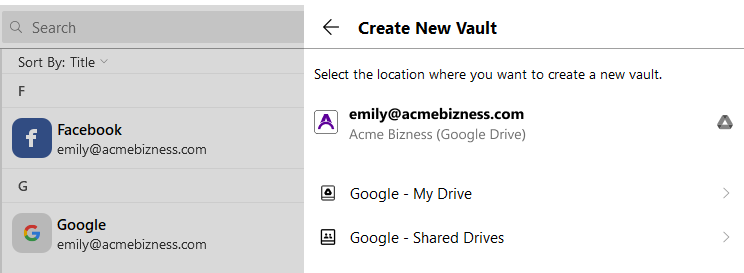
To create a new business vault in a Google Drive using the Enpass desktop app:
-
Go to Settings > Vaults, and click

-
Select Google - My Drive or Google - Shared Drives, then click Create here.
-
Enter a name for your vault and click Continue.
-
Create and confirm a strong password for your vault.
-
Select the checkbox to add this vault password to your Primary Vault. (Recommended)
-
-
Click Done to complete the process.
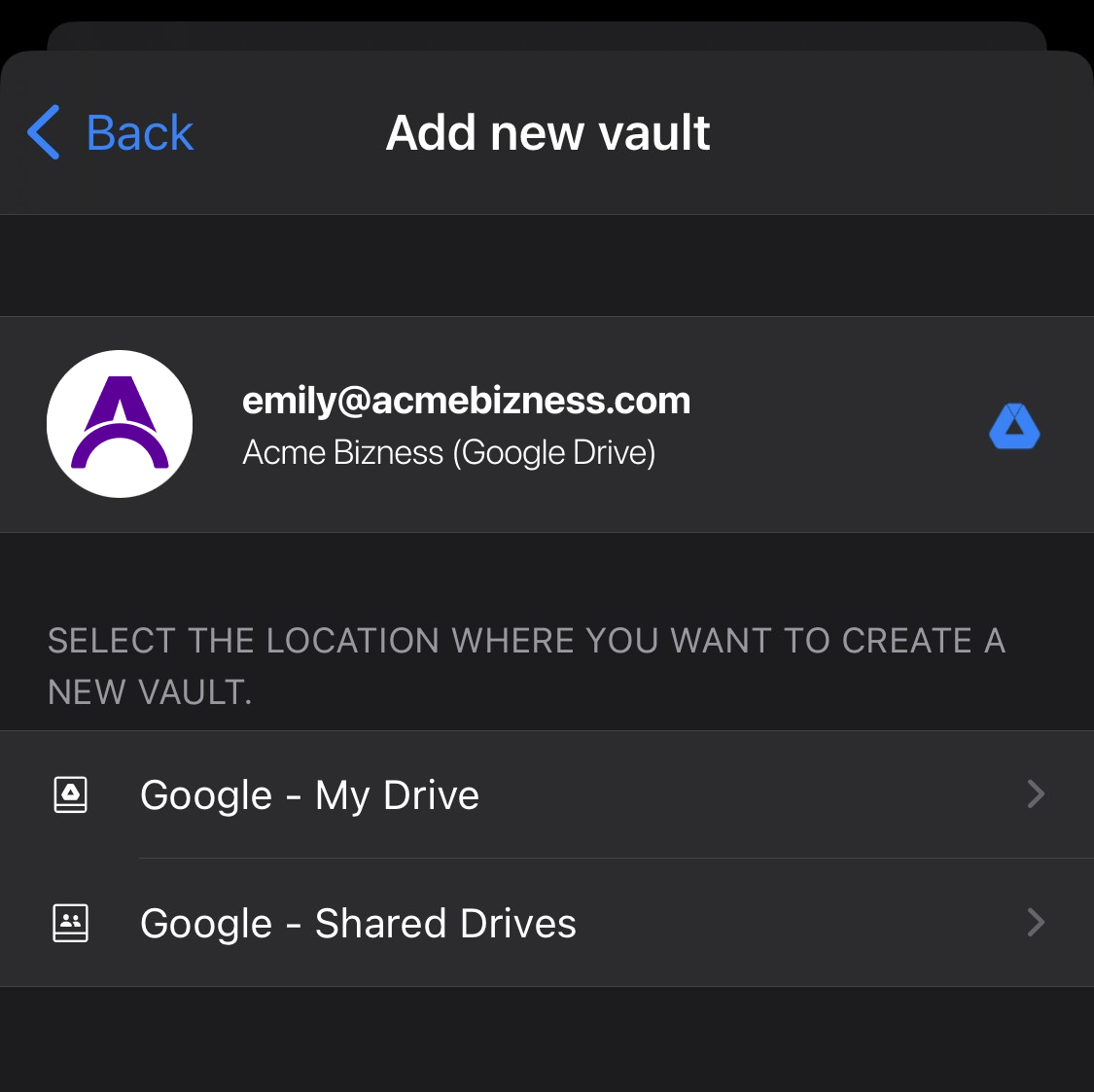
To create a new business vault in a Google Drive using the Enpass on iOS:
-
Go to Settings > Vaults, and tap
-
Select Google - My Drive or Google - Shared Drives, then click Create here.
-
Enter a name for your vault and tap Continue.
-
Create and confirm a strong password for your vault.
-
Tap Continue to complete the process.
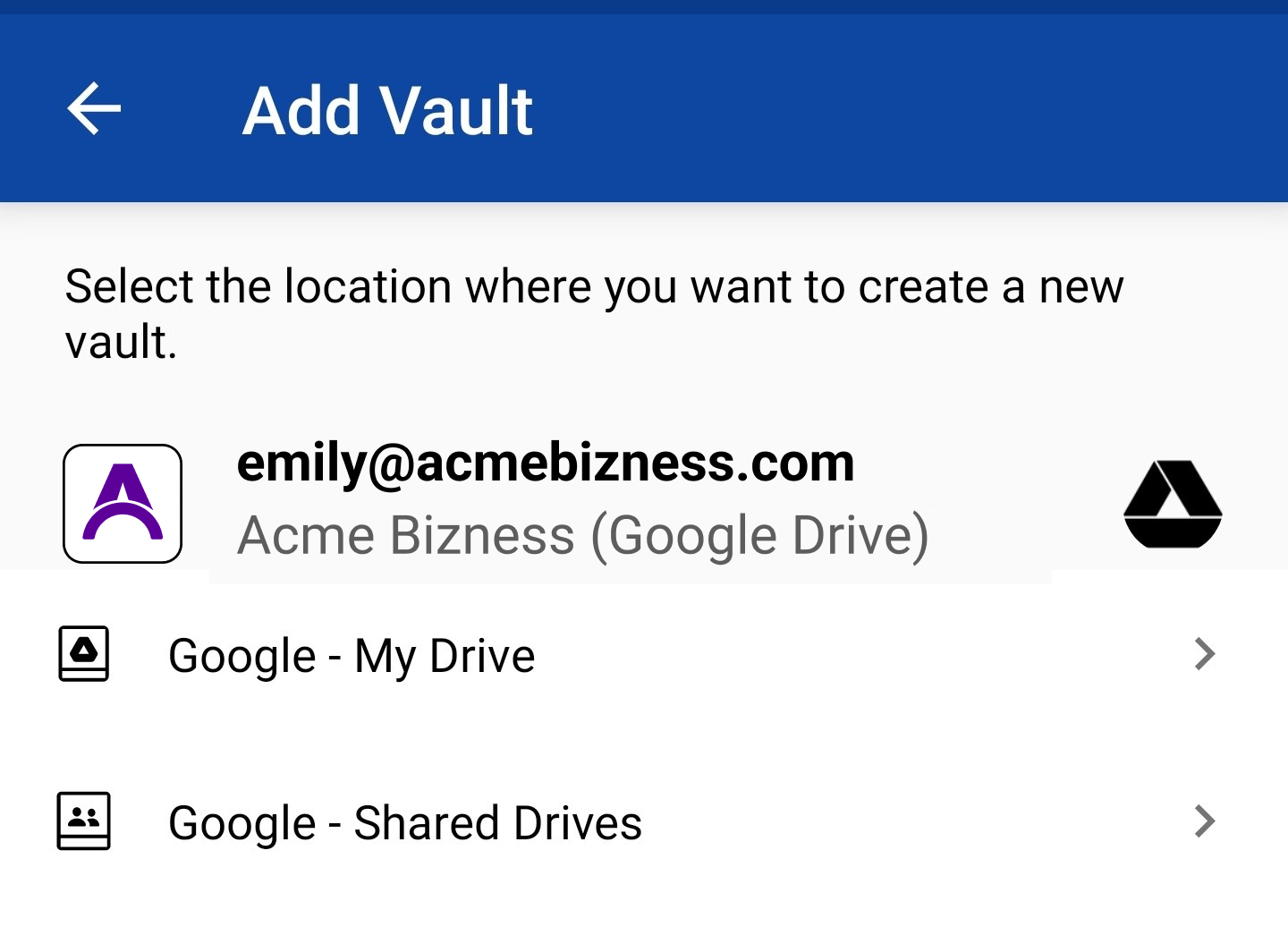
To create a new business vault in a Google Drive using the Enpass on Android:
-
Go to Settings > Vaults, and tap
-
Select Google - My Drive or Google - Shared Drives, then click Create here.
-
Enter a name for your vault and tap Continue.
-
Create and confirm a strong password for your vault.
-
Tap Continue to complete the process.