.svg)
Enpass autofill on Android devices
Once enabled to autofill, Enpass for Android will display password options above your keyboard whenever login fields are detected in an app or website.
Enpass can be set as the default autofill two ways in Android 9 or later — via the built-in Autofill Service, and via Accessibility Settings. For the smoothest autofill experience, both options should be enabled. (On devices running Android 8 or earlier, enabling Enpass in the Accessibility settings is all that’s required.)
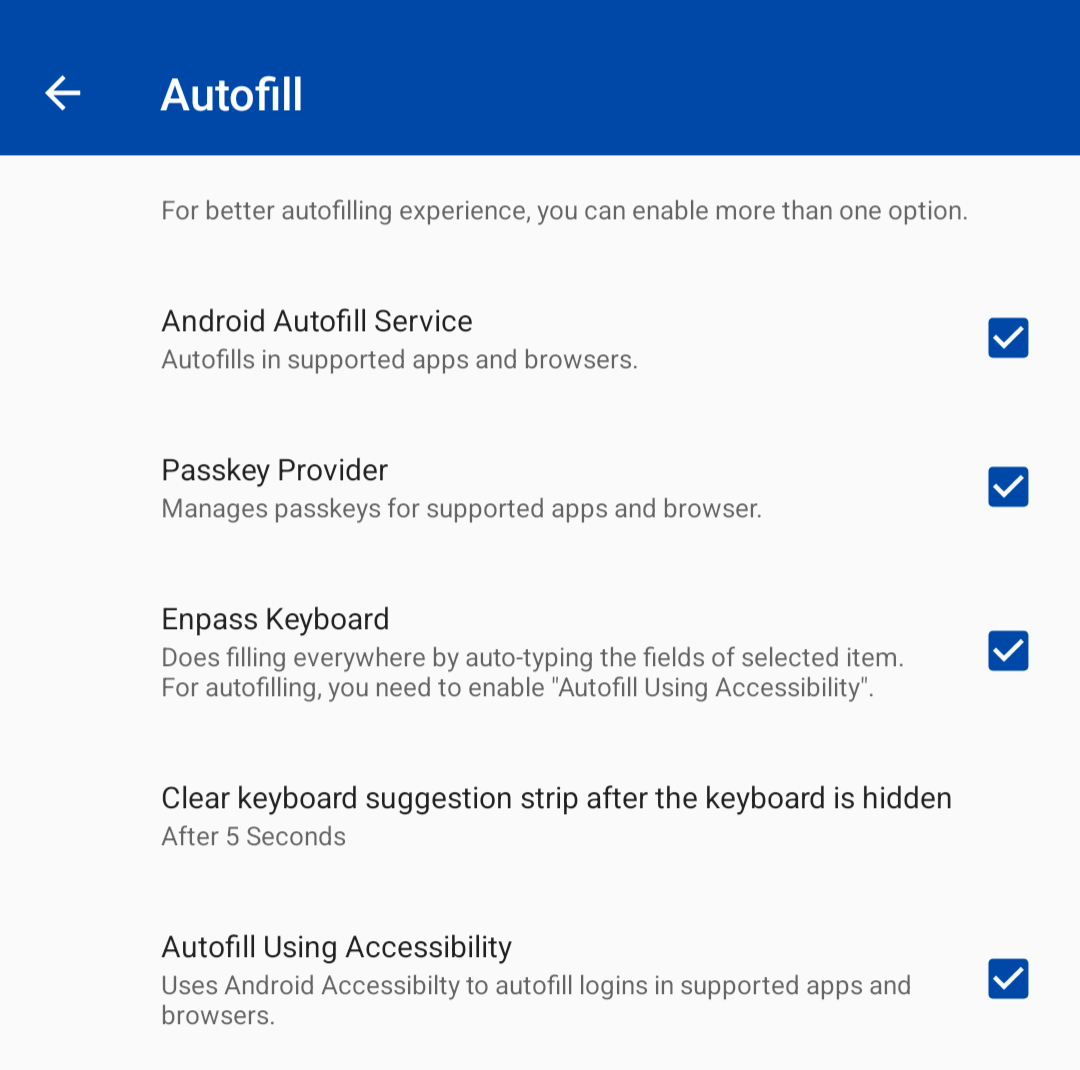
Step 1: Enable Enpass as an Autofill Service:
-
In the Enpass app, go to Settings > Autofill.
-
Select the Android Autofill Service checkbox.
-
In the Autofill Service screen that appears next, select Enpass.
-
Tap OK to enable Enpass to autofill in your browsers and apps.
Step 2: Enable Enpass to autofill using Android Accessibility:
-
In the Enpass app, go to Settings > Autofill.
-
Select the Autofill Using Accessibility checkbox.
-
In the overlay that appears next, tap Go to Settings.
-
In the Accessibility Settings screen, find and select Enpass
-
Turn on the Use Enpass option, then tap Allow.
To autofill using Enpass once enabled:
-
On the login page of an app or website, tap the first field to be filled.
-
Select the Autofill button that appears above your keyboard.
-
Unlock Enpass if prompted.
-
Find and select the item you want to autofill from the Enpass pop-up.
Another option: the Enpass keyboard
As a backup method of autofilling, Enpass comes with its own keyboard, which can be activated if Android fails to recognize username or password fields in an app or on a website.
To enable the Enpass keyboard:
-
Go to Settings > Autofill.
-
Select the Enpass Keyboard checkbox.
-
In the Manage Keyboards screen, toggle on Enpass, then tap OK.
To autofill using the Enpass keyboard:
-
On the login page of an app or website, tap the first field to be filled.
-
Long-press your keyboard’s space bar, or tap the small keyboard icon in the bottom-right corner of your screen.
-
In the Choose input method overlay, select Enpass.
-
The name of your default language may appear above “Enpass” in larger text.
-
-
The Enpass keyboard will now appear in place of your normal keyboard.
-
At the top of the Enpass keyboard, select Tap to Fill.
-
Unlock Enpass if prompted.
-
Find and select the item you want to autofill from the Enpass pop-up.
-
To return to your normal keyboard, repeat step 2 and select your preferred keyboard.
What does “You’re trying to autofill the details in another app” mean?
Every Android app has a unique app ID that Enpass needs before performing an autofill. If that unique ID doesn’t match — for example, you may see this warning if you’re logging into an account via a website when you usually login via an app.
Related topics