.svg)
Enpass autofill on iOS and iPadOS
For devices running iOS 12 and later, Enpass is integrated with the AutoFill Passwords feature of your device. After granting permissions to Enpass in your device's Settings, you will see Password options above (or instead of) your keyboard whenever login fields are detected in an app or website.
To set up Enpass as your default autofill in iOS:
-
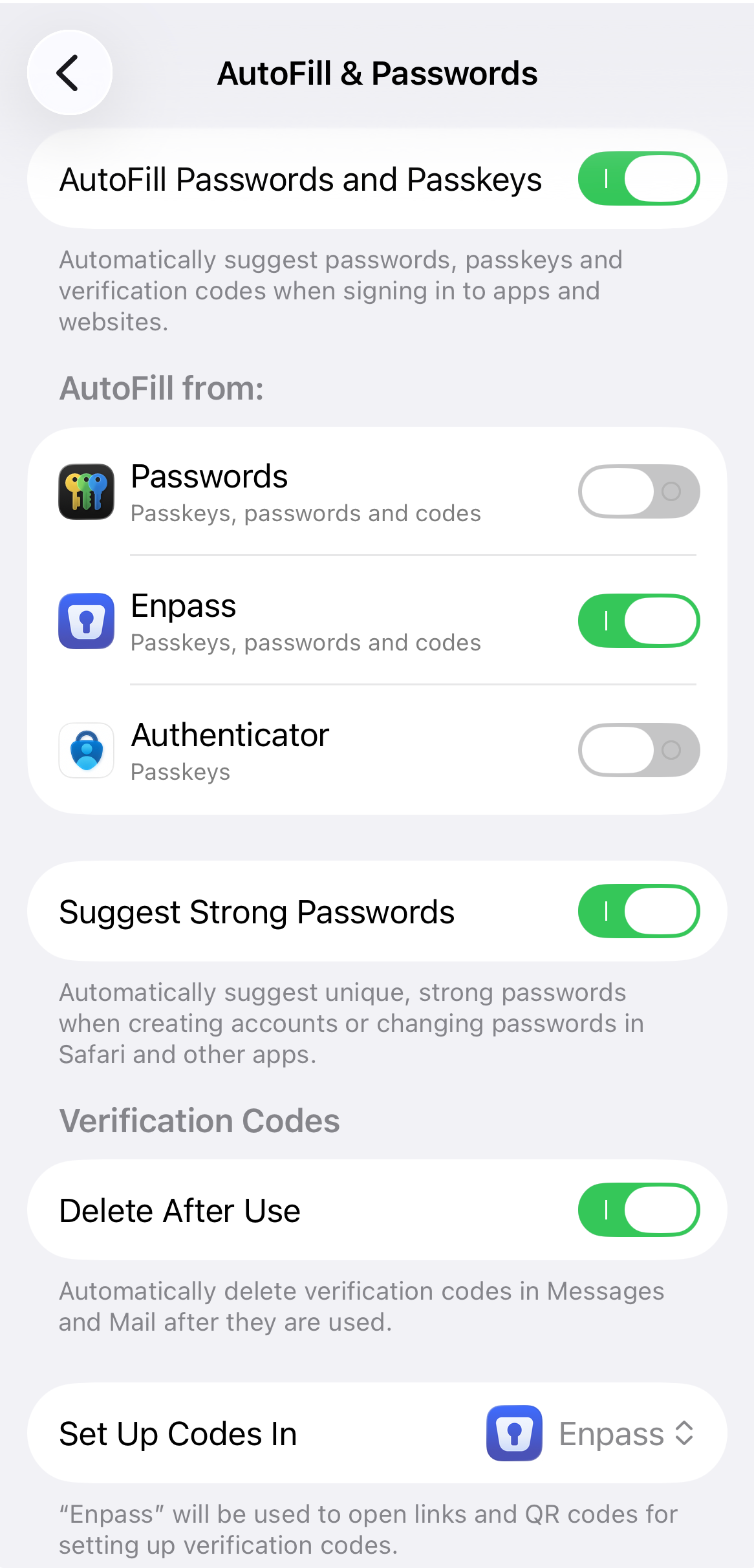
In the Settings app on your iOS device, go to General > AutoFill & Passwords.
-
Turn on the AutoFill Passwords and Passkeys option.
-
Under Autofill From, turn OFF the Passwords option, and turn ON the Enpass option.
-
In the Set Up Codes In menu, select Enpass.
-
Tap the Back button to complete the process.
To autofill using Enpass once enabled:
-
In an app’s or site’s login screen, tap the first field to be filled.
-
If Enpass recognizes the app or site from your Enpass vault, one-tap login options will be provided.
-
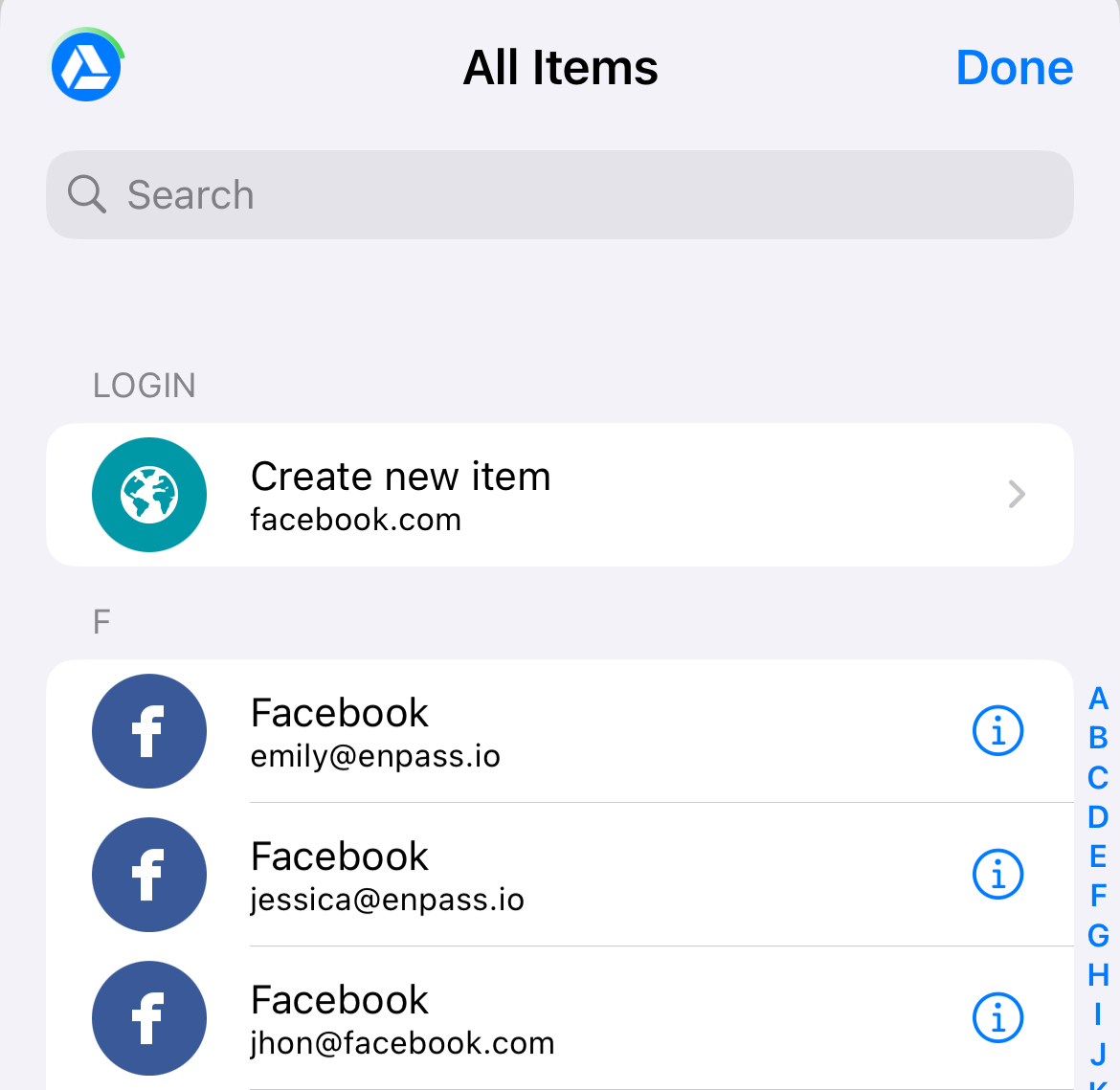
If Enpass isn't sure which Item to use, a list of suggested Items will be provided.
-
If Enpass suggests the wrong Item, or if no suggestions are provided, tap
