.svg)
Using Enpass for two-factor authentication codes
When setting up two-factor authentication (2FA) on most websites or apps, you’re provided a QR code to scan for a secret key (with an option to copy that key as text). Enpass can save these keys to generate authenticator codes (also called time-based one-time passwords, or TOTP), which provide far better security than receiving similar codes by text or email.
When logging into your accounts protected by 2FA, Enpass can autofill these codes, which eliminates the need for a separate authenticator app.
Desktop
To add an authenticator code for an exiting Item in Enpass for desktop:
-
In the Item Details view and click

-
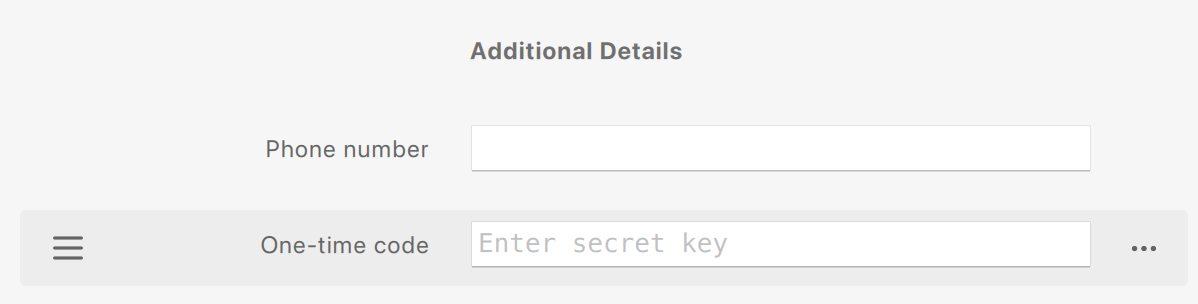
Find the One-time code field, and enter the secret key provided by your website or app.
-
Click Save to save your changes.
If you don’t find a One-time code field:
-
In the Additional Details header, click

-
Enter a name for the new field (e.g., “One-time code” or “Authenticator code”).
-
In the Field Type drop-down, select One-time Code, then Save.
-
In the new field, enter the secret key provided by the site or app, as described above.
-
Click Save to save your changes.
iOS
To add an authenticator code for an exiting Item in Enpass for iOS:
-
In the Item Details view, tap Edit at the top-right corner.
-
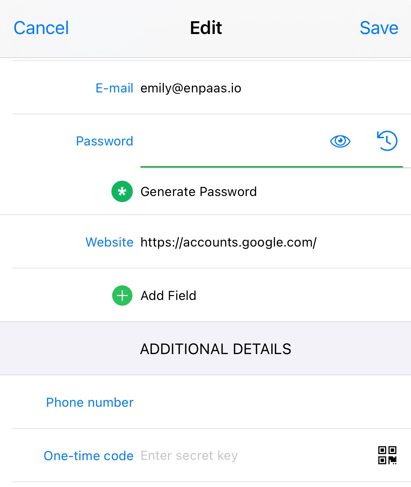
Find the One-time code field, and enter the secret key provided by the site or app, or tap the QR-code icon to scan in the key.
-
Tap Save to save your changes.
If you don’t find a One-time code field:
-
Tap

-
Enter a Name for the new field (e.g., “One-time code” or “Authenticator code”).
-
Tap Type, and select One-time Code.
-
Turn on the Sensitive option.
-
Tap Done to return to the Edit view.
-
In your new field, enter the secret key provided by the site or app, or tap the QR-code icon to scan in the key.
-
Tap Save to save your changes.
Android
To add an authenticator code for an exiting Item in Enpass for Android:
-
In the Item Details view, tap
-
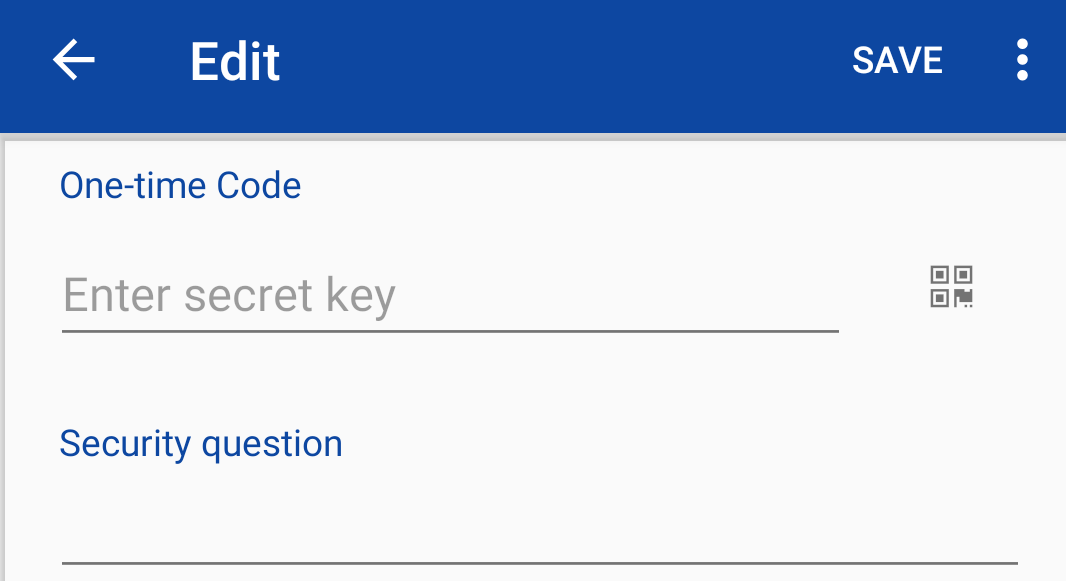
Find the One-time code field, and enter the secret key provided by the site or app, or tap the QR-code icon to scan in the key.
-
Tap Save to save your changes.
If you don’t find a One-time code field:
-
Tap ︙ in the top-right corner, and select Add Field.
-
Enter a Name for the new field (e.g., “One-time code” or “Authenticator code”).
-
In the Field Type drop-down, select One-time Code.
-
Turn on the Sensitive option.
-
Tap Save to return to the Edit view.
-
In your new field, enter the secret key provided by the site or app, or tap the QR-code icon to scan in the key.
-
Tap Save to save your changes.