.svg)
Editing Items in Enpass
You can edit and customize Items in Enpass to meet you needs, adding details or special fields, reordering sections and fields, and more.
Desktop
To edit an Item in Enpass for desktop:
-
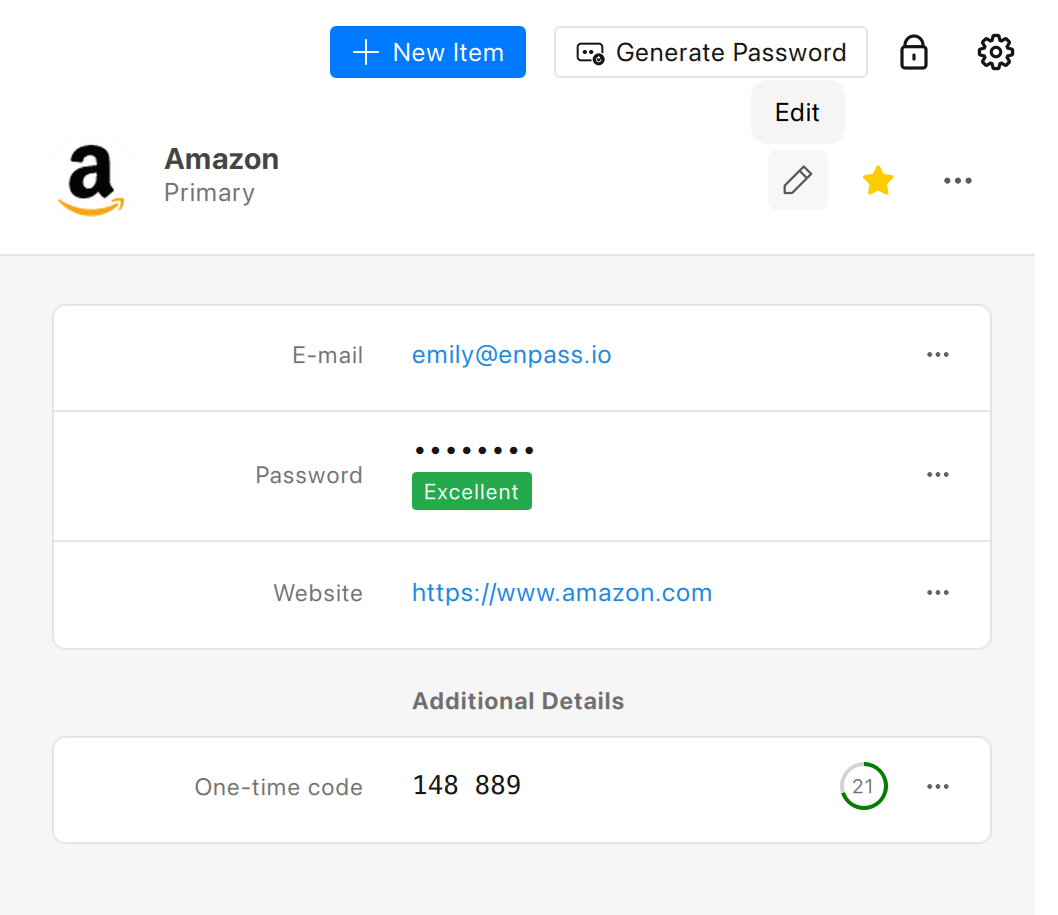
In the Item Details view, click

-
Make any changes you need, and click Save.
iOS
To edit an Item in Enpass for iOS:
-
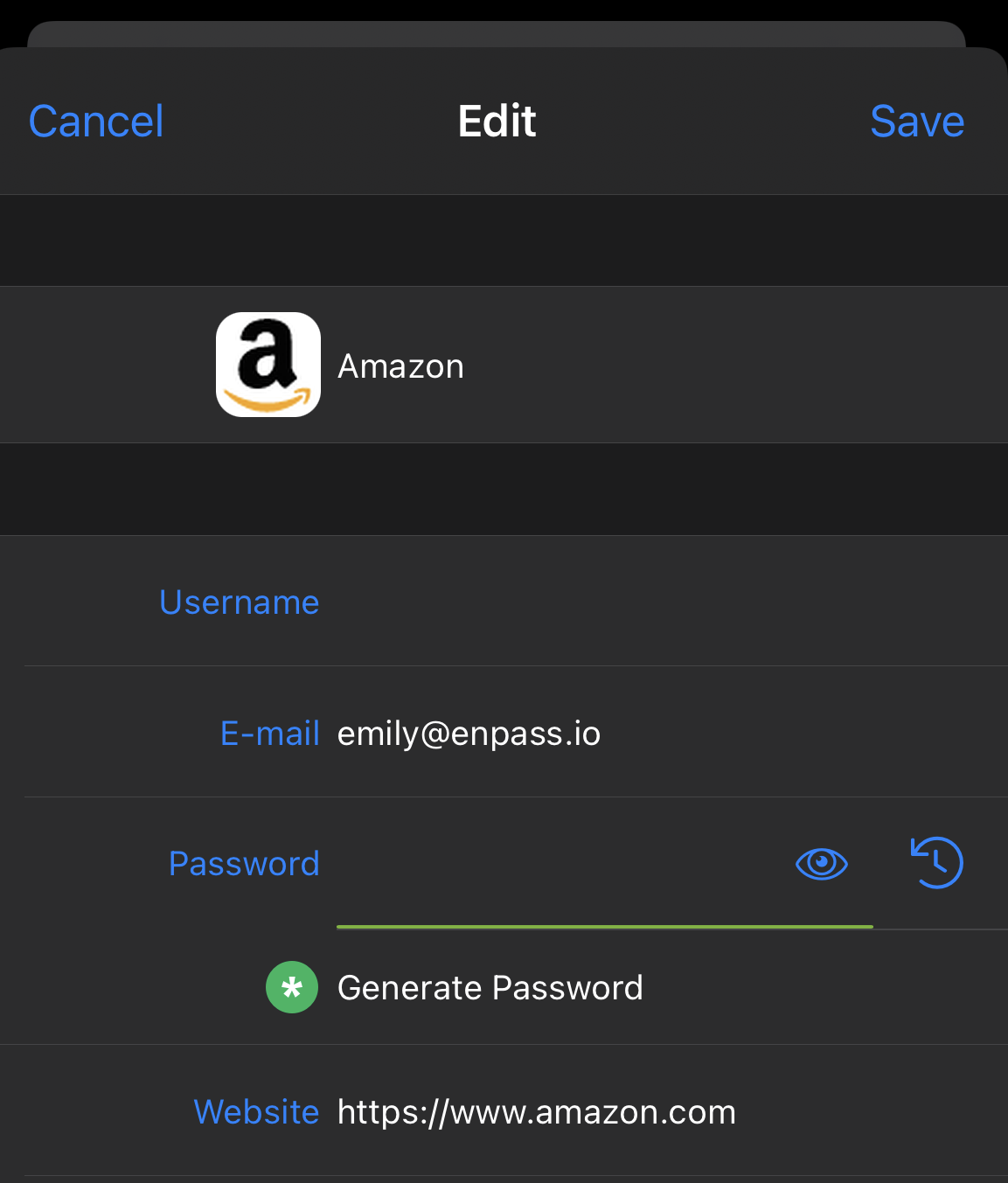
In the Item Details view, tap Edit at the top-right corner.
-
Make any changes you need, and tap Save.
Android
To edit an Item in Enpass for Android:
-
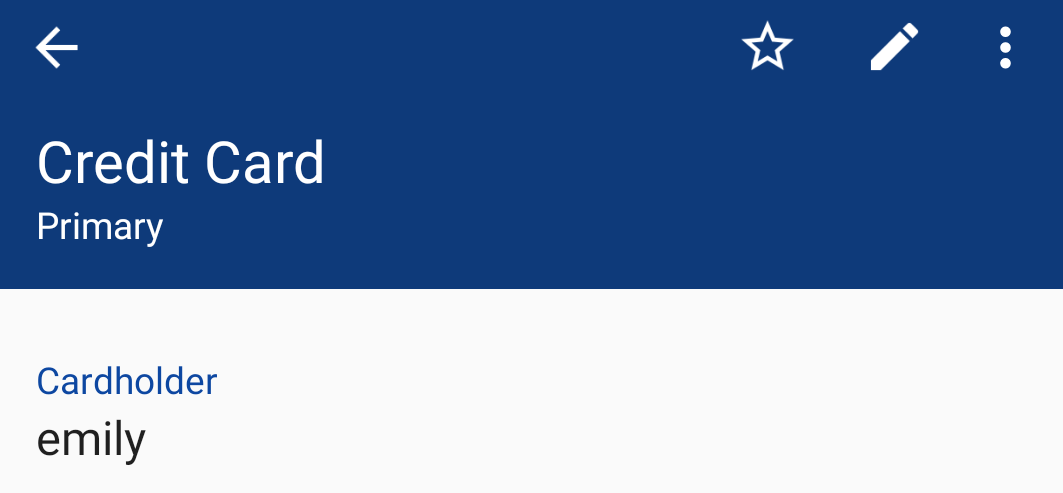
In the Item Details view, tap
-
Make any changes you need, and tap Save.
Click the Generate button to have Enpass automatically suggest strong new passwords for your accounts.
Good to know
Field history
This feature tracks changes made to any fields in an Enpass Item. For example, you can look up previous passwords and usernames with field history.
To check a field’s history within an Enpass item:
-
Right-click the field (not on its name), then select History.
-
After viewing the history, click ✖ to close the history view.
Subsets of passwords
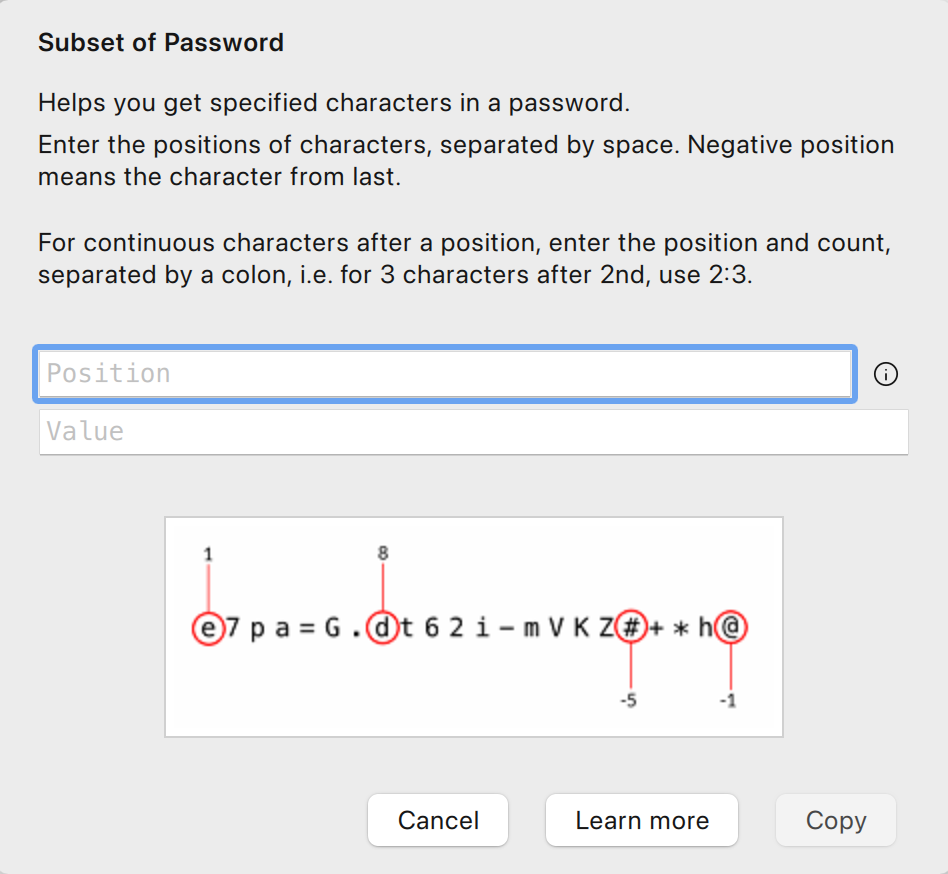
Some sites or applications ask for a subset of the password for authentication. For example, a subset could be the 1st, 4th, and next-to-last character of a password passwords. In Enpass you can easily specify which characters to display in a subset so you can copy and paste where required.
To generate a subset of a password within an Enpass Item:
-
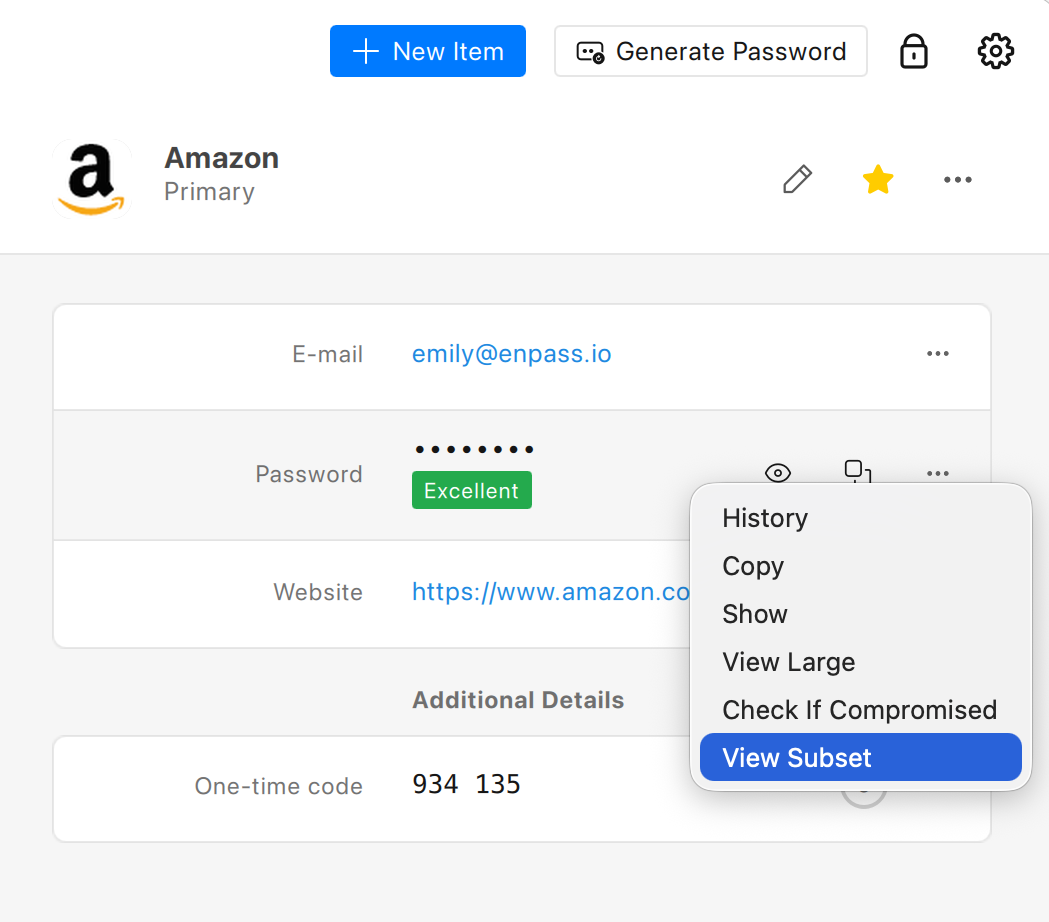
Right-click the password field, then select View Subset.
-
Enter the positions of characters needed, and click Copy.
-
Then you will see the corresponding character of the password in the value box.
-
Use negative numbers to indicate character positions from the end of the password (for example, -1 would display the last character).
-
If you need continuous characters of the password, you can type the position of character and count of characters, separated by a colon.
-
Click Copy to be able to paste the password subset where required.