.svg)
Enpass Admin Console records a detailed audit trail of actions taken across the Enpass app, Enpass Hub, and the Admin Console itself. These event logs help your organization monitor user activity, investigate security incidents, and meet compliance requirements.
Event logs are retained for up to 90 days within Enpass. For longer retention, automated alerting, and deeper analysis, you can forward logs to a SIEM tool.
Prerequisites
-
Enpass Business Plan with Microsoft 365 or Google Workspace as the storage option.
-
Super Admin access — only Super Admins can enable and configure Event Logs.
Enable Event Logs
-
In the Enpass Admin Console, select Event Logs from the sidebar.
-
Click Enable to activate event log collection.
What's Logged
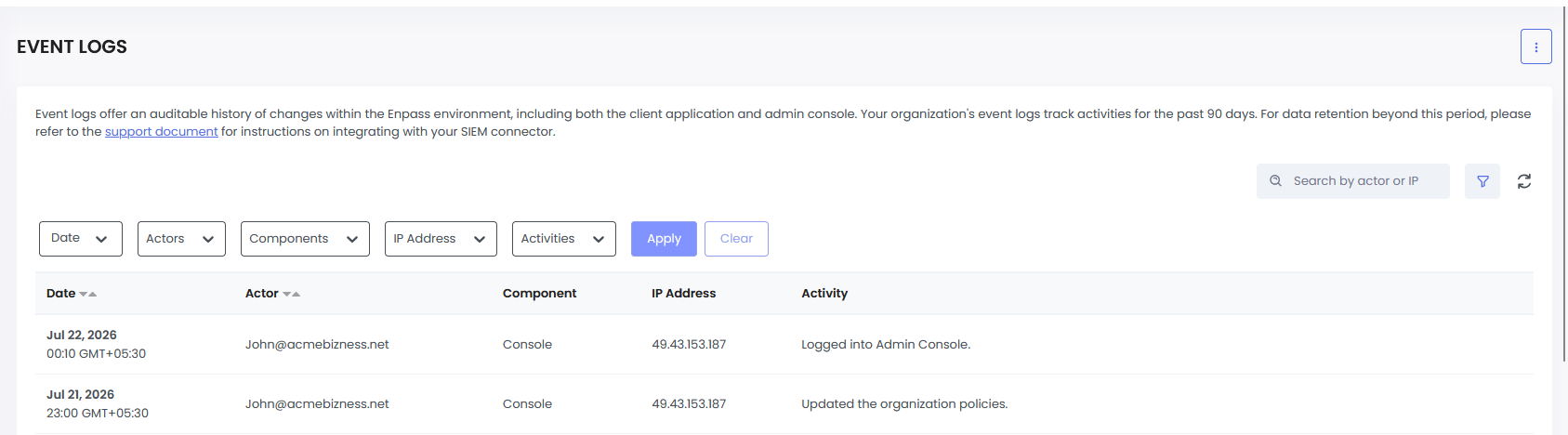
Each event log entry includes the following fields:
|
Field |
Description |
|---|---|
|
Date & Time |
Timestamp of the event |
|
Actor |
The user or system that performed the action |
|
Component |
Whether the action occurred in the Enpass App, Enpass Hub, or Admin Console |
|
IP Address |
The IP address from which the action was performed |
|
Activity |
A description of the specific action taken |
For a full breakdown of tracked events by category, see Event Categories & Field Reference .
Disable Event Logs

-
In the Enpass Admin Console, navigate to Event Logs.
-
Click the three-dot menu and select Disable.
-
Confirm in the pop-up to finalize.
⚠️ Disabling Event Logs will stop all log collection. Existing logs are not deleted immediately but will no longer be updated.
Forward Logs to a SIEM Tool
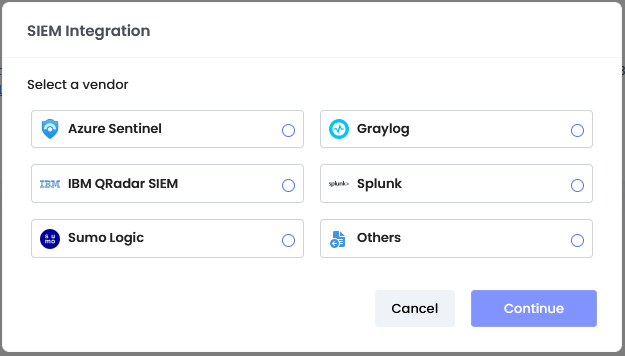
Enpass retains logs for up to 90 days. To extend retention and unlock advanced alerting and dashboards, connect Enpass to a SIEM tool. Enpass supports the following integrations:
See Integrate with SIEM Tools for setup instructions.