.svg)
Adding personal vaults to Enpass Business
If permitted by your organization, Enpass can create new personal vaults on your own private cloud accounts, or add existing personal Enpass vaults to your Enpass Business app:
Creating a new personal Enpass vault
DESKTOP
To create a personal Enpass vault in your Enpass Business app:
-
Go to Settings > Vaults, and select Personal tab and click on Add New Vault.
-
Select the cloud service where you want to create your new vault.
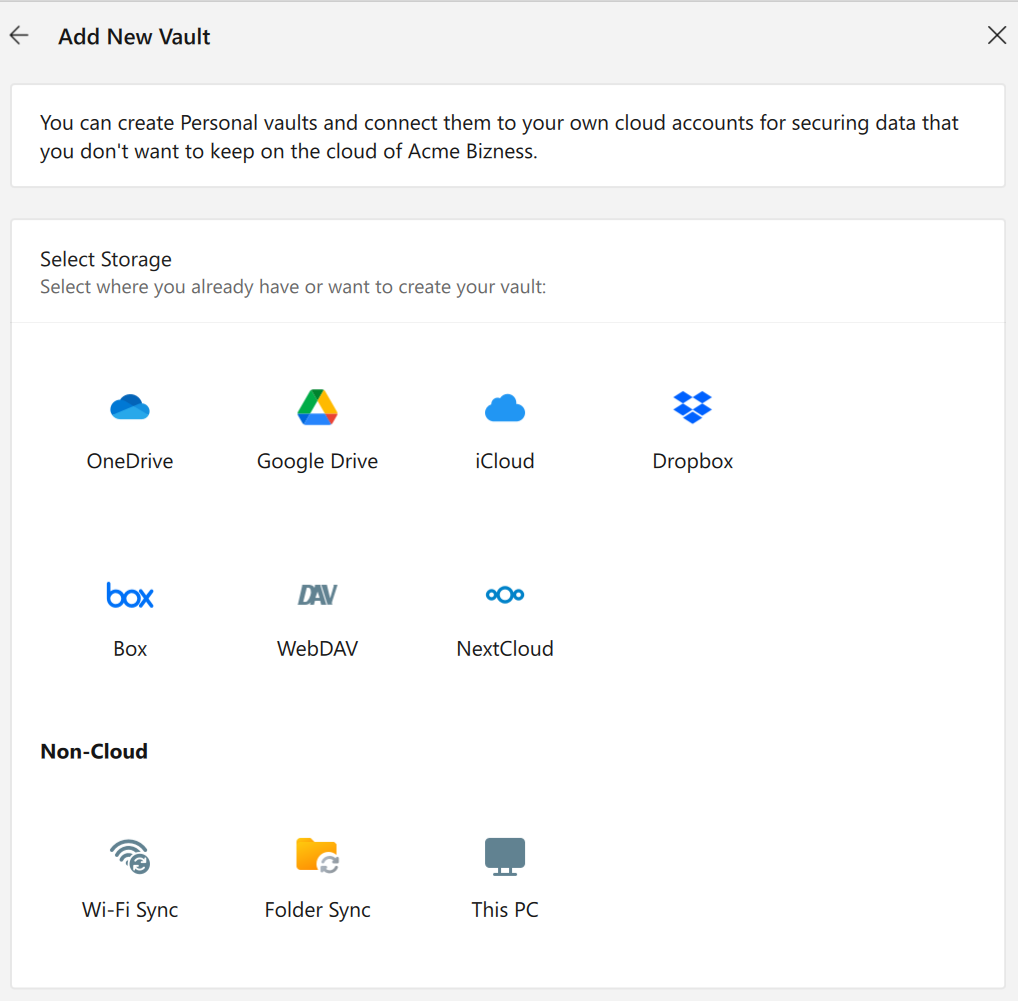
-
You will be taken to that cloud service in your browser. Login and follow the steps to allow Enpass access to your account.
-
When you see the Enpass-styled “Authorization Finished” message, click the Redirect button and/or the Open Enpass button (if you are not automatically returned to Enpass).
-
Once returned to Enpass, enter a name for your new vault, and click Continue.
-
Create and confirm a strong password for your vault.
-
Select the checkbox to add this vault password to your Primary Vault. (Recommended)
-
-
Click Done to complete the process.
iOS
To create a personal Enpass vault in your Enpass Business app:
-
Go to Settings > Vaults, and select Add Personal Vault.
-
Select the cloud service where you want to create your new vault.
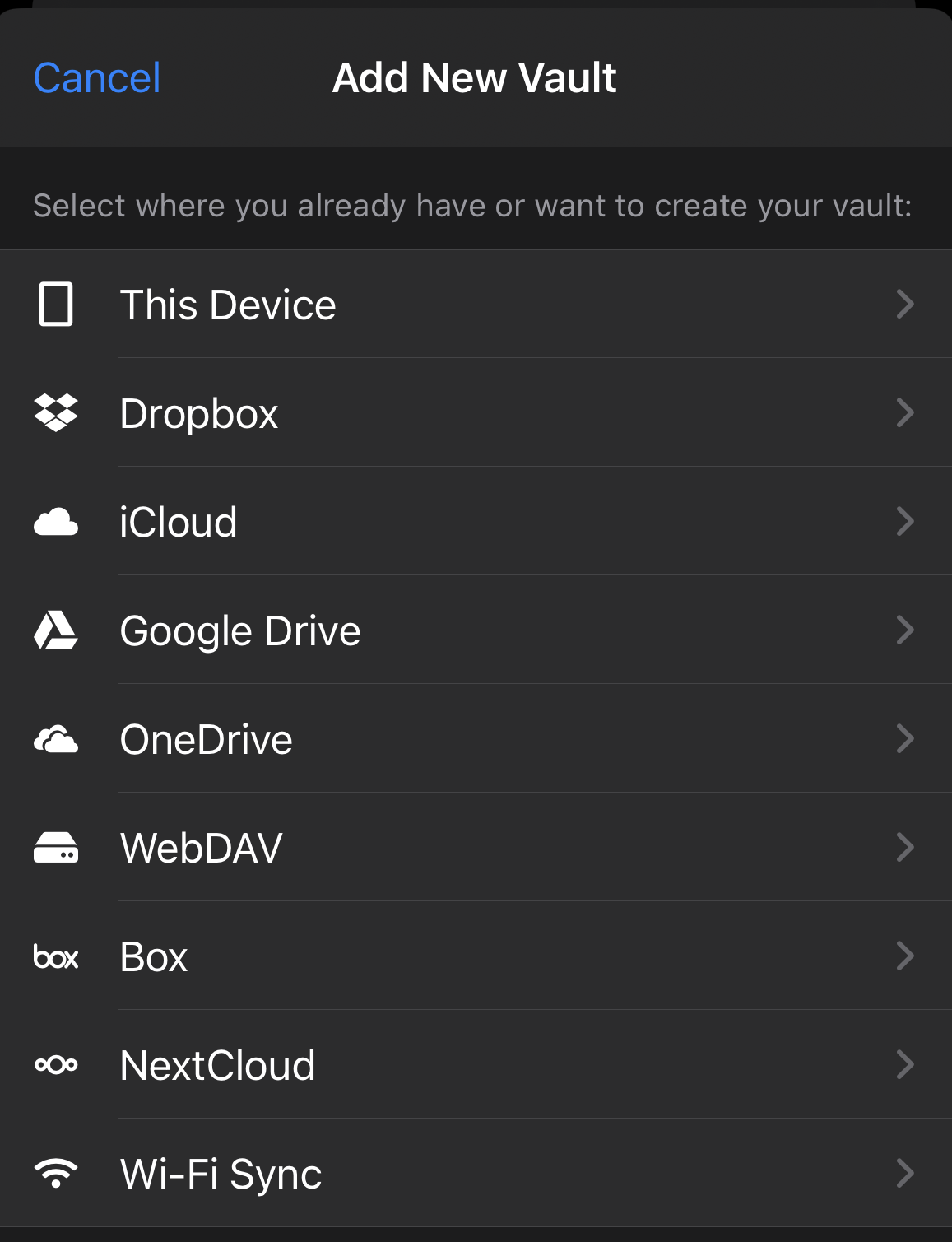
-
In the pop-up screen for your cloud account, follow the steps to allow Enpass access to your account.
-
Enter a name for your new vault, and tap Continue.
-
Create a strong password for your vault, and tap Continue.
-
Verify your vault password, and tap Done.
ANDROID
To create a personal Enpass vault in your Enpass Business app:
-
Go to Settings > Vaults, and select Add Personal Vault.
-
Select the cloud service where you want to create your new vault.
-
You will be taken to that cloud service in an overlay or in your browser.
-
Login and follow the steps to allow Enpass access to your account.
-
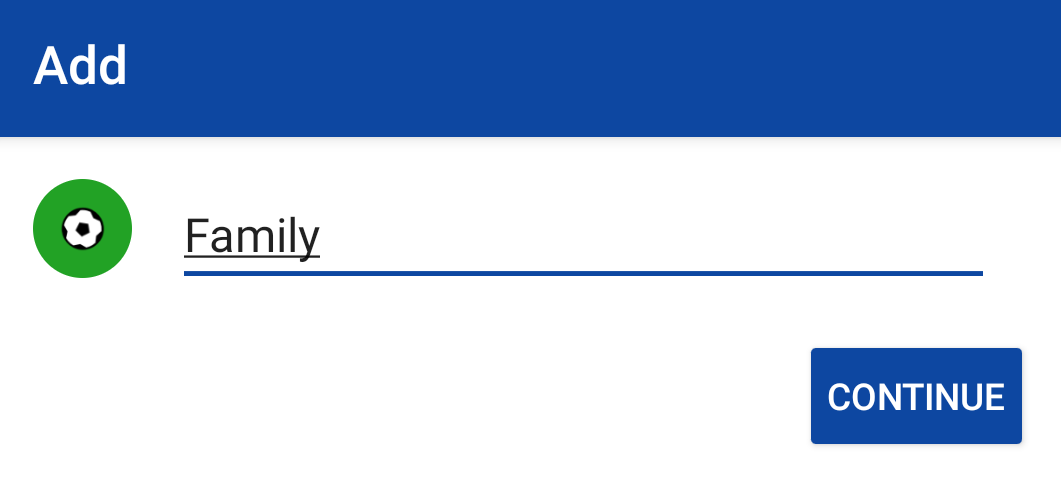
Once returned to Enpass, enter a name for your new vault, and tap Continue.
-
Create a strong password for your vault, and tap Continue.
-
Verify your vault password, and tap Done.
Adding an existing personal Enpass vault
DESKTOP
To add an existing personal Enpass vault to your Enpass Business app:
-
Go to Settings > Vaults, and select Personal tab and click on Add New Vault.
-
Select the source from which you want to add your vault.
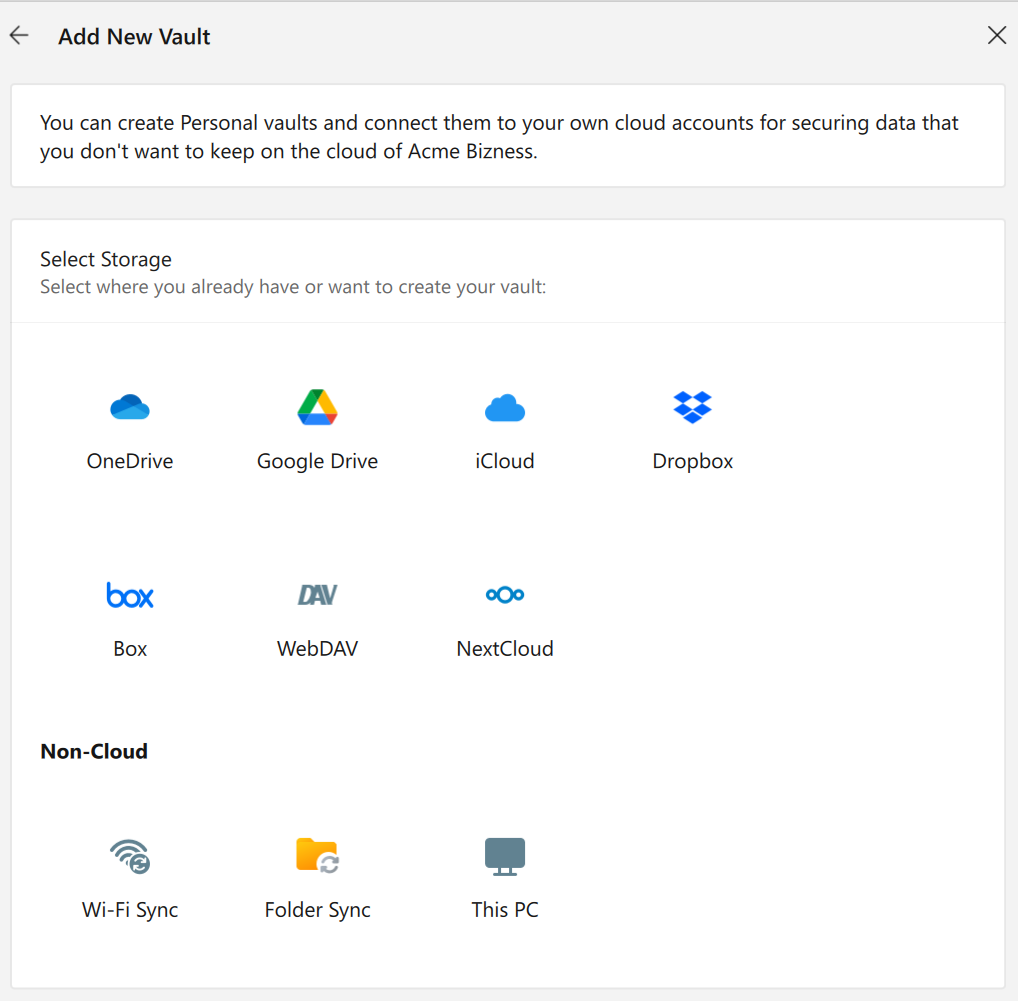
-
If that source is a cloud service, your browser will open a special page on that cloud’s website for granting access to Enpass.
-
Login to the cloud account, and grant access to Enpass (usually a big Grant or Allow button).
-
When you see the Enpass-styled “Authorization Finished” message, click the Redirect button and/or the Open Enpass button (if you are not automatically returned to Enpass).
-
In Enpass, you will see a “Restoring Data...” message.
-
When you see the vault name and icon, click Continue.
-
Enter the vault password, and click Continue.
-
Select the checkbox to add this vault password to your Primary Vault. (Recommended)
-
-
Click Done to complete the process.
iOS
To add an existing personal Enpass vault to your Enpass Business app:
-
Go to Settings > Vaults, and select Add Personal Vault.
-
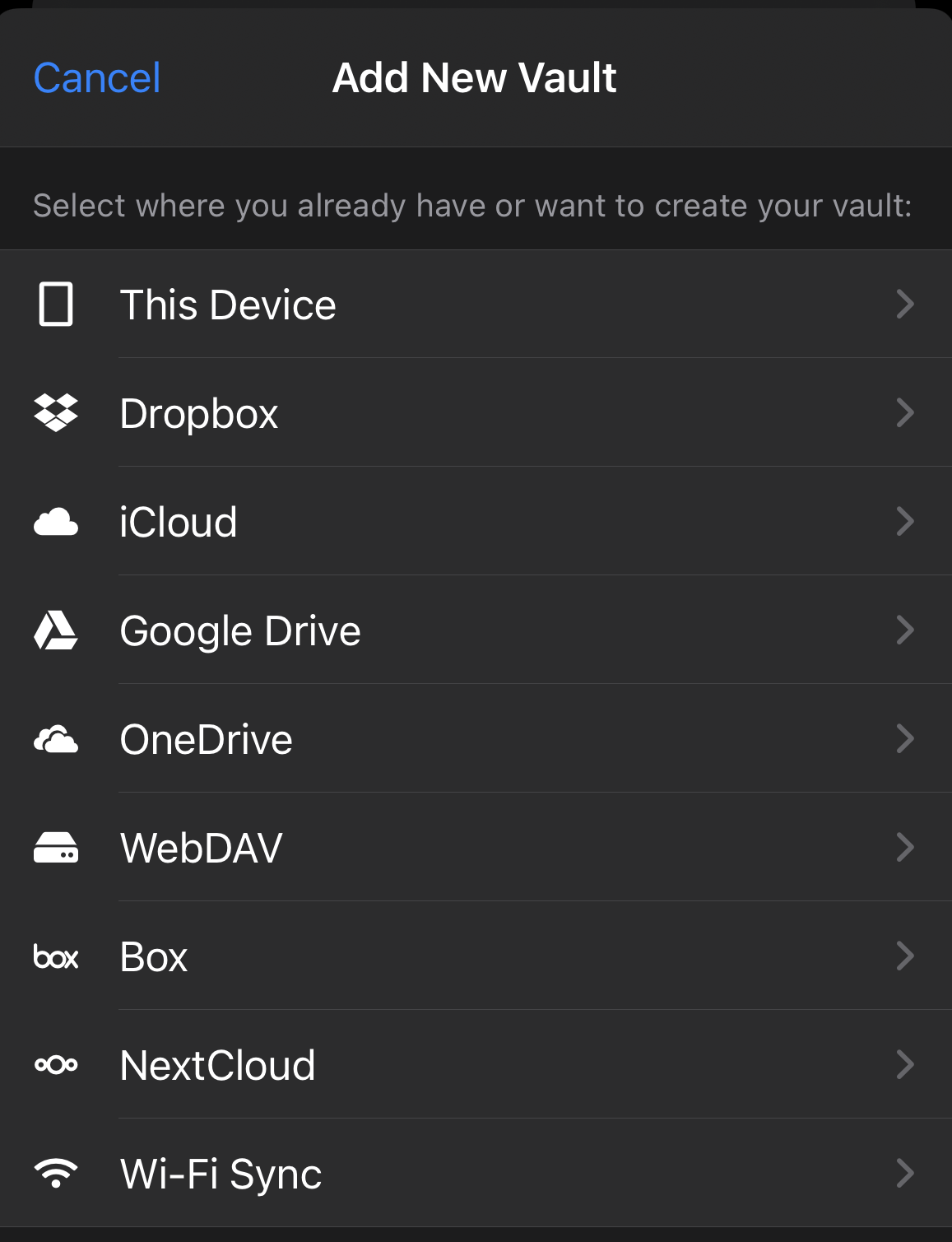
Select the location or service from which from which you want to add a vault.
-
For cloud accounts, you will be taken to that cloud service in a pop-up screen.
-
Follow the steps to allow Enpass access to your account.
-
Enpass will automatically restore your vault.
-
Enter the vault password to complete the process.
ANDROID
To add an existing personal Enpass vault to your Enpass Business app:
-
Go to Settings > Vaults, and select Add Personal Vault.
-
Select the location or service from which you want to add a vault.
-
For cloud accounts, you will be taken to that cloud service in your browser.
-
Log in to your cloud account and follow the steps to allow Enpass access to your account.
-
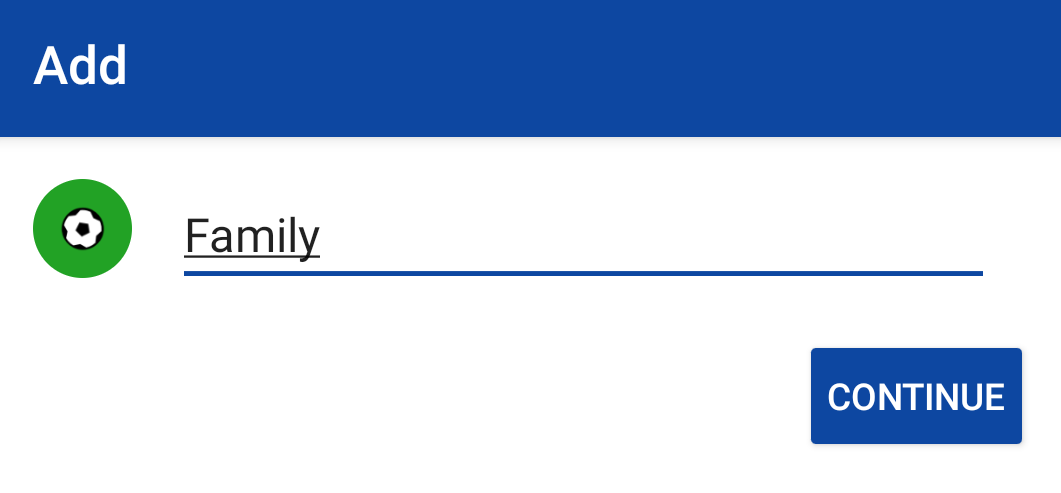
Enter a name for your vault and tap Continue.
-
Enter the password of your vault and tap Restore.