.svg)
Managing access to your shared Enpass Business vaults
Access to the vaults you have shared with teammates from within the Enpass app can be managed from that vault’s settings. Team members can be granted view-only or editing rights, and when a team member’s access is revoked, they will no longer see the vault in their Enpass app.
If you're managing a vault shared via OneDrive before access management was available within the Enpass app, see Managing access to vaults shared via OneDrive.
Sharing can be managed only from an Enpass desktop app, not from the mobile app.
To manage who has access to your shared Business vaults:
-
Go to Settings > Vaults, and select a shared vault.
-
Click

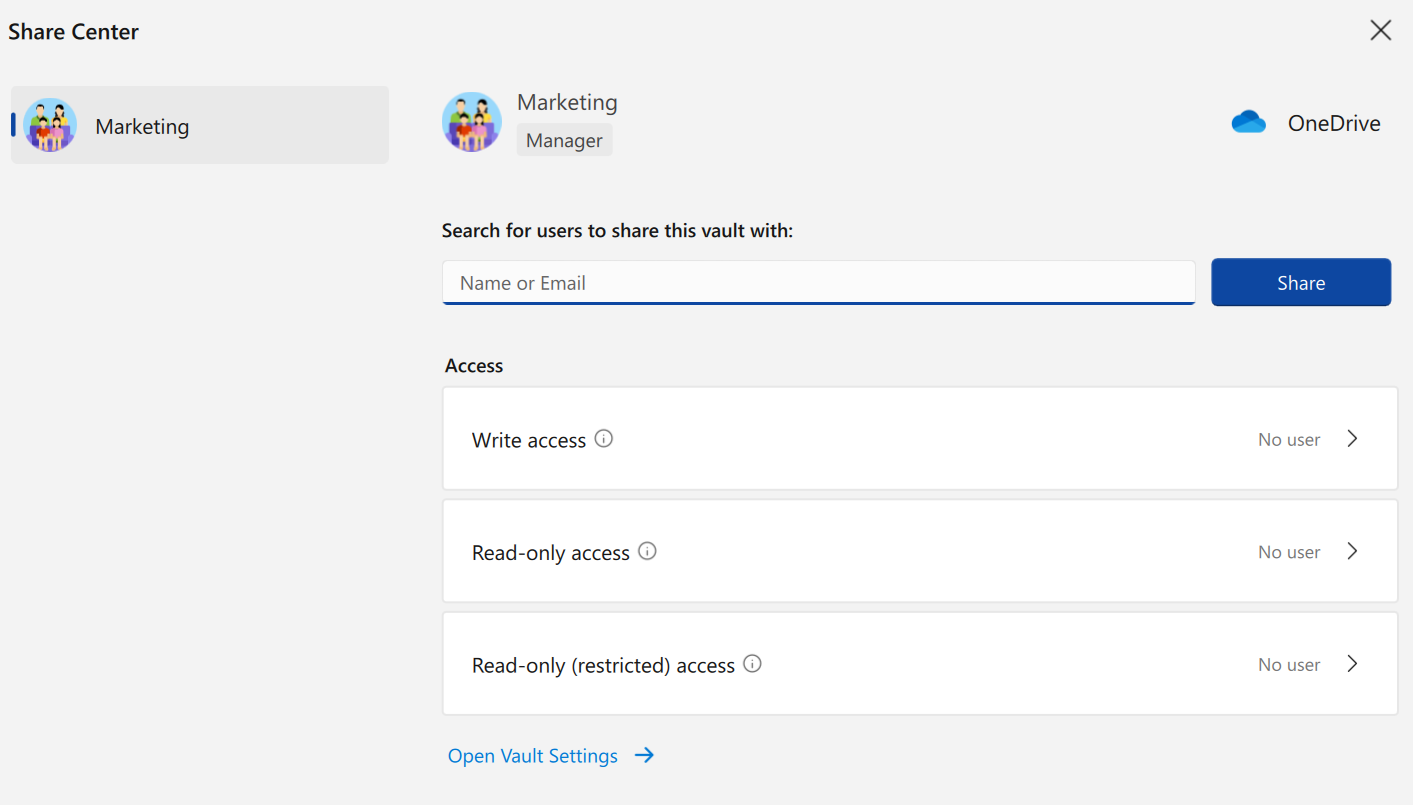
-
The Manage Access view displays a list of users sorted by their access privileges (read-write, read-only, etc.).
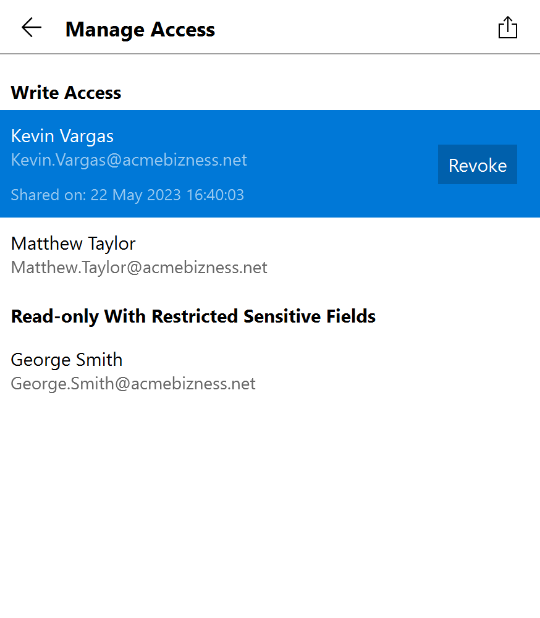
To revoke a user’s access:
-
Click the Revoke button.
-
In the conformation pop-up, click OK.
To change someone’s access privileges:
-
Revoke their access
-
Share the vault with them again — see Sharing a vault with co-workers.