.svg)
Changing passwords of existing Enpass Items
When it’s time to change a password, the built-in password generator makes it as easy as as single click or tap. After generating a new password, you can login to the related app or site, and update your account to use your new password.
You can also login to an online account in your desktop browser, navigate to your account’s change password, and use the Enpass browser extension to generate, autofill, and save a new password.
Desktop
To change the password of an existing Item in Enpass for desktop:
-
In the Item Details view, click

-
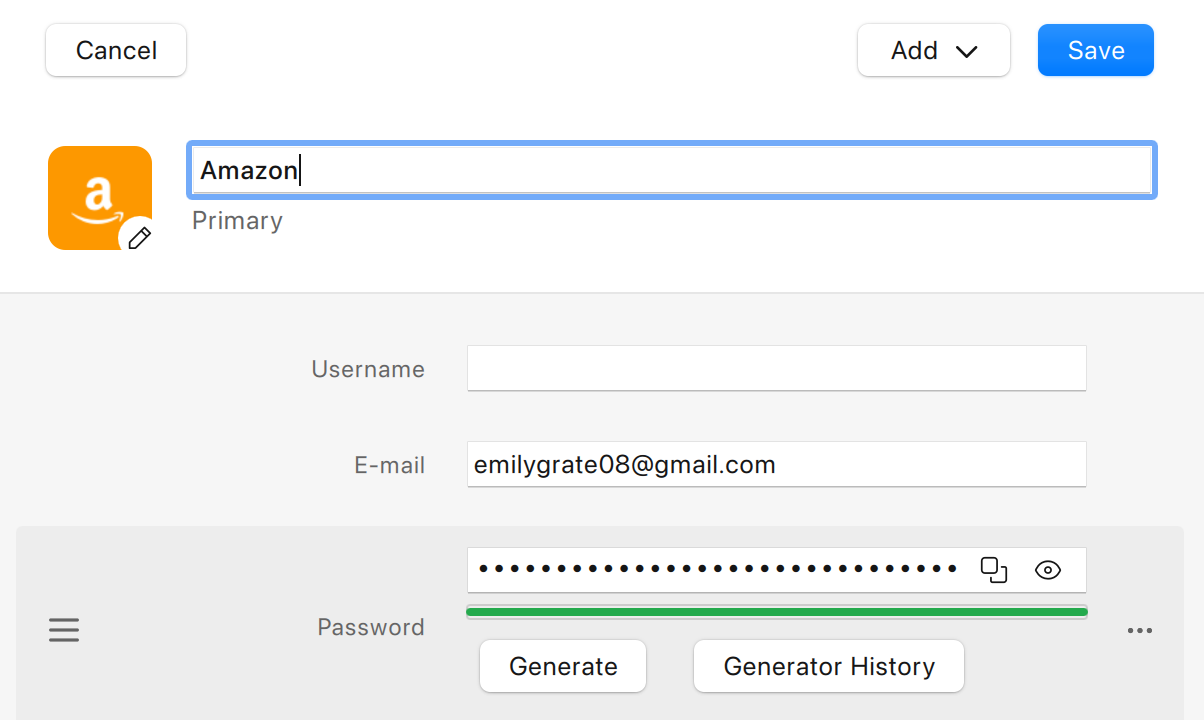
Below the password field, click the Generate button.
-
In the Generate Password overlay, use the controls provided to adjust the password to fit any requirements, including...
-
Password length
-
Creating a pronounceable password
-
Which kinds of characters can be included
-
-
Click Fill to commit to the new password.
-
Click Save in the toolbar to save your changes.
iOS
To change the password of an existing Item in Enpass for iOS:
-
In the Item Details view, tap Edit in the top-right corner.
-
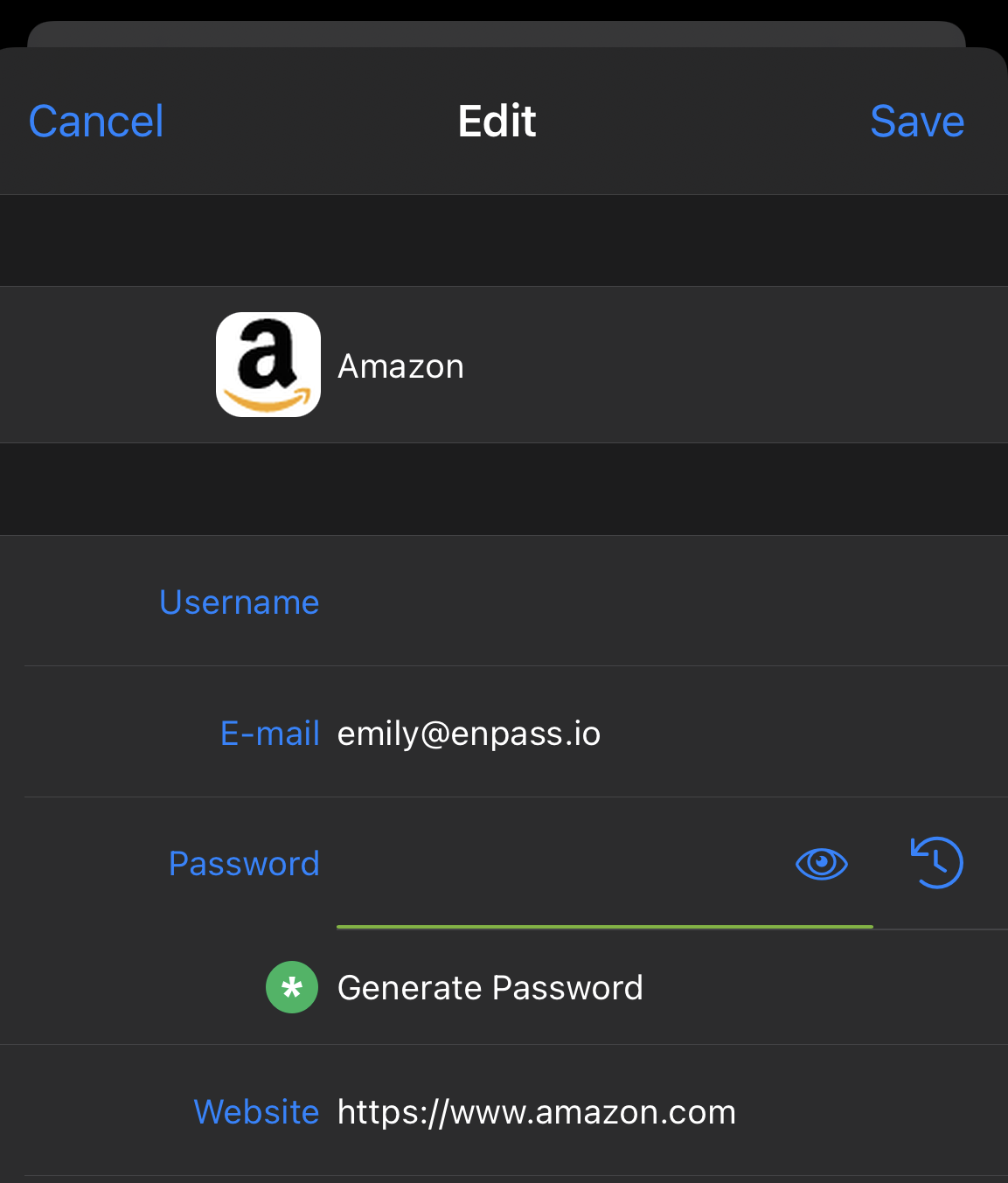
Tap Generate Password below the password field.
-
Use the controls provided to adjust the password to fit any requirements, including...
-
Password length
-
Creating a pronounceable password
-
Which kinds of characters can be included
-
-
Tap Use to commit to the new password.
-
Tap Save in top-right corner to save your changes.
Android
To change the password of an existing Item in Enpass for Android:
-
In the Item Details view, tap
-
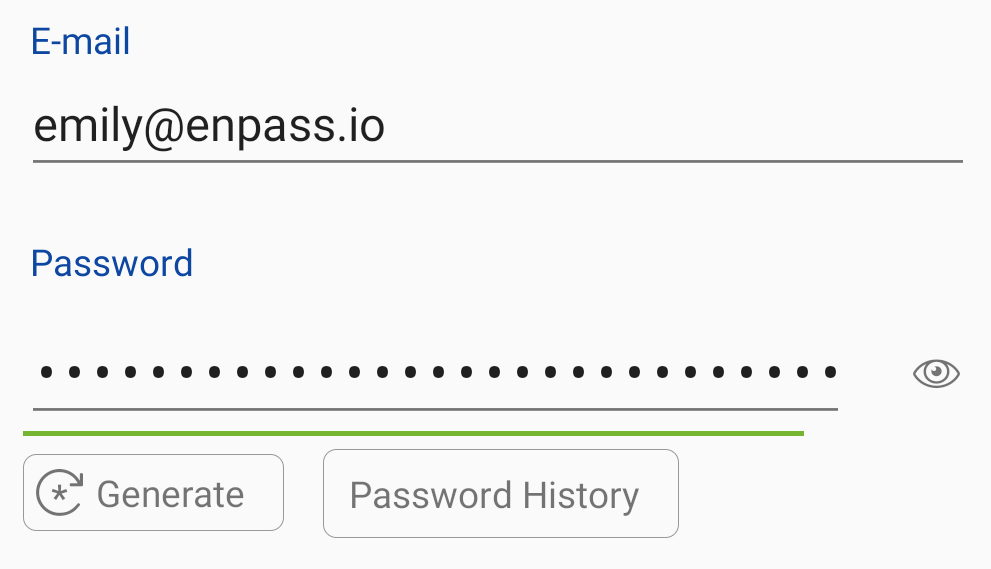
Tap Generate below the password field.
-
Use the controls provided to adjust the password to fit any requirements, including...
-
Password length
-
Creating a pronounceable password
-
Which kinds of characters can be included
-
-
Tap Use to commit to the new password.
-
Tap Save in top-right corner to save your changes.