.svg)
Changing passwords of existing Items using the Enpass browser extension in desktop browsers
With the Enpass browser extension installed and activated on your browser, Enpass can help you change passwords for existing items without leaving your browser.
To change a password using the Enpass browser extension:
-
Login to a site for which you have credentials saved in Enpass.
-
Navigate to your account’s change password page.
-
Click the field for entering a new password, then click the Enpass icon in your browser toolbar.
-
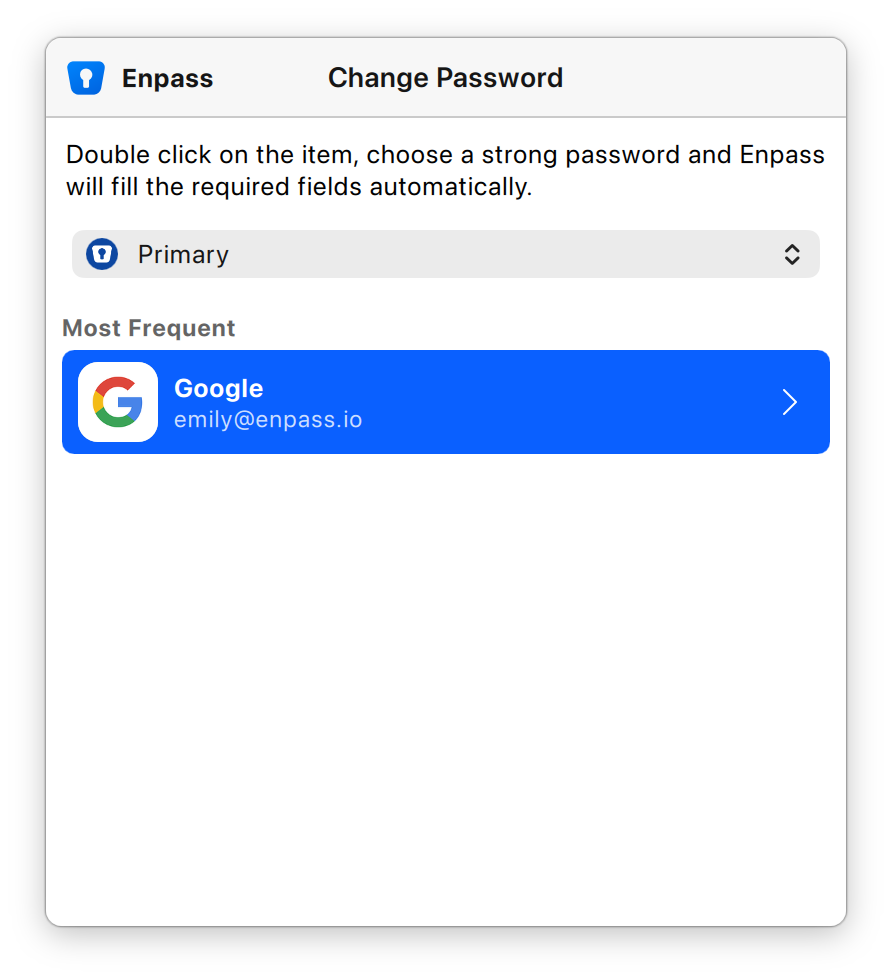
In the Enpass Assistant mini-window, double-click the Enpass Item for this site to launch the Password Generator.
-
If needed, adjust or edit the generated password to fit any requirements.
-
Click Fill to automatically update the site's password fields with your new password, then submit the new password on the site.
-
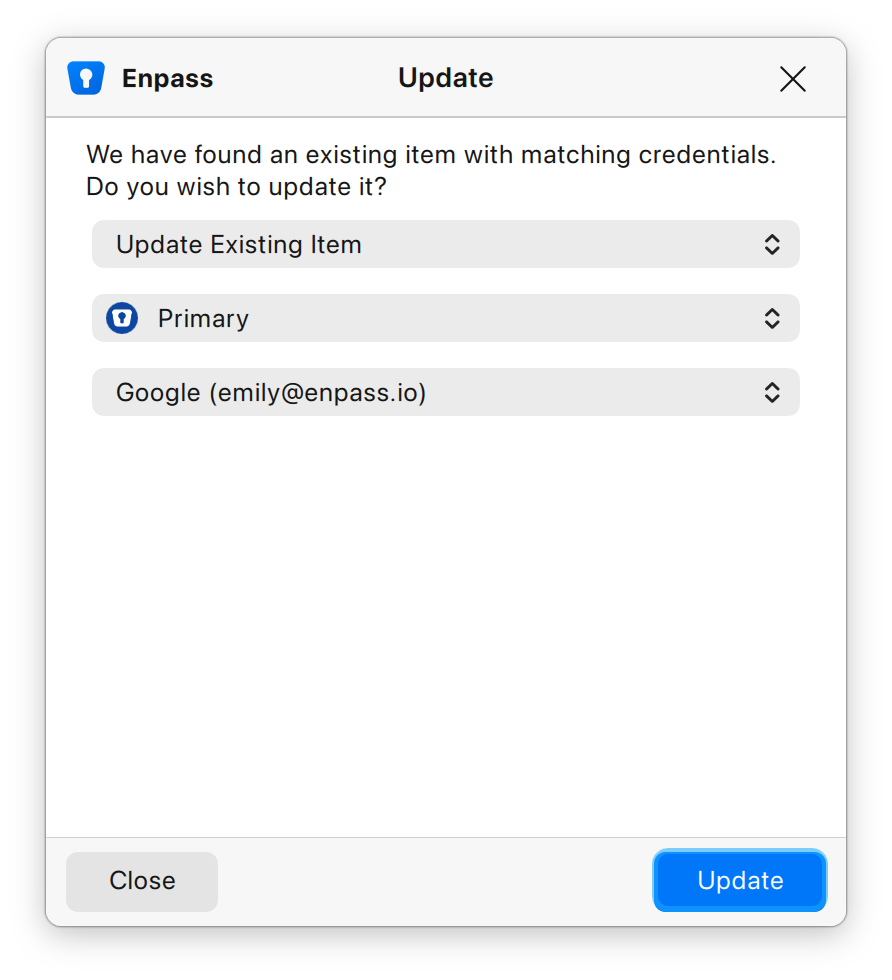
A new Enpass pop-up will appear to confirm the password change, confirm that everything looks right, then click Update to commit the change to this account's Enpass Item.