.svg)
Using the Enpass search field
Quickly find specific Items by title, content, or passwords.
Desktop
To search in Enpass for desktop:
-
Click the Search field in the toolbar.
-
To change your search parameters to include only Titles, all Fields, or only Passwords, click ••• in the search field to make your selection.
-
Enter the content you're searching for, and Enpass will narrow down the number of items shown in the Items List to only those matching your search.
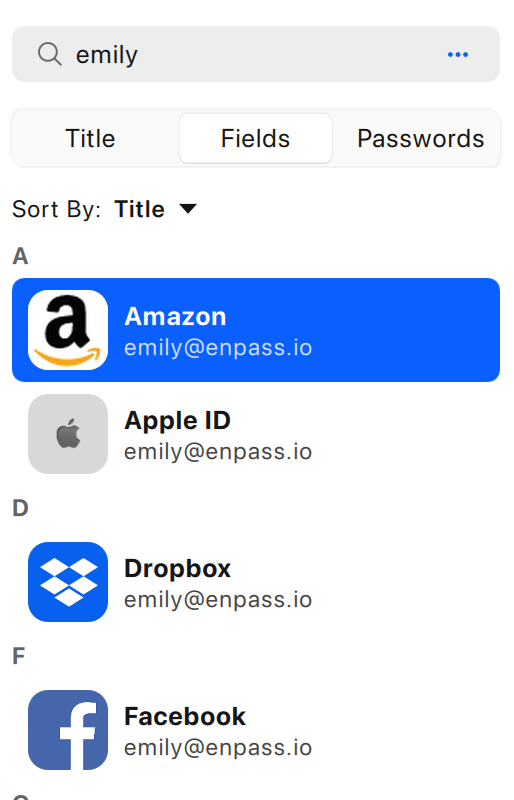
If you have multiple vaults, Enpass searches only in the currently selected vault. To search more than one vault, select All Vaults at the top left of the Enpass window.
By default, Enpass searches all Items. If you want to restrict searches based on a Category or Tag selected in your sidebar, go to Settings > General and clear the Search in all items checkbox.
iOS
To search in Enpass for iPhone or iPad:
-
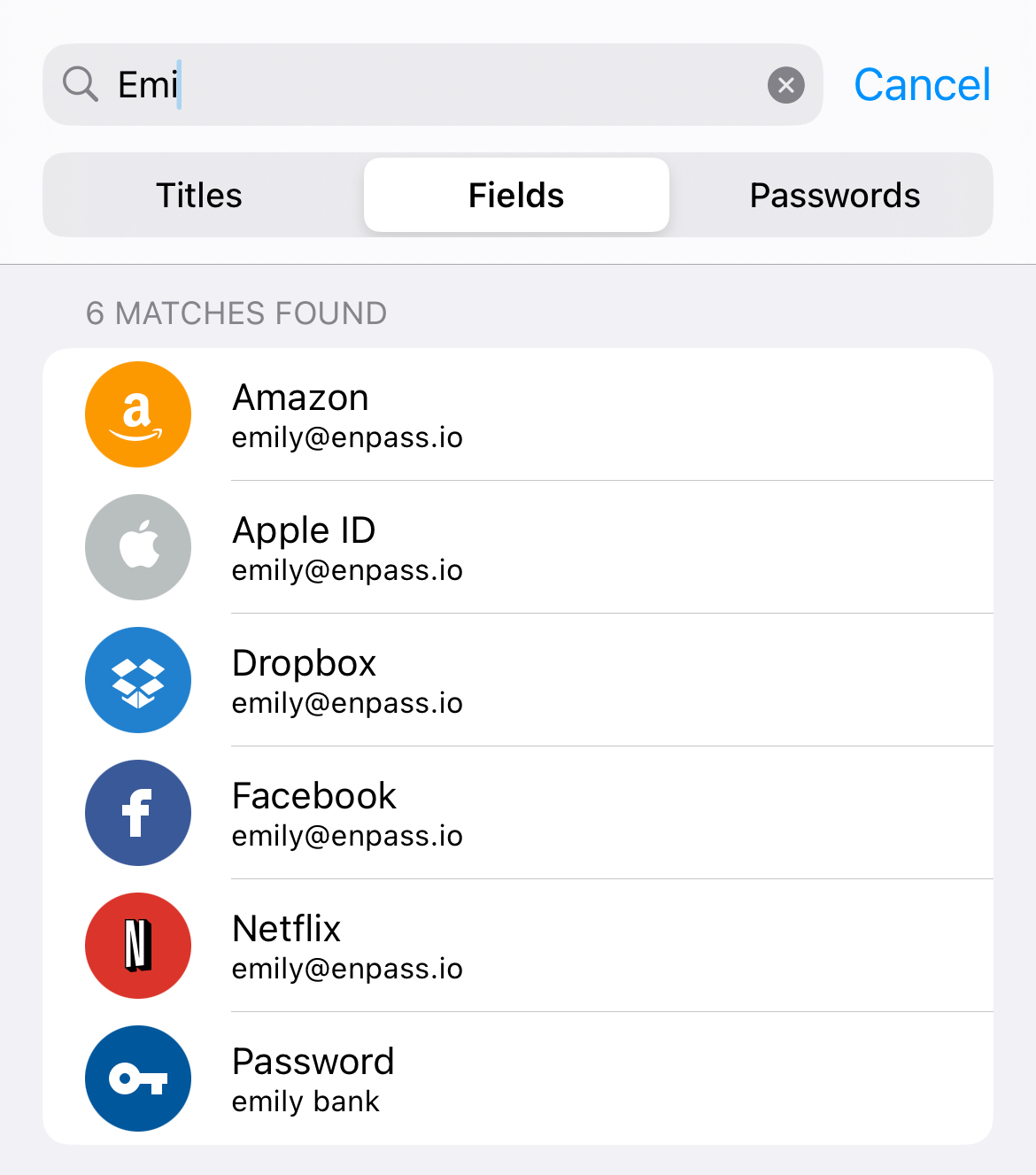
Tap the Search field at the top of Enpass.
-
Tap Title, Fields, or Password to specify which fields to search.
-
Enter the content you're searching for, and Enpass will narrow down the number of items shown to only those matching your search.
Android
To search in Enpass for Android:
-
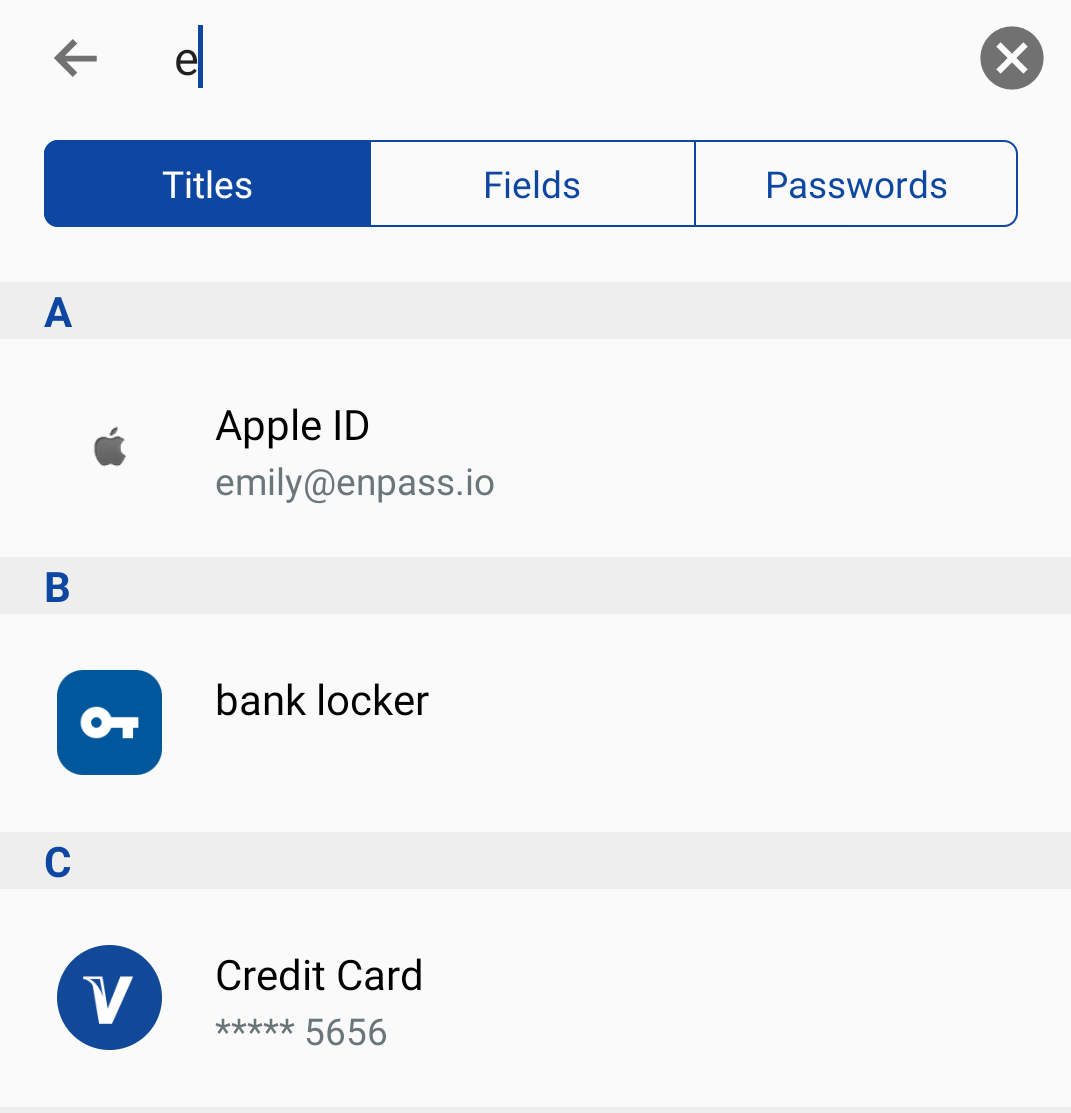
Tap the Search field at the top of Enpass.
-
Tap Title, Fields, or Password to specify which fields to search.
-
Enter the content you're searching for, and Enpass will narrow down the number of items shown to only those matching your search.
When choosing which fields to search, here's what each choice will provide:
-
Choosing Titles will yield search results based only on the item titles.
-
If you search for "Gmail," you'll likely see only your Gmail accounts.
-
-
Choosing Fields will yield search results from any fields except the password fields.
-
If you search for "Gmail," you'll see your Gmail accounts, but also any items where the email field includes your Gmail account.
-
-
Choosing Passwords will yield search results based only on the contents of your passwords.
-
If you search for "Kt@34HK," you'll see only items that have passwords containing that string of characters.
-
Searching in the Enpass browser extension pop-up menu
When activated in a username or password field, the Enpass Autofill pop-up automatically displays a list of items that match the title or URL of the website you're visiting. When activated in a credit card field, the pop-up automatically displays items that include credit card numbers.
Multiple vaults and search
If you have multiple vaults, Enpass will only search in the vault currently being displayed. You can select a vault, or All Vaults, from the top-left corner of Enpass.