.svg)
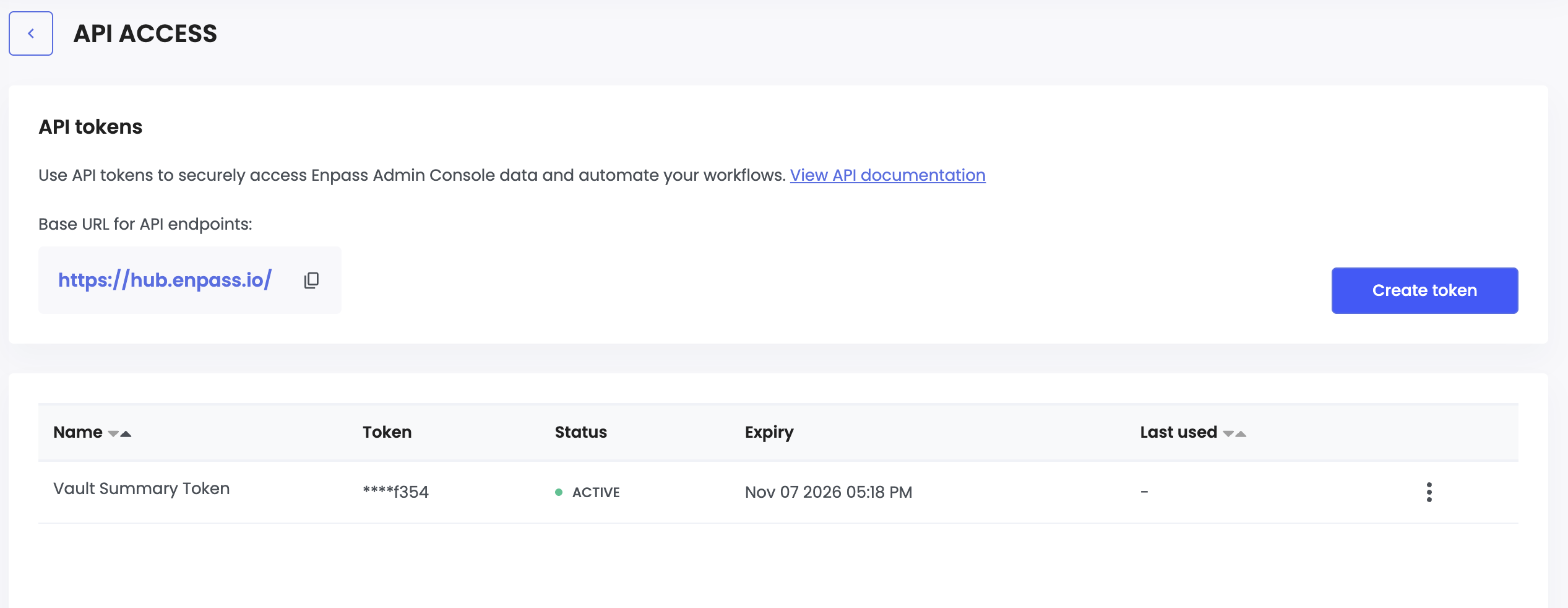
The API Access feature allows admins to generate and manage tokens for the Enpass API. These tokens authorize programmatic access to organization-level data, enabling integrations with internal dashboards, automation workflows, and Governance, Risk, and Compliance (GRC) tools.
Access Restriction: This feature is only visible to Super Admins.
Navigating to API Access
-
Log in to the Enpass Admin Console.
-
Navigate to Settings from the left panel.
-
Select API Access from the settings list.
The Base URL for all API endpoints is displayed on this screen.
Managing Tokens
Create a New Token
You can maintain a maximum of five active tokens concurrently.
-
Click Create token to open the configuration panel.
-
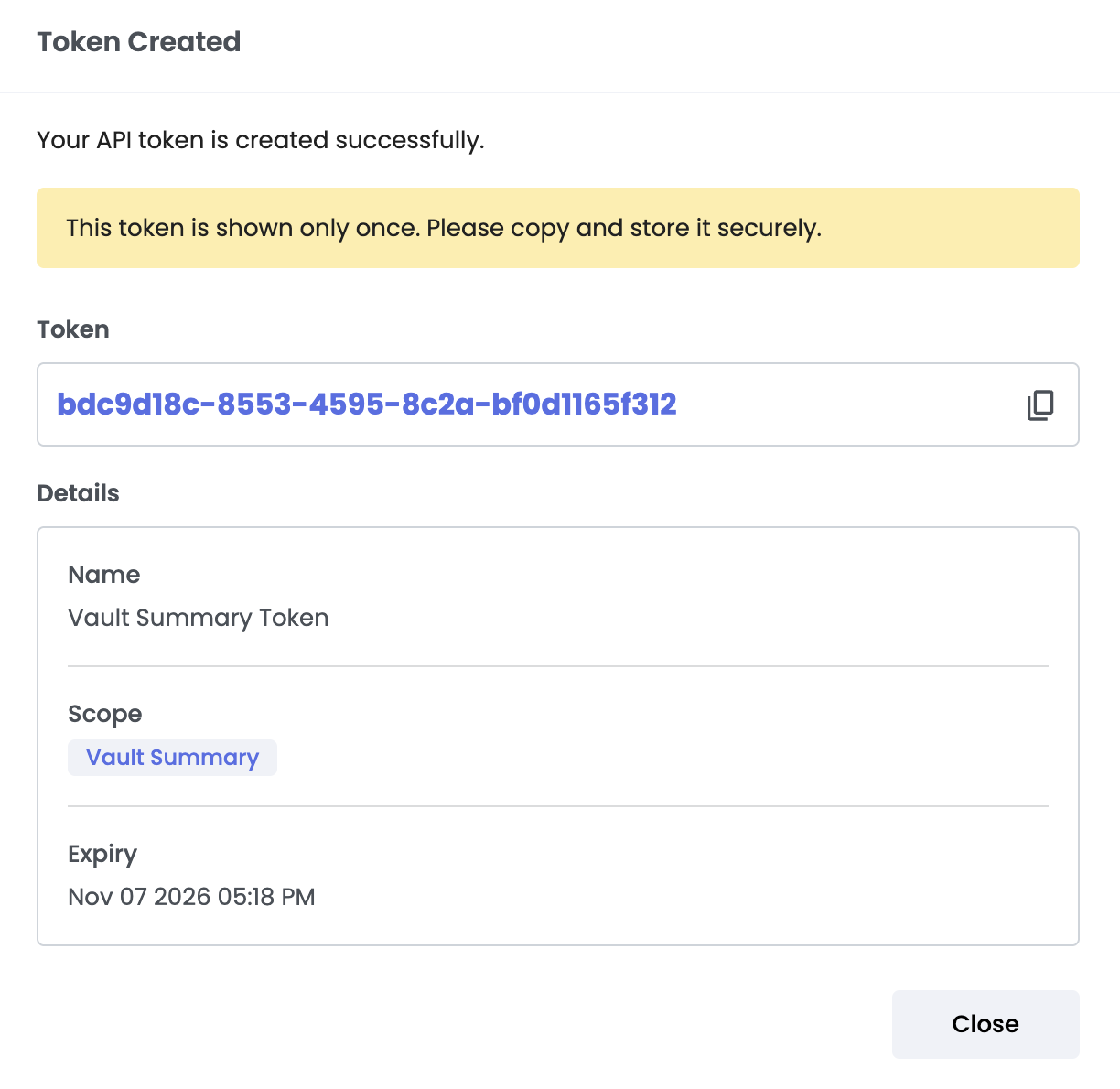
Name — Enter a unique, identifiable name for the token.
-
Scope — Select one or more permission sets:
|
Scope |
Data Access |
|---|---|
|
Onboarding & Adoption |
License usage, onboarding progress, and adoption metrics |
|
Security Audit |
Organization-wide security health and risk summaries |
|
Vault Summary |
Metadata and security health for individual vaults |
-
Expiry — Choose a number of days, or set the token to never expire.
-
Click Create token.
Security Requirement: The generated token is displayed only once. Copy and store it in a secure location immediately — it cannot be retrieved later.
View Token Details
-
In the API Access table, click the Menu (⋮) icon next to the desired token.
-
Select View details.
The Token Details panel shows:
-
Masked Token — Only the last four characters are visible for identification.
-
Permissions — The scopes assigned to the token.
-
Metadata — The admin who created the token, the creation date, and the last used timestamp.
Revoke or Delete a Token
Deleting a token immediately and permanently revokes API access for all systems using that credential.
-
In the API Access table, click the Menu (⋮) icon next to the token you want to remove.
-
Select Delete token.
-
Confirm the action in the pop-up by clicking Delete.
-
A confirmation banner will appear once the token has been successfully deleted.
Note: This action cannot be undone. Ensure all integrations using the token are updated before deleting.
Token Best Practices
-
Use a separate token per integration so that access can be revoked independently.
-
Apply the minimum required scope for each token.
-
Set an expiry date for tokens used in short-term workflows.
-
Rotate tokens periodically and delete any that are no longer in use.
-
Store tokens in a secrets manager or secure vault — never in source code or plain text files.