.svg)
Installing the Enpass browser extension
Enpass can be used in most web browsers, including Chrome, Edge, Safari, Firefox, and other browsers based on Chromium (Brave, Opera, Vivaldi, etc.) and Firefox (LibreWolf, Tor, etc.).
Install Enpass for Chrome, Edge, and other Chromium-based browsers
To install the Enpass extension for Chrome, Edge, and other Chromium-based browsers:
-
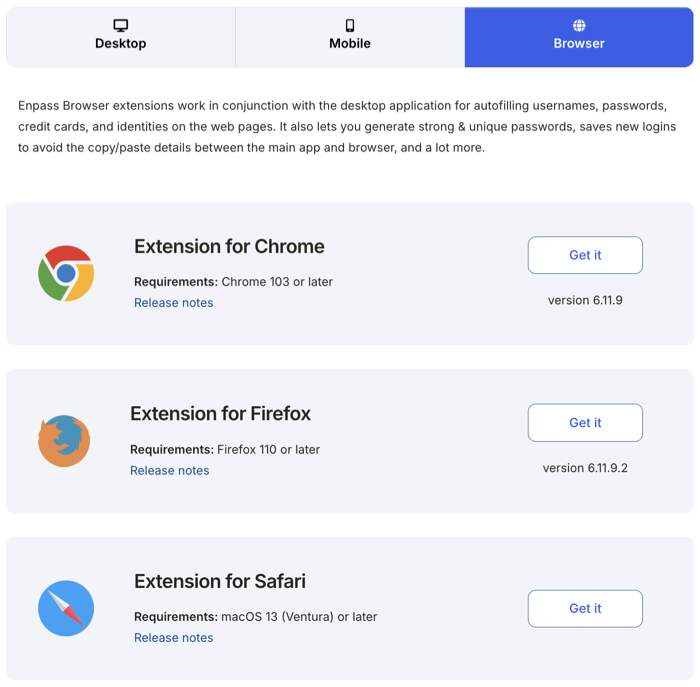
Visit the Enpass download page to find the correct extension for your browser.
-
Click Get it to be taken to the Enpass download page in your browser's extension store.
-
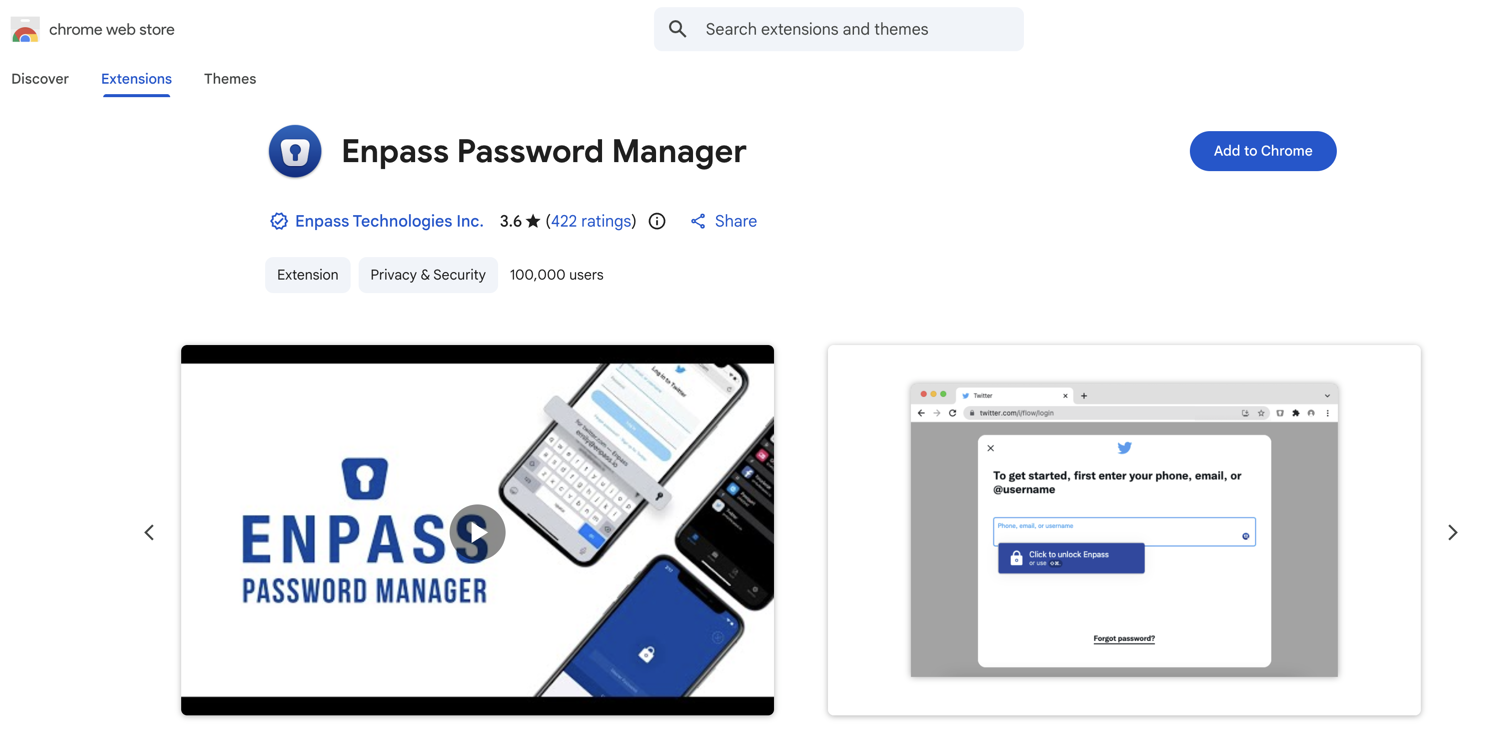
Click the Add to or Get button to download and install the extension.
-
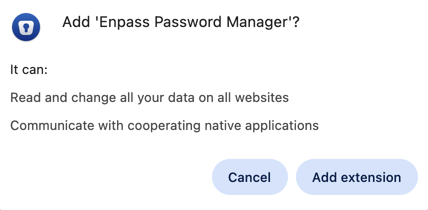
In the security pop-up, click Add Extension to grant permissions for Enpass.
-
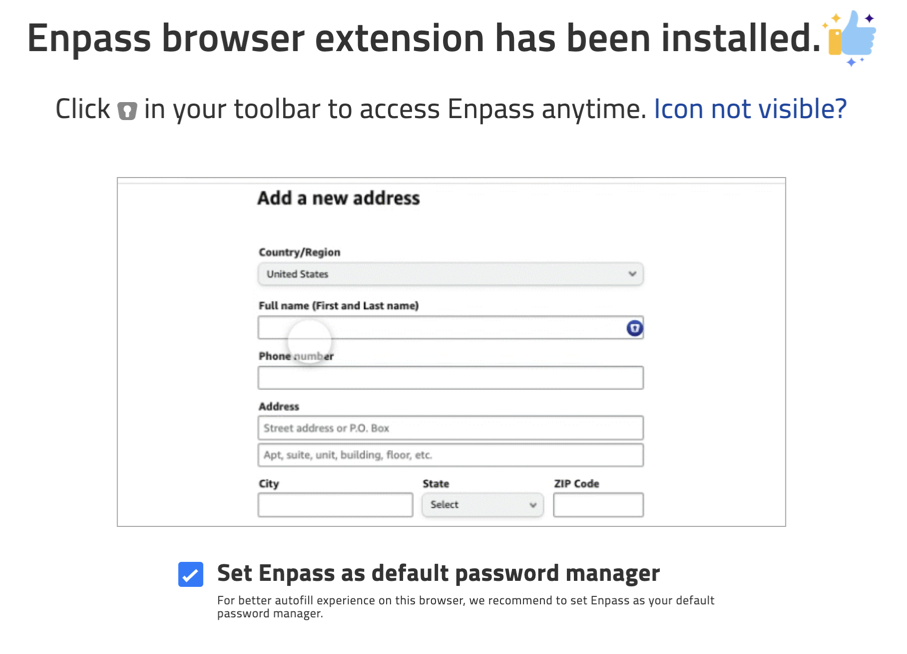
On the page confirming the extension has been installed, select the option Set Enpass as default password manager, so your browser knows to use Enpass instead of its own, less secure password tools.
-
Make sure the Enpass extension is remains visible in your browser toolbar for easy access:
-
Click the Extension icon (which looks like a puzzle piece).
-
Find Enpass Password Manager and click the pin icon.
-
NEXT
-
Connect the browser extension to the Enpass desktop app to allow Enpass to save and autofill credentials, passkeys, payment information, and web forms.
Install Enpass for Firefox
To install the Enpass extension for Firefox
-
Visit the Enpass download page to find the correct extension for your browser.
-
Click Get it to begin the download.
-
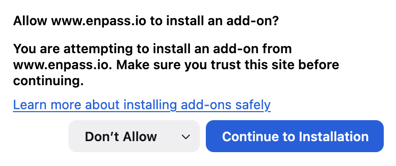
Click Continue to Installation in the confirmation pop-up.
-
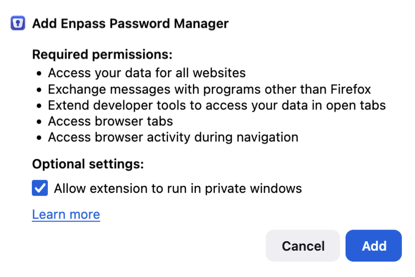
Click Add to grant permissions to the extension (and optionally select the option to Allow extension to run in private windows).
-
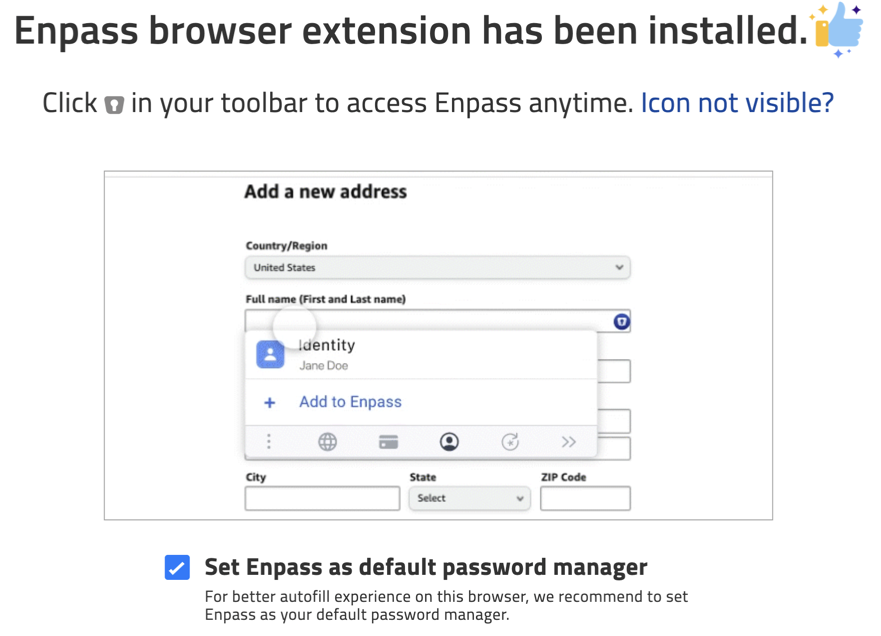
On the page confirming the extension has been installed, select the option Set Enpass as default password manager, so your browser knows to use Enpass instead of its own, less secure password tools.
-
Make sure the Enpass extension is remains visible in your browser toolbar for easy access:
-
Click the Extension icon (which looks like a puzzle piece).
-
Find Enpass Password Manager and click the

-
Select Pin to Toolbar.
-
NEXT
-
Connect the browser extension to the Enpass desktop app to allow Enpass to save and autofill credentials, passkeys, payment information, and web forms.
Install Enpass for Safari
To install the Enpass extension for Safari
On macOS, the Safari extension is bundled with the Enpass desktop app and is added to Safari automatically, but not automatically enabled. To enable Enpass extension on Safari browser:
-
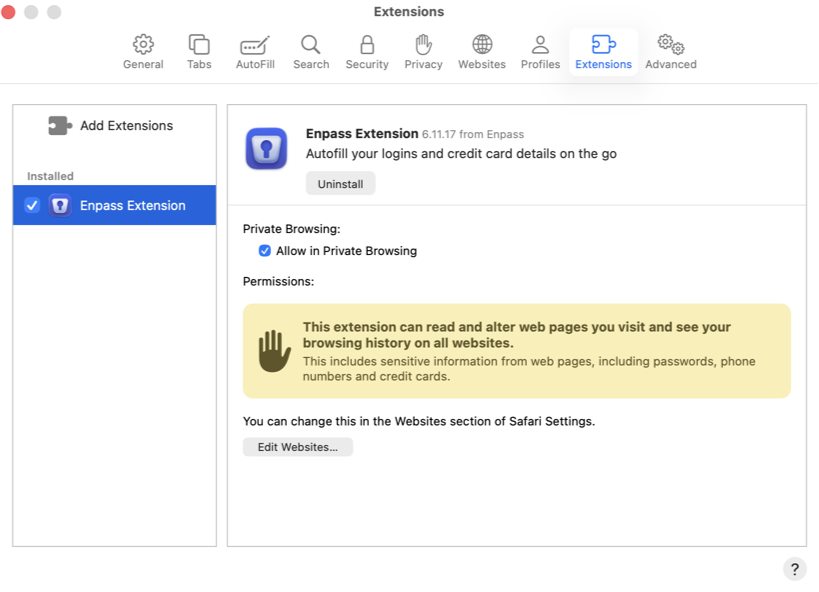
In Safari’s Settings, go to the Extensions tab.
-
Select the checkbox for the Enpass Extension.
-
Click the Turn On button in the confirmation pop-up.
-
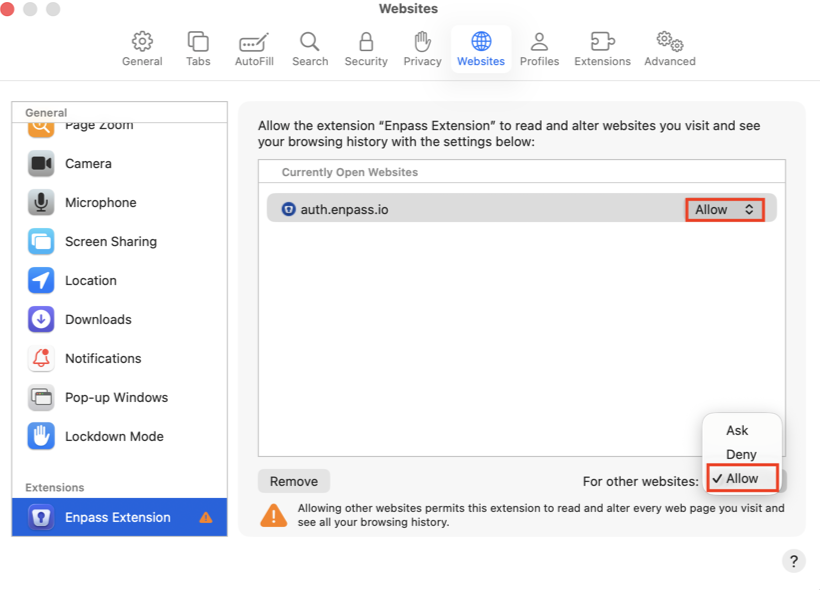
Then go to the Websites tab, and select the Enpass Extension.
-
In the For other websites drop-down, select Allow.
NEXT
-
Connect the browser extension to the Enpass desktop app to allow Enpass to save and autofill credentials, passkeys, payment information, and web forms.
Related topics
⊃