.svg)
Setting up the Enpass Business app on your devices
Once your organization has provide a link to download Enpass, visit the sections below to get started. The steps involved may vary depending on policies your organization has set up for access and security.
Step 1: Activate Enpass Business
Use your company-issued email address to activate Enpass on your devices, unless otherwise directed by your organization.
DESKTOP
To activate Enpass Business:
-
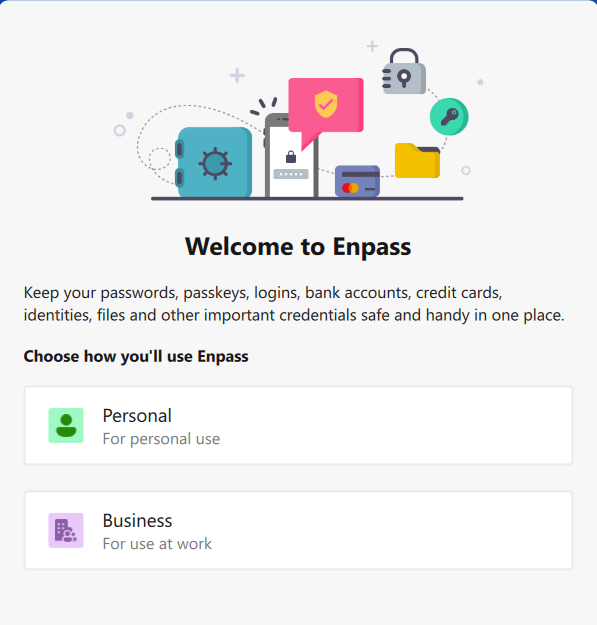
On the Welcome screen, under Choose How You’ll Use Enpass, select Business.
-
Enter your company-issued email address, and click Send Code to receive an activation code.
-
Enter the activation code sent to your email, and click Confirm.
-
Click Done to complete your activation.
iOS
To activate Enpass Business:
-
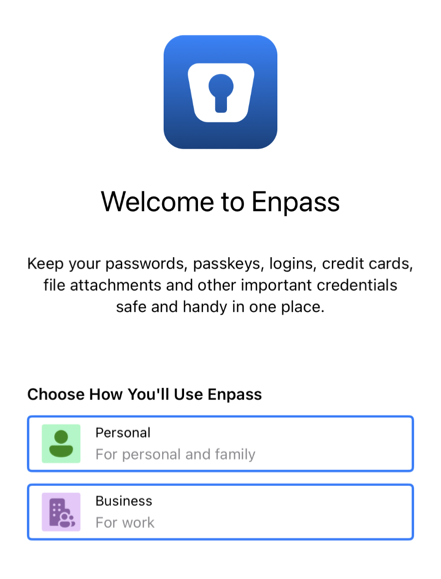
On the Welcome screen, under Choose How You’ll Use Enpass, select Business.
-
Enter your company-issued email address, then tap

-
Enter the activation code sent to your email, then tap Continue complete your activation.
ANDROID
To activate Enpass Business:
-
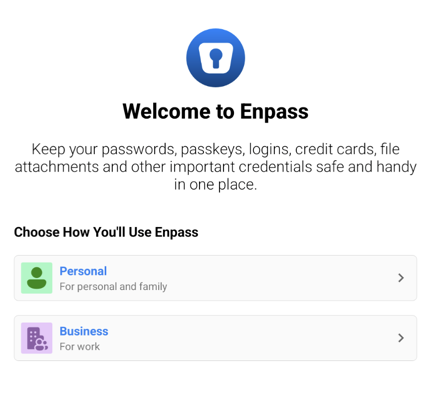
On the Welcome screen, under Choose How You’ll Use Enpass, select Business.
-
Enter your company-issued email address, then tap ❯ to receive an activation code.
-
Enter the activation code sent to your email, then tap Continue complete your activation.
If you have not received the activation code, click Resend or check your spam folder.
Step 2: Connect Enpass to your shared business storage
Each employee can have private vaults and vaults shared with teammates and collaborators. Vaults are generally stored and shared on an organization's OneDrive, SharePoint, or Google Drive. If your work vaults are on a company server or stored only on your device, consult your admin for instructions.
DESKTOP
To connect Enpass to your business cloud:
-
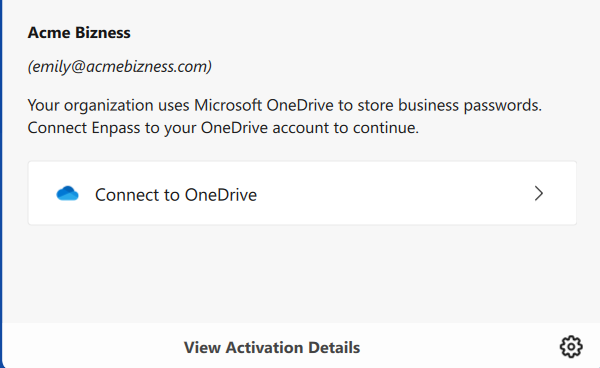
On the welcome screen, click Connect to Google Drive.
-
You will be redirected to your cloud service in your default browser.
-
Login and follow the steps to allow Enpass access to your account.
-
When you reach an "Authorization Finished" message, click the Redirect or Open Enpass button (if you are not automatically returned to Enpass).
-
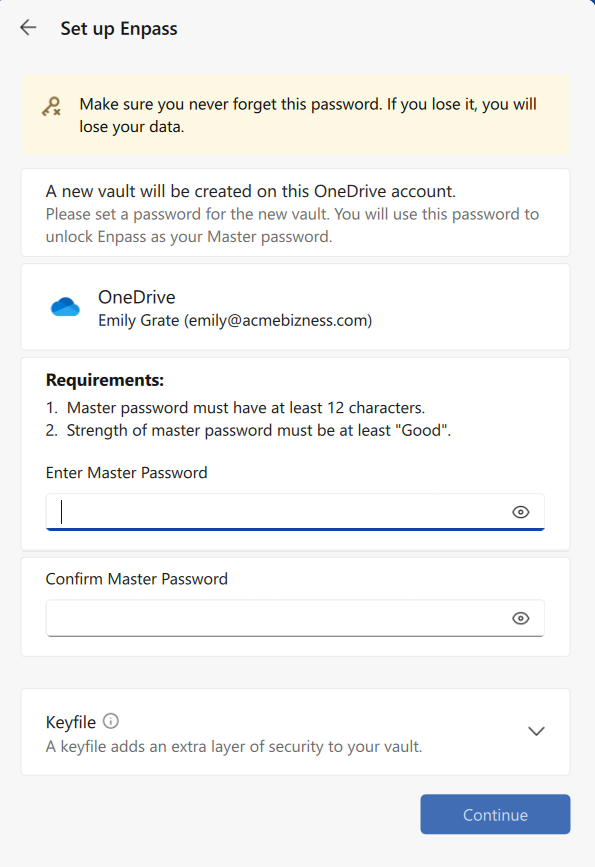
Once returned to Enpass, create a Master Password, and click Continue.
A strong Master Password should include a combination of symbols, letters, and numbers, and should avoid using birthdays, names and other common or public information. The longer your Master Password is, the safer it will be, but ideally it should also be easy to type on both your computer and your phone. Your organization may also have specific requirements for password length and complexity.
iOS
To connect Enpass to your business cloud:
-
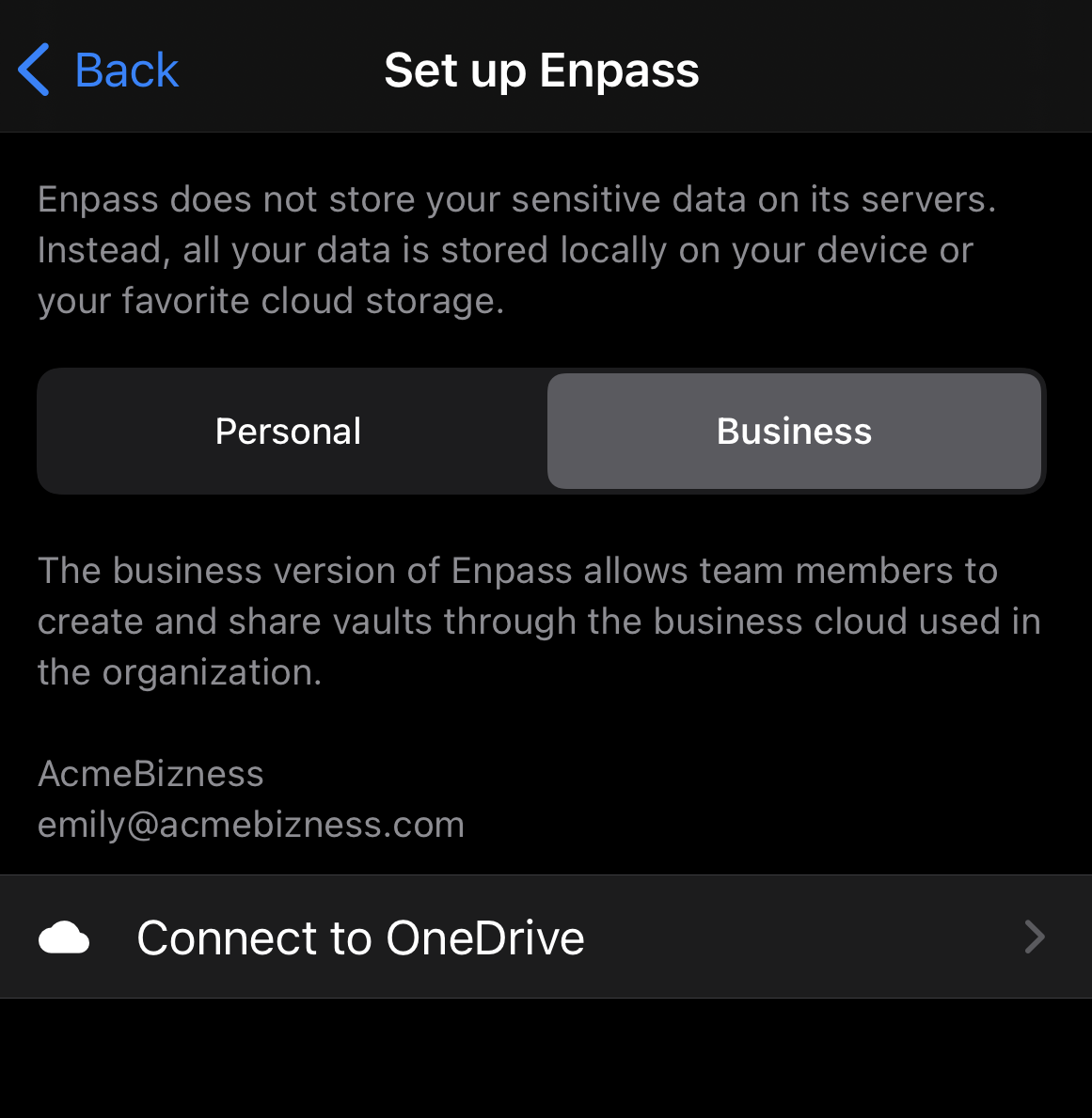
On the set-up screen, tap Connect to Google Drive.
-
Enter your business cloud login credentials, and authorize Enpass to access your cloud data.
-
Once returned to Enpass, to access your vaults, enter the Master Password created when setting up Enpass on your desktop.
ANDROID
To connect Enpass to your business cloud:
-
On the set-up screen, tap Connect to Google Drive.

-
Enter your business cloud login credentials, and authorize Enpass to access your cloud data.
-
Once returned to Enpass, to access your vaults, enter the Master Password created when setting up Enpass on your desktop.