.svg)
Setting up Enpass Business as your default password manager
To prevent confusion and make sure your passwords, passkeys, authentication codes and other credentials are all stored and encrypted together and ready to autofill on demand, be sure to set Enpass as your default password manager and autofill service.
To set up Enpass as the default password manager on your phone or tablet:
-
See Autofill on iOS
To enable Enpass as the default password manager in desktop browsers other than Safari:
After installing the Enpass browser extension…
and connect the browser extension to the Enpass app…
-
Right-click the Enpass icon in your browser toolbar.
-
Select Settings.
-
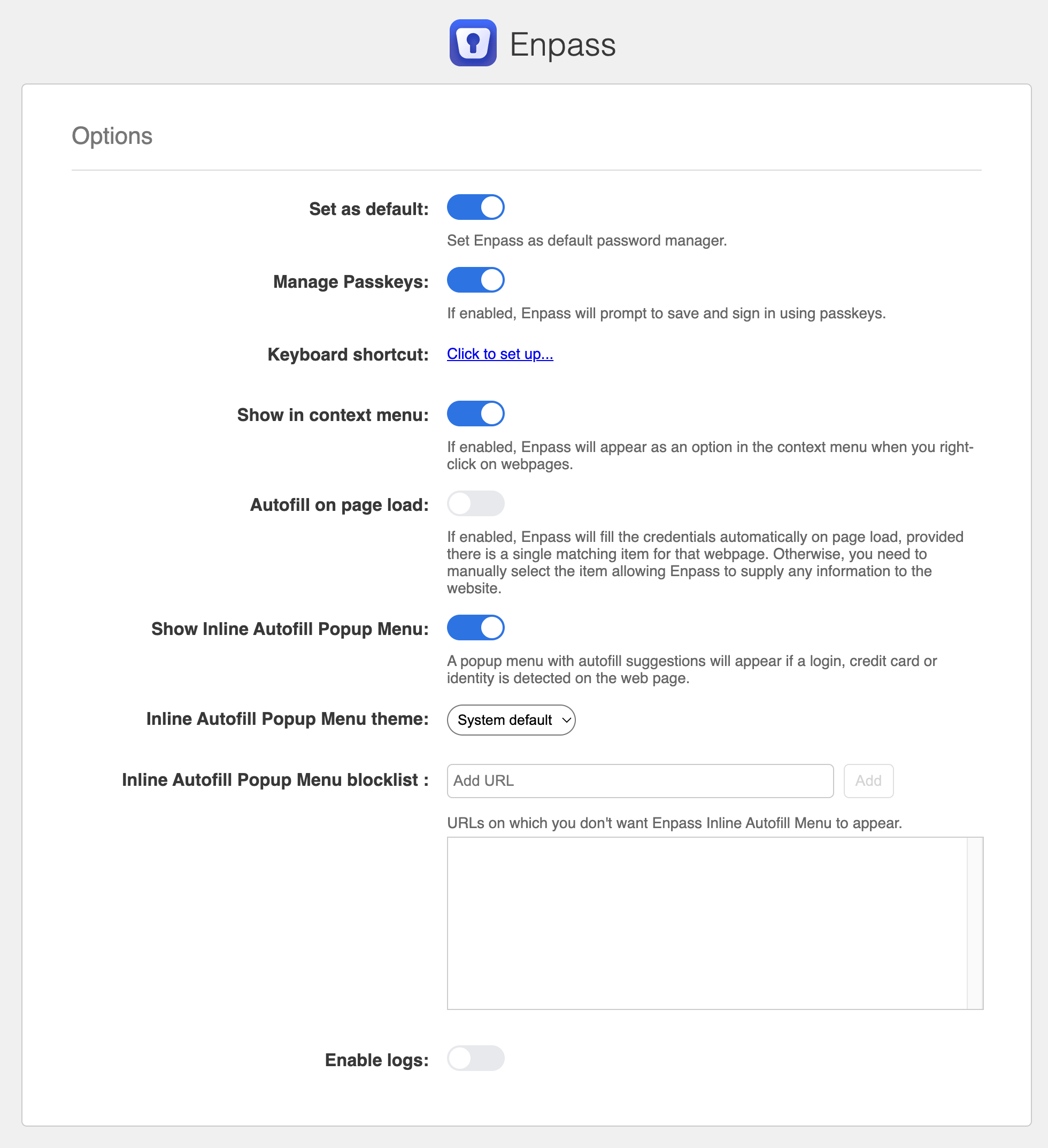
Turn on the options Set as default and Manage Passkeys.
To enable Enpass as the default password manager for Safari on your Mac:
After installing the Enpass browser extension…
and connect the browser extension to the Enpass app…
For macOS 15 (Sequoia) or later:
-
In your Mac’s System Settings, go to General > Autofill & Passkeys.
-
Turn off the option AutoFill Passwords and Passkeys.
For macOS 13 (Ventura) or 14 (Sequoia):
-
In your Mac’s System Settings, go to Passwords > Password Options.
-
Turn off the option Autofill Passwords.
⊃