.svg)
Recovering access when you’ve lost your Enpass Business Master Password
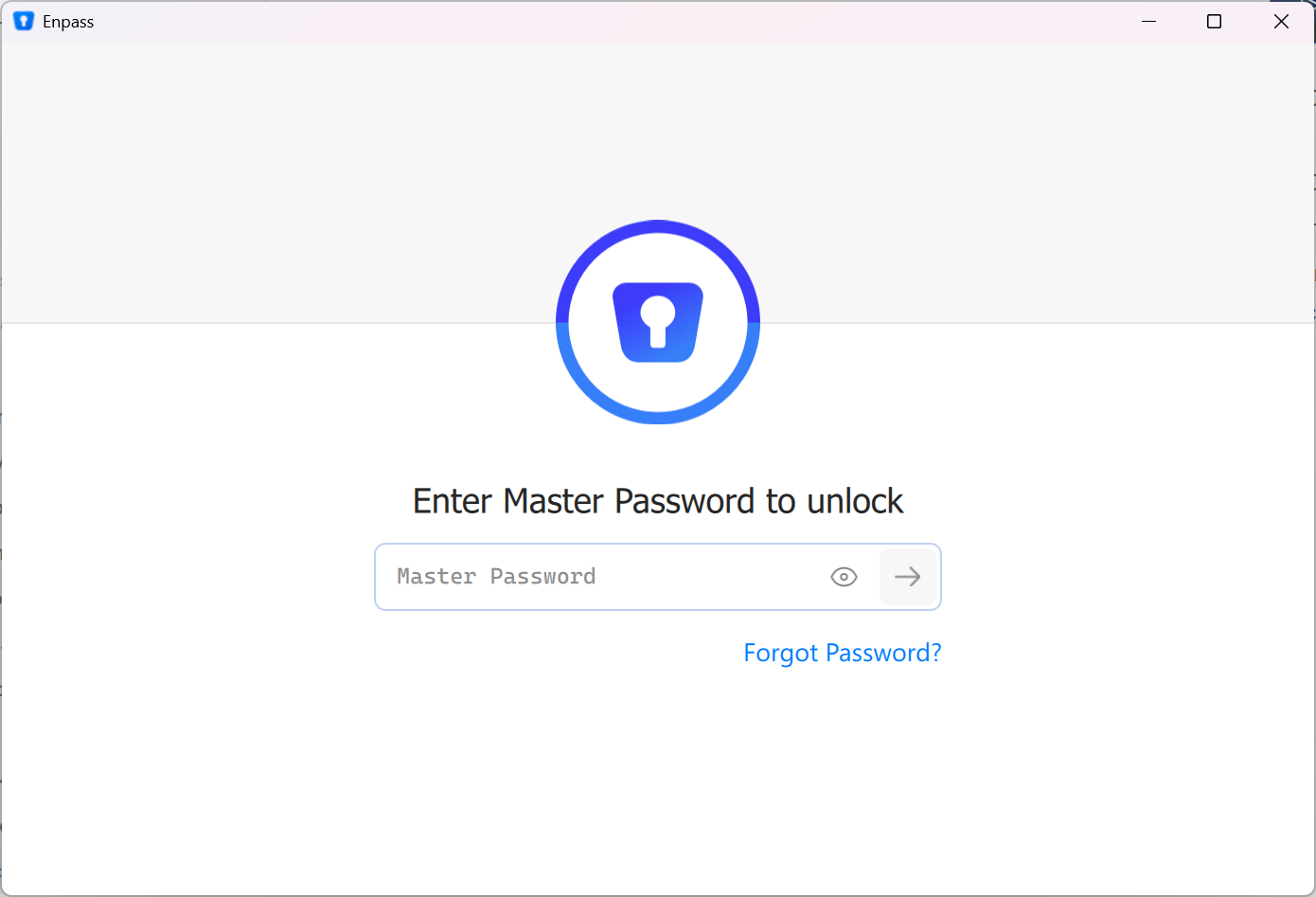
If you have lost or forgotten your Enpass Master Password, you can to request access recovery from your administrator by clicking Forgot Password? on the Enpass app’s lock screen.
Administrators see Processing Recovery Requests
To request Access Recovery in Enpass:
-
On the Enpass unlock screen, after entering an incorrect password, click the Forgot Password link that appears below the Unlock button.
-
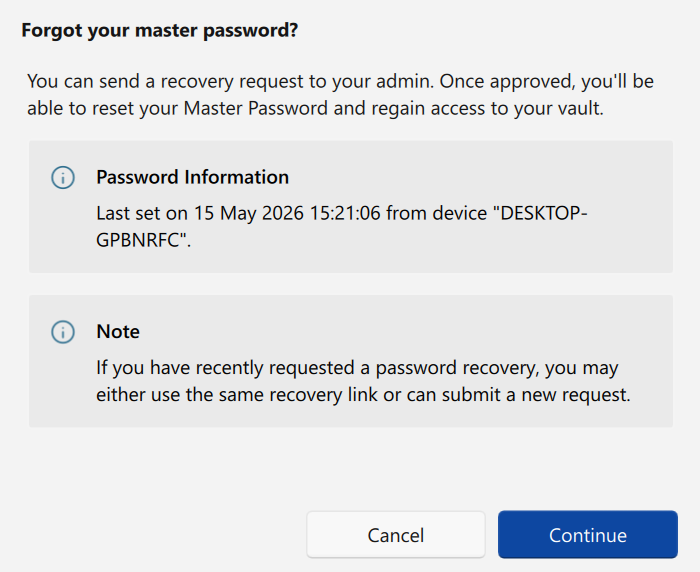
Click Continue to begin your recovery request.
-
If prompted, provide your work email used to register your copy of Enpass, and click Send Code.
-
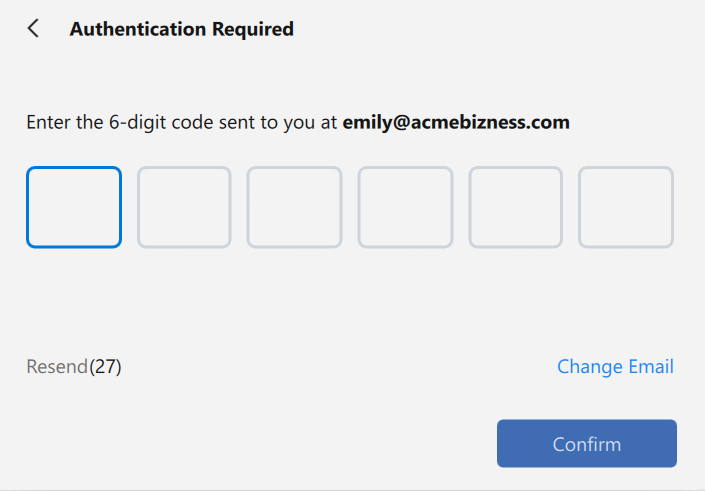
In the Authentication Required overlay, enter the six-digit code sent to your email, and click Confirm.
-
Once you see a confirmation that the recovery request has been submitted, contact your administrator to review your request.
-
Once the recovery request has been approved, in the Recovery overlay on your Enpass app, paste the recovery link you receive from your admin into the Enter Link field, and click Process.
-
Follow the provided instructions, and create a strong, unique new Master Password.
A strong Master Password should include a combination of symbols, letters, and numbers, and should avoid using birthdays, names and other common or public information. The longer your Master Password is, the safer it will be, but ideally it should also be easy to type on both your computer and your phone. Your organization may also have specific requirements for password length and complexity.
-
On any additional devices, launch Enpass and provide your recovery link from Step 6.
-
Login with your new Master Password.
NOTE: Any previous backups of your vault remain secured with your old password, and will not be accessible with your new password.