.svg)
Enforce organization-wide security and usability settings for the Enpass app on all user devices. These policies help maintain consistency and compliance across your organization by controlling how the app locks, unlocks, and handles sensitive data.
To configure these policies, go to Policies > Settings in the Admin Console.
How to Configure App Security Policies
-
Log in to the Enpass Admin Console with an administrator account.
-
Navigate to Policies in the left sidebar.
-
Under the APPS section, select Settings.
-
Adjust settings using the checkboxes, drop-down menus, and input fields.
-
Click Save in the top-right corner to apply your changes.
Tip: Use Discard Changes before saving if you need to revert uncommitted edits.
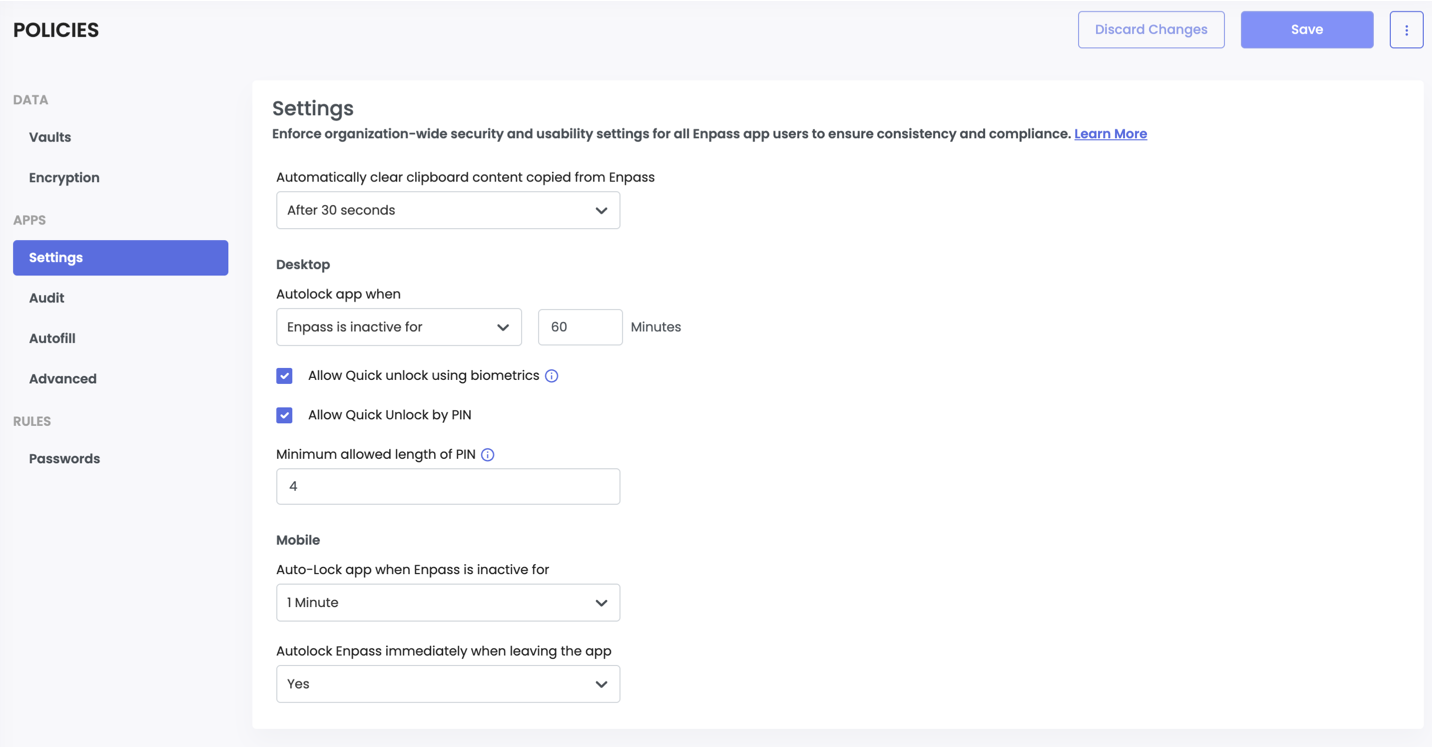
Policy Settings Reference
Automatically Clear Clipboard Content Copied from Enpass
This setting is enabled by default. When a user copies a password or other sensitive data from Enpass, the clipboard is automatically cleared after the selected time interval.
|
Option |
Description |
|---|---|
|
After 30 seconds |
Default. Clipboard is cleared 30 seconds after copying. |
|
After 45 seconds |
Clipboard is cleared after 45 seconds. |
|
After 60 seconds |
Clipboard is cleared after 60 seconds. |
|
After 90 seconds |
Clipboard is cleared after 90 seconds. |
|
Let users decide |
Users can configure this setting themselves in the Enpass app. |
Recommendation: Keep the default (30 seconds) or choose a short interval. Passwords sitting on the clipboard are a common security risk — clearing them quickly reduces the chance of accidental exposure.
Desktop Security Settings
Autolock App When
Controls when the Enpass app automatically locks on desktop devices, requiring the user to re-enter their Master Password or use a quick unlock method.
|
Option |
Description |
|---|---|
|
Enpass is inactive for |
Locks after the Enpass app itself has been idle for the specified duration (in minutes). |
|
System is inactive for |
Locks after the entire system (computer) has been idle for the specified duration (in minutes). |
|
Let users decide |
Users can configure this setting themselves in the Enpass app. |
Recommendation: Use "System is inactive for" with a 1-minute interval for a good balance between security and usability. With "Enpass is inactive for," the app locks even while the user is actively working on their computer — just not in Enpass — which can be frustrating. "System is inactive for" avoids this by only locking when the entire computer is idle. For higher-risk environments where shoulder surfing or shared workspaces are a concern, use "Enpass is inactive for" instead.
Allow Quick Unlock Using Biometrics
When enabled, users can unlock the Enpass app on desktops using biometric authentication (such as fingerprint or facial recognition) instead of typing their full Master Password each time.
Recommendation: Enable this. Biometrics provide a good balance between security and convenience — users are more likely to lock their app if unlocking it again is quick and easy.
Allow Quick Unlock by PIN
When enabled, users can set up a PIN to quickly unlock the Enpass app on desktop devices instead of entering their full Master Password.
Minimum PIN Length — Set the minimum number of digits required for the PIN.
Recommendation: If you enable PIN unlock, set the minimum PIN length to at least 6 digits. Shorter PINs are easier to guess, especially on shared workstations. If your organization requires stronger security, consider disabling PIN unlock and relying on biometrics or the full Master Password instead.
Mobile Security Settings
Auto-Lock App When Enpass Is Inactive
Defines how long Enpass can remain idle on a mobile device before it automatically locks.
|
Option |
Description |
|---|---|
|
Immediately |
Locks as soon as the user stops interacting with Enpass. |
|
1 Minute |
Locks after 1 minute of inactivity. |
|
5 Minutes |
Locks after 5 minutes of inactivity. |
|
Let users decide |
Users can configure this setting themselves. |
Recommendation: Set this to 1 minute or less. Mobile devices are more likely to be lost or left unattended than desktops, so a shorter lock interval adds an important layer of protection.
Auto-Lock Enpass Immediately When Leaving the App
Controls whether Enpass locks instantly when the user switches to another app on their mobile device.
|
Option |
Description |
|---|---|
|
Yes |
Enpass locks immediately when the user leaves the app. |
|
No |
Enpass stays unlocked when the user switches apps, and will lock based on the inactivity timer instead. |
|
Let users decide |
Users can configure this setting themselves. |
Recommendation: Set this to "Yes" for most organizations. It ensures credentials aren't accessible if someone picks up an unlocked phone while the user has switched to another app.
Allow Quick Unlock by PIN
When enabled, users can set up a PIN to quickly unlock the Enpass app on mobile devices.
Recommendation: Same as desktop — if enabled, enforce a minimum PIN length of at least 6 digits.
Allow Universal Clipboard (Pasting Between Devices) in iOS
When enabled, users can use Apple's Universal Clipboard feature to paste content copied from Enpass on one Apple device to another (e.g., copy a password on Mac, paste on iPhone).
Recommendation: Disable this unless your team specifically needs cross-device pasting. Universal Clipboard means a password copied on one device could appear on another nearby Apple device, which may not be appropriate in shared environments.
Allow Third-Party Keyboards in iOS
Controls whether third-party keyboards (such as Gboard or SwiftKey) can be used within the Enpass app on iOS devices.
Recommendation: Disable this. Third-party keyboards can potentially log keystrokes, which poses a risk when entering Master Passwords or other sensitive data within Enpass.
Setting Up Different Policies Across Teams
If different departments, teams, or user groups have different security needs, you can use Enpass's group policy management to create tailored configurations instead of applying a single policy across the entire organization.
For example, you might want stricter auto-lock and PIN requirements for teams handling sensitive data (such as finance or HR), while allowing more flexibility for teams that frequently switch between apps throughout the day.
A good approach is to start strict at the organization level — short auto-lock timers, no third-party keyboards, no universal clipboard. Then create group-level policy overrides for teams that need more flexibility.
Note: Group policy overrides are managed from the Groups section of the Admin Console, not the Policies section. See the Managing Group Policies documentation for details.