.svg)
Setting Up Provisioning with Microsoft Entra ID
Enpass supports automatic user provisioning through the SCIM 2.0 protocol. Connecting Microsoft Entra ID (formerly Azure Active Directory) with Enpass lets you automate user creation, license assignment, and user removal directly from your Entra ID portal.
Before you begin, make sure you have generated your SCIM connector credentials from the Enpass Admin Console. See Generating SCIM Connector Credentials (Step 1).
To begin, log in to the Microsoft Entra ID portal.
Step 1: Create the Enpass SCIM Application
-
In Microsoft Entra ID, select Enterprise Applications in the sidebar.
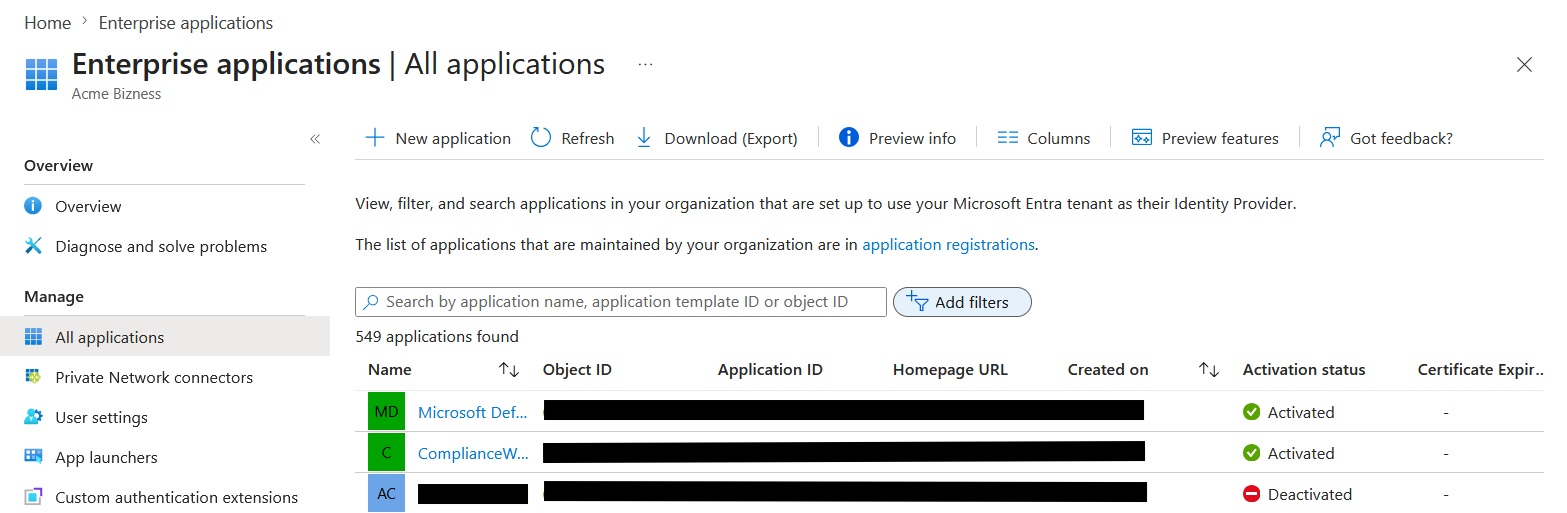
-
Click New Application > Create your own application.
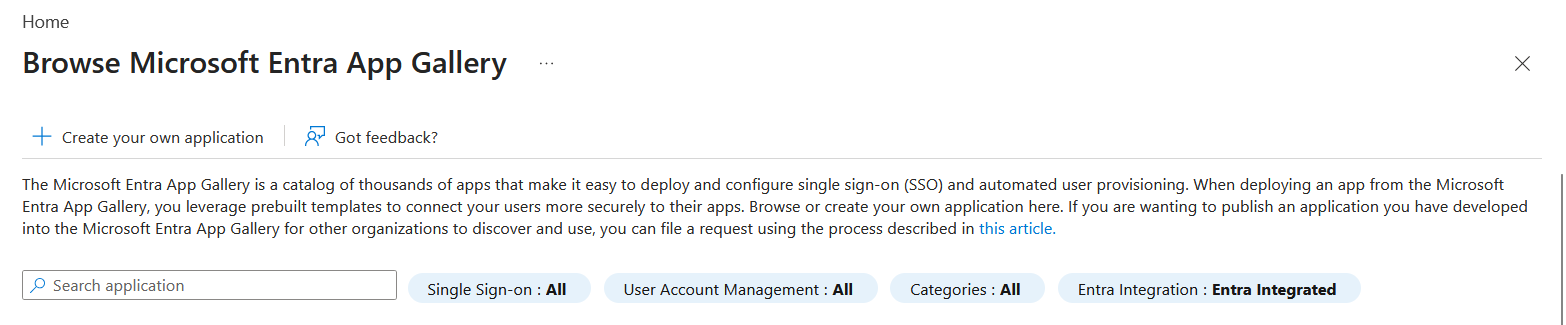
-
Enter Enpass SCIM as the application name.
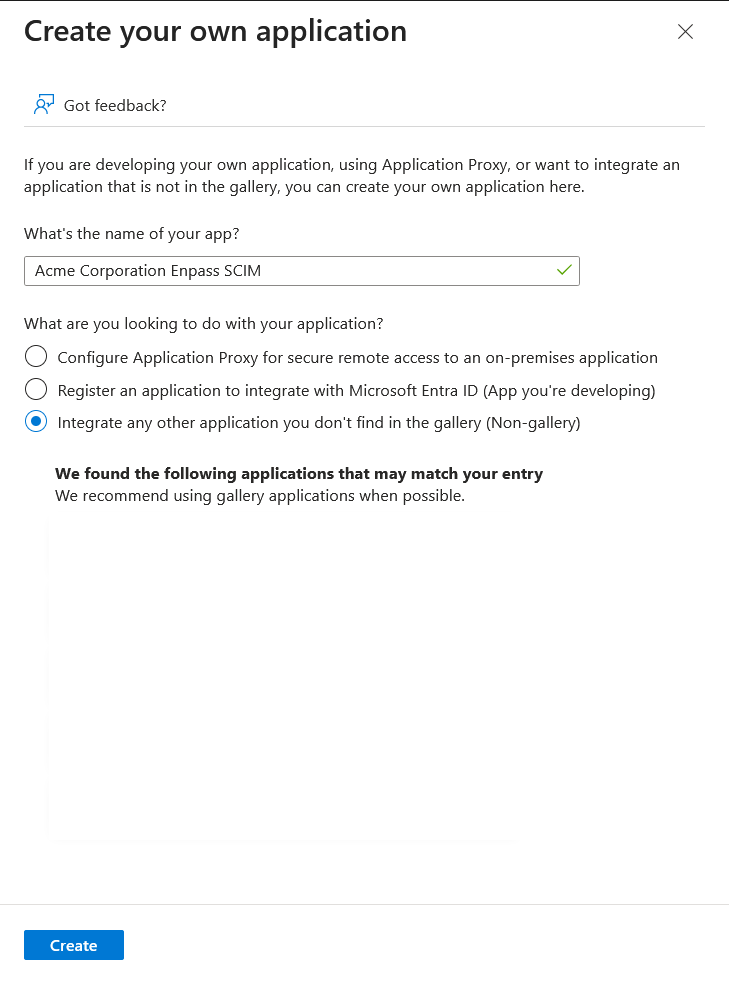
-
Select Integrate any other application you don't find in the gallery (Non-gallery).
-
Click Create.
Step 2: Configure the Application
-
In the sidebar, select Provisioning and click Connect your application.
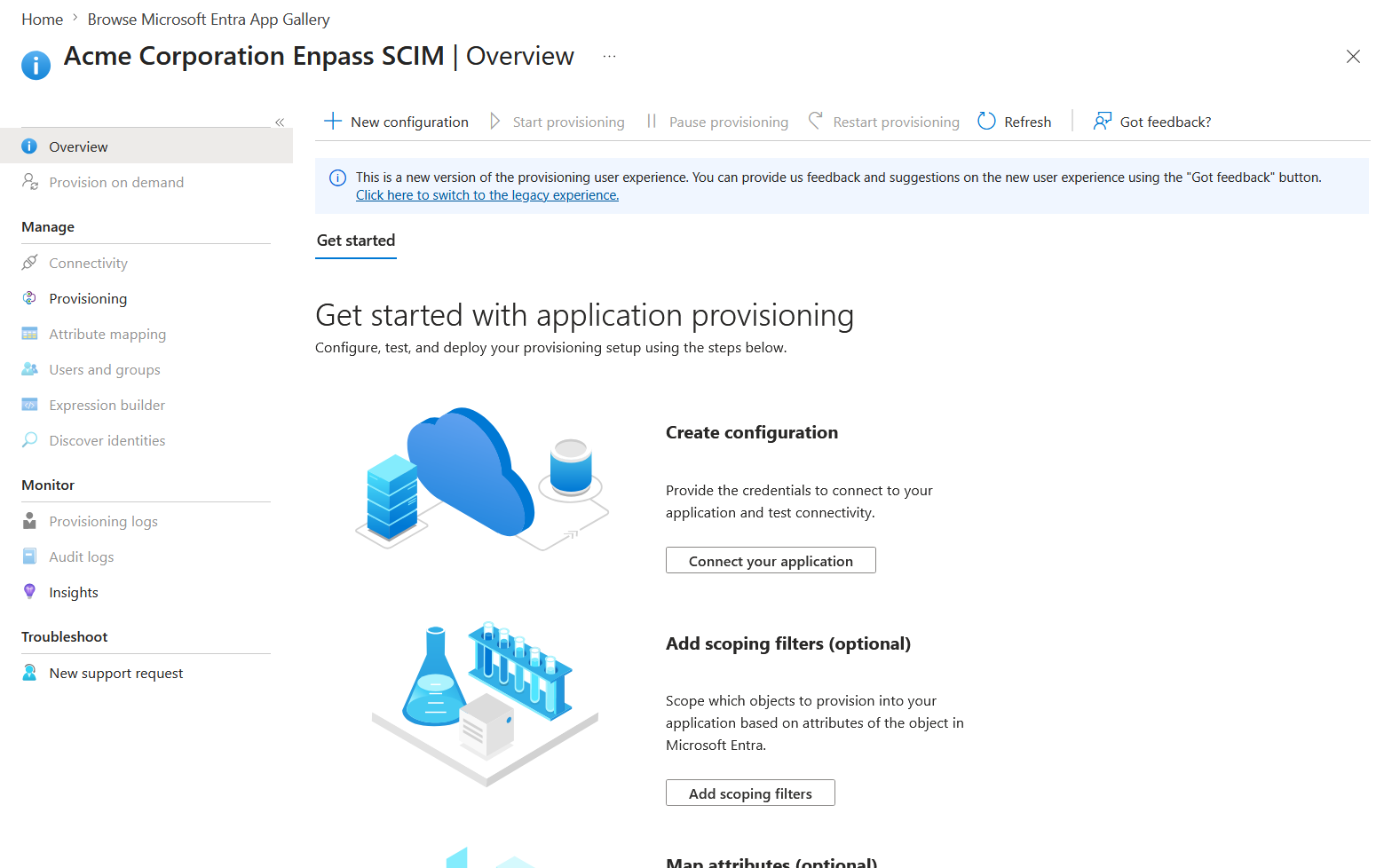
-
Enter your Tenant URL and Secret Token from the Enpass Admin Console.
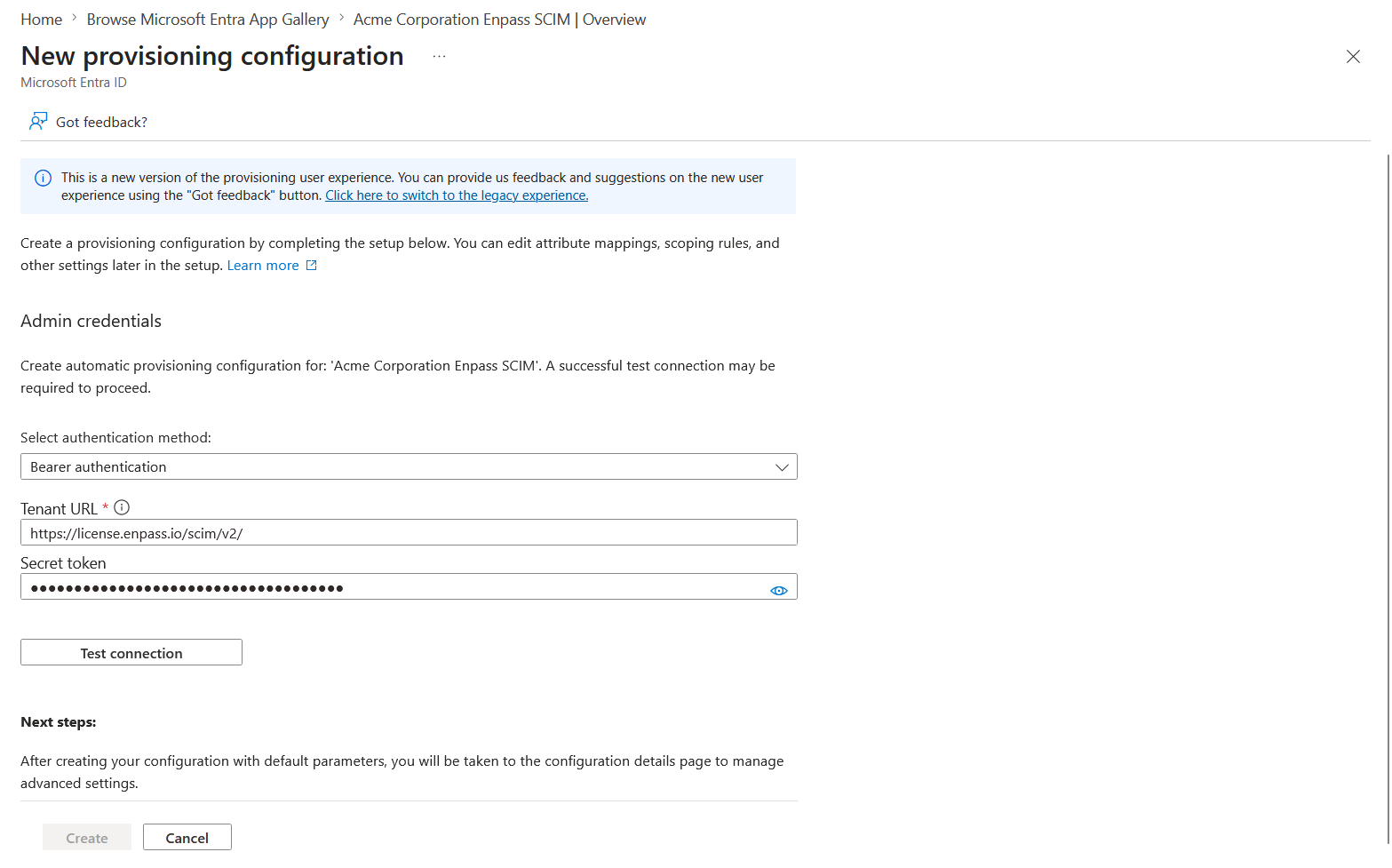
-
Click Test Connection and wait for confirmation that the credentials are valid.
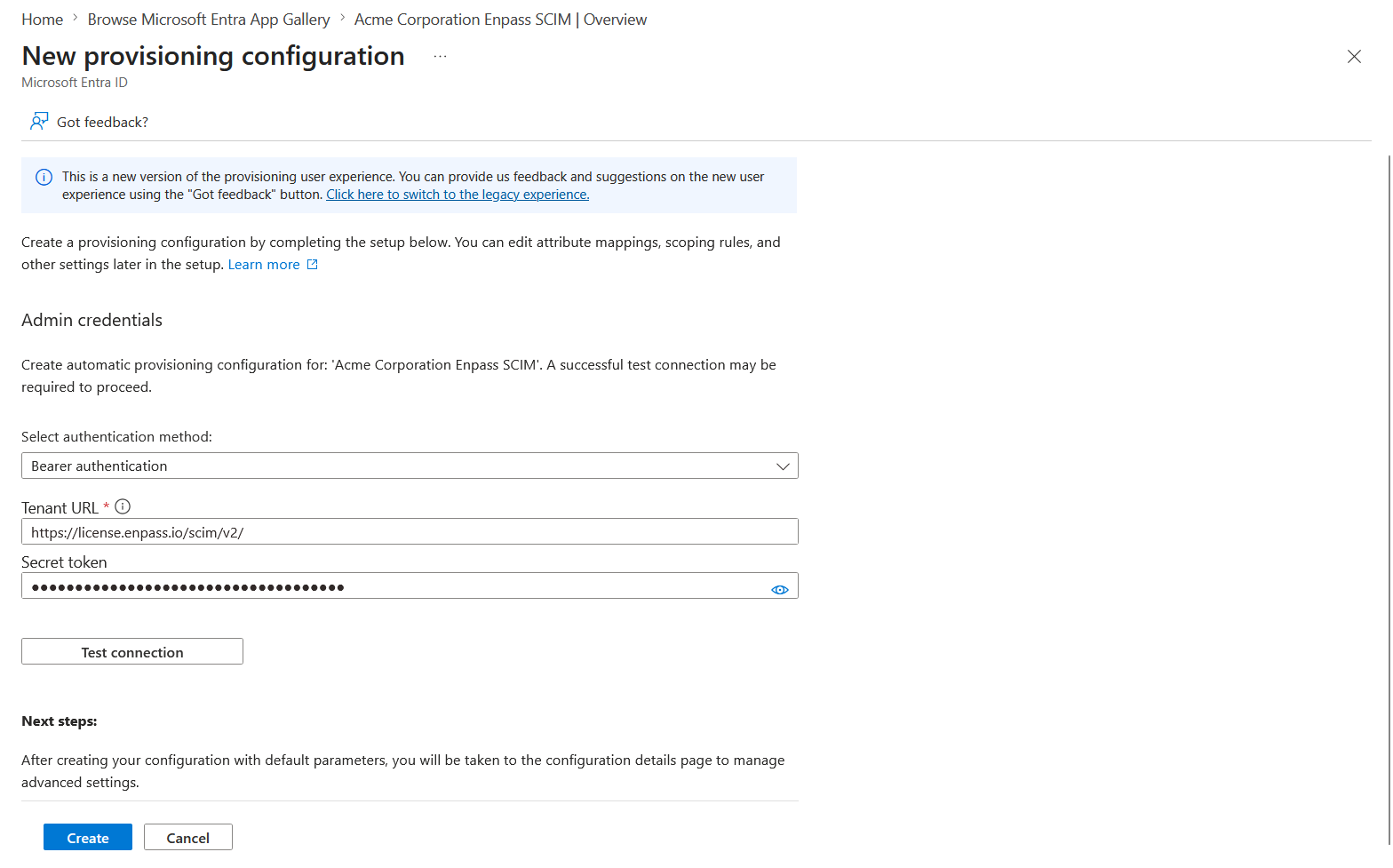
-
Click Create.
Step 3: Synchronize Users and Groups
-
In the sidebar, select Provisioning under Manage.
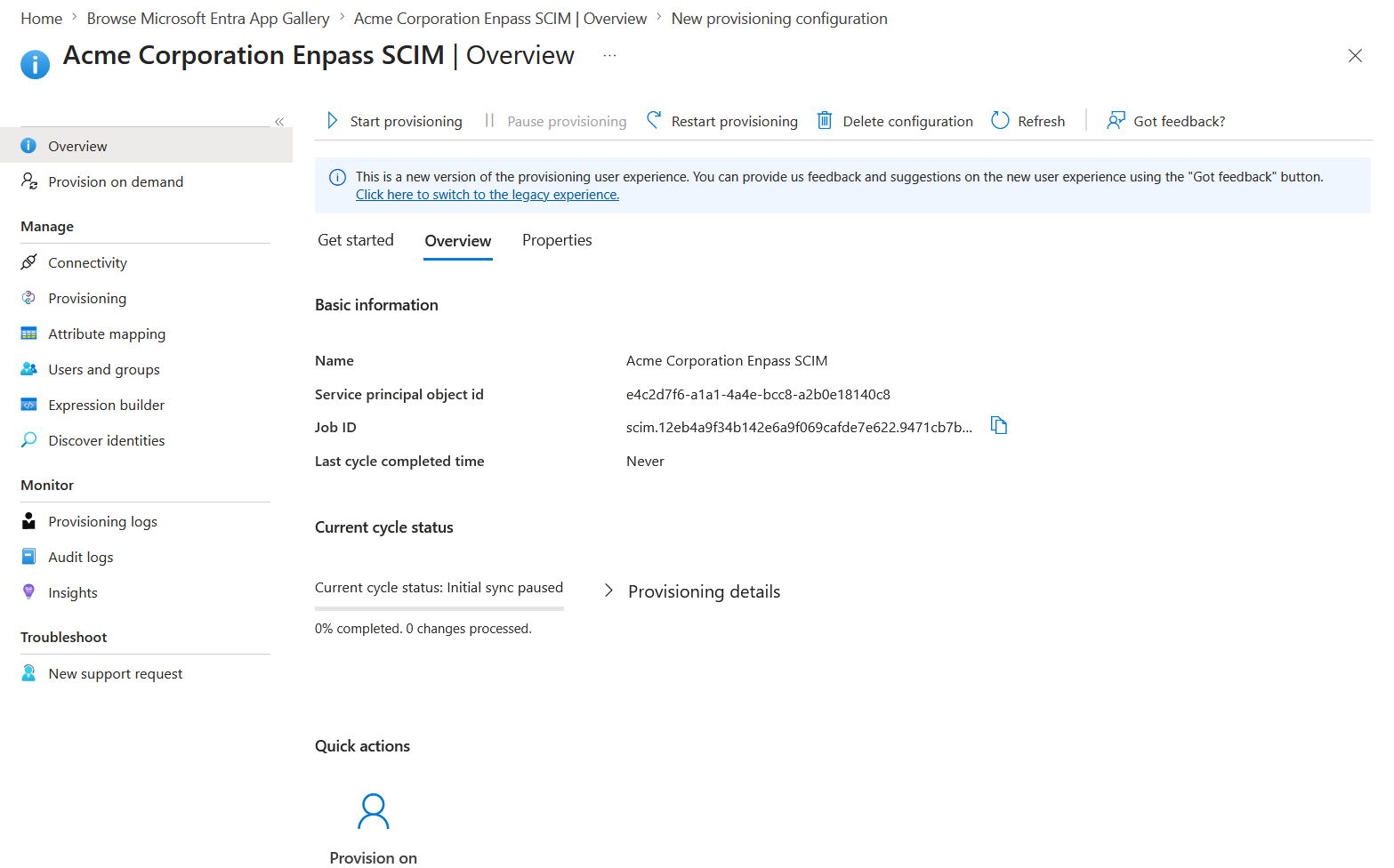
-
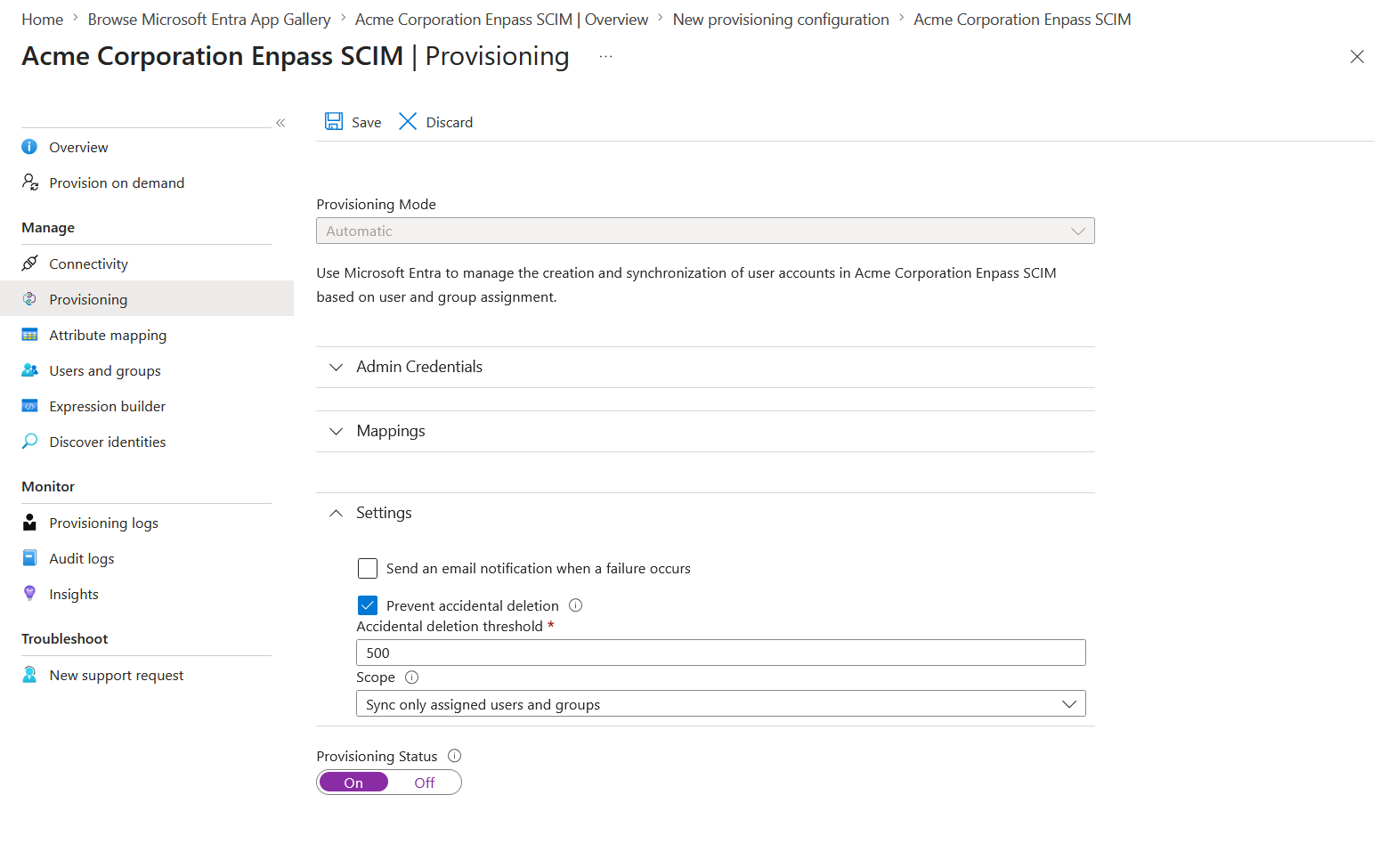
Go to Settings and select your provisioning scope:
-
Sync only assigned users and groups — provisions Enpass only for specific users. Recommended for most organizations.
-
You can manage assigned users and groups from the Users and groups option in the sidebar.
-
-
Set Provisioning Status to On and click Save.
Entra ID will automatically provision assigned users. Provisioned users appear in the Enpass Admin Console tagged with a SCIM label.Sync Users from Your Identity Provider
Note: Provisioned users cannot be removed manually from the Enpass Admin Console. Administrator accounts must be removed from the Admin Console manually before they can be deprovisioned via Entra ID.