.svg)
Sharing a vault in Enpass
If you are using Enpass Business, visit Vaults & Vault Sharing.
Any Enpass vault stored in a personal cloud account can be shared with other trusted Enpass users. For example, a family could set up a vault shared between the parents, a vault the parents share with their children, and a vault managed for an elderly relative to use.
For sharing an Enpass vault you will need:
-
A vault separate from your Primary Vault (so your personal credentials stay private)
-
The password for the vault to be shared
-
The login credentials for the cloud account hosting the vault
To share a cloud-synced vault:
-
Provide the vault password and cloud-account credentials to the person who will be sharing your vault.
-
That person will then follow the steps below.
To add a shared vault stored in a cloud account:
-
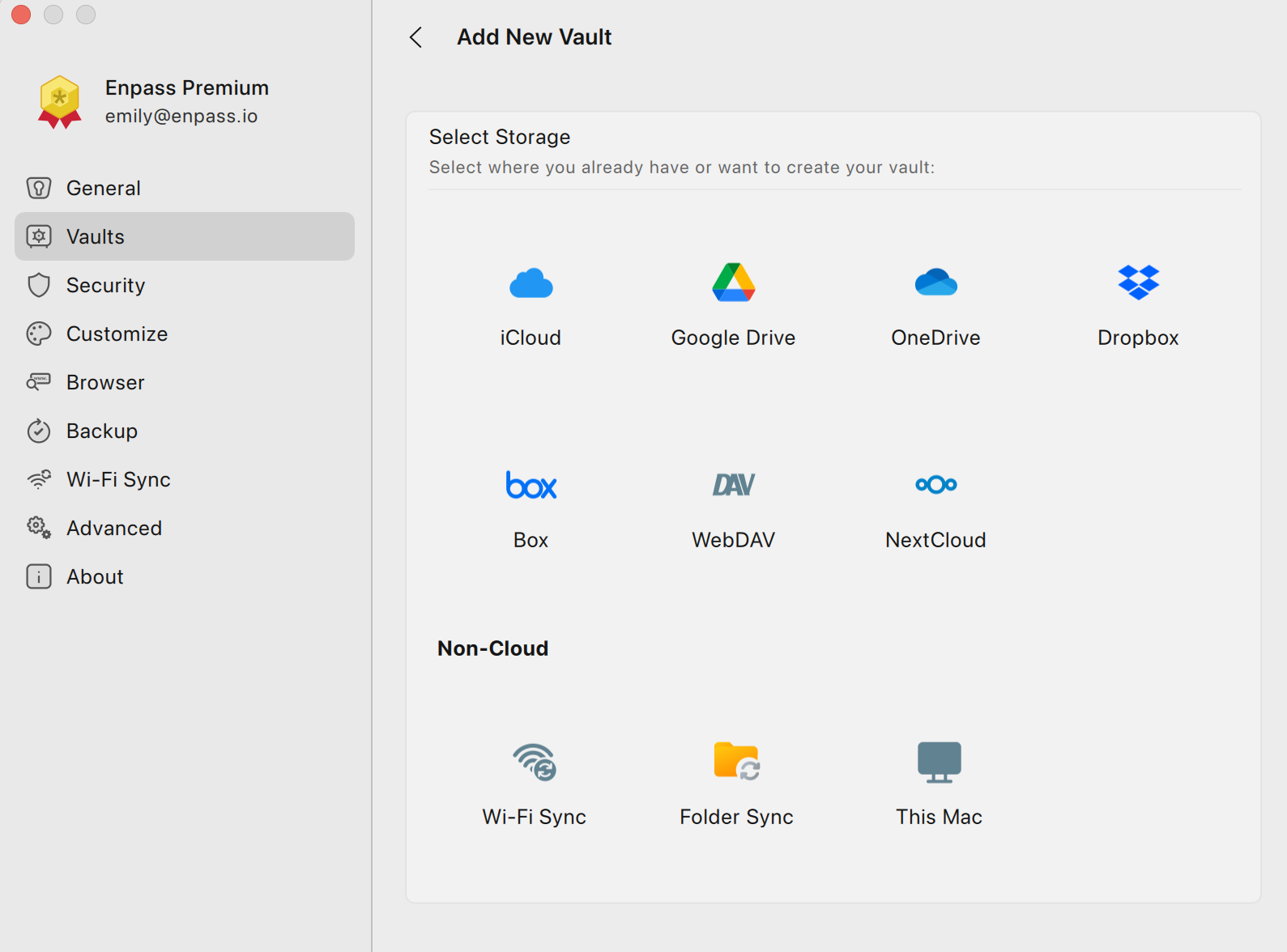
Go to Settings > Vaults, and select Add new vault.
-
Select the cloud service where the shared vault is stored.
-
This will open a special page on that cloud's website for granting access to Enpass.
-
Login to the cloud account, and grant access to Enpass (usually a big Grant or Allow button).
-
When you see the Enpass-styled "Authorization Finished" message, click the Redirect button and/or the Open Enpass button (if you are not automatically taken back to Enpass).
-
In Enpass, you will see a "Restoring Data..." message…
-
…when you see the vault name and icon, click Continue.
-
-
Enter the vault password, and click Continue.
-
When finished, click Done.
-
To save this new vault's password in your Primary Vault, click the checkbox below the password field.
-
-
Return to your browser and log out of the sender’s cloud account.
-
If the vault is on Google Drive, you may need to remove their account from your Google Account Settings as well.
-
To share a vault without sharing your cloud credentials, consider creating a separate cloud account specifically for storing your shared vault.