.svg)
Creating a new vault in Enpass
If you are using Enpass Business, visit Creating a new business vault.
Enpass can manage multiple vaults, working with your existing cloud accounts or exclusively on your devices. Separate vaults can be used to sequester work credentials from personal credentials, or to manage shared credentials within families or teams.
Desktop
To create a new vault stored in a cloud account in Enpass for desktop:
-
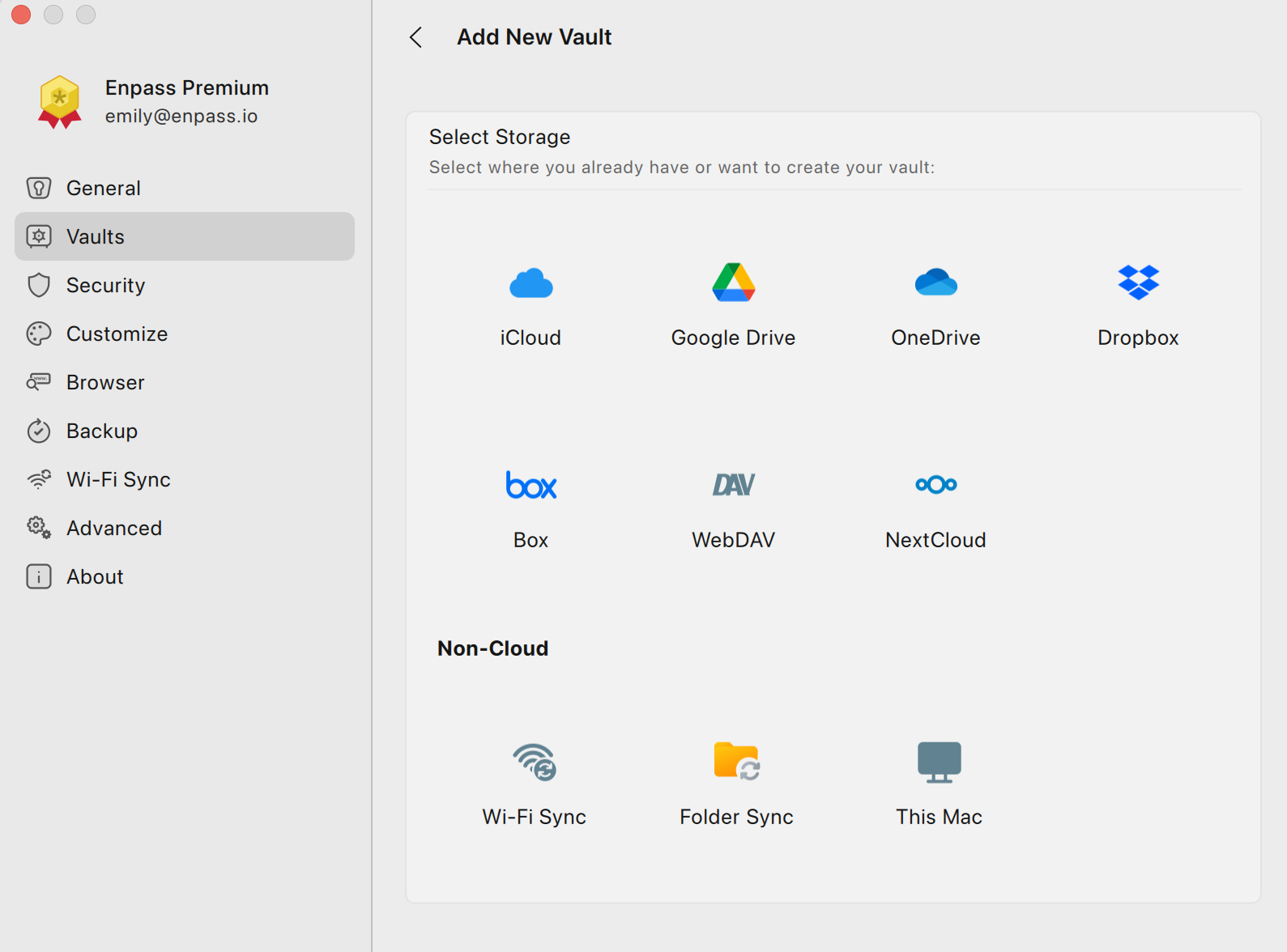
Go to Settings > Vaults, and click ✛ Add new vault.
-
Select the cloud service where you want to create your new vault.
-
You will be redirected to your cloud service in your default browser.
-
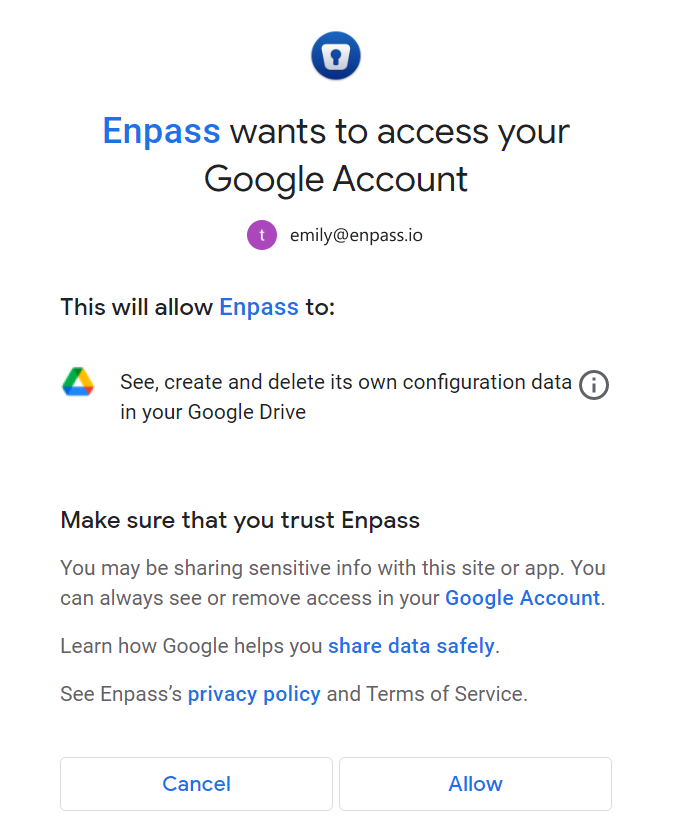
Login and follow the steps to allow Enpass access to your account.
-
When you reach an Enpass-styled "Authorization Finished" message, click the Redirect or Open Enpass button (if you are not automatically returned to Enpass).
-
Once returned to Enpass, enter a name for your new vault, and click Continue.
-
Create a strong password for your new vault, and click Continue.
-
Verify your vault password, and click Done.
While creating your vault password, you can also save it to your Primary Vault by selecting the checkbox below the password field.
To create a new vault stored only on your PC or Mac:
-
Go to Settings > Vaults, and click Add new vault.
-
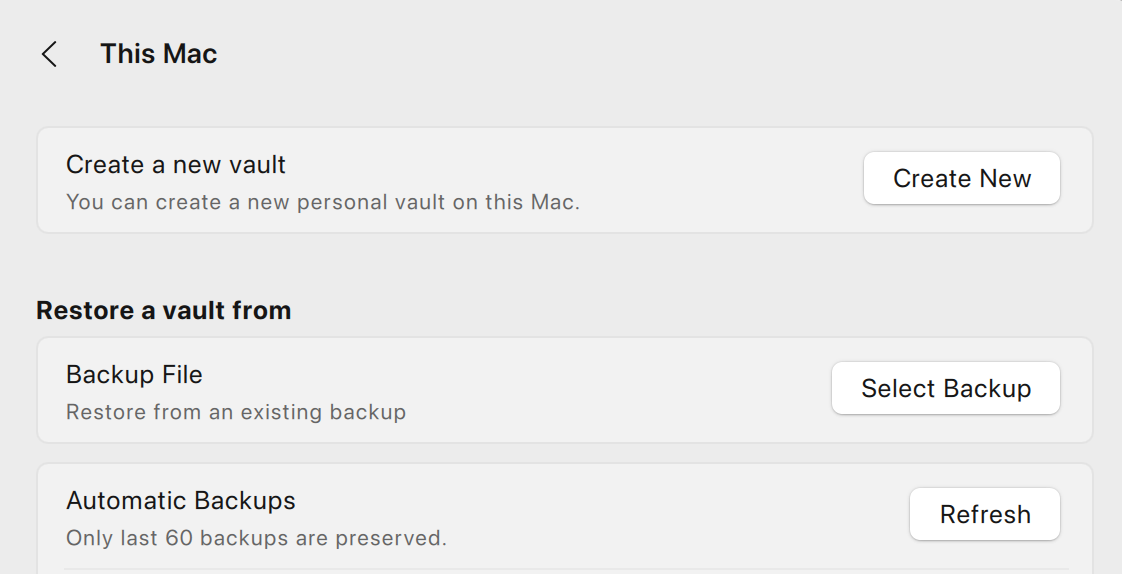
Select This PC or This Mac.
-
Click Create New.
-
Enter a name for your new vault, and click Continue.
-
Create a strong password for your new vault, and click Continue.
-
Verify your vault password, and click Done.
While creating your vault password, you can also save it to your Primary Vault by selecting the checkbox below the password field.
iOS
To create a new vault stored in a cloud account in Enpass for iOS:
-
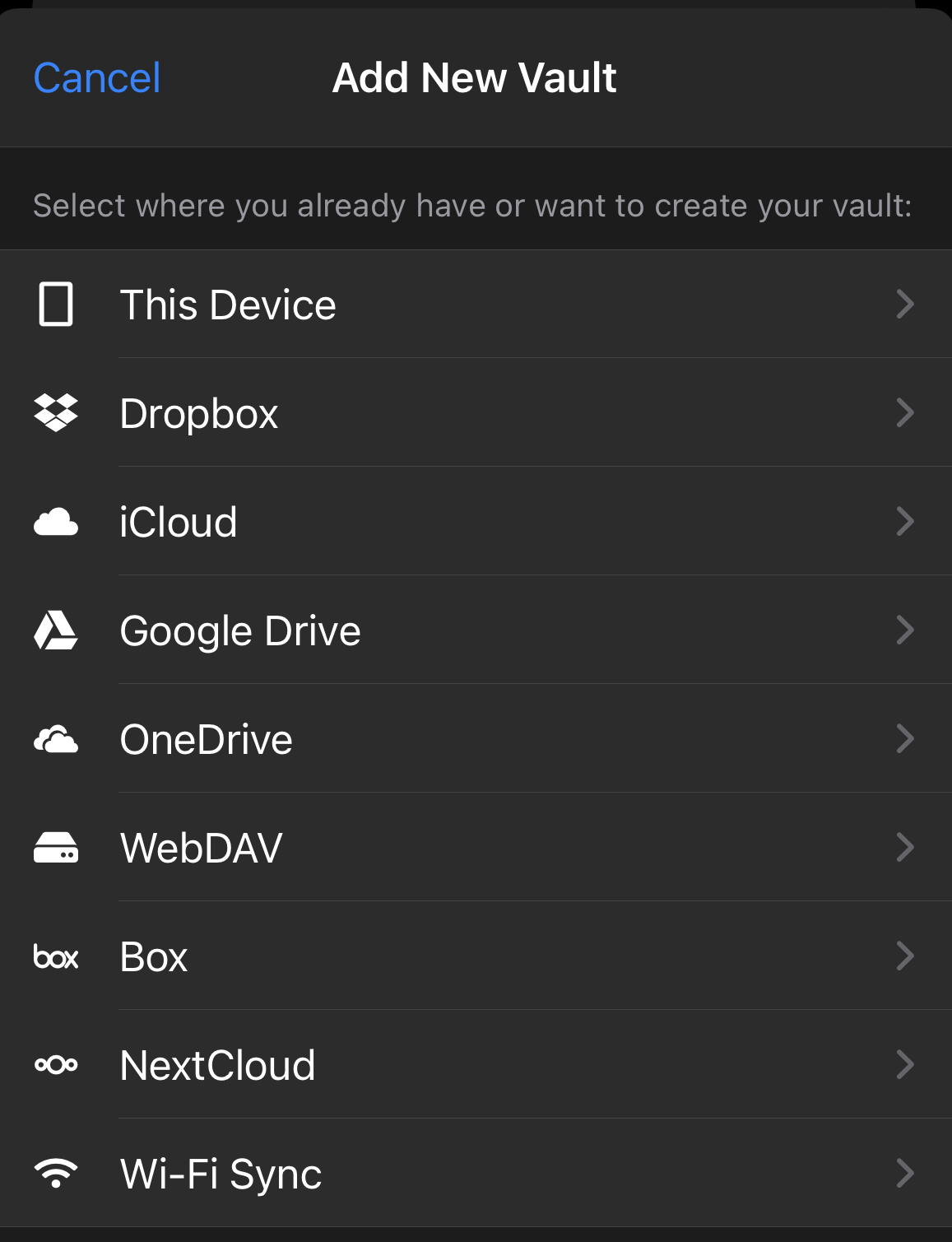
Go to Settings > Vaults, and tap ✛ in the top-right corner.
-
Select the cloud service where you want to create your new vault.
-
In the pop-up screen for your cloud account, follow the steps to allow Enpass access to your account.
-
Enter a name for your new vault, and tap Continue.
-
Create a strong password for your new vault, and tap Continue.
-
Verify your vault password and tap Done.
To create a new vault stored on your device:
-
Go to Settings > Vaults, and tap ✛ in the top-right corner.
-
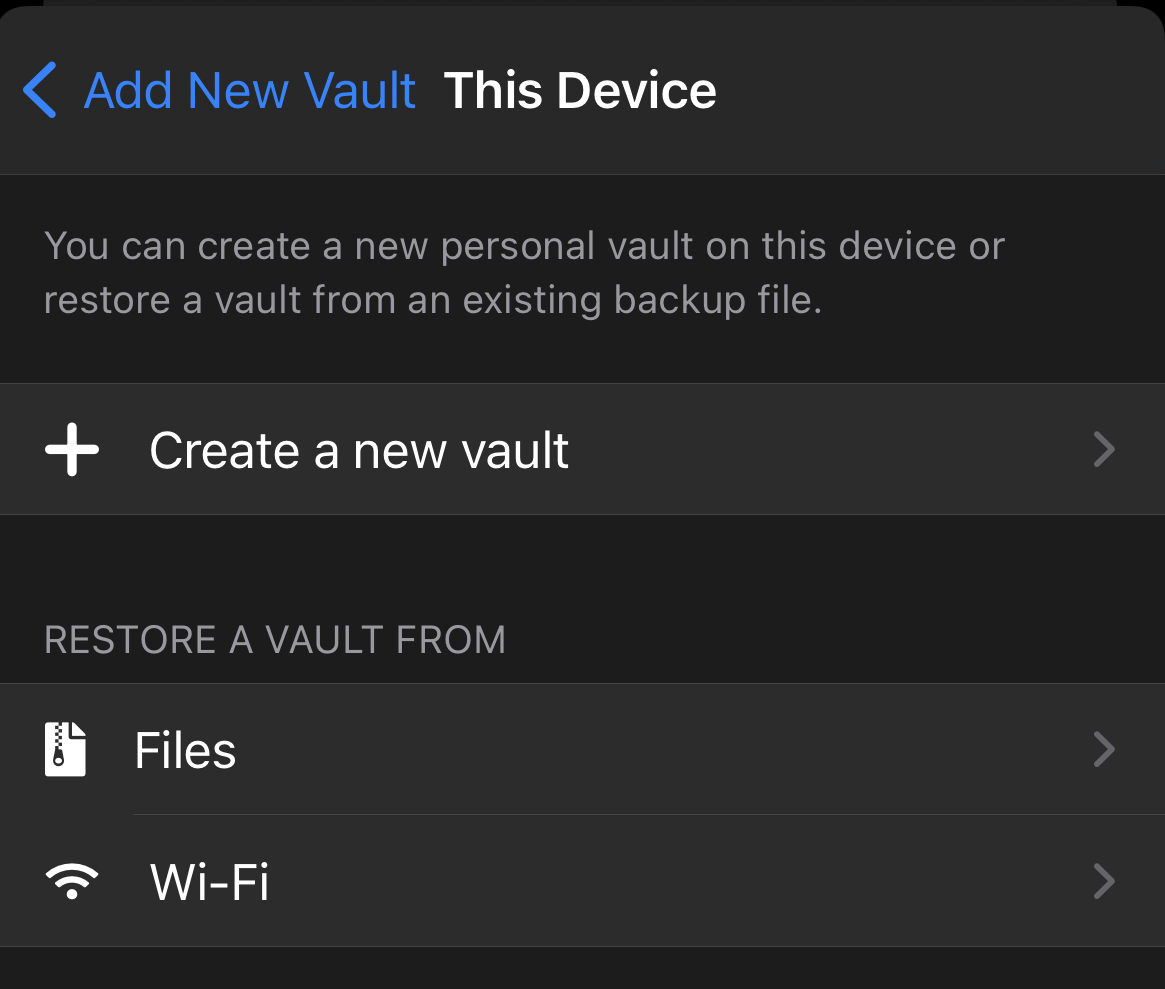
Select This Device, then tap Create a new vault.
-
Enter a name for your, vault and tap Continue.
-
Create a strong password for your new vault, and tap Continue.
-
Verify your vault password, and tap Continue.
Android
To create a new vault stored in a cloud account in Enpass for Android:
-
Go to Settings > Vaults, and tap ✛ in the top-right corner.
-
Select the cloud service where you want to create your new vault.
-
You will be taken to that cloud service in an overlay or in your browser.
-
Login and follow the steps to allow Enpass access to your account.
-
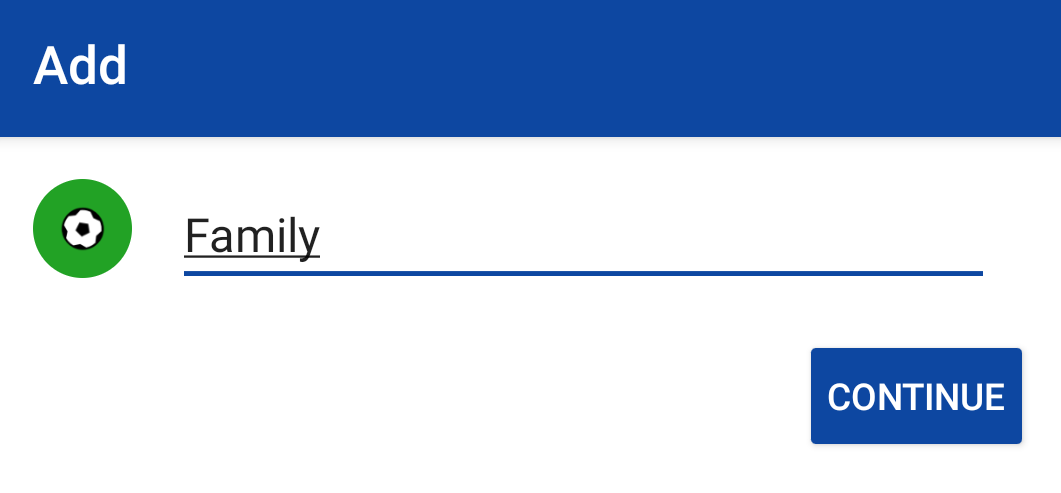
Once returned to Enpass, enter a name for your new vault, and tap Continue.
-
Create a strong password for your new vault, and tap Continue.
-
Verify your vault password, and tap Done.
To create a new vault stored on your device:
-
Go to Settings > Vaults, and tap ✛ in the top-right corner.
-
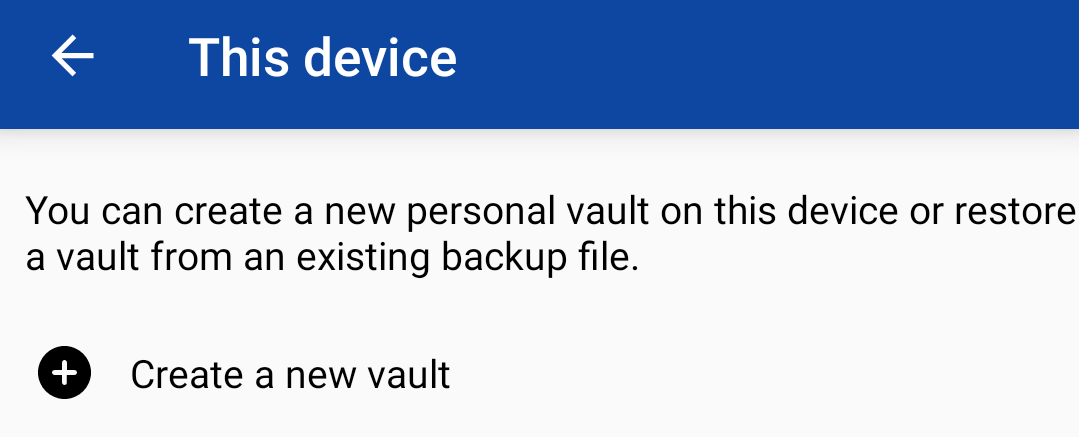
Select On this device and then tap Create a new vault.
-
Enter a name for your new vault, and tap Continue.
-
Create a strong password for your new vault, and tap Continue.
-
Verify your vault password, and tap Done.
Vaults created only on your local device can be moved to cloud accounts later if you choose.