.svg)
Adding an existing vault to your Enpass app
If you are using Enpass Business, visit Adding vaults shared by co-workers.
You can add an existing vault from a cloud account, from local network, or from a folder on your device.
Desktop
To add an existing vault in Enpass for desktop:
-
Go to Settings > Vaults, and click Add new vault.
-
Select the source from which you want to add your vault.
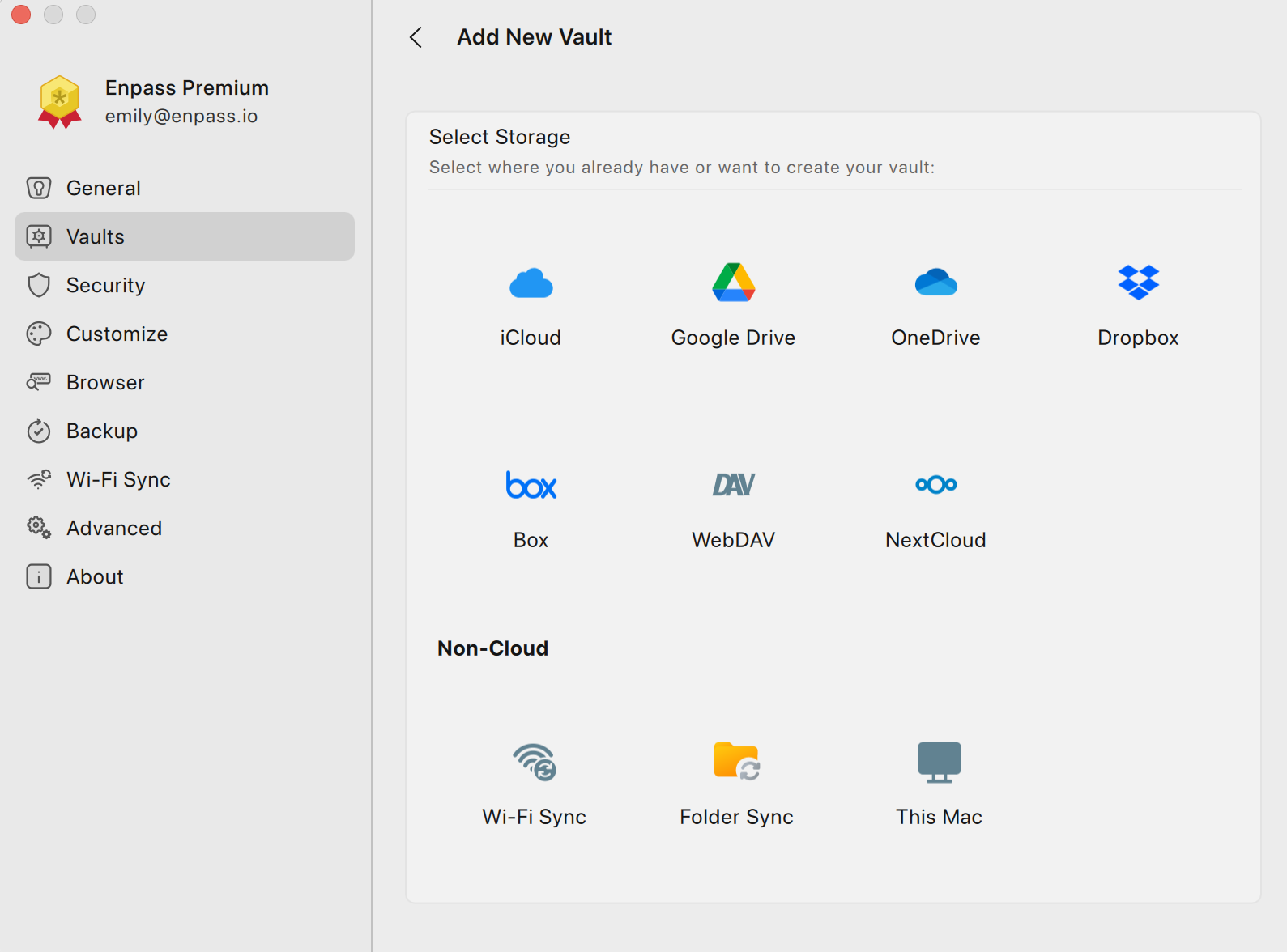
-
If that source is a cloud account, you will be redirected to your cloud service in your default browser.
-
Login and follow the steps to allow Enpass access to your account.
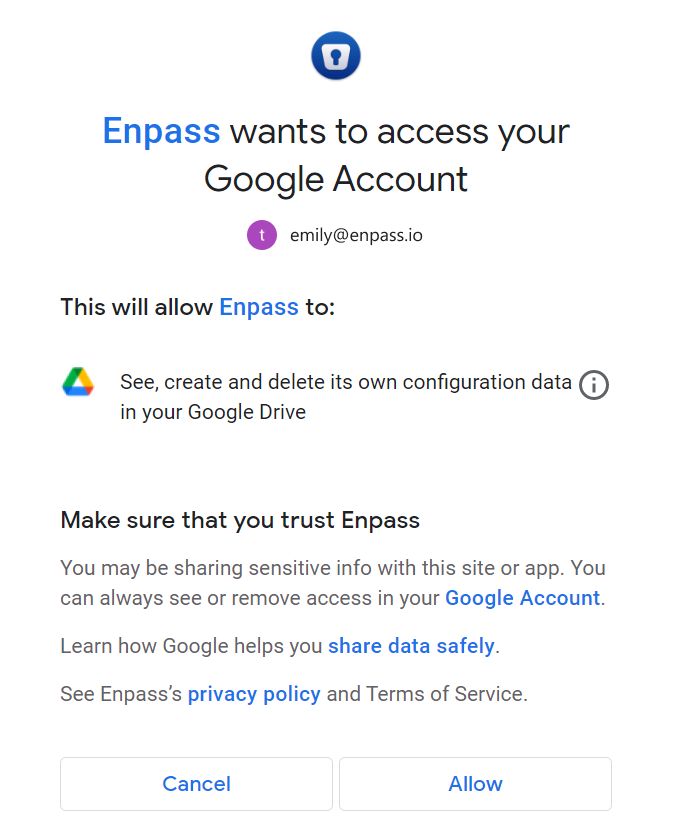
-
When you reach an Enpass-styled "Authorization Finished" message, click the Redirect or Open Enpass button (if you are not automatically returned to Enpass).
-
In Enpass, you will see a "Restoring Data..." message.
-
When you see the vault name and icon, click Continue.
-
Enter the vault password, and click Continue.
-
When the vault has been successfully added, click Done.
To save a new vault's password in your Primary Vault, click the checkbox below the password field.
iOS
To add an existing vault in Enpass for iOS:
-
Go to Settings > Vaults, and tap

-
Select the location or service from which you want to add a vault.
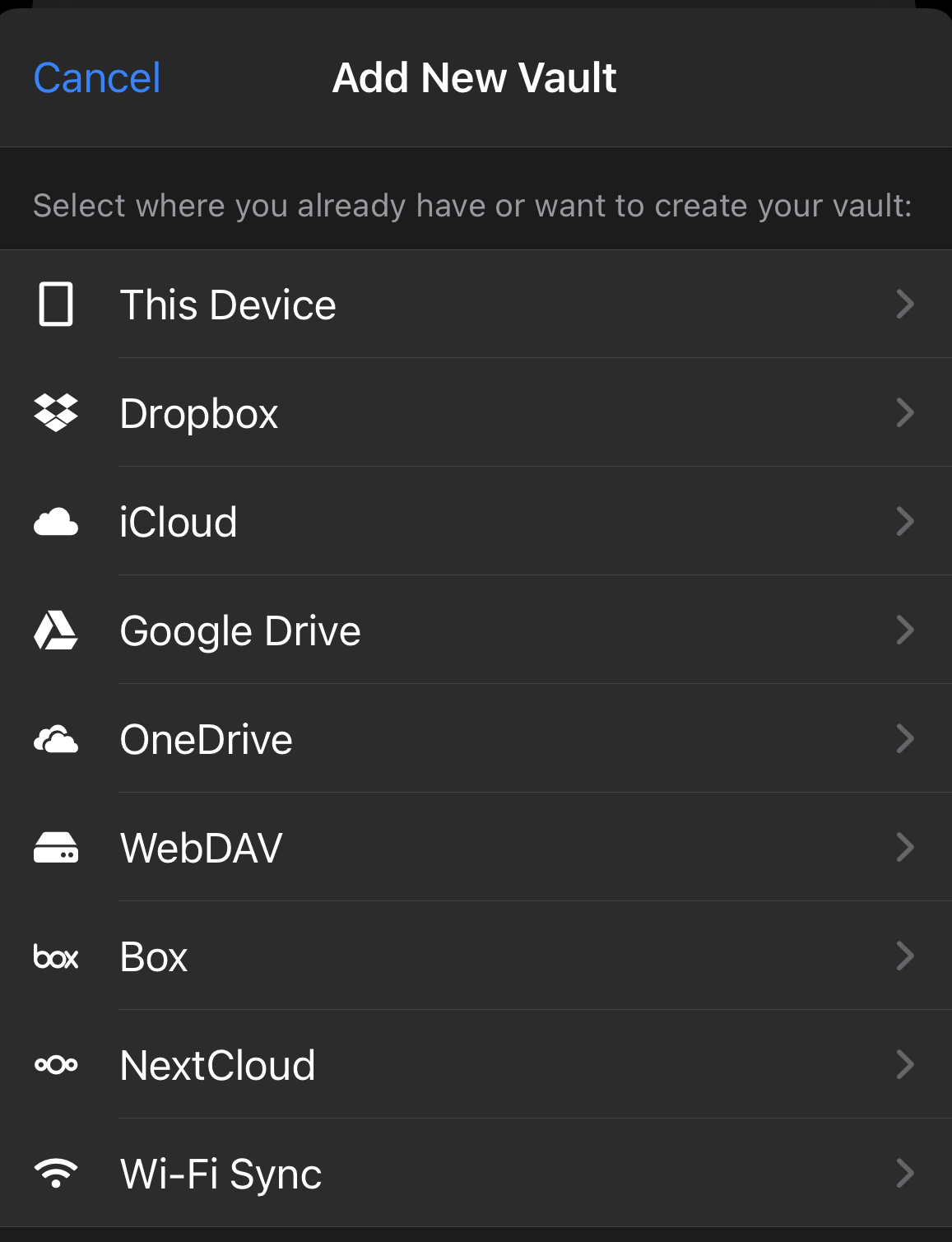
-
For cloud accounts, you will be taken to that cloud service in a pop-up screen.
-
Follow the steps to allow Enpass access to your account.
-
Enpass will automatically restore your vault.
-
Enter the vault password to complete the process.
Android
To add an existing vault in Enpass for Android:
-
Go to Settings > Vaults, and tap
-
Select the location or service from which you want to add a vault.
-
For cloud accounts, you will be taken to that cloud service in your browser.
-
Log in to your cloud account and follow the steps to allow Enpass access to your account.
-
Enter a name for your vault and tap Continue.
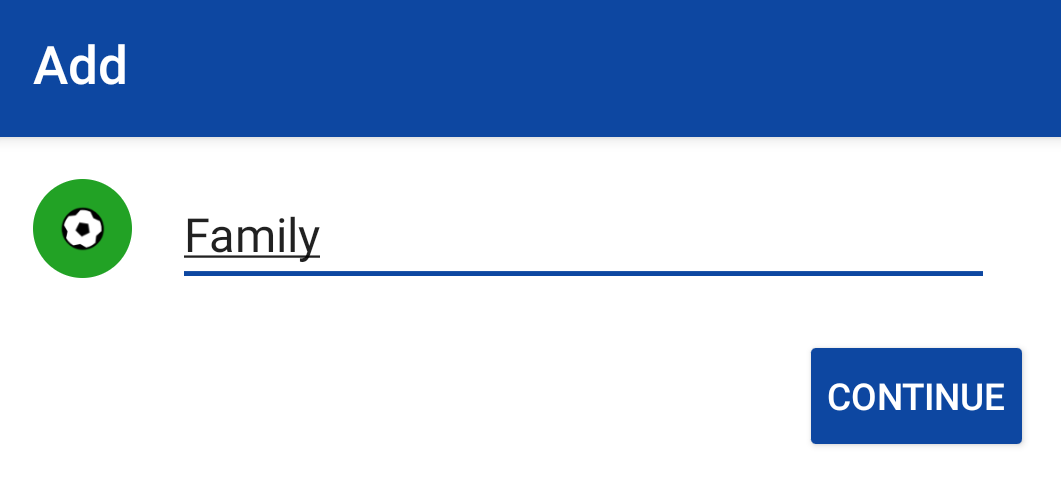
-
Enter the password of your vault and tap Restore.
If the vault being added requires a Keyfile, you’ll need to provide that as well.