.svg)
When an employee forgets their Master Password, they can submit a reset request directly from the Enpass app. Access Recovery is a privacy-preserving, dual-party process. The user initiates the request, and a Recovery Admin reviews and approves it from the Admin Console. Once approved, a time-limited recovery link is generated and shared with the user, who uses it to set a new Master Password on their devices. Neither party can complete the process alone, and at no point does the admin gain access to the user's vault, credentials, or password.
How a User Submits a Recovery Request
-
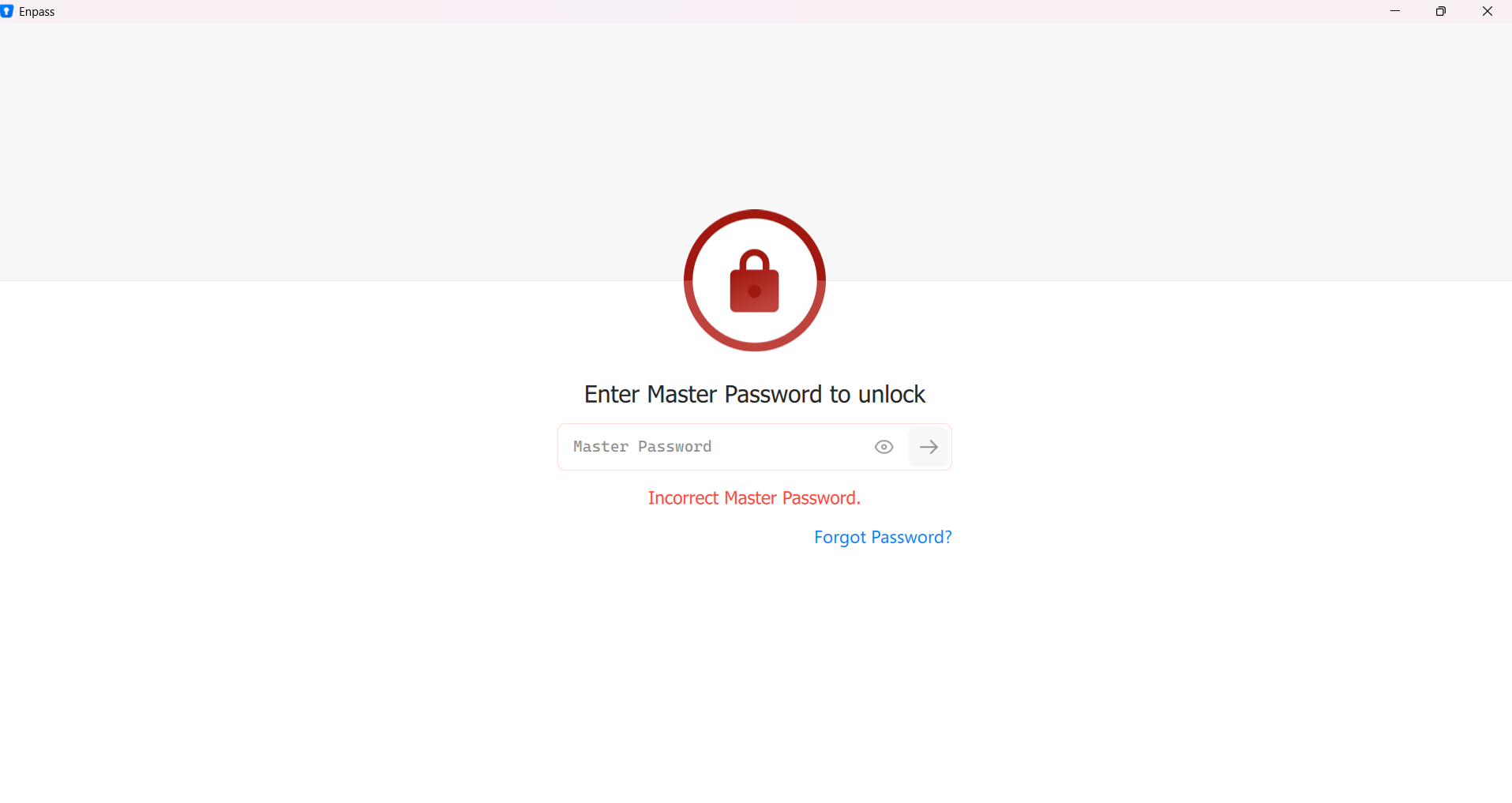
On the Enpass unlock screen, after entering an incorrect password, the user clicks Forgot Password.
-
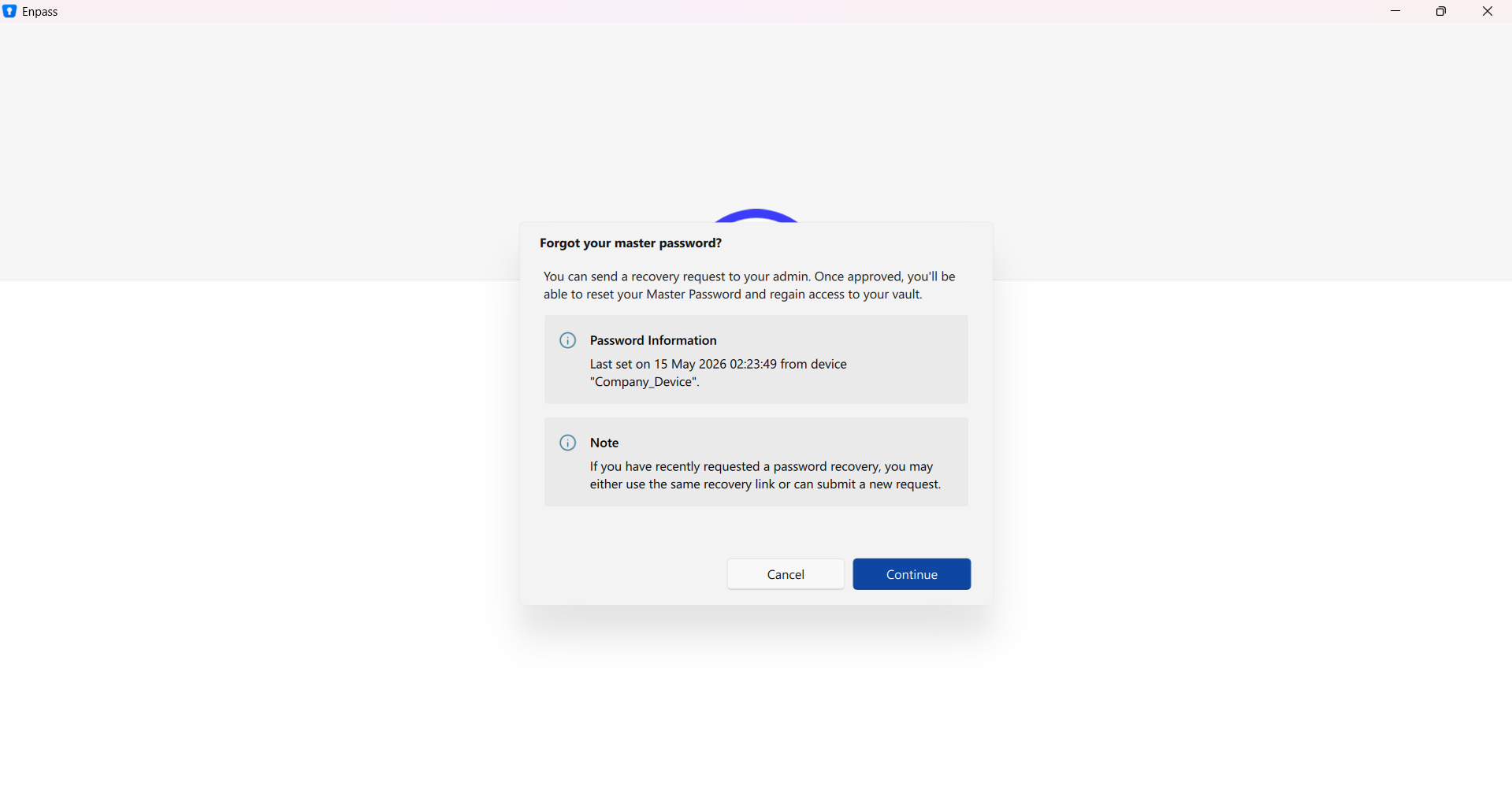
The user clicks Continue to start the recovery request.
-
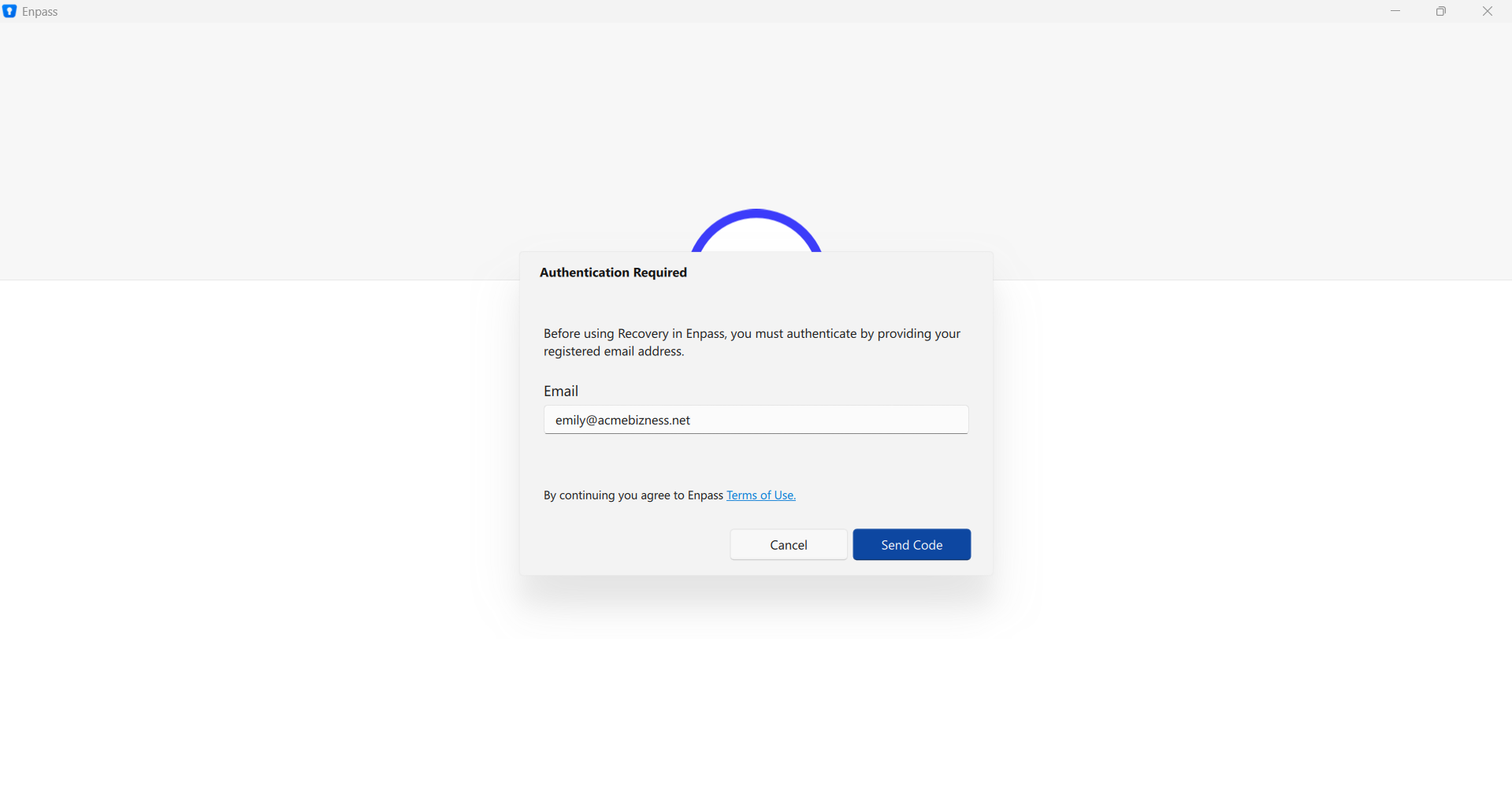
If prompted, the user enters their work email address and clicks Send Code.
-
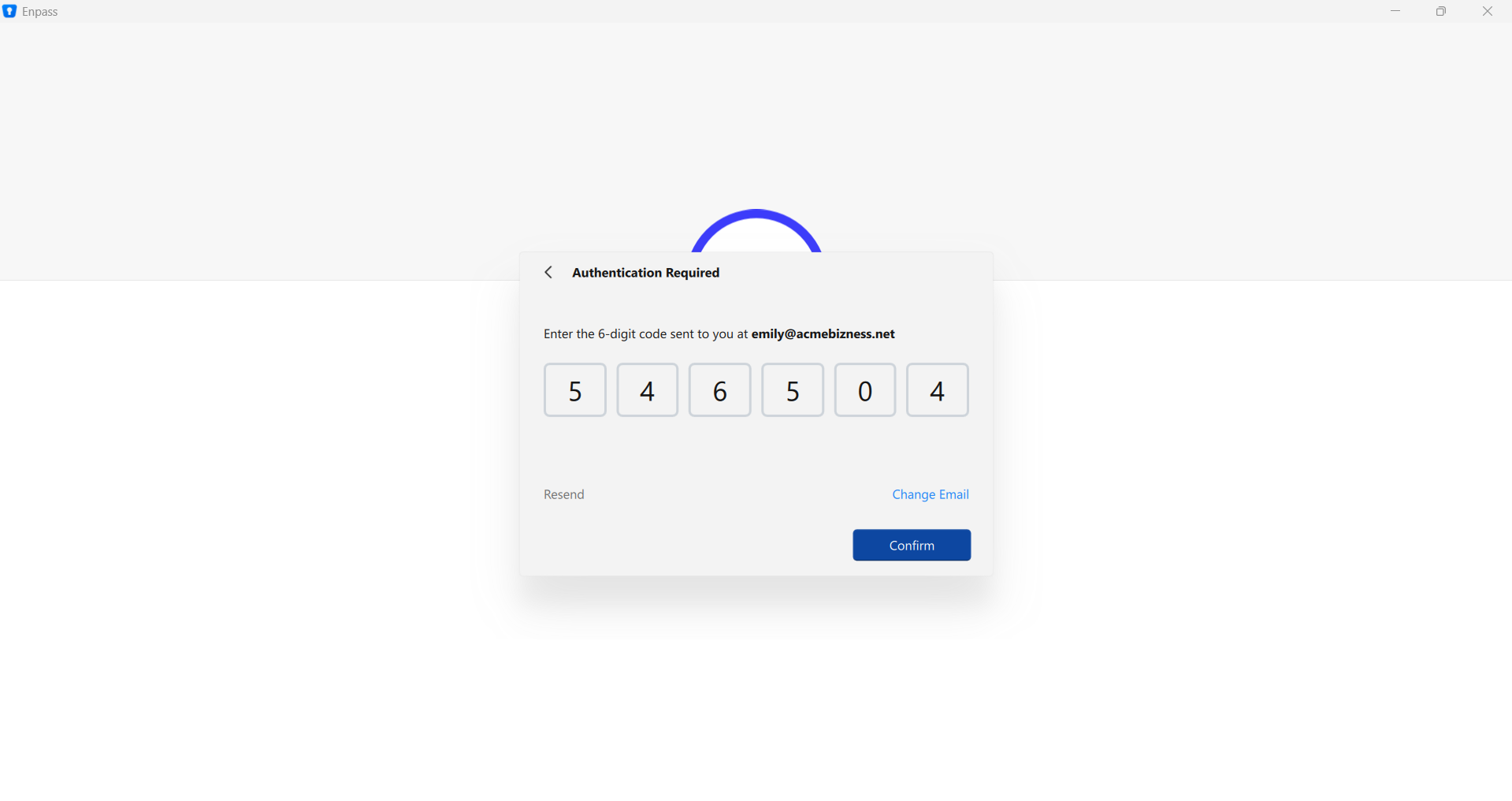
The user enters the six-digit verification code sent to their email, then clicks Confirm.
-
Once submitted, the user sees a confirmation and is instructed to contact their administrator.
Read more about the user process at: Access Recovery for Users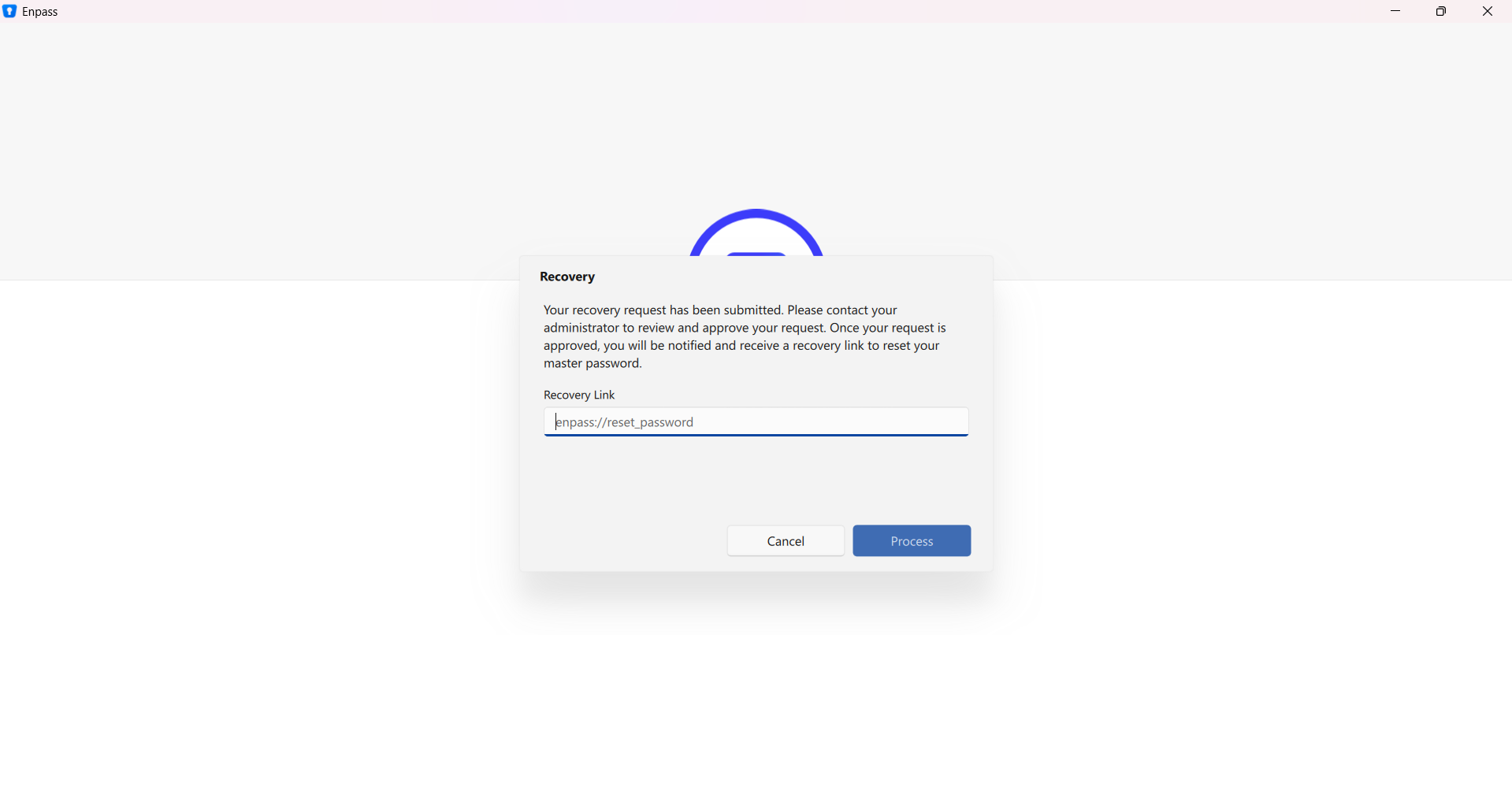
A Recovery Admin is notified by email (per your notification settings) and the request appears in the Admin Console.
Approving a Recovery Request
Requires Recovery Admin permissions. The Enpass desktop app must be installed and active on the Recovery Admin's computer.
-
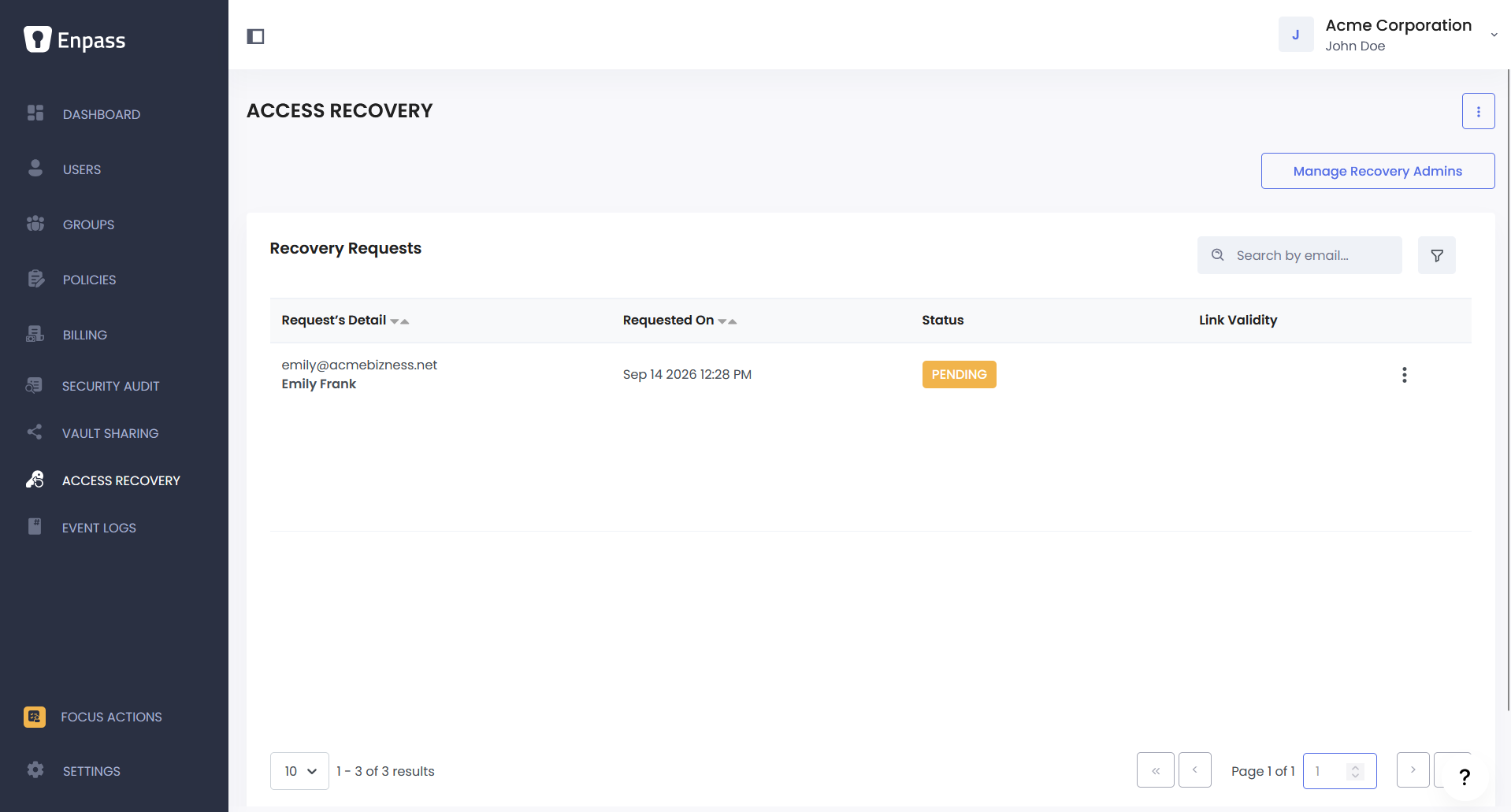
In the Admin Console, go to Recovery and locate the pending request.
-
Click ⋮ beside the request and select View.
-
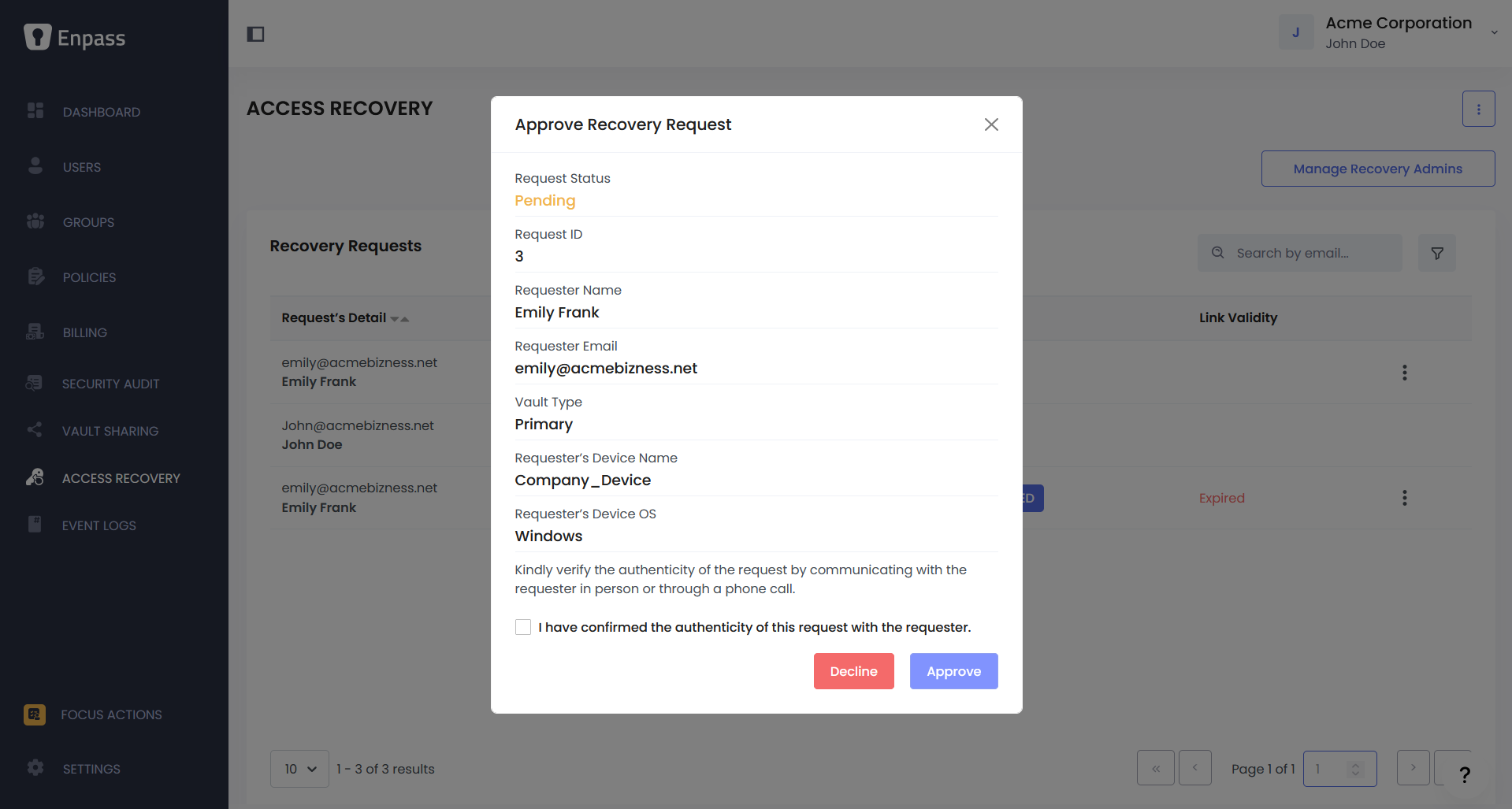
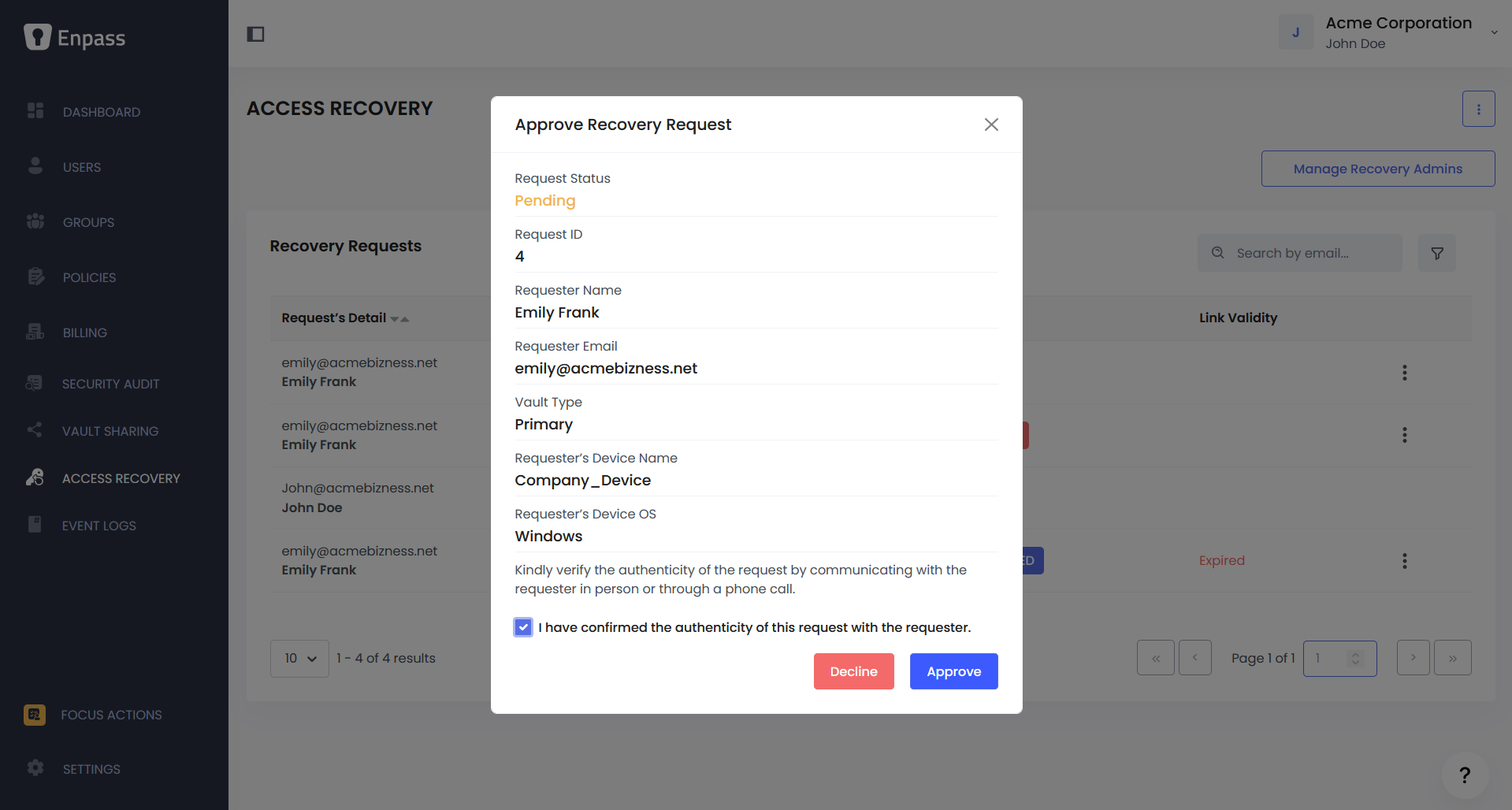
In the Approve Recovery Request overlay, confirm the legitimacy of the request, then click Approve.
-
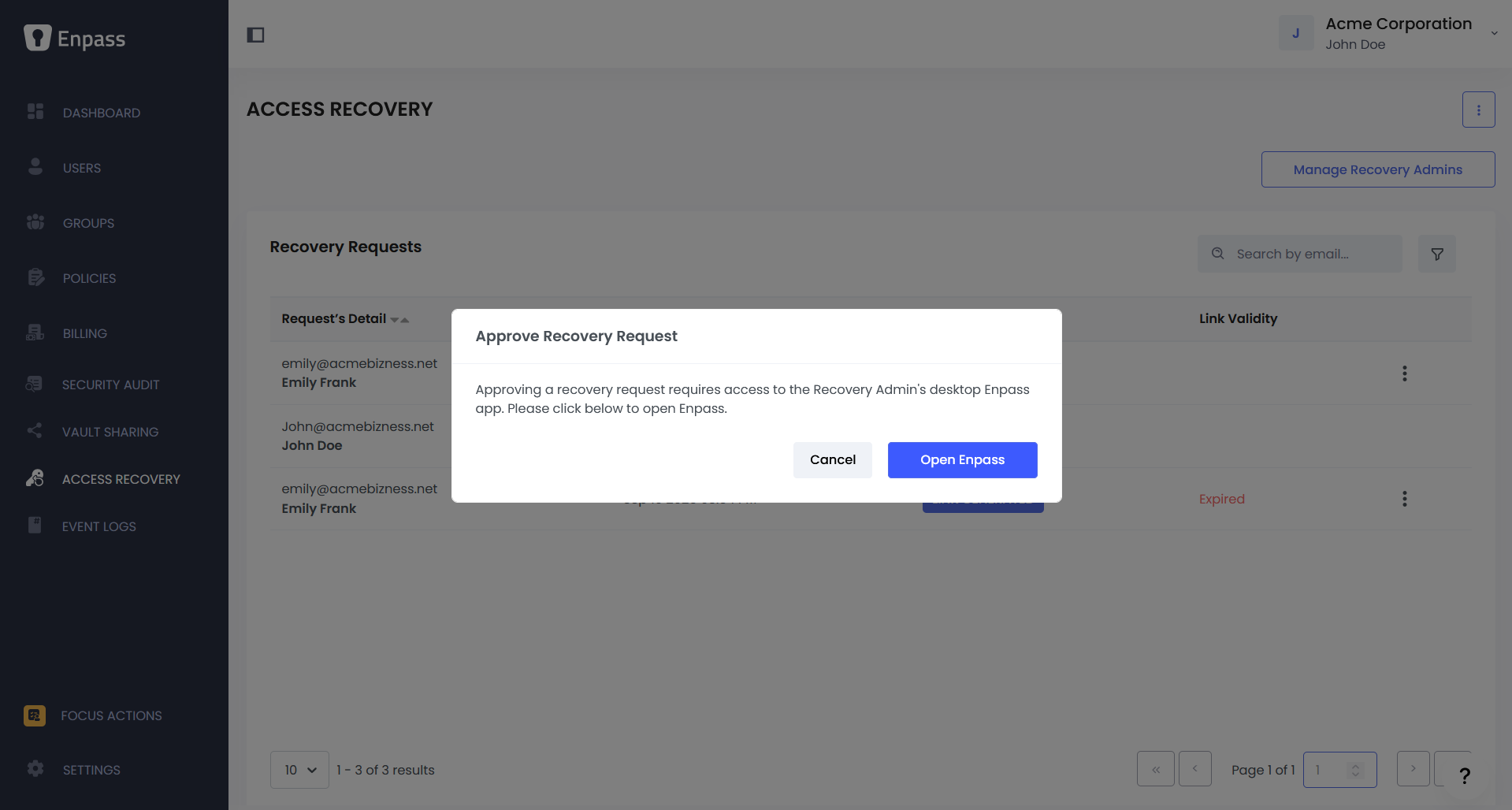
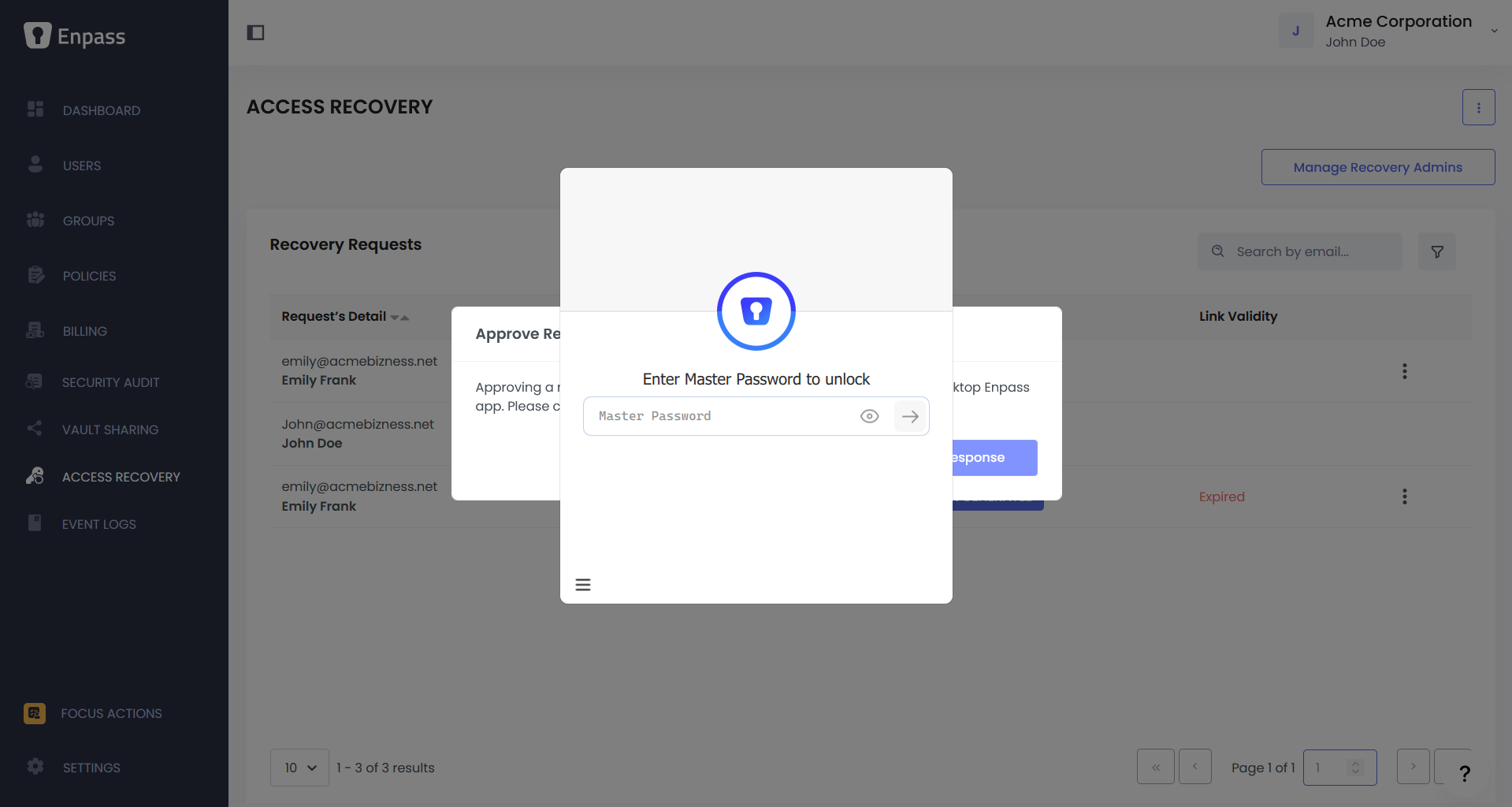
If Enpass is not already open, you will be prompted to launch it.
-
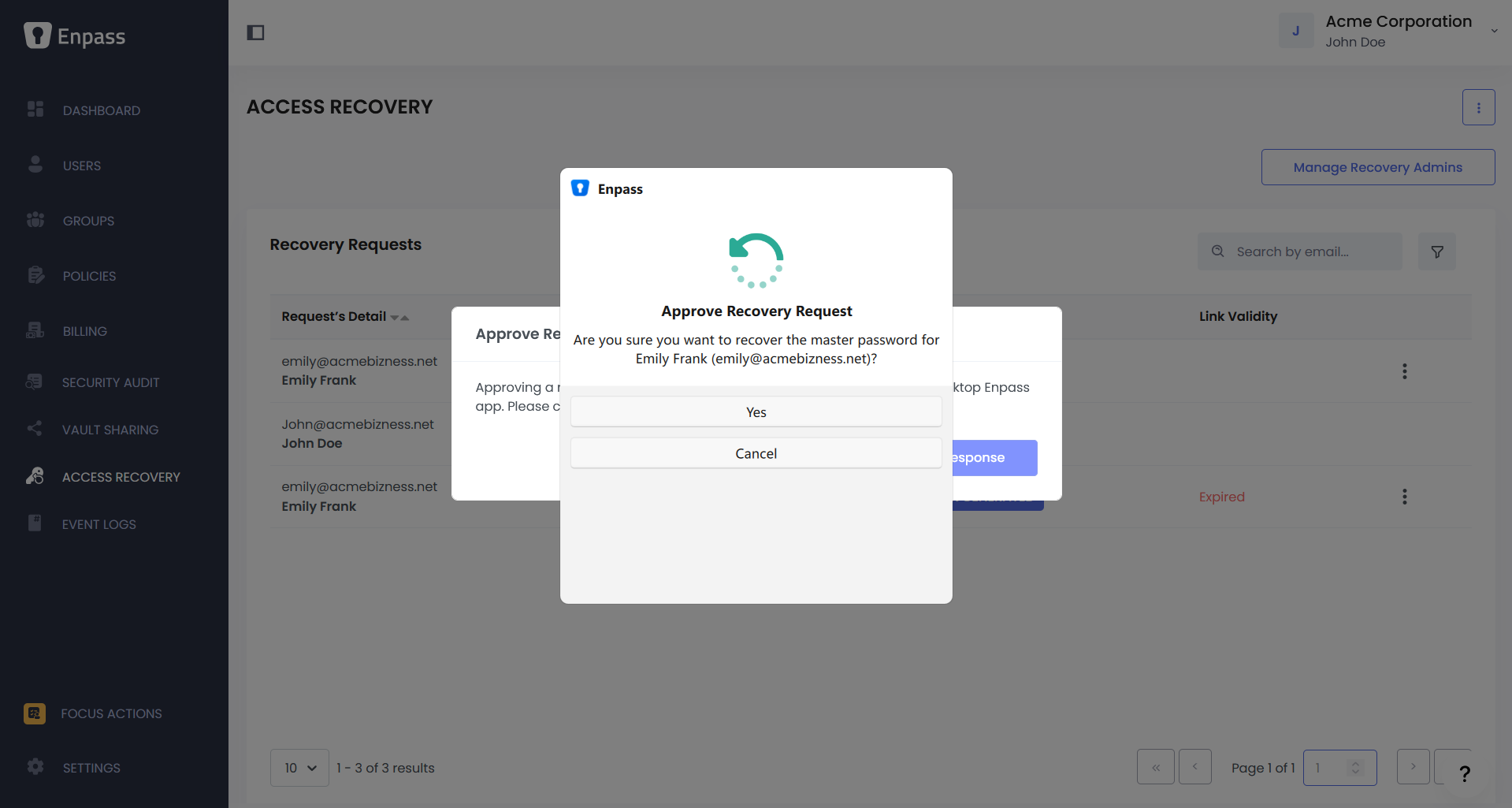
In the Enpass mini assistant window, click Approve, then click Copy Link when prompted.
-
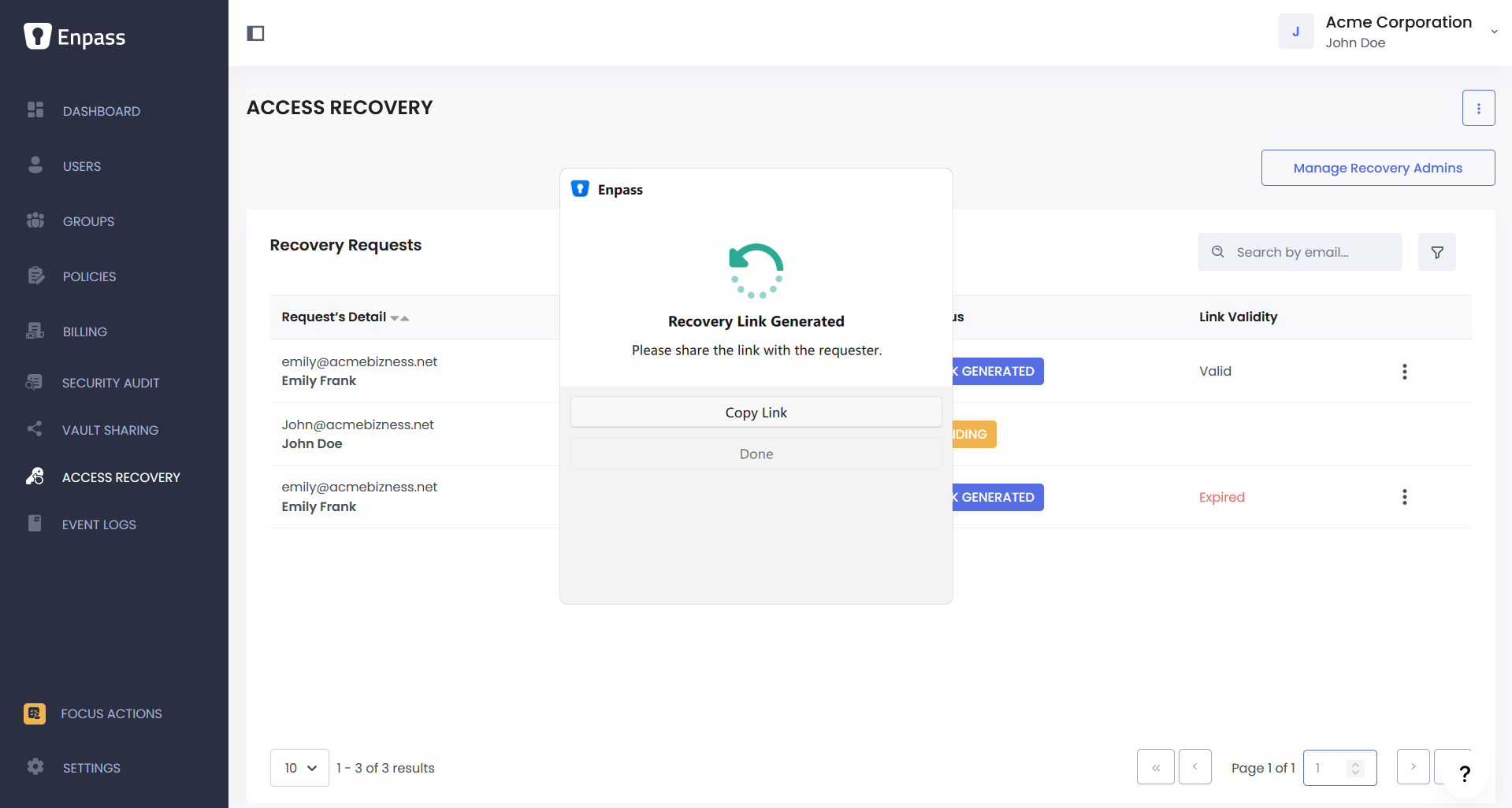
Send the recovery link to the user via email, chat, or any secure channel. The link is time-limited and bound to that user — they can use it across multiple devices within the validity window.
-
Return to the mini assistant window and click Done.
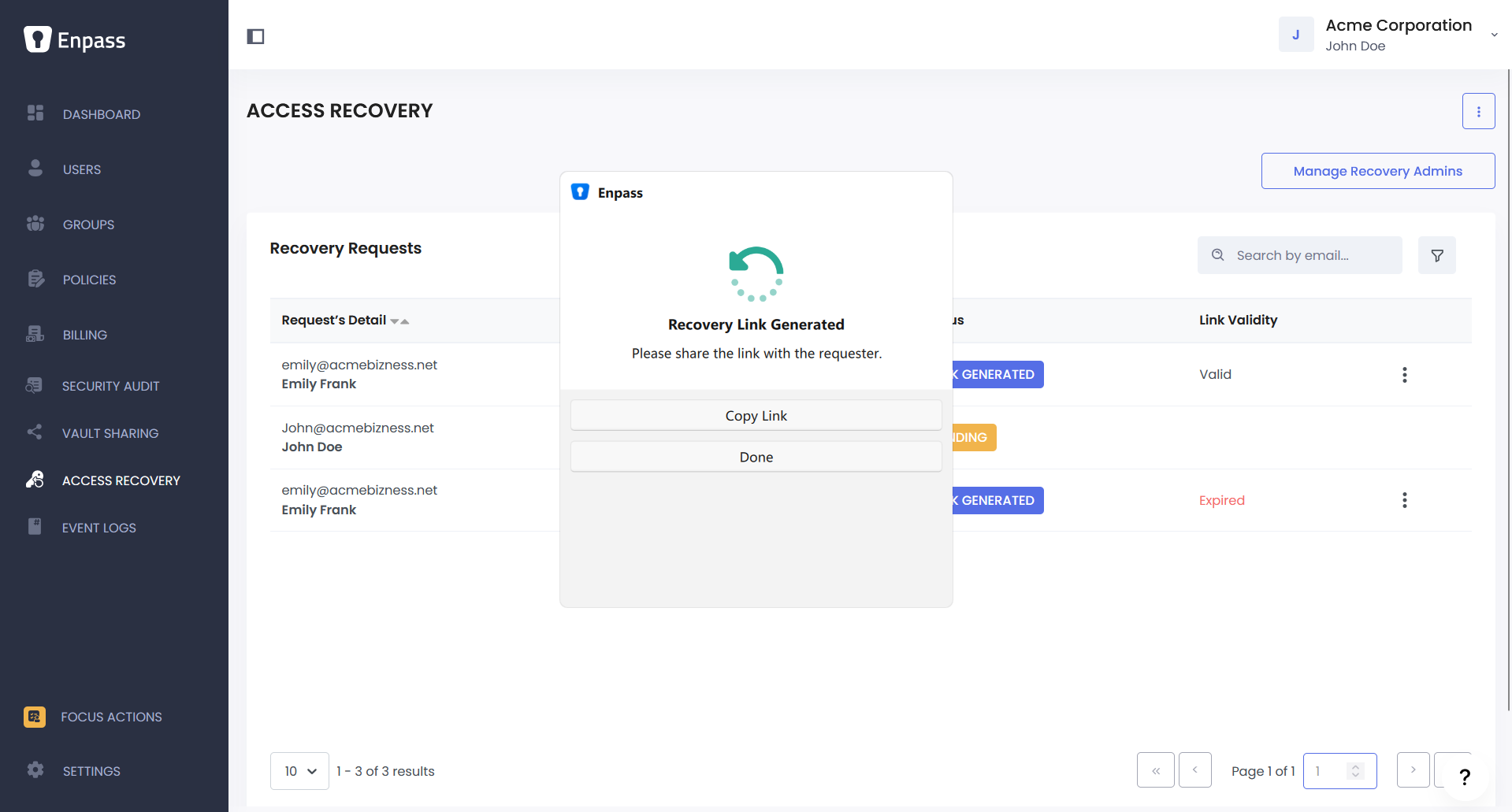
The user can now set a new Master Password and regain access to their vault on all their devices.
Note: Previous vault backups remain encrypted with the old Master Password and cannot be accessed with the new one.
Declining a Recovery Request
-
In the Approve Recovery Request overlay (Step 3 above), click Decline instead.
-
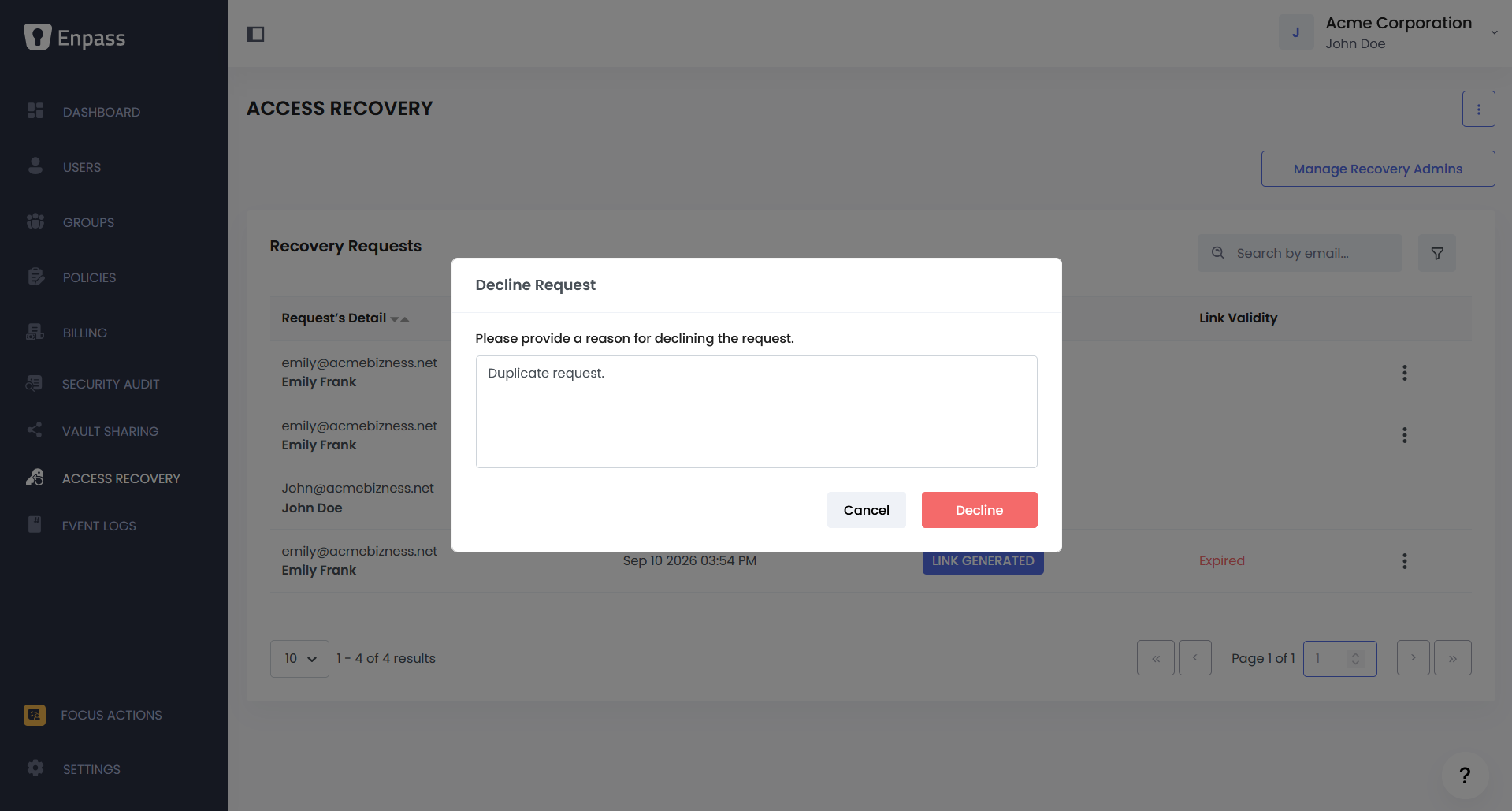
Provide a brief explanation for the decline, then click Decline.
-
The user receives your explanation and can resubmit a request after addressing the issue.
Request Statuses
|
Status |
What It Means |
|---|---|
|
Pending |
The user has submitted a request and it is awaiting admin review. |
|
Approved |
The request has been approved and a recovery link has been generated. |
|
Link Used |
The recovery link was used by the employee to reset their password. |
|
Expired |
The recovery link was not used before the configured expiry time elapsed. The user will need to submit a new request. |
|
Declined |
The request was declined by a Recovery Admin. |
If a link expires: The user must submit a new recovery request. Expired links cannot be reused or extended. Consider adjusting your link expiry time if users frequently miss the window.