.svg)
Recovery Admins are users authorized to review and act on employee Master Password reset requests. Any user in your organization can be designated as a Recovery Admin, regardless of whether they hold other admin privileges. When a Recovery Admin logs into the Admin Console without any other admin role, they will only see the Recovery section.
Note: Always have more than one Recovery Admin. If your organization's only Recovery Admin becomes unavailable or forgets their own Master Password, there will be no way to process recovery requests for your employees.
Prerequisites
-
You must be a Super Admin and a Recovery Admin to add or remove Recovery Admins.
-
The Enpass desktop app must be installed and active on your computer when authorizing a new Recovery Admin.
Note: Super Admins who are not also Recovery Admins are flagged in the Admin Console. In Settings > Administrators, a ⓘ symbol appears next to their access rights. Clicking it shows a recommendation to authorize them as a Recovery Admin. It is strongly recommended that all Super Admins also be Recovery Admins, since only a Super Admin with Recovery Admin rights can add or remove other Recovery Admins.
Adding a Recovery Admin
-
Go to Admin Console > Recovery.
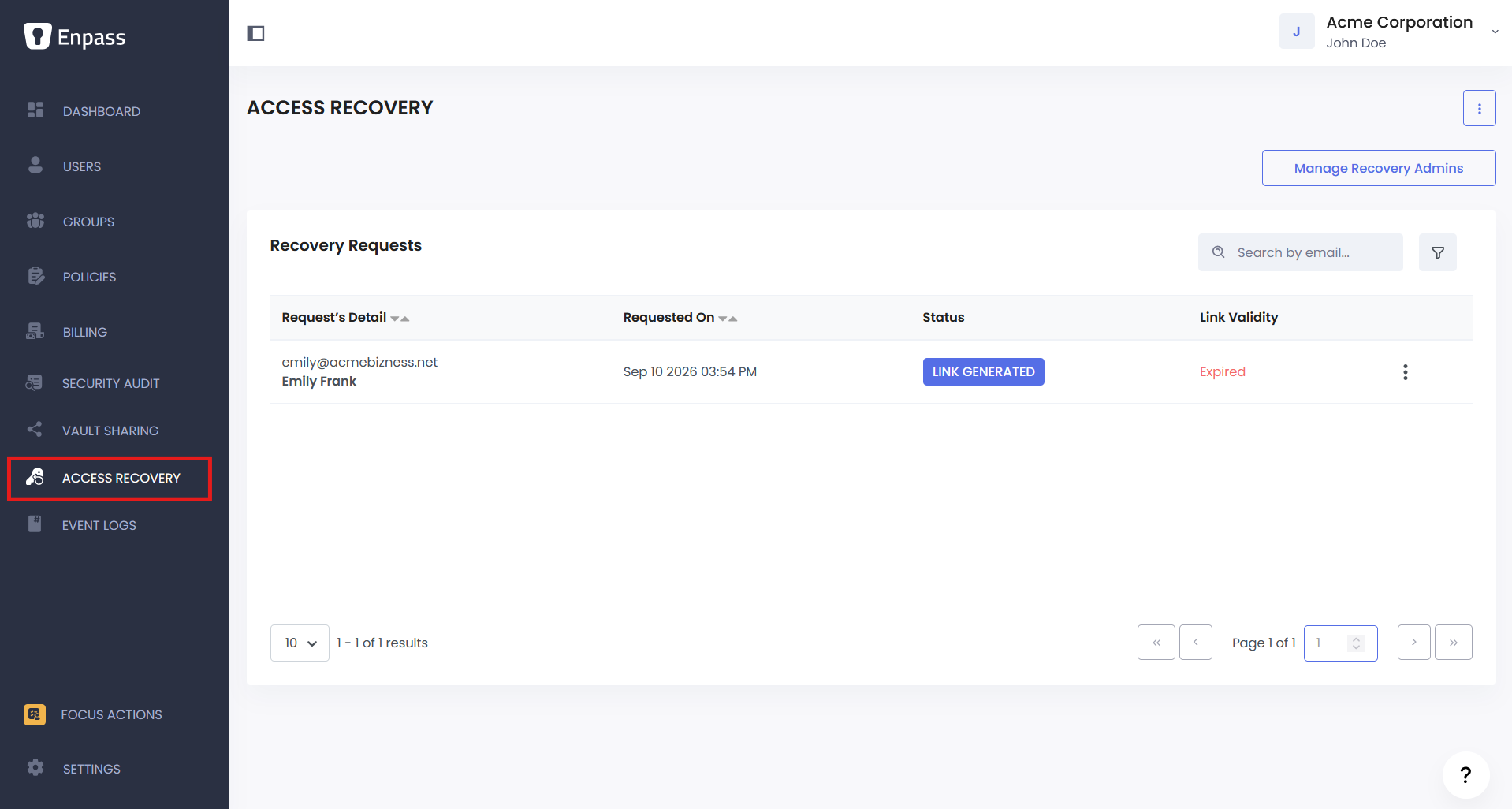
-
Click Manage Recovery Admins.
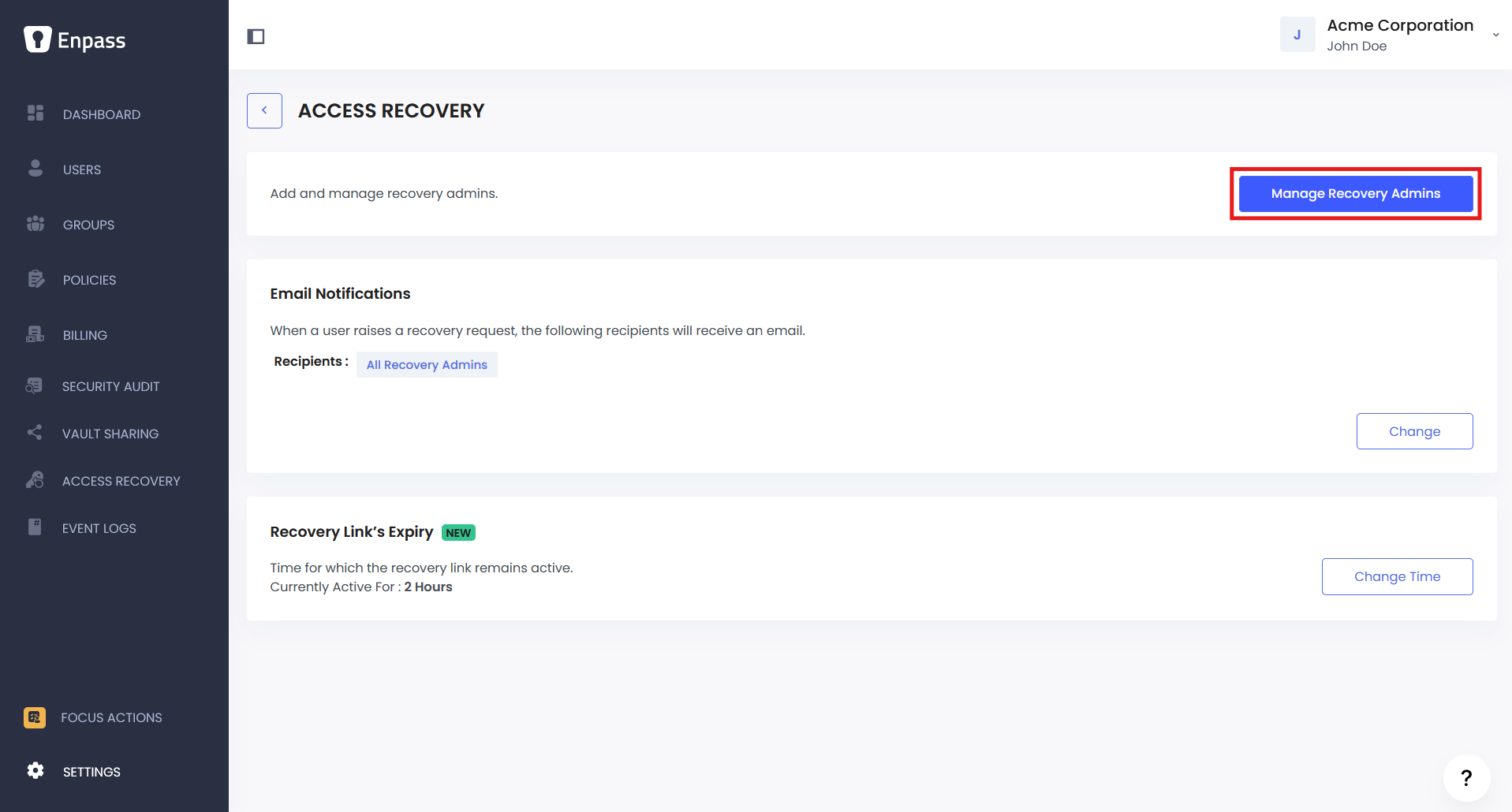
-
Click Add Recovery Admin.
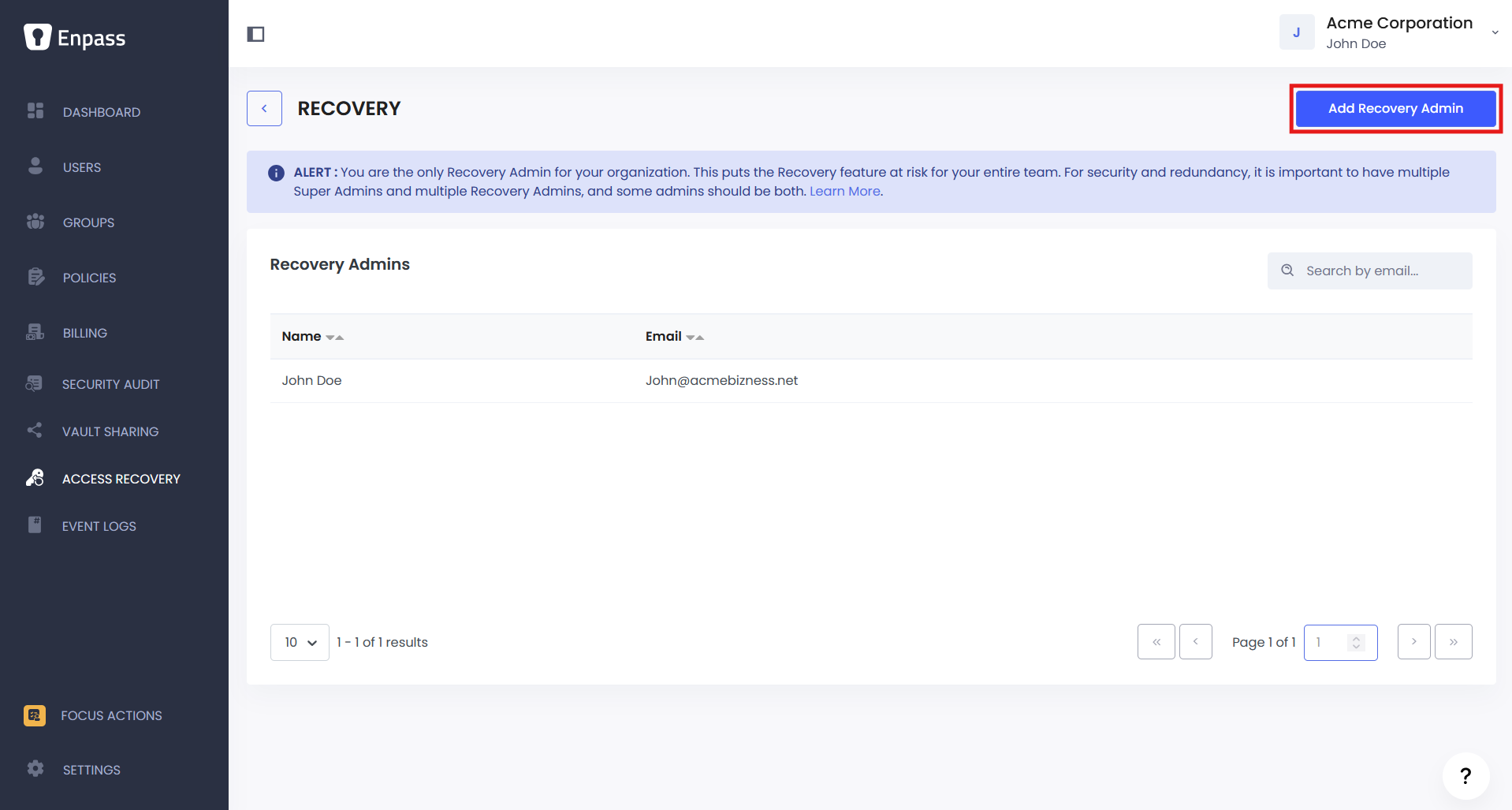
-
Enter the user's work email address and click Continue.
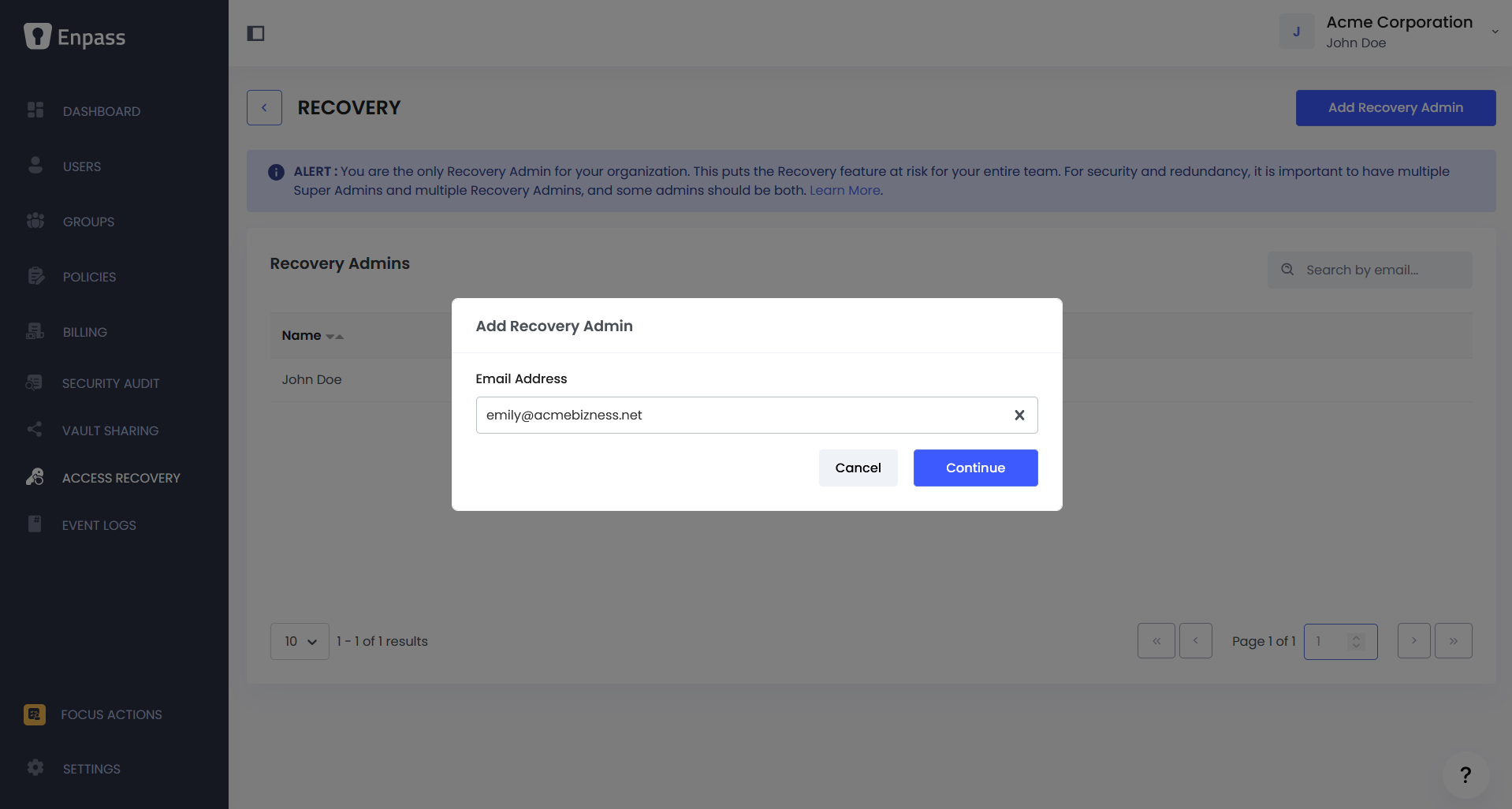
-
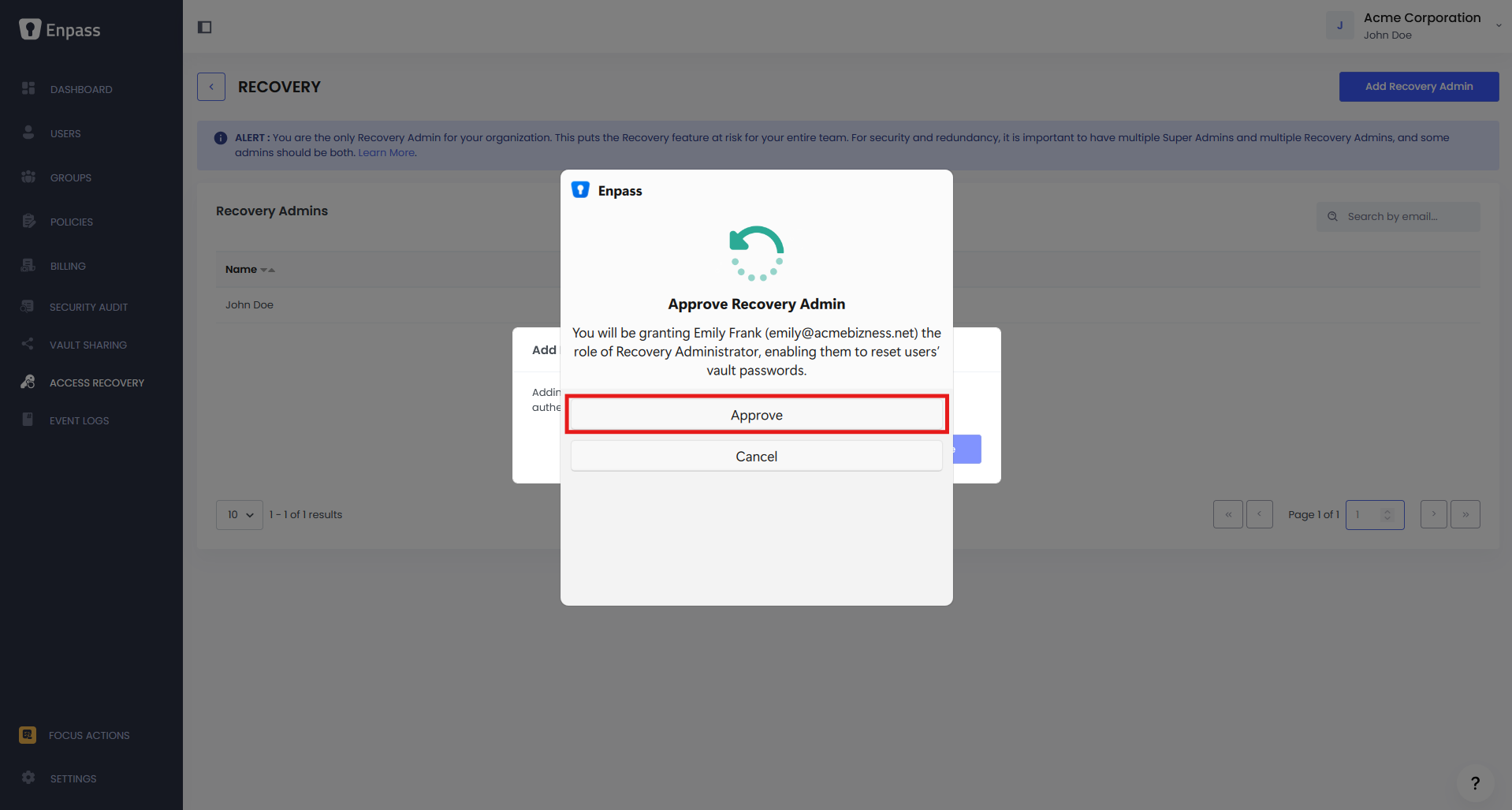
Your Enpass app will open a mini assistant window with an Approve Recovery Admin prompt. Review the details and click Approve.
-
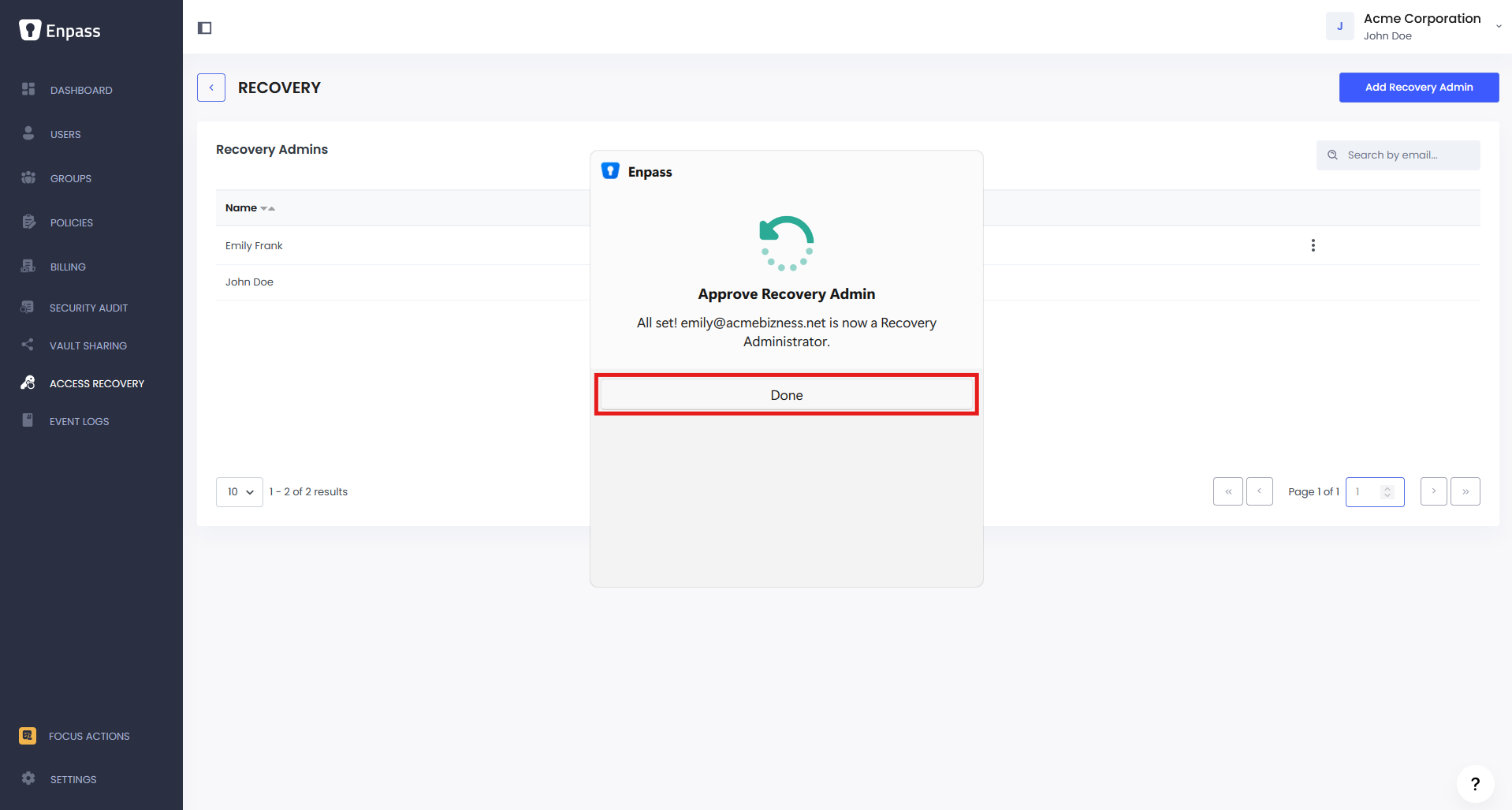
Once the mini window confirms the authorization, click Done.
-
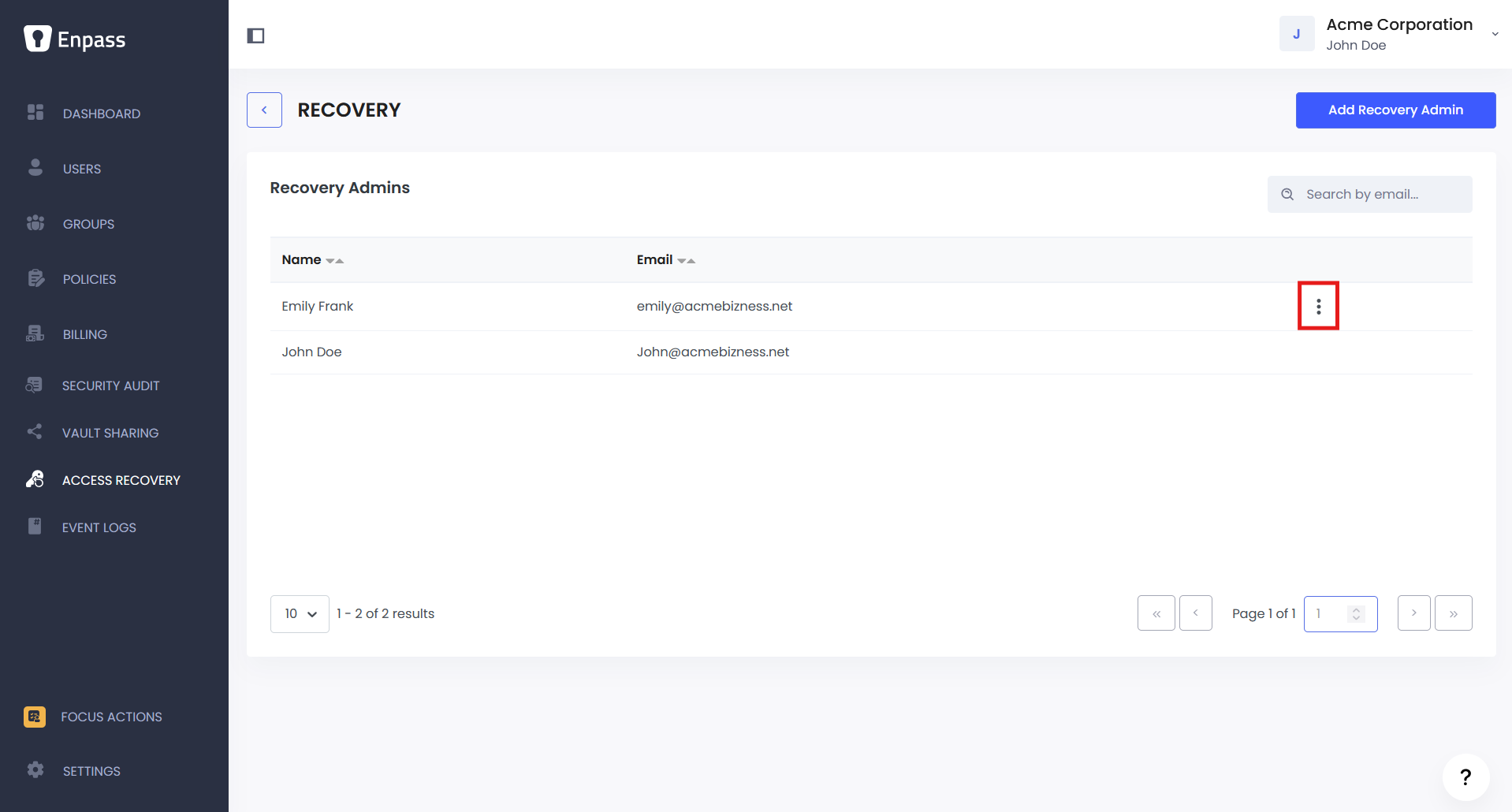
The newly authorized user now appears in the Recovery Admins list.
Removing a Recovery Admin
-
Go to Admin Console > Recovery.
-
Click Manage Recovery Admins.
-
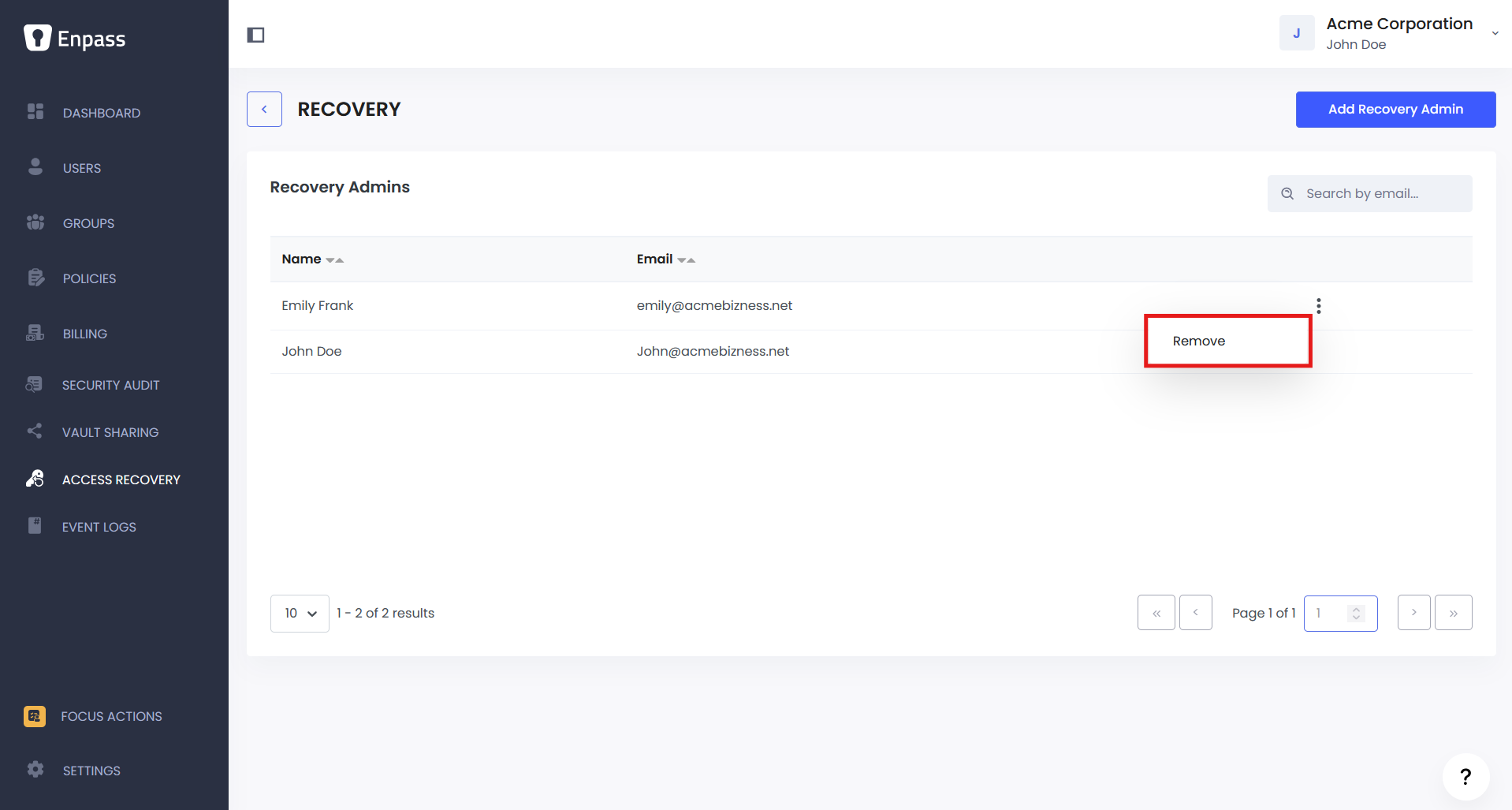
Click ⋮ beside the admin you want to remove, and select Remove.
-
Confirm by clicking Remove in the confirmation dialog.
The user's Recovery Admin permissions are revoked immediately.