.svg)
This page walks you through connecting AI agents to Enpass MCP from the Admin Console, including platform-specific configuration, agent authorization, and session management. Super Admin access is required to perform these actions.
Navigating to MCP Server
-
Log in to the Enpass Admin Console.
-
Navigate to Settings from the left panel.
-
Select MCP Server from the settings list to open the management screen.
Adding an Agent
-
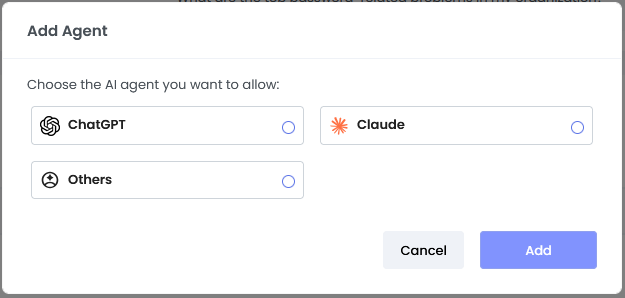
Click Add Agent to open the configuration panel.
-
Select the AI agent you want to connect and click Add.
The setup steps that follow depend on the platform you selected.
ChatGPT, Claude, and Others
-
Copy the MCP Server URL displayed on screen and use it to configure the Enpass connector in your chosen agent.
-
Enter the Redirect URL returned by your agent. For Others, also provide an Agent Name.
-
Click Add.
-
You will receive a Client ID and Client Secret for completing the OAuth 2.0 configuration in your agent.
Important: These credentials are shown only once. Copy and store them securely immediately — they cannot be retrieved after the pop-up closes.
-
Click Done. The agent will now appear in the Agents table.
Authorizing an Agent
Before your AI agent can query Enpass data, it must be authorized once by a Super Admin. The agent will prompt you to authorize it either after successful configuration or when it first attempts to access relevant data.
To authorize, log in to the Admin Console when prompted and approve the access request.
Deleting an Agent
Deleting an agent immediately and permanently revokes its access to your organization's Enpass data.
-
In the Agents table, click the Menu (⋮) icon next to the agent you want to remove.
-
Select Delete agent.
-
Confirm the action in the pop-up by clicking Delete.
-
A confirmation banner will appear once the agent has been successfully deleted.
Managing Agent Sessions
You can view and manage active user sessions for each agent.
View Sessions
In the Agents table, click the Menu (⋮) icon next to an agent and select View details, or simply click the agent row directly to see all active sessions.
Delete a Session
Deleting a session revokes Enpass data access for a specific admin on a specific device.
-
In the session table, click the Menu (⋮) icon next to the session you want to end.
-
Select Delete session.
-
Confirm the action in the pop-up by clicking Delete.
-
A confirmation banner will appear once the session has been successfully deleted.
Note: Session deletion is not available for Microsoft Security Copilot.
Self-Hosted Deployments
If you are running a self-hosted Enpass deployment, provide your own server URL when prompted during agent setup.