.svg)
Enpass offers two ways to add users to your organization — manually through the Admin Console, or automatically via an Identity Provider (IdP) using SCIM. This page covers manual provisioning. If your organization uses an IdP, see Sync Users from Your Identity Provider.
Provisioning Users Manually
Manual provisioning is suitable for smaller teams or organizations that do not use a centralized Identity Provider.
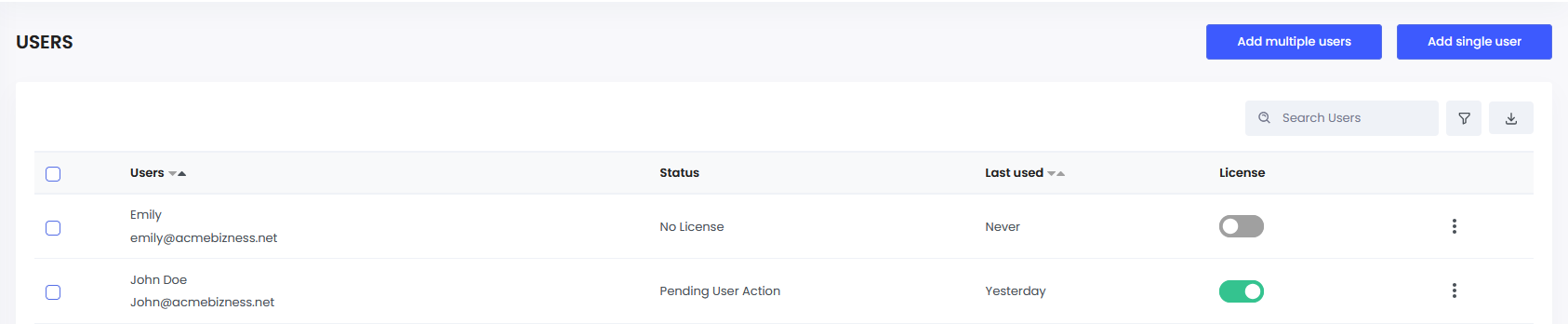
Adding a Single User
-
Log in to the Enpass Admin Console with an administrator account.
-
Navigate to Users in the left sidebar.
-
Click Add Single User.
-
Select the Activate User checkbox.
-
Fill in the user's name and email address.
-
Click Add.
The user will receive an invitation email with instructions to set up their Enpass account.
Adding Multiple Users
-
Prepare a CSV file containing users' names and email addresses.
-
Navigate to Users in the Admin Console.
-
Click Add Multiple Users.
-
Click Browse, then locate and select your CSV file.
-
Select the Activate Users checkbox.
-
Click Add.
Provisioning Business Users from an Identity Provider
If your organization uses a centralized Identity Provider (IdP), Enpass supports automated provisioning and deprovisioning via SCIM. This keeps your Enpass user list in sync with your directory automatically.
→ Sync Users from Your Identity Provider